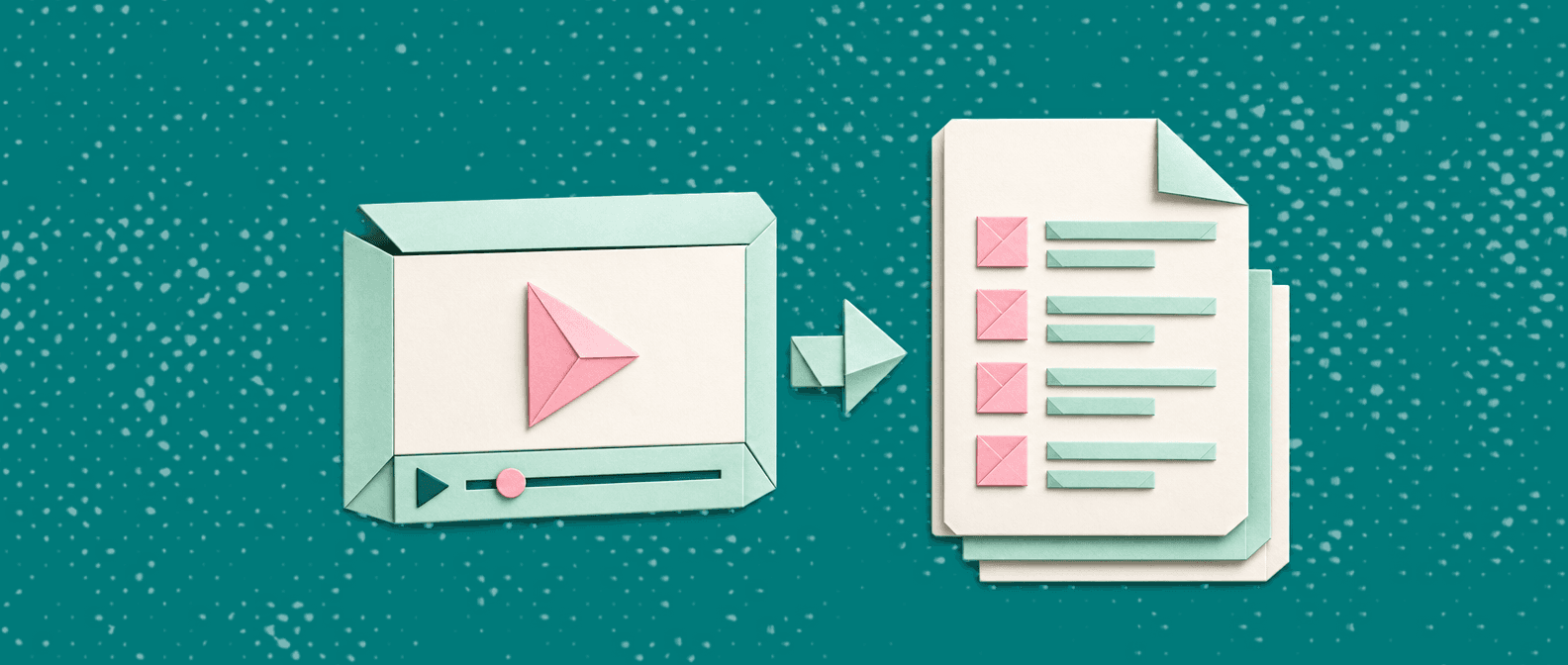
Every team has processes that live in someone's head or a screen recording no one rewatches. Creating SOPs from video fixes that: you record the workflow once, then turn it into a step-by-step document your team can actually follow.
This guide covers the full process: how to record, how to convert video into a usable SOP, a copy-paste template, a real example, and a tools comparison. Whether you do it manually or use video-to-SOP software, the workflow is the same.
Quick answer
- Record the workflow once. Narrate decisions, not just clicks.
- Define what "done" looks like before you start writing.
- Extract step moments from the recording and rewrite them as numbered, single-action steps.
- Add prerequisites, validation checks, and a rollback plan.
- Use screenshots only where they prevent mistakes.
- Ship v1 and refine based on the first questions people ask.
What is an SOP from video?
An SOP (Standard Operating Procedure) from video is a written, repeatable procedure created by capturing a process on-screen first, then converting that recording into a structured document with steps, screenshots, and edge cases.
The video is the source of truth for what happened. The SOP is the source of truth for what people should do.
This is different from a transcript. Transcripts capture what was said. SOPs capture what must be done. A transcript doesn't include prerequisites, decision points, or verification steps. An SOP does. For more on document types, see SOP vs work instruction vs process doc.
Turn Any Recording into a Structured SOP
Upload a screen recording and get a step-by-step guide with screenshots, AI voiceover, and subtitles, automatically.
Try the Video-to-SOP WorkflowHow to record for better SOPs
Good SOPs start with good recordings. A few habits during recording save significant editing time later.
Before you record:
- Write a one-sentence goal: "In this video we'll…"
- Open all tabs and tools you'll need (reduce switching noise)
- Increase zoom to 110–125% so UI labels are readable on screenshots
- Confirm you're in the right environment (staging vs production)
While recording:
- Narrate intent, not just clicks ("We're selecting X because it prevents duplicates")
- Pause 1–2 seconds between major steps, which makes step extraction easier
- Say exact UI labels aloud ("Click Settings → Billing")
- Call out edge cases ("If you don't see this button, you may lack admin permissions")
After recording:
- Write down the expected end state
- Note any sensitive data shown (to redact later)
Aim for 2–8 minutes per SOP. Longer recordings usually mean you're covering multiple procedures, so split them. If you need a recorder, see our best screen recording software roundup.
Step-by-step: creating an SOP from video
This process works for product workflows, support runbooks, internal ops, and onboarding tasks.
Step 1: Define the outcome and scope
Write two lines before you do anything else:
- Outcome: What is true when the procedure is complete?
- Scope: What's included, what's excluded, and for which team?
Example: Outcome: "Customer receives a password reset email." Scope: "Self-serve accounts only; excludes SSO customers."
This prevents the classic SOP failure: a long document that never states what success looks like.
Step 2: Extract and prune the transcript
Start from a transcript (manual notes, your recording tool's transcript, or AI-generated subtitles), then prune:
- Remove filler ("um", "okay", small talk)
- Keep exact UI labels and critical warnings
- Keep decision criteria (why you chose option A vs B)
Step 3: Identify the step moments
Watch the recording at 1.25–1.5x speed and mark every moment where the person:
- Clicks a navigation item
- Changes a setting
- Enters required data
- Confirms an action (Save, Publish, Send)
- Validates the outcome
These become your steps. You're building a runnable checklist, not a narrative.
Step 4: Rewrite into numbered, single-action steps
For each step moment:
- Start with a verb: Open, Click, Enter, Select, Verify
- One action per step
- Add a Result: line where the outcome isn't obvious
- Name exact UI labels (button text, menu items, field names)
Include guardrails for risky actions (deletes, revocations, refunds).
Step 5: Add prerequisites and inputs
Most SOP failures happen before step 1. Include:
- Required roles and permissions
- Accounts and tools needed
- Inputs (URLs, IDs, CSVs, email addresses)
- "Do not do" warnings (production-only actions, destructive operations)
Step 6: Add validation and rollback
At minimum:
- Verification: How to confirm success (what you should see on screen, what notification should arrive, what downstream system should update)
- Rollback: What to do if something went wrong (revert setting, contact owner, escalation path)
This is what turns a "how-to" into an operations-grade SOP.
Step 7: Add screenshots selectively
Use screenshots for:
- Dense settings pages where the right option is hard to find
- Ambiguous buttons (two similar "Save" areas)
- Critical destructive actions ("point of no return" moments)
- Fields with confusing names
Skip screenshots for obvious clicks ("Click Save" on a giant Save button) and pages that change weekly, since they'll go stale fast. For a full walkthrough on extracting screenshots from recordings, see how to turn a screen recording into a step-by-step guide.
Step 8: Ship v1 and harden with real usage
Don't wait for perfection. Publish v1, then collect:
- The first 3 questions people ask
- The first 2 mistakes people make
Update the SOP with one clarifying screenshot, one explicit warning, and one example value. These targeted additions do more than any upfront polish.
Real example: SOP from a screen recording
Scenario: A Customer Support lead needs an onboarding SOP for new agents, such as "How to update a customer's plan in the admin dashboard."
Recording: A 4-minute screen walkthrough showing the search, plan change, and confirmation steps.
SOP: Update a Customer's Plan
Purpose: Change a customer from Basic → Pro after payment confirmation.
Owner: Support (Tier 2)
Prerequisites:
- Admin dashboard access
- Customer email or account ID
- Confirmation that payment cleared (from billing tool or finance note)
Steps:
- Open the Admin Dashboard.
- Navigate to Customers.
- Search for the customer by email.
- Click the customer record to open details.
- In Subscription, click Change Plan.
- Select the target plan (e.g., Pro Annual).
- Confirm whether to apply immediately or at renewal (follow team policy).
- Click Save.
- Add an internal note: "Plan changed to Pro Annual on YYYY-MM-DD by [name] (payment confirmed)."
Verification:
- Customer record shows the new plan name
- "Next invoice" section matches expectations
- Confirmation email was sent (or note if it should not be sent)
Rollback:
- If you selected the wrong plan, change it back immediately and document the correction
- If unexpected billing behavior occurs, escalate to billing owner with customer ID and timestamp
SOP template (copy-paste)
Use this for consistency across teams.
## SOP: [Procedure name]

**Purpose:** [What this procedure accomplishes, one sentence]

**Outcome:** [What is true when this is done correctly]

**Owner:** [Role/team responsible]

**Scope:** Includes: [what's covered] | Excludes: [what's not]

**When to use:** [Trigger or scenario]

**Last reviewed:** [YYYY-MM-DD]

### Prerequisites
- Access/permissions: [roles needed]
- Tools/accounts: [list]
- Inputs: [IDs, URLs, files, customer info]

### Steps
1. [Verb + action]. Result: [expected outcome]
2. [Verb + action]. Result: [expected outcome]
3. [Verb + action]. Result: [expected outcome]

> Decision point: If [condition], then [action]

### Validation
- You should see: [screen/state confirmation]
- You should receive: [email/notification]
- Downstream: [system that should update]

### Rollback / Escalation
- Rollback: [how to undo]
- Escalate to: [role/team] (include: [required info])

### Troubleshooting
- If [problem], then [fix]
- If [problem], then [fix]

### Revision history
- [Date]: [What changed], [Owner]
Quality checklist (before publishing)
Run through this before sharing with your team:
- Outcome/definition of done is explicit and measurable
- Owner role is defined
- Prerequisites include permissions, not just tools
- Inputs are listed (IDs, files, links)
- Steps are numbered; each step is one action
- UI labels match what the user will actually see
- Decision points are covered (if/then)
- Validation steps exist
- Rollback/escalation path is included
- Screenshots are used only where they reduce mistakes
- Readable in under 5 minutes
From Subtitles to SOPs, All from One Upload
Vidocu generates documentation, subtitles, voiceover, and translation from a single video. No extension required.
See How It WorksBest tools for creating SOPs from video
| Approach | Input | Auto Screenshots | Step Extraction | Video Output | Export |
|---|---|---|---|---|---|
| Manual (video + doc) | Any video | No | No | No | Whatever your doc tool supports |
| Transcript-first (Descript, Otter) | Audio/video | No | No | No | Text, subtitles |
| Step-capture (Scribe, Tango) | Browser extension | Yes (per-click) | Yes (click-based) | No | PDF, HTML, Confluence |
| Video-to-SOP (Vidocu) | Any video file | Yes (AI-selected) | Yes (AI-analyzed) | Yes | Markdown, PDF, HTML, KB |
Manual works for one-off processes but doesn't scale. Transcript-first tools are great for search but still require manual rewriting. Step-capture tools like Scribe and Tango automate screenshots per click but require a browser extension and don't produce video output.
Video-to-SOP tools like Vidocu accept any existing recording (Loom, OBS, QuickTime, Zoom) and generate both a structured SOP and a polished video with subtitles, voiceover, and translation. No extension needed, no re-recording required.
For a detailed comparison of all the tools, see our best video SOP software roundup.
FAQ
How long should an SOP be?
Long enough to be runnable and short enough to scan. Most effective SOPs are 8–20 steps. If yours is longer, you're probably covering multiple procedures, so split them.
How long should the source video be?
2–8 minutes per SOP. Longer recordings work but make step extraction harder, whether you do it manually or with AI. Record one procedure per video for the cleanest output.
Should the SOP include the video?
For onboarding and training, yes: the video provides flow and context that text alone can't. But the written steps should stand alone for someone who just needs to execute quickly.
Can I create SOPs from recordings I've already made?
Yes. Unlike step-capture tools (Scribe, Tango) that require recording through their extension, video-to-SOP tools like Vidocu work with any existing video file: Loom recordings, Zoom calls, screen captures, or training videos.
What's the fastest way to convert a video into an SOP?
Use a tool that handles step extraction and screenshot selection automatically. With Vidocu, you upload a recording and get a structured draft in minutes. Then you edit and refine, which is significantly faster than writing from scratch. For the broader documentation workflow, see AI video documentation.
How do I keep SOPs from going stale?
Add a "Last reviewed" date and assign an owner. Schedule lightweight reviews quarterly. When a UI changes, update only the specific steps and screenshots that reference it. Fewer screenshots = less maintenance.
Start creating SOPs from video
If you're documenting the same workflows repeatedly, the fastest improvement is reducing the manual work after recording. Vidocu analyzes your video and generates a structured SOP with steps, screenshots, and formatting, so you're editing instead of writing from scratch.

Written by
Daniel SternlichtDaniel Sternlicht is a tech entrepreneur and product builder focused on creating scalable web products. He is the Founder & CEO of Common Ninja, home to Widgets+, Embeddable, Brackets, and Vidocu - products that help businesses engage users, collect data, and build interactive web experiences across platforms.