
If you’re searching for the best screen recording software 2026, you’re probably trying to do one of three things: show how something works, prove what went wrong, or teach someone a repeatable process. The tools look similar on the surface, record a screen, capture audio, but the “right” choice depends on what happens after you hit Stop.
Answer in 30 seconds
- If you want to record your screen and get a help article automatically, grab the Vidocu Screen Recorder Chrome extension (free).
- If you need fast async demos + easy sharing, start with Loom.
- If you need clean, editable tutorials without a steep learning curve, pick Camtasia.
- If you need highest control and streaming-grade capture, use OBS Studio (but expect setup time).
- If you’re on Windows and want lightweight recording + quick trim, try ShareX (free).
- If your pain is “recording is easy, docs are slow,” record once and turn it into a help article/SOP with Vidocu.
- If you would rather not do the recording yourself, an AI Recorder performs the flow in a browser and records itself, then hands back the video and a written guide. See our AI screen recorder comparison for how those tools differ.
The shortlist (best picks)
These are the tools I’d put in front of a team today. Not because they’re perfect, because their tradeoffs are predictable.
-
Vidocu Screen Recorder, best for turning screen recordings into help articles and SOPs automatically
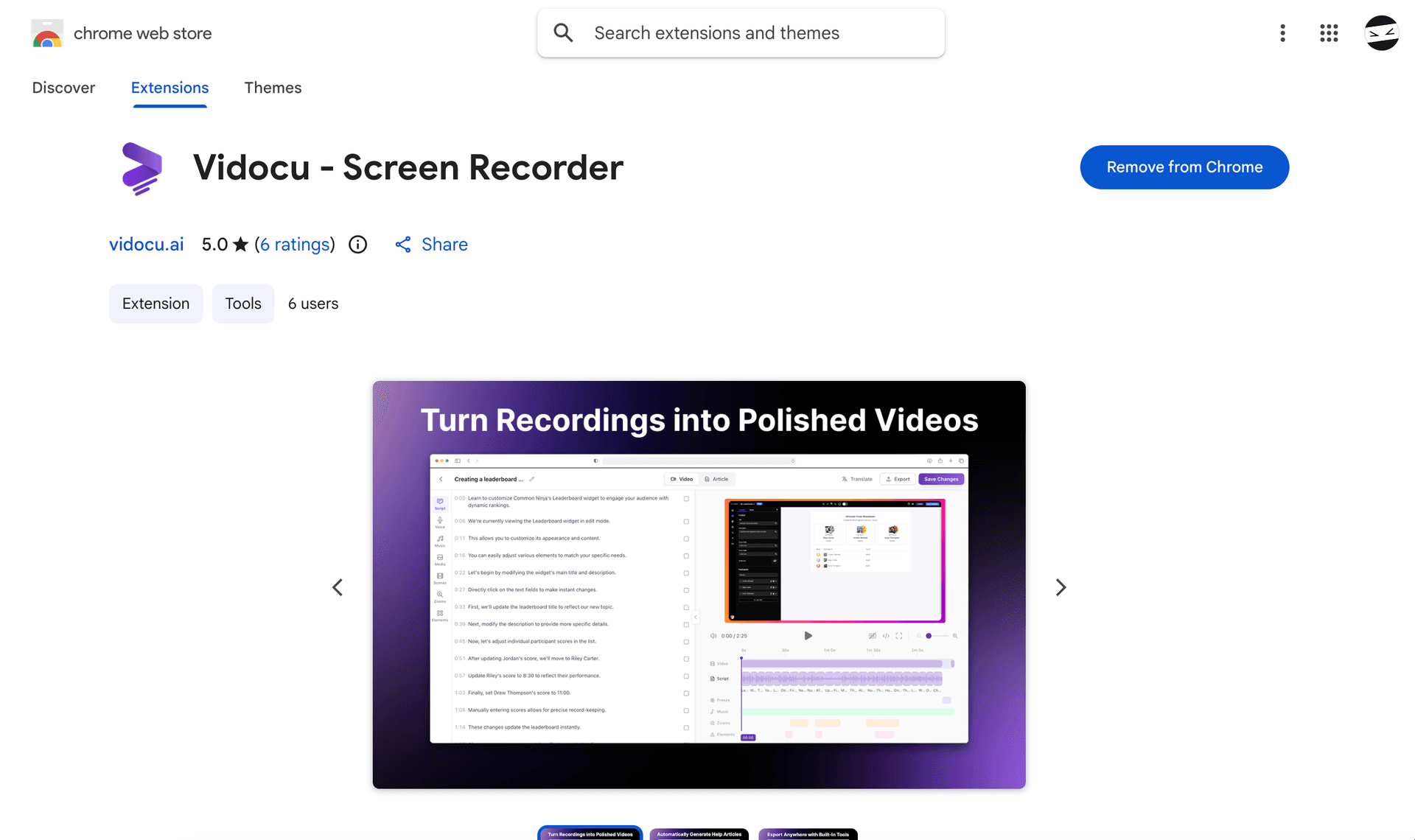 Record your screen, webcam, or both, then let Vidocu turn the recording into a step-by-step help article with auto-generated screenshots. No editing, no manual documentation. It's a free Chrome extension that captures in high quality and integrates directly with the Vidocu platform. The tradeoff: it's Chrome-only for now. Pick it if you want to skip the "record → write it up" grind entirely.
 -
Loom, best for quick product updates, bug repros, and internal explainers
 If your goal is “record → send → done,” Loom is hard to beat. Sharing is the whole point, and that reduces friction more than most people expect. The tradeoff: you’ll outgrow it if you need a real editing timeline or polished post-production. Avoid it if your org can’t use cloud sharing for compliance reasons.
 -
Camtasia, best for training videos you’ll reuse (and update)
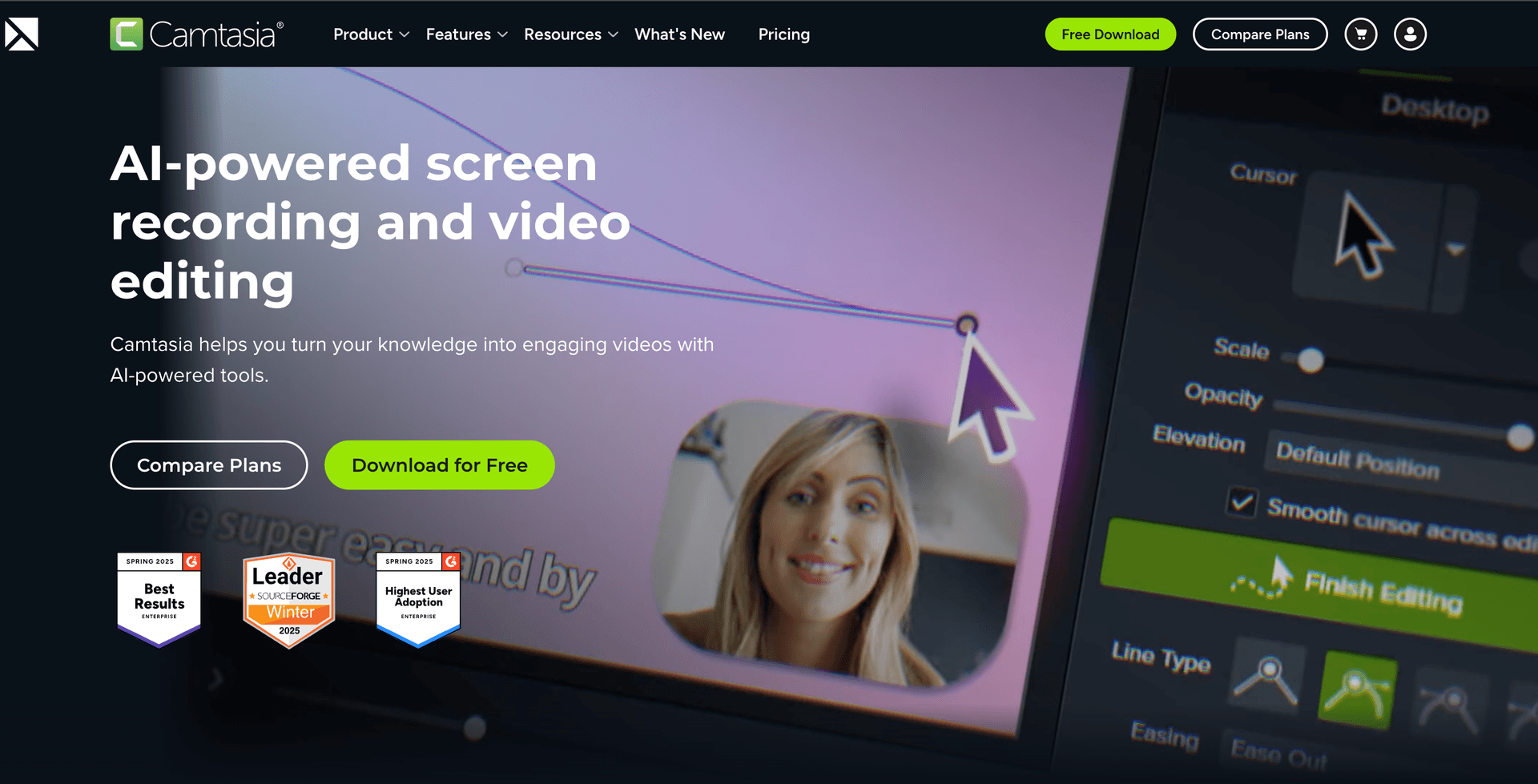 Camtasia is the practical middle ground: real editing, callouts, cursor effects, and enough polish for customer-facing tutorials. It’s also the tool I see teams stick with for years because it’s approachable. The tradeoff is cost and that it’s still “editing work” if you publish frequently. Avoid it if you want a free option or if you need advanced color/audio workflows.
 -
OBS Studio, best for power users and streaming-grade control
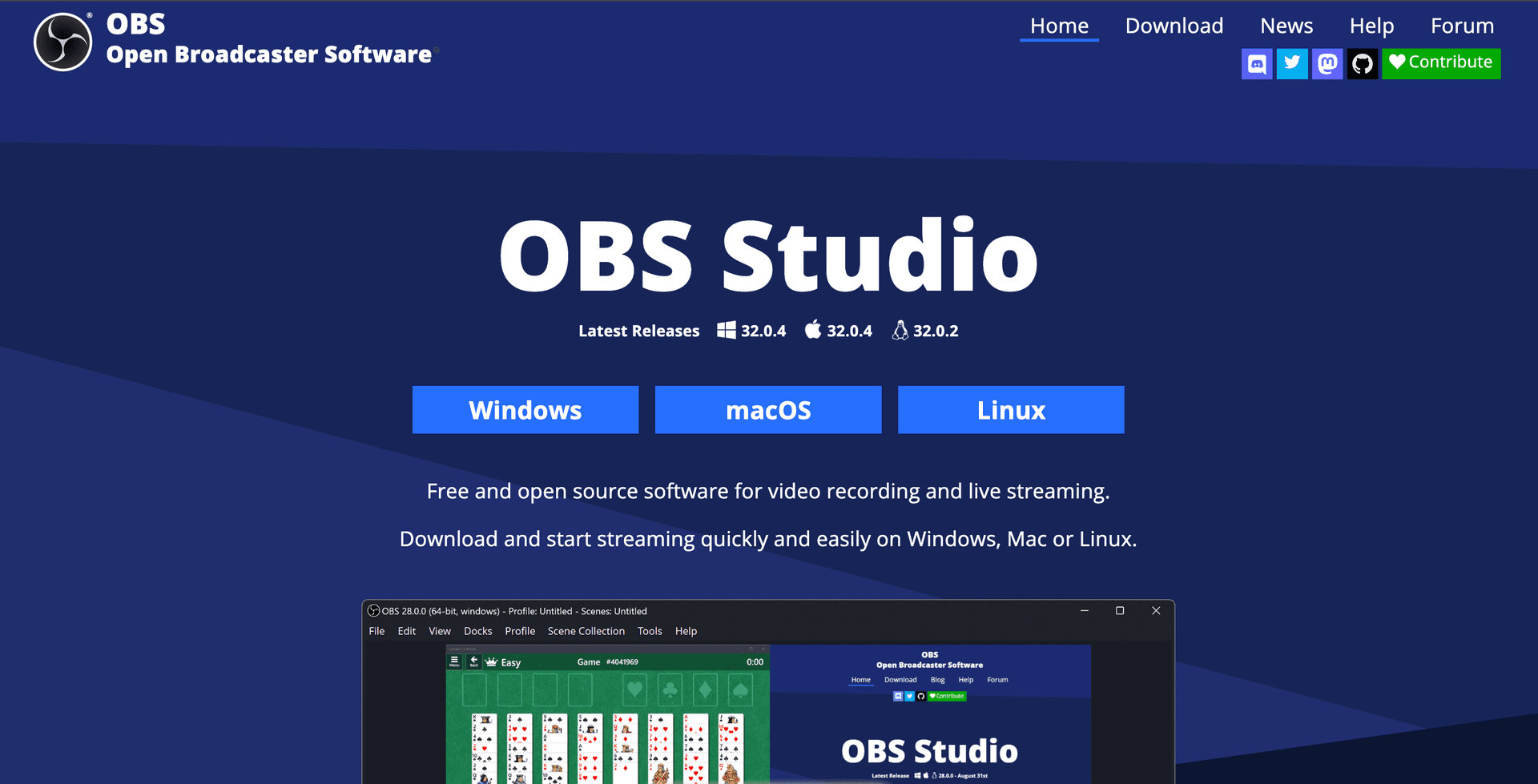 OBS is free, powerful, and insanely flexible once you understand scenes, sources, and audio routing. It’s great when you need consistent setups (webinars, live demos, multi-source capture). The tradeoff is complexity, if you’re not technical, you’ll spend time troubleshooting instead of shipping. Avoid it if your team needs “everyone can record today” simplicity.
 -
QuickTime Player (macOS), best for simple, no-install screen capture
 QuickTime is the underrated default: it’s already on most Macs, and it’s stable for straightforward recordings. The tradeoff is workflow: editing, sharing, and collaboration aren’t the point. Avoid it if you need team libraries, comments, or repeatable production.
 -
ShareX (Windows), best free utility for quick captures + lightweight trims
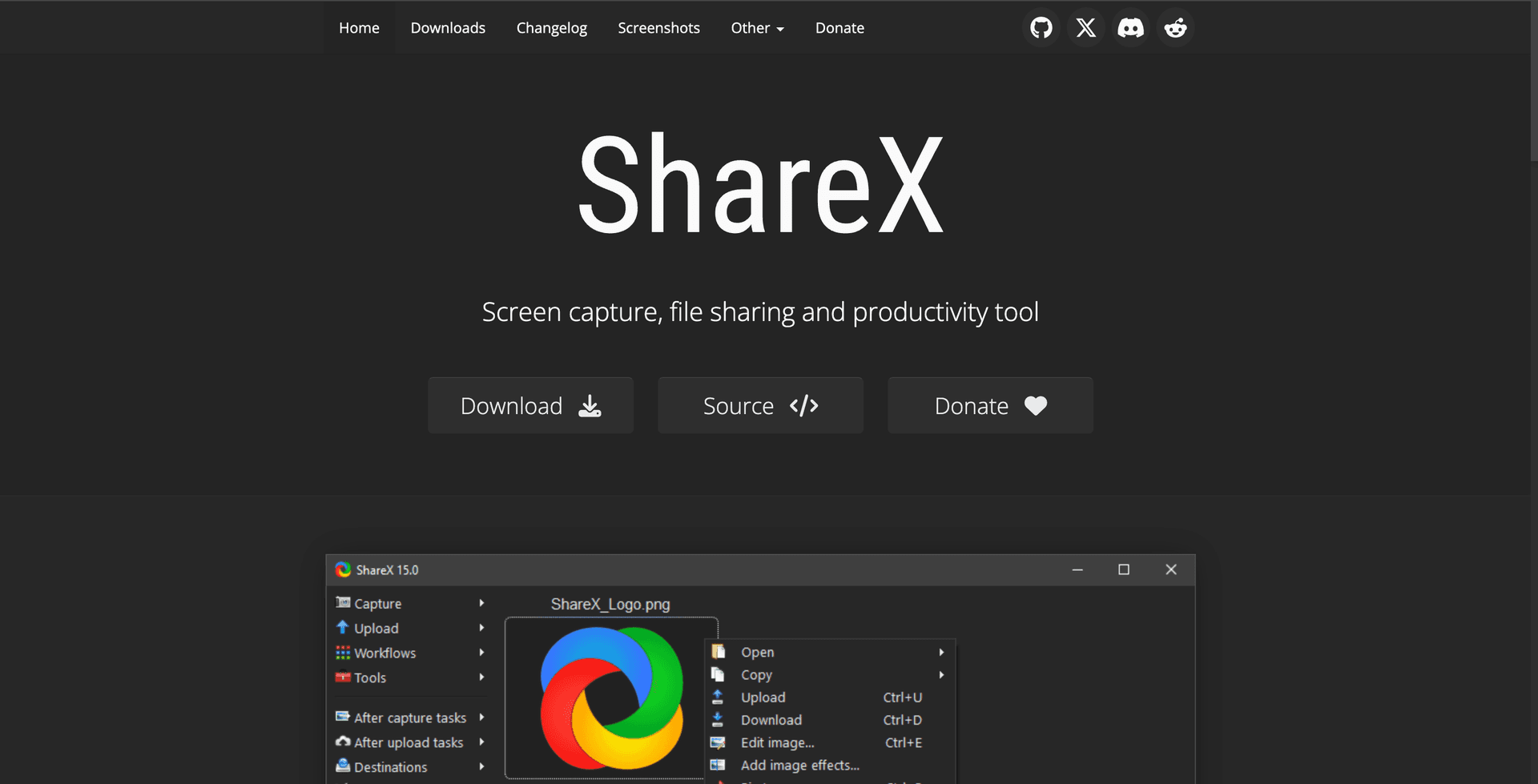 ShareX is a Swiss Army knife for Windows: screen recording, GIFs, screenshots, and fast sharing. It’s excellent for support teams who need “proof” quickly. The tradeoff is that it can feel like a toolbox rather than a guided app, and advanced editing isn’t the focus. Avoid it if you want one opinionated, polished workflow.
 -
ScreenPal (formerly Screencast-O-Matic), best for budget-friendly education and simple edits
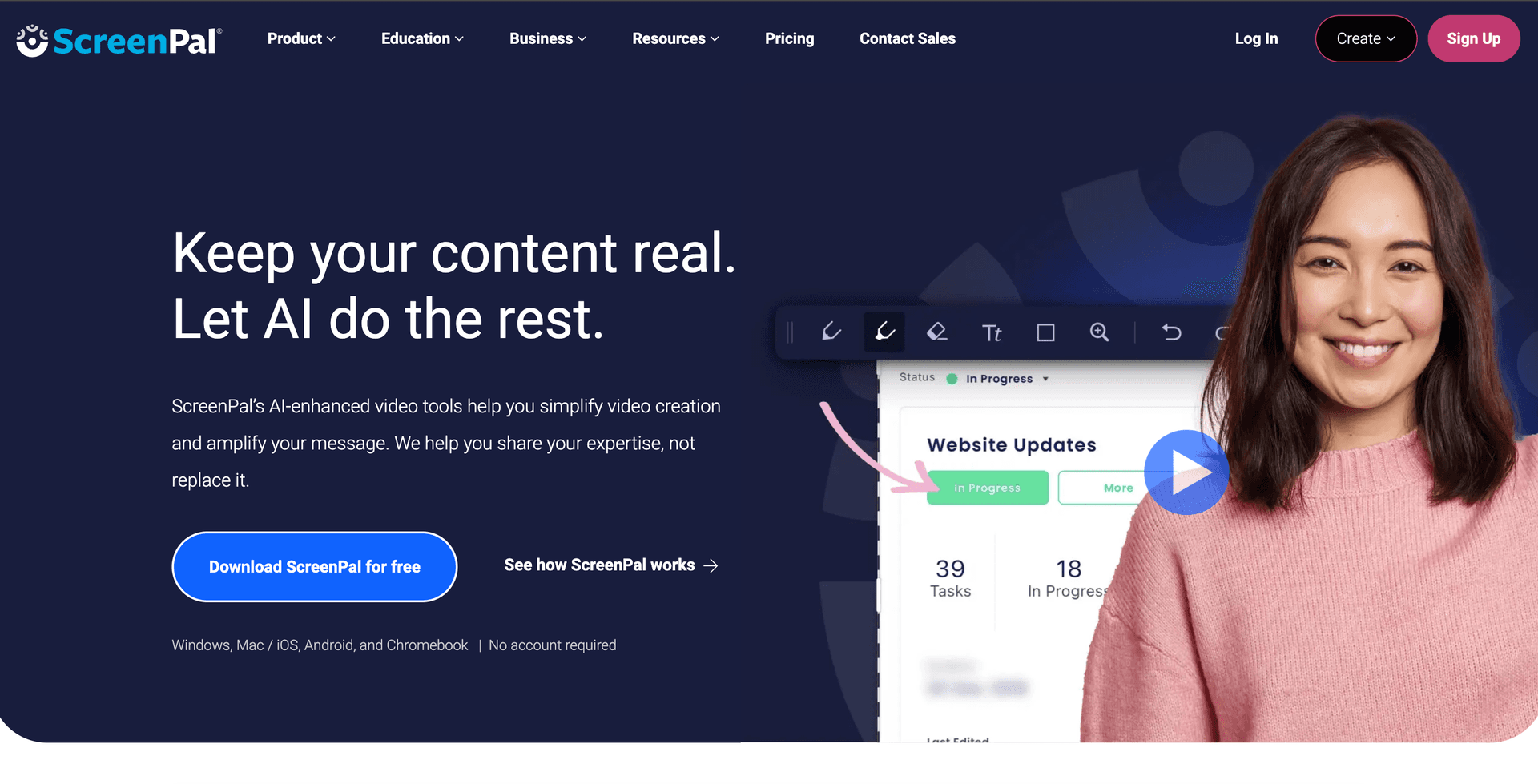 ScreenPal is a solid choice when you need basic recording plus just-enough editing and captions. It’s popular in education/training contexts for a reason: it’s straightforward. The tradeoff is that it’s not the most modern feeling tool for high-volume teams. Avoid it if you need deep collaboration workflows.
 -
Snagit, best for short clips + annotated visuals (not long trainings)
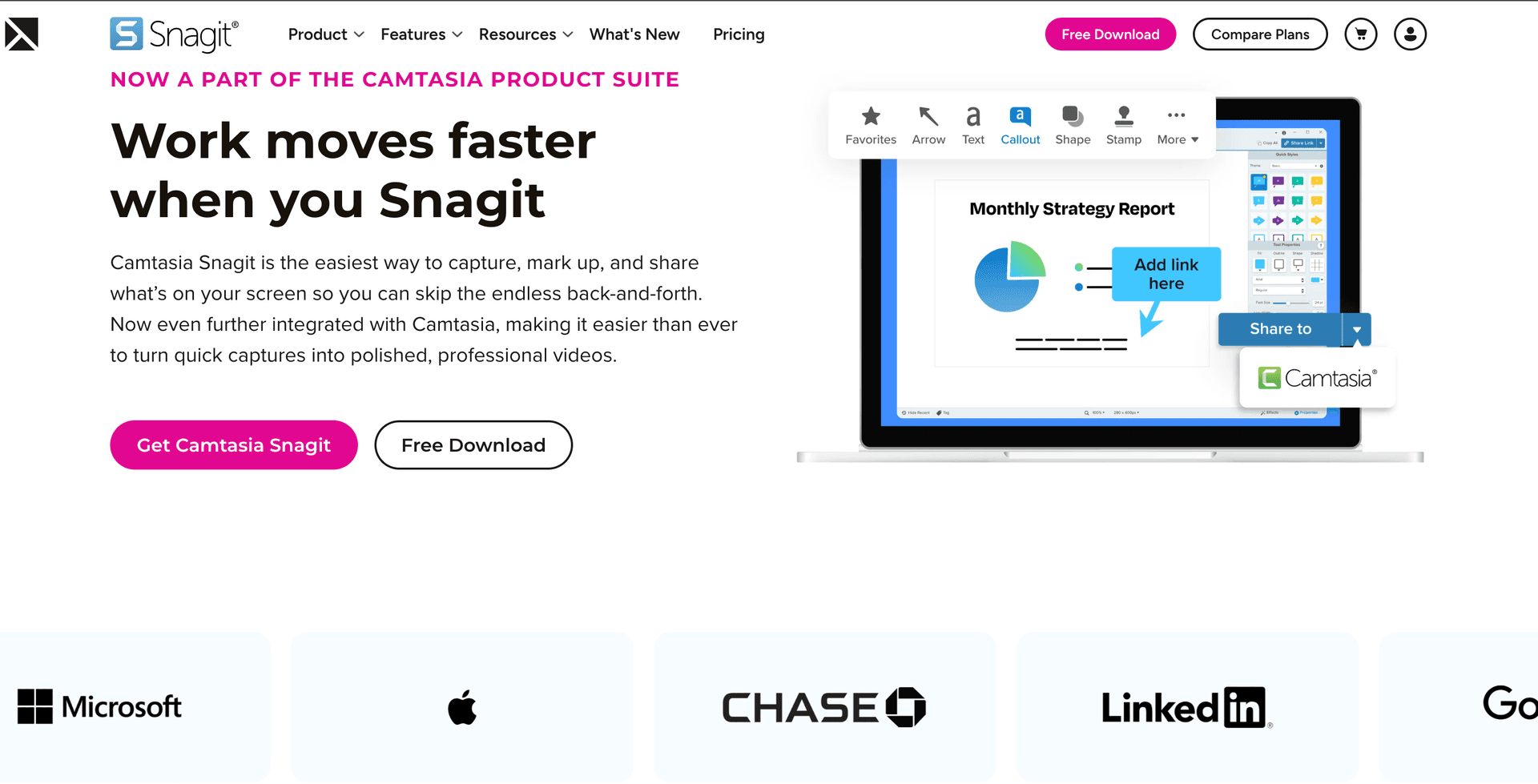 Snagit shines when the deliverable is a quick clip or a marked-up screenshot, not a 12-minute tutorial. It’s a support favorite for “here’s exactly where to click” moments. The tradeoff: you’ll hit limits for longer-form video and structured learning content. Avoid it if video is your primary output.
 -
Descript, best for talking-head + script-driven edits
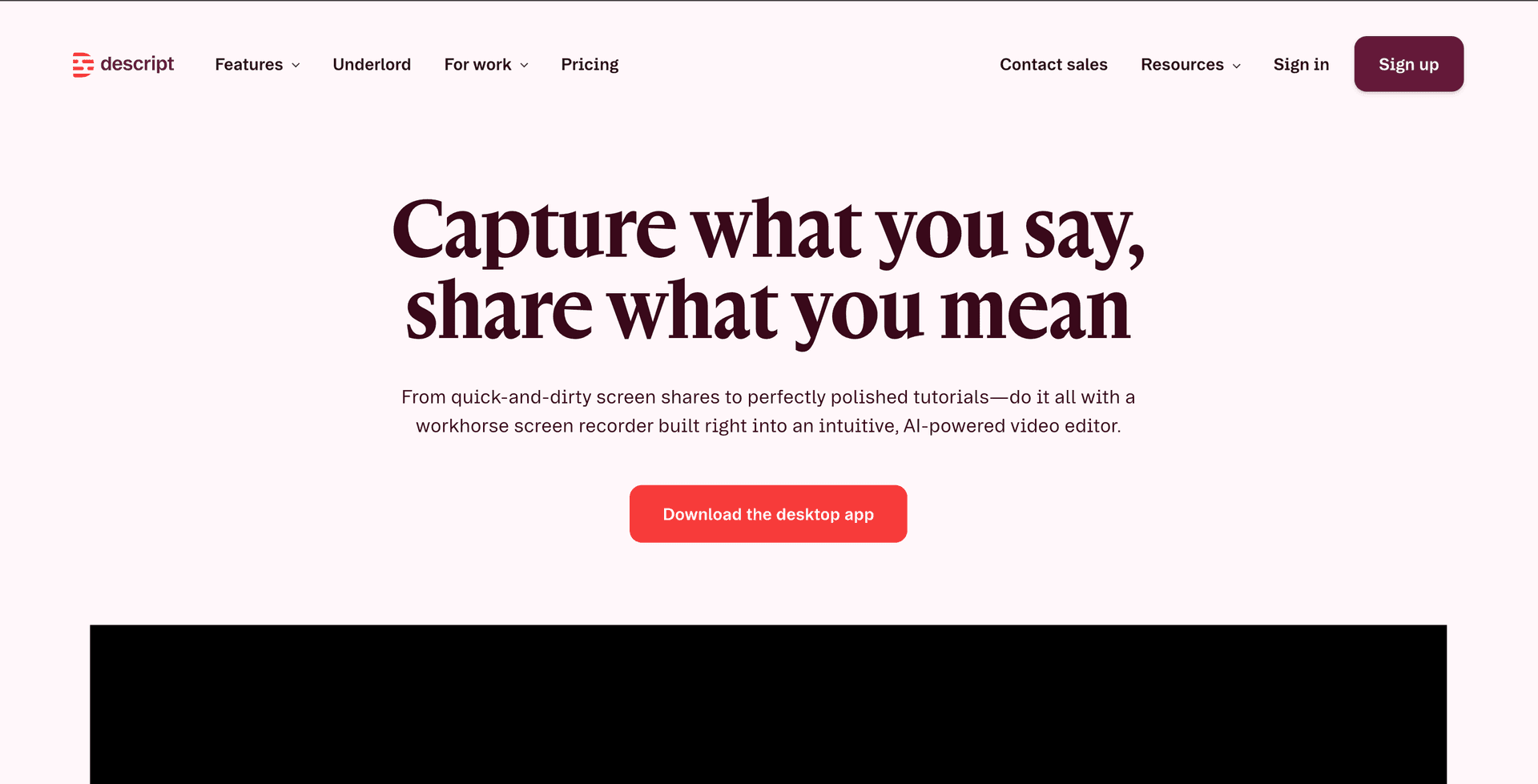 Descript is great if your workflow is “record a lot, edit by text, publish often.” It can speed up edits dramatically for creator-style content. The tradeoff is that it’s not a pure screen-recording-first tool, and you may still need another recorder depending on your setup. Avoid it if your priority is dead-simple capture for non-creators.
If the real bottleneck is “what happens after recording”…
Record your walkthrough once, then turn it into a publish-ready help article or SOP so teammates and customers can follow the steps without rewinding a video.
See how video → documentation worksPick your lane: choose based on your use case
1) Async product updates (PMs, sales engineers, internal comms)
Pick Loom if speed and sharing matter most.
If you also need the same recording to become something skimmable (steps + screenshots), plan the workflow upfront, either you’ll write it manually, or you’ll use something purpose-built for turning recordings into docs (more on that in the Vidocu section).
2) Customer support “show me the issue” + fast fixes
Pick ShareX (Windows) or QuickTime (Mac) for quick capture.
If your team is drowning in repeated answers, standardize the output as a short SOP. A video is great; a searchable step list is what reduces tickets.
3) Training and onboarding you’ll maintain over time
Pick Camtasia if you need polished tutorials and expect updates.
Tip: Record in smaller modules (2–5 minutes) so updates don’t force full re-records.
4) Webinars, live demos, multi-source capture
Pick OBS Studio for control.
Be honest about your team: if only one person can run OBS confidently, you’re building a single point of failure.
5) Creator-style content where editing speed matters
Pick Descript when the bottleneck is editing and revisions.
If you primarily need “press record and ship,” it can be overkill.
Comparison table (shortlist)
| Tool | Best for | Editing depth | Sharing/collab | Learning curve | Cost vibe |
|---|---|---|---|---|---|
| Vidocu Screen Recorder | Recording → instant docs | Medium | Strong | Low | Free (extension) |
| Loom | Fast async sharing | Light | Strong | Low | Freemium/paid |
| Camtasia | Polished training | High | Medium | Medium | Paid |
| OBS Studio | Control + streaming setups | Medium (via setup) | Low | High | Free |
| QuickTime | Basic Mac recording | Very light | Low | Very low | Free (built-in) |
| ShareX | Windows utility capture | Light | Medium | Medium | Free |
| ScreenPal | Budget training basics | Medium | Medium | Low–Medium | Free/paid |
| Snagit | Short clips + visuals | Light | Medium | Low | Paid |
| Descript | Text-based editing | High | Medium | Medium | Paid |
Tool notes (the rest, short and honest)
A few more that come up often, good tools, just not my default shortlist for most teams.
- Windows Game Bar (built-in): Convenient for quick capture, but limited controls and not designed for repeatable training workflows.
- VLC (recording via capture device/desktop): Handy in a pinch, but not an ergonomic screen recorder for teams.
- Browser extensions (various): Fine for quick, lightweight recordings. Tradeoff is reliability and limited audio/control.
If you’re specifically looking for no-cost options, start with a curated list of free tools and then decide what you’re willing to pay for (usually editing speed, team sharing, or consistency): see free recording and content tools.
How to choose in 3 minutes (checklist)
Use this when you’re picking for a team, not just yourself.
-
What’s the deliverable?
- Just a video link (choose sharing-first)
- A polished tutorial (choose timeline editing)
- A repeatable SOP/help article (choose a video-to-doc workflow)
-
Audio reality check
- Do you need system audio + mic + noise control?
- Are people recording in open offices? If yes, audio tools matter more than 4K.
-
Editing expectation
- If you publish weekly, “light edits” become a lot of hours.
- If you never edit, pick something that gets capture right the first time.
-
Sharing + permissions
- Can you share cloud links externally?
- Do you need comments, approvals, or a team library?
-
Standardization
- If you want consistent output across a team, avoid tools only one power user understands.
-
Total workflow time
- Recording is the easy part. Decide who owns subtitles, localization, screenshots, and step-by-step writeups.
FAQ
What should I look for in the best screen recording software in 2026?
Prioritize (1) reliable capture, (2) audio clarity, (3) a sharing workflow your org can actually use, and (4) whatever reduces your biggest time sink, editing, approvals, or turning videos into written instructions.
Is free screen recording software “good enough” for work?
Often, yes, for internal clips and quick support repros. The moment you need repeatable quality (templates, consistent audio, easy updates, collaboration), paid tools usually pay back time.
Do I need a video editor, or just a screen recorder?
If your videos are customer-facing or part of onboarding, you’ll want at least basic trimming, callouts, and cursor emphasis. If your team records constantly, consider reducing editing by producing clearer recordings and pairing them with written steps.
What’s the fastest way to turn a screen recording into documentation?
Either someone writes it manually (slow but precise) or you use a tool designed for converting a walkthrough into a structured article/SOP with steps and screenshots. If that’s your workflow, see video to SOP and AI video documentation.
Should I add subtitles to screen recordings?
If the video is used for training, support, or shared across teams/time zones, yes. Subtitles improve skimmability and reduce rewatching. If you want a dedicated workflow, see an AI subtitles generator.
What's the best screen recorder with audio for tutorials in 2026?
For tutorials specifically, you want a recorder that captures system audio and mic simultaneously with clear sync. OBS (free) handles this well but needs configuration. Loom and Vidocu capture audio cleanly out of the box. If your goal is turning the recording into a polished tutorial with subtitles and step-by-step documentation, tools like Vidocu save time by handling post-production automatically. And if Loom is the recorder you are actively trying to replace, the best Loom alternatives are compared head to head, free and paid.
Can I turn a screen recording into a step-by-step guide automatically?
Yes, this is one of the fastest-growing use cases in 2026. Upload your screen recording to Vidocu and it extracts key frames, generates written steps with screenshots, adds subtitles, and creates AI voiceover. The result is a complete tutorial package from a single recording. See our guide on turning screen recordings into documentation for the full workflow.
Related Vidocu workflows
- Turn a walkthrough into a help article your team can maintain: video to documentation
- Create repeatable internal procedures from recordings: video to SOP
- Add readable captions for training and support clips: AI subtitles generator
- Generate structured written docs from a single recording: AI video documentation
- Need more no-cost options around recording and content ops? Start here: free tools
Standardize recordings across a team (without policing everyone)
The easiest way to scale screen recordings is to standardize the output, clear steps, screenshots, and consistent formatting, so viewers don’t have to scrub through video.
See video → SOP workflowsTurn one video into an SOP in minutes
Vidocu helps you take a single screen recording and turn it into a step-by-step SOP with screenshots, so the “after recording” work doesn’t eat your week. See how it works with video to SOP.

Written by
Daniel SternlichtDaniel Sternlicht is a tech entrepreneur and product builder focused on creating scalable web products. He is the Founder & CEO of Common Ninja, home to Widgets+, Embeddable, Brackets, and Vidocu - products that help businesses engage users, collect data, and build interactive web experiences across platforms.