
Subtitle tools are everywhere, but the best subtitle generator 2026 isn’t the one with the longest feature list. It’s the one that produces accurate text fast, lets you fix the last 10% without pain, supports the languages you ship in, and gives you clean exports (SRT/VTT) that work everywhere.
This guide focuses on real workflow tradeoffs: accuracy vs. speed, editing vs. automation, and “good enough” captions vs. publish-ready subtitles.
Answer in 30 seconds
- If you need subtitles that are publish-ready fast and want to reuse the same video for other help content, start with Vidocu.
- If you already live inside a full video editor and you’re okay doing cleanup in a timeline, use Premiere Pro or Descript.
- If your team ships globally, prioritize tools with multi-language support and a sane review flow, don’t pick based on “# of languages” alone.
- If your deliverable is for the web, make sure you can export SRT and/or VTT (and that timing stays stable after edits).
What is a subtitle generator?
A subtitle generator is software that automatically transcribes spoken audio from a video and turns it into time-coded captions/subtitles, typically exportable as formats like SRT or VTT. Most tools also include an editor so you can fix names, product terms, and timing.
Banner-worthy reality: the “auto” part usually gets you close; the tool is judged by how quickly you can get from close to shippable.
If you’re captioning product videos, don’t stop at subtitles
The fastest teams record once and reuse the same video to create help content. Vidocu turns a single upload into accurate subtitles plus a step-by-step article, so you’re not rewriting the same walkthrough from scratch.
Try Vidocu subtitlesThe shortlist (best picks)
These are the tools I’d start with in 2026, depending on whether you care most about accuracy, editing speed, localization, or reusing the video for documentation.
-
Vidocu
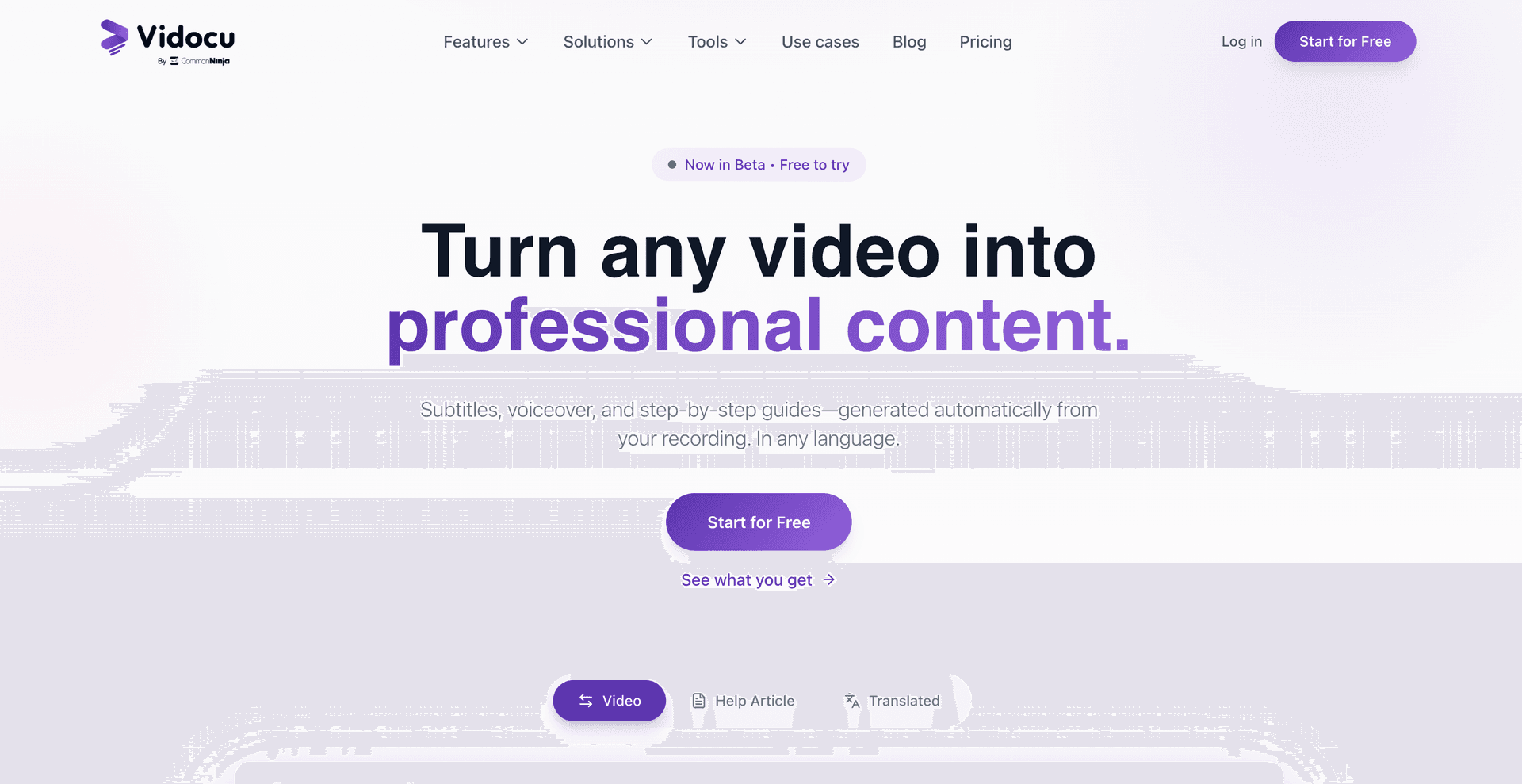 Best for: teams that want accurate subtitles and want to turn the same recording into publish-ready help content.
Vidocu is built around a simple idea: recording is fast, everything after is slow. You upload one video and generate subtitles, then reuse the output to produce other deliverables (like a step-by-step help article) without doing the same work twice. The tradeoff: if your entire workflow is a deep timeline editor for heavy creative cutting, you may still finish in a dedicated NLE.
Who should avoid it: filmmakers doing complex timeline-based post where subtitles are only a tiny final step.
-
Descript
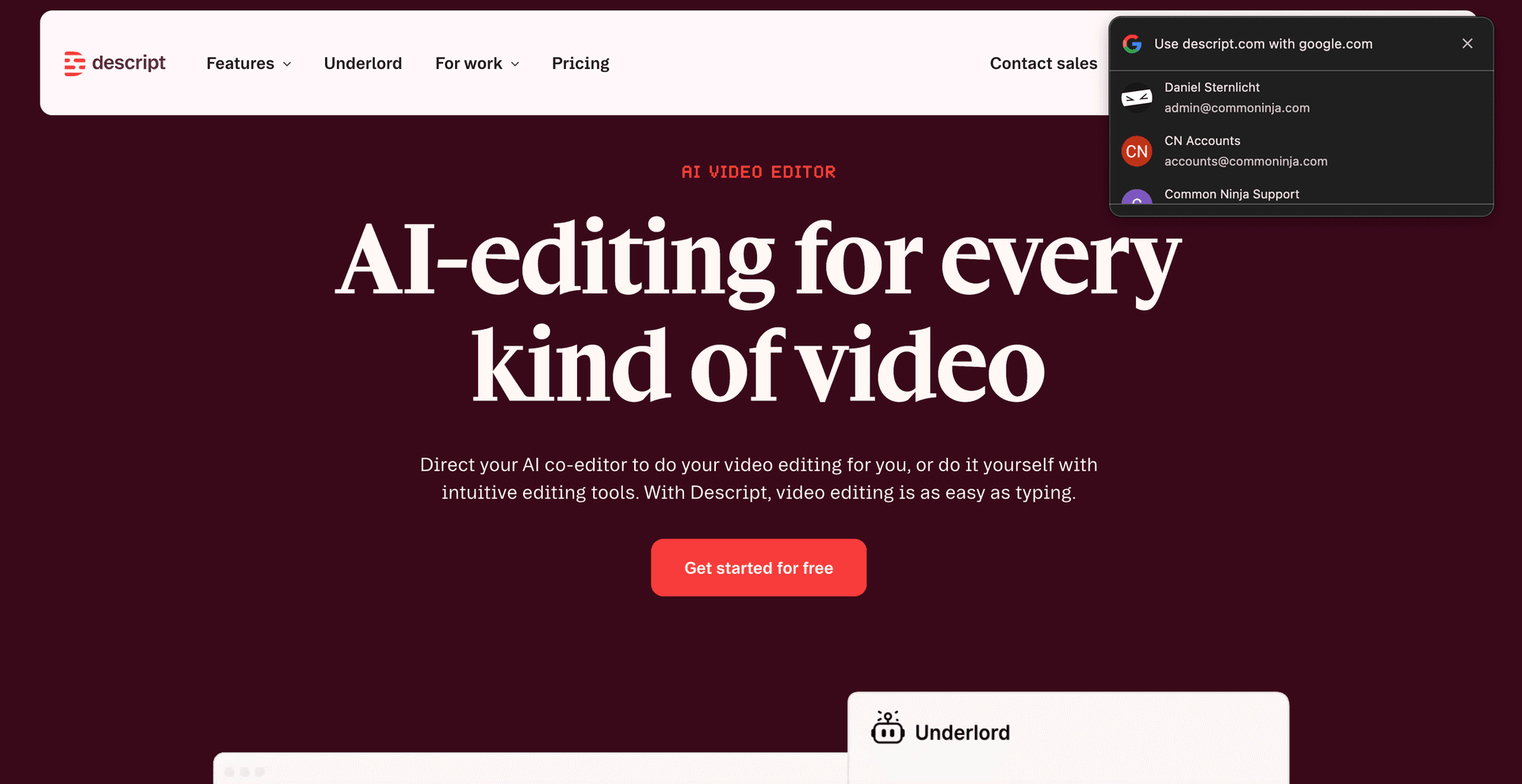 Best for: creators and teams that want a text-first editing experience.
Descript makes it easy to edit video by editing the transcript, which is great for fast cleanup and revisions. The tradeoff is that advanced subtitle styling and some broadcast-style requirements may still require additional tooling depending on your destination.
Who should avoid it: teams with strict enterprise compliance or very specific caption formatting requirements that need specialized workflows.
-
Adobe Premiere Pro (Speech to Text)
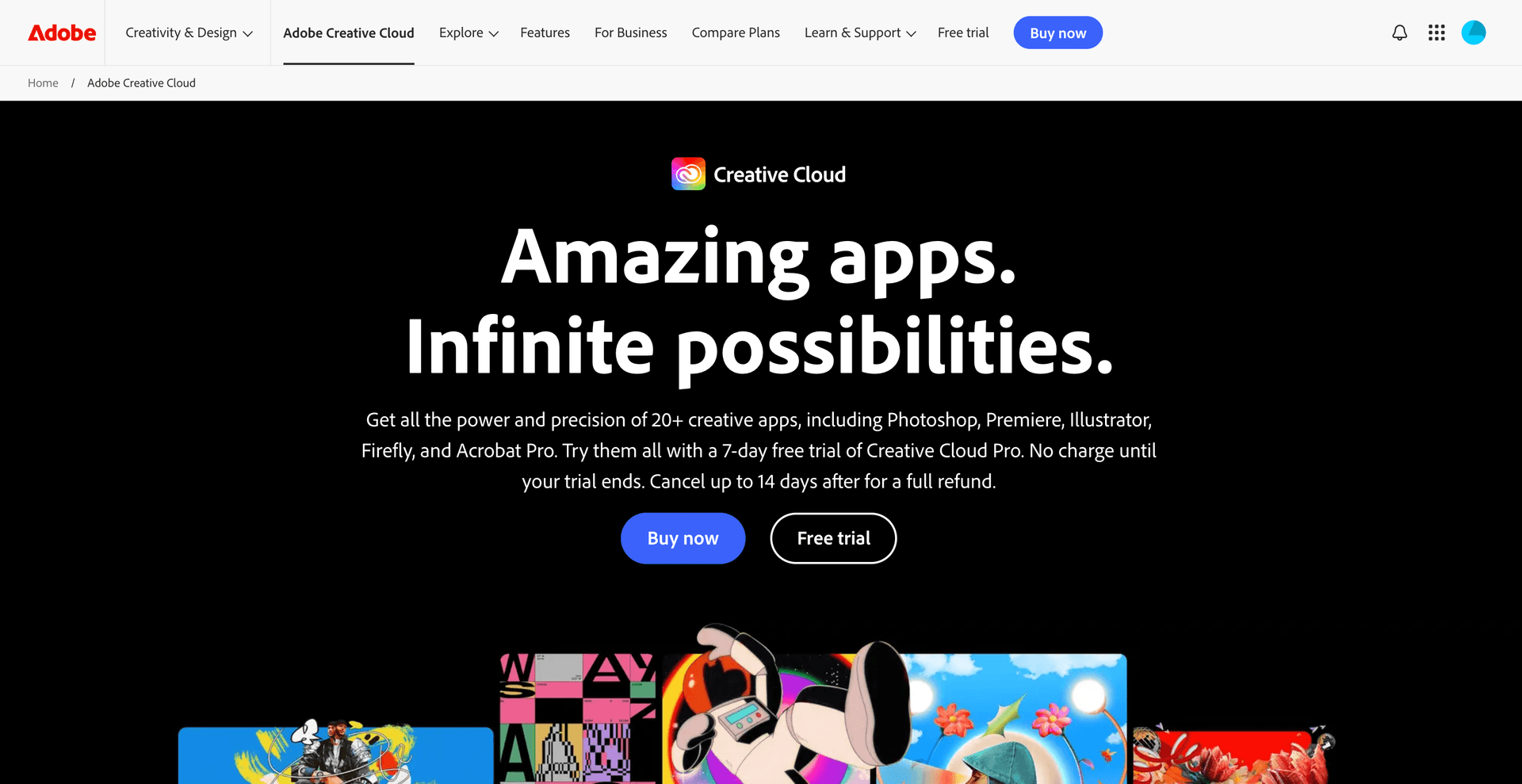 Best for: editors already working in Premiere who want subtitles inside the same timeline.
Premiere keeps captions close to the edit, which is helpful when timing changes frequently. The tradeoff is that non-editors often find it slower to review and fix lots of small text issues inside a timeline.
Who should avoid it: support/onboarding teams that don’t want to become “video editor people.”
-
Kapwing
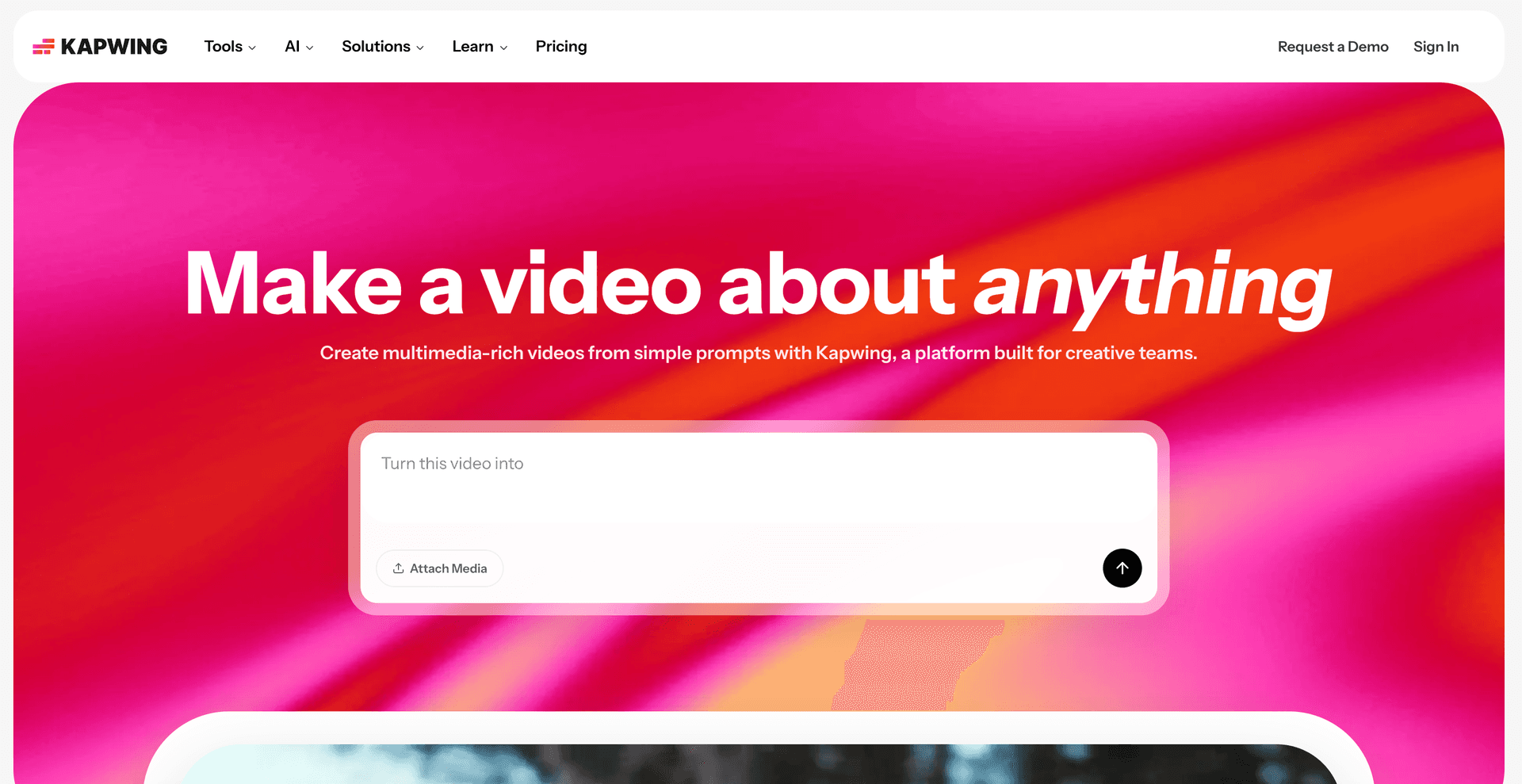 Best for: quick online subtitle generation and social video workflows.
Kapwing is friendly and fast for straightforward captioning, especially when the goal is short-form distribution. The tradeoff is that heavier review workflows (multiple stakeholders, strict terminology) can get tedious if you’re doing this every week.
Who should avoid it: teams that need a robust editorial pipeline or long-form training libraries.
-
VEED
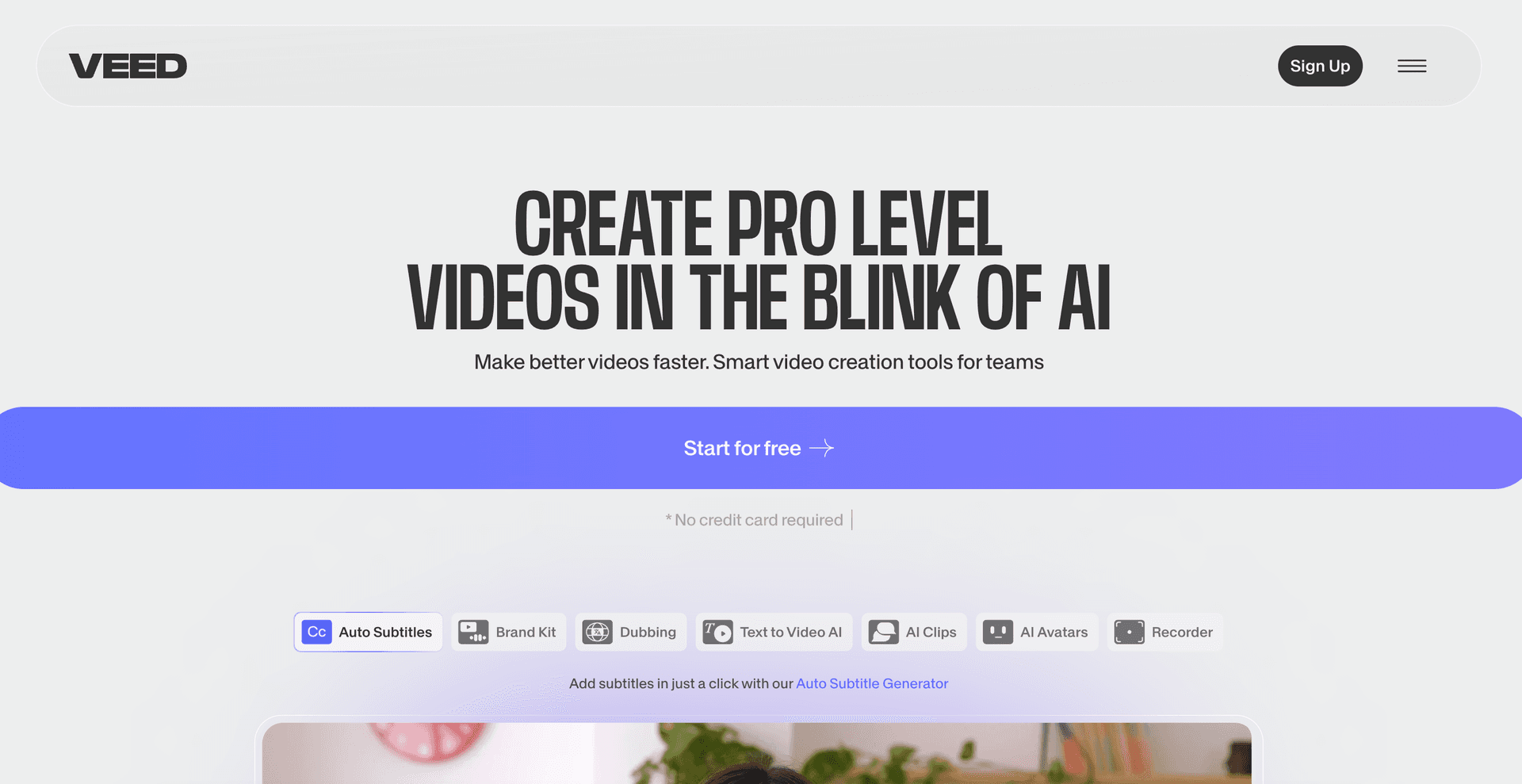 Best for: browser-based subtitling with an easy UI.
VEED is a common pick when you want “upload → caption → download” without installing anything. The tradeoff is that you should validate exports (SRT/VTT) with your actual players and platforms, some teams discover formatting quirks late.
Who should avoid it: anyone who needs highly controlled caption standards across many destinations.
-
Rev
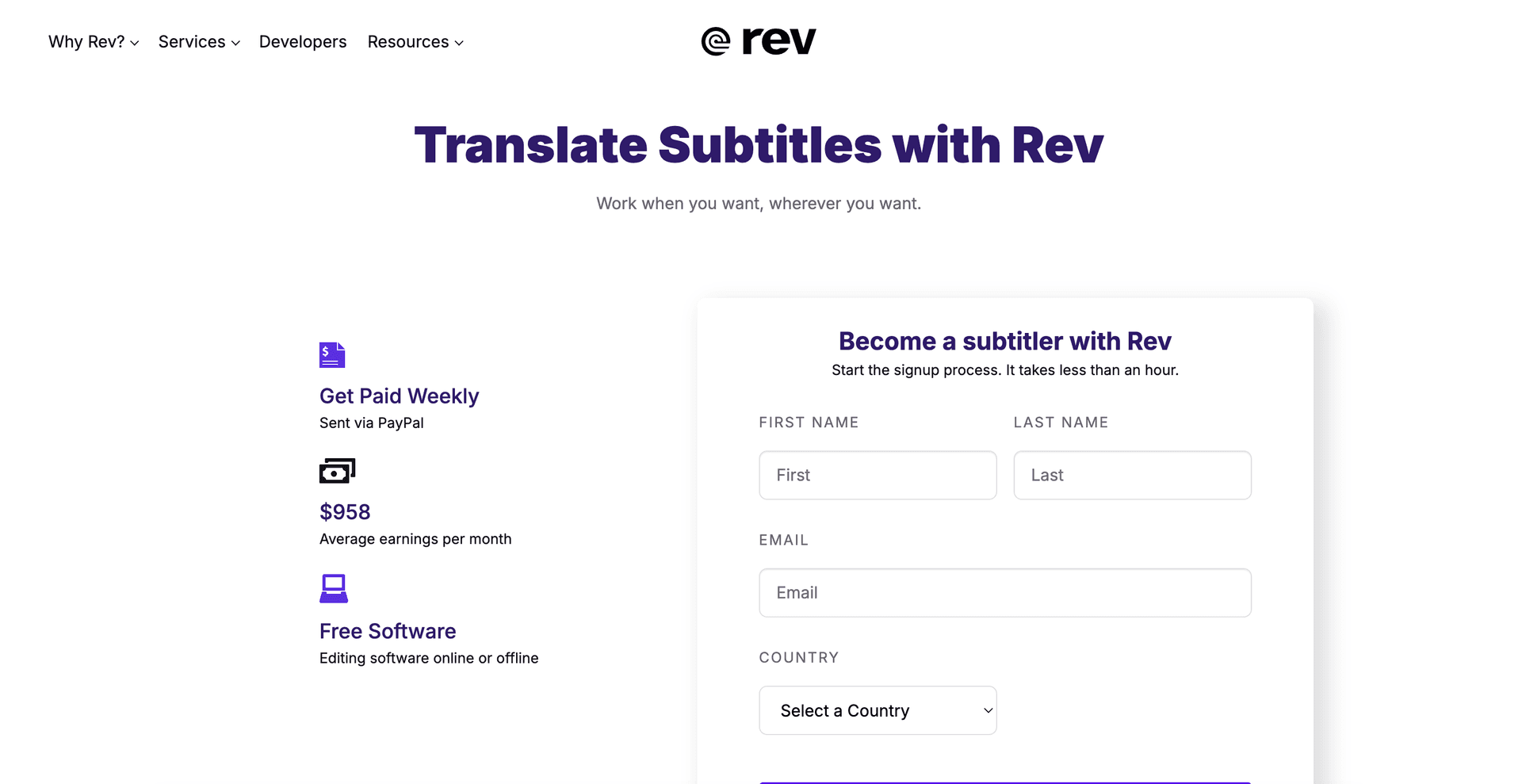 Best for: when you need human-reviewed captions and can trade time/cost for confidence.
Rev is often used when accuracy requirements are strict and you want a more service-led approach. The tradeoff is turnaround time and cost compared to self-serve tools.
Who should avoid it: teams trying to caption lots of internal videos on a tight cadence.
Pick your lane: choose based on your use case
1) Product demos and release walkthroughs (PMM / Product)
Pick: Vidocu or Descript.
If you publish the demo and need the written version (release notes-style help article), Vidocu saves you from duplicating effort. If you’re iterating the script constantly and want to cut by editing words, Descript is a strong fit.
2) Help center tutorials (Support / CX)
Pick: Vidocu.
Support teams usually don’t just need captions, they need a repeatable way to ship consistent help content. If that sounds like you, start with Vidocu and use the subtitle output as the source of truth for the article.
Tip: if you need a quick way to generate subtitles without committing to a big workflow, you can also use Vidocu’s free subtitle creator for lightweight jobs.
3) Weekly training for onboarding (Enablement / Ops)
Pick: Vidocu or Premiere Pro.
If training videos are frequent and the audience is global, you’ll care about review speed and localization. Vidocu is optimized for “record once, produce the learning assets.” If you’re already cutting training content heavily, Premiere keeps captions close to the edit.
4) Social clips and marketing snippets (Creators)
Pick: Kapwing or VEED.
These tools are designed for speed and ease in the browser. The tradeoff is that the “last mile” QA can be more manual if you’re producing a lot of content.
5) Compliance-heavy or high-stakes accuracy needs
Pick: Rev (or a hybrid workflow).
When mistakes are expensive, human review can be worth it. Just plan for lead time.
Comparison table (shortlist)
| Tool | Best for | Editing experience | Languages/localization | Export formats (typical) |
|---|---|---|---|---|
| Vidocu | Subtitles + reusable help content | Editor-based review | Multi-language localization (plan-dependent) | Subtitles (confirm formats for your workflow) |
| Descript | Transcript-first editing | Text-based editing | Varies by plan | Common caption exports (confirm) |
| Premiere Pro | Editor workflow | Timeline-based | Varies | Caption exports available |
| Kapwing | Quick web captions | Simple browser editor | Varies | Common caption exports |
| VEED | Browser-based subtitling | Simple browser editor | Varies | Common caption exports |
| Rev | Human-reviewed accuracy | Service workflow | Varies | Caption files provided |
Notes:
- “Supports SRT/VTT” is table stakes, but timing stability after edits is what actually breaks workflows.
- Language counts vary by plan and change often, verify before you commit.
Tool notes (the rest, short and honest)
A few other options you’ll run into. Good tools, just not my first picks for most teams.
- YouTube automatic captions: Fine for drafts and internal videos. Editing is possible, but exporting and reusing captions across platforms can be a hassle.
- Otter.ai: Great meeting transcription, less ideal as a dedicated subtitling workflow (timing/subtitle formatting can be limiting).
- DaVinci Resolve: Powerful editing suite. If you’re not already an editor, it’s probably too much just for subtitles.
- Final Cut Pro: Strong for Mac-based editors; subtitle needs depend on plugins/workflows.
If you’re evaluating without budget, start with a curated list of free tools and confirm export formats early.
How to choose in 3 minutes (checklist)
Use this when you’re deciding between “good enough” and “this won’t be a time sink.”
-
Accuracy on your audio
- Test with your real footage: acronyms, product names, non-native accents, and noisy calls.
-
Editing speed
- Can a non-editor fix 30 small errors quickly?
- Do edits preserve timing cleanly?
-
Language + review workflow
- Do you need localization, or just English?
- Who approves the final text (Support lead, Legal, PMM)?
-
Export formats you actually need
- SRT and VTT cover most web players.
- If you need burned-in captions (open captions), make sure the tool supports it (or you have a plan).
-
What happens after subtitles
- If you also need a help article, onboarding doc, or SOP, pick a tool that doesn’t make you redo the work.
FAQ
Which subtitle format should I use: SRT or VTT?
SRT is widely supported and simple. VTT is common for web players and can support more web-specific features. If you’re unsure, export both and test on your target platform. Either format feeds straight into an AI subtitle translator when you need the same captions in another language.
How accurate are auto-generated subtitles in 2026?
They can be very good on clean audio, but accuracy still drops with crosstalk, jargon, and bad microphones. Plan for a human review pass, especially for customer-facing or compliance content.
Do I need closed captions or subtitles?
In practice, many teams use the terms interchangeably. Closed captions typically include non-speech audio cues (e.g., [music], [laughter]) for accessibility; subtitles may focus only on dialogue. If accessibility is a requirement, confirm you can include those cues.
What’s the fastest workflow for a support team?
Record a single clean walkthrough, generate subtitles, fix terminology once, then reuse that output to generate your written help content. That’s usually faster than maintaining separate “video” and “article” processes.
Can I generate captions from a video automatically?
Yes, most subtitle generators in 2026 work by uploading a video and letting AI transcribe the audio into timed captions. Tools like Vidocu go further: upload a video and get auto-generated subtitles plus AI voiceover, screenshots, and written documentation in one workflow. For YouTube specifically, see our guide on adding subtitles to YouTube videos.
What's the best subtitle generator for multiple languages?
If you need subtitles in multiple languages from a single video, look for tools with built-in translation. Vidocu translates subtitles into 65+ languages as part of the upload workflow. Kapwing and VEED support multiple languages but may require separate translation steps. For dedicated subtitle translation, try the free subtitle translator.
Related Vidocu workflows
- Start from the homepage to see the full workflow: Vidocu
- Generate subtitles from a single upload: AI subtitles generator
- Make quick captions without a heavy setup: Free subtitle creator
- Explore other no-cost utilities for your content pipeline: Free tools
The fastest subtitle workflow is the one you can reuse
If you’re already recording walkthroughs, don’t make your team rewrite them as docs later. Vidocu helps you turn the same video into subtitles and a step-by-step help article.
See Vidocu’s subtitle workflowTurn one video into an SOP in minutes
If your subtitles are coming from product walkthroughs, you can reuse that same recording to produce a clean step-by-step article in Vidocu. Start with the AI subtitles generator and ship both video and written guidance without doubling your work.

Written by
Daniel SternlichtDaniel Sternlicht is a tech entrepreneur and product builder focused on creating scalable web products. He is the Founder & CEO of Common Ninja, home to Widgets+, Embeddable, Brackets, and Vidocu - products that help businesses engage users, collect data, and build interactive web experiences across platforms.