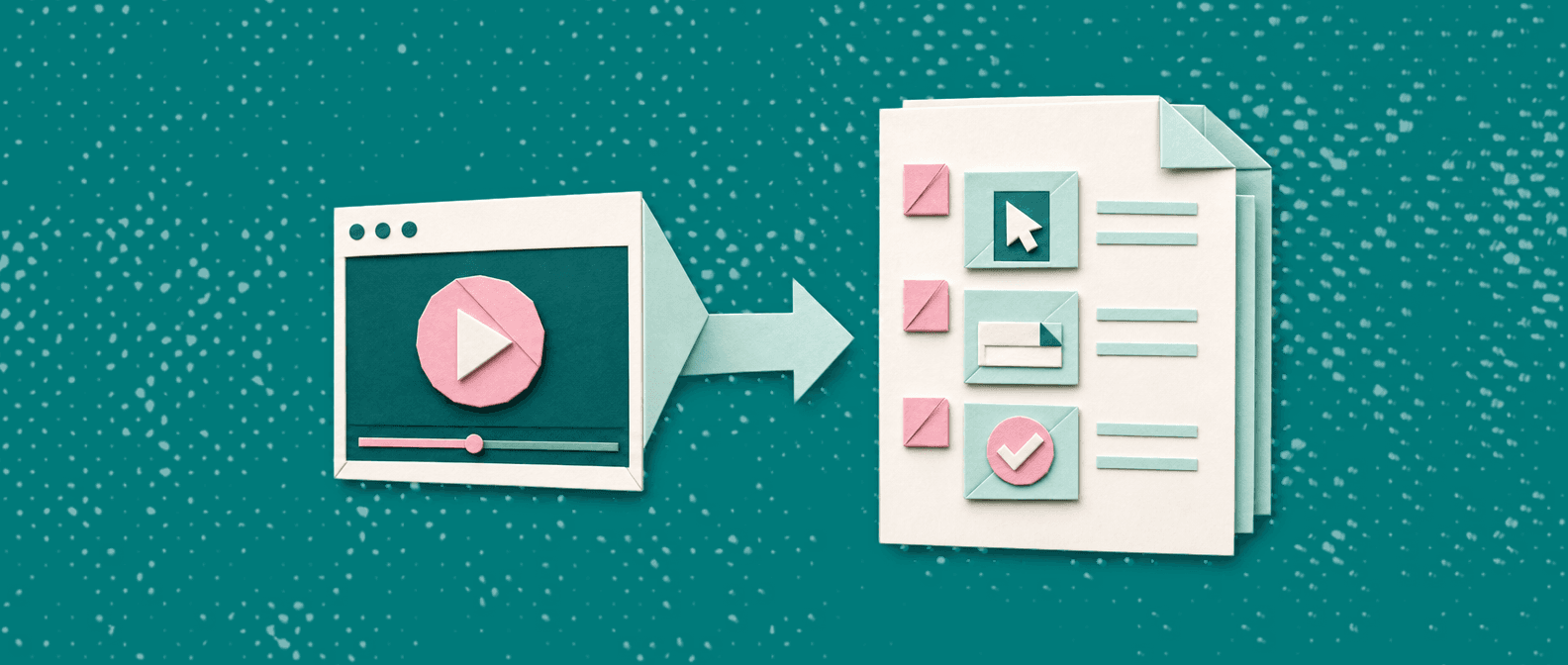
Teams record screens all the time, bug repros, onboarding walkthroughs, feature demos. The slow part is turning that video into something people can skim and follow. This guide shows how to turn screen recording into step by step guide documentation that’s actually usable (and includes screenshots without the manual pain).
Answer in 30 seconds
- Start with the outcome and audience (“What will the reader achieve, and in what product role?”), then pick 5–9 steps max for the first version.
- Pull timestamps first, then write steps from the timestamps, don’t write from memory.
- Capture one screenshot per step (only when it removes ambiguity), and annotate just the click target.
- Add a “Before you start” section with prerequisites (access, plan, permissions, settings).
- Do a final pass for: step verbs, UI label accuracy, and “can a new teammate follow this cold?”
- If you have not recorded the walkthrough yet, an AI Recorder can perform the flow and record it for you, returning the screenshots and the draft guide in the same run. See which AI screen recorders can do this.
What is turn screen recording into step by step guide?
To turn screen recording into step by step guide means converting a video walkthrough into a written procedure with headings, numbered steps, and supporting screenshots so someone can complete the task without watching the whole recording. The goal isn’t to “transcribe a video”, it’s to produce an SOP-style artifact that’s scannable, repeatable, and easy to update.
Start from the video, not from a blank page
If you already recorded the workflow, use it as the single source of truth, then generate a draft guide and refine it. That’s faster than rewriting everything by hand.
See how video-to-documentation worksStep-by-step process
1) Define the reader and the finish line
Write one sentence at the top of your draft:
- Reader: “Support rep (new hire)” / “Admin” / “End user”
- Goal: “Connect SSO” / “Export invoices” / “Reset 2FA”
- Success: “You’ll see X confirmation screen / receive Y email.”
This prevents the most common failure mode: guides that read like a narration instead of instructions.
2) Trim the recording (or at least mark timestamps)
You don’t need a perfect edit, but you do need structure.
- Rewatch at 1.25–1.5× speed.
- Mark timestamps for each meaningful action (click, type, select, submit).
- Ignore dead time (loading, small talk, detours) unless it impacts the task.
Tip: if the recording includes multiple paths (“you can also do it from Settings…”), pick one primary path for the main steps and put alternates in a short “Notes” block.
3) Turn timestamps into headings and steps
Use a consistent format:
- Headings = phases (Setup, Configure, Verify)
- Numbered steps = actions a person can do
Write each step as:
- Verb + UI label + location
- Example: “Click Settings → Billing.”
Avoid:
- “Now we’re going to…”
- “Next, you’ll see…” (unless it’s a verification point)
4) Capture screenshots that earn their keep
Screenshots are helpful when they remove ambiguity (which field, which menu, which toggle). They’re noise when they just show the same screen 8 times.
A practical rule:
- 1 screenshot per step only when there’s a choice, a hidden UI element, or a critical confirmation.
- Otherwise, screenshot per section.
What to capture:
- The moment before the click (so the reader can find the element)
- The confirmation after a submit (so they know it worked)
5) Annotate lightly
Use simple annotations:
- A rectangle or arrow on the exact click target
- Optional: a short label (“Select workspace”) if the UI isn’t self-evident
Avoid full-paragraph callouts inside images. Keep the meaning in the step text.
6) Add prerequisites and edge cases (briefly)
Before the steps, add:
- Required role/permission
- Required plan or feature flag (if applicable)
- “You’ll need…” items (API key, admin access, email inbox, etc.)
After the steps, add:
- Common failure + fix (1–3 bullets)
- What to do if the UI looks different (version differences, admin vs member view)
7) Quality pass: accuracy > elegance
Do a final run through the product while reading your own guide.
- Verify UI labels match exactly (case and naming matter)
- Remove “double steps” (two actions in one numbered line)
- Ensure each step has one outcome (what changes after you do it)
If you’re building a broader library, it helps to standardize how you produce these docs, especially if multiple people contribute. If your workflow starts from recordings, you’ll probably want a consistent approach to AI video documentation so drafts don’t vary wildly by author.
Real example
Scenario: A customer support lead needs a help-center article for “How to update a user’s permissions” after a product change.
- Role: Support lead
- Goal: Publish an updated guide by end of day
- Input: A 3-minute internal screen recording from a PM showing the new UI
- Process: The lead marks timestamps, extracts the 7 key actions, captures 5 screenshots, and adds a short prerequisites section (“Admin role required”).
- Outcome: A skimmable article that new support reps can follow without watching the full video, and customers can self-serve without submitting a ticket.
If the original walkthrough came from a training session or customer webinar, the same approach applies, just start by isolating the relevant segment before you draft the steps. (This is also why teams often turn webinar clips into articles like a webinar-to-knowledge-base workflow.)
Template
Copy/paste and fill in:
## Purpose
Explain what the reader will achieve in 1–2 sentences.

## Before you start
- Access/role needed:
- Plan/feature required:
- What you’ll need (links, keys, files):

## Steps
### 1) [Phase name]
1. Do [verb] on [UI label/path].
   - Expected result: [what should change]
   - Screenshot: [optional]
2. Do...

### 2) Verify
1. Confirm [signal of success].

## Notes / troubleshooting
- If you don’t see [UI element], check...
- If you get [error], try...
Checklist
Use this to review before publishing:
- Title matches the user’s intent (verb + object): “Update…”, “Create…”, “Export…”
- Clear prerequisites (role, permissions, plan) are listed
- Steps are numbered and each step contains one action
- UI labels match what’s on-screen (no “close enough” wording)
- Screenshots exist only where they reduce confusion
- Annotations highlight only the relevant area
- Includes a success check (“You should see…”) near the end
- Includes 1–3 troubleshooting bullets for common failures
Tools
You can produce step-by-step guides a few ways, choose based on volume and how often the UI changes.
Lightweight/manual (good for a few guides per month)
- Screen recorder + notes + manual screenshots (this is also where teams that relied on the now-deprecated Windows Steps Recorder usually end up)
- Best when: the workflow is simple and rarely changes
- Tradeoff: lots of copy/paste, and screenshots drift out of date quickly
Docs-first tools (good if you already have a mature knowledge base)
- Your editor and style guide do most of the work
- Best when: you have established templates and an owner who polices consistency
- Tradeoff: still manual to translate video into steps and capture images
Video-to-guide workflow (best when you record constantly)
- Start from the recording as the source of truth and generate a draft article + screenshots, then edit
- Best when: product/support teams ship changes weekly and you can’t afford “documentation lag”
- Tradeoff: you still need an accuracy pass (especially UI labels and prerequisites)
If you want a simple starting point for recording and basic editing utilities, keep a small toolkit handy. Vidocu also maintains a page of free tools that can help round out the workflow.
FAQ
How long should a step-by-step guide be?
Aim for 5–9 steps for the primary path. If it’s longer, break into phases with headings, or split into separate guides (setup vs usage vs troubleshooting).
How many screenshots should I include?
As many as needed to remove ambiguity, usually 3–7 for a short workflow. Include screenshots at decision points and confirmations; skip repetitive screens.
Should I include the full transcript of the recording?
Usually no. A transcript is useful for accessibility and searching, but a procedure should be written as instructions, not narration.
What if the UI changes often?
Write steps that reference stable UI landmarks (menu names, page titles) and add a quick “Last verified on…” note internally. Keep the recording archived so you can regenerate or re-screenshot quickly.
What if multiple teams contribute to guides?
Standardize: one template, one voice, one screenshot style, and a consistent review checklist. Treat guides like product surfaces, someone owns quality.
Related Vidocu workflows
- Start here to understand Vidocu’s approach: Vidocu home
- Convert a recording into a structured article: Video to documentation
- Use a recording as the source for a help article draft: AI video documentation
- Repurpose training sessions into publishable articles: Webinar to knowledge base
- Keep a small supporting toolkit around your process: Free tools for recording and docs
Keep your guides current without redoing the whole thing
When the product UI changes, updating screenshots and steps is the time sink. A video-first workflow makes it easier to regenerate a clean draft and then do a quick accuracy pass.
Explore AI video documentationTurn one video into an SOP in minutes
Vidocu helps you go from a single screen recording to a clean, step-by-step help article with screenshots, then you edit the final details. See the workflow here: Video to documentation.

Written by
Daniel SternlichtDaniel Sternlicht is a tech entrepreneur and product builder focused on creating scalable web products. He is the Founder & CEO of Common Ninja, home to Widgets+, Embeddable, Brackets, and Vidocu - products that help businesses engage users, collect data, and build interactive web experiences across platforms.