
You shot a tutorial in 16:9 on your laptop. Now you need it as a 9:16 vertical for TikTok, Reels, and Shorts, without re-shooting, without paying for desktop software, and without a logo burned across the corner.
A free online video cropper is the fastest fix. Upload, drag the crop frame to a vertical aspect ratio, position the action, export. The right tool does this in under a minute. The wrong one rasterizes a watermark over your footage, caps you at 480p, or asks for a credit card before download.
This guide compares the 9 best free video cropper tools in 2026, what they do well, where they fall short, and which one to pick depending on whether you care about speed, quality, or batching crops with subtitles, voiceover, and other edits in one workflow.
What "free" actually means in a video cropper
Before the list, a quick reality check. "Free" video tools fall into four camps:
| Type | What it means | Typical limits |
|---|---|---|
| Truly free | No watermark, no email, no signup | File size, resolution, or feature limits |
| Free with watermark | Forces a logo on export until you pay | Removed only on paid plan |
| Free trial | Free for X days/exports, then locked | Loses access after limit |
| Freemium tool | Free tier + paywall on advanced features | HD export, batch, length capped |
The list below is sorted by usefulness, not marketing claims. We flag the watermark, signup, and resolution constraints up front so you can pick the right tool for your use case.
Crop, subtitle, and voiceover, in one upload
Vidocu lets you crop video for TikTok, Reels, or Shorts and add AI subtitles, voiceover, and step-by-step docs in the same workflow. No watermarks on free exports.
Try Vidocu freeQuick comparison: 9 free video croppers at a glance
| Tool | Free watermark? | HD export | Signup needed | Paid from | Best for |
|---|---|---|---|---|---|
| Vidocu | No | Yes (1080p) | Yes | $39/mo | Crop + subtitle + voiceover in one workflow |
| Clideo | Yes (paid removes) | Limited free | No | $9/mo billed yearly | Quick one-off crop |
| Kapwing | Yes (free tier) | Yes (paid) | Yes | $16/user/mo billed yearly | Multi-tool editing |
| VEED.io | Yes (free tier) | Yes (paid) | Yes | $10/user/mo billed yearly | Creator workflows |
| Canva | Sometimes | Yes | Yes | $120/year | Design + crop + brand assets |
| Adobe Express | No on most | Yes | Yes (Adobe ID) | $9.99/mo | Polished one-off edits |
| FlexClip | Yes (free tier) | Yes (paid) | Yes | $11.99/mo billed yearly | Templates + crop |
| EzGif | No | Limited (100 MB) | No | No paid plan | Tiny clips, GIF source files |
| Online Video Cutter | No (basic crop) | Up to 500 MB free | No | Regional pricing | Fast, no-frills crops |
Now the deep dive.
1. Vidocu: the only cropper with subtitles, voiceover & docs in the same workflow
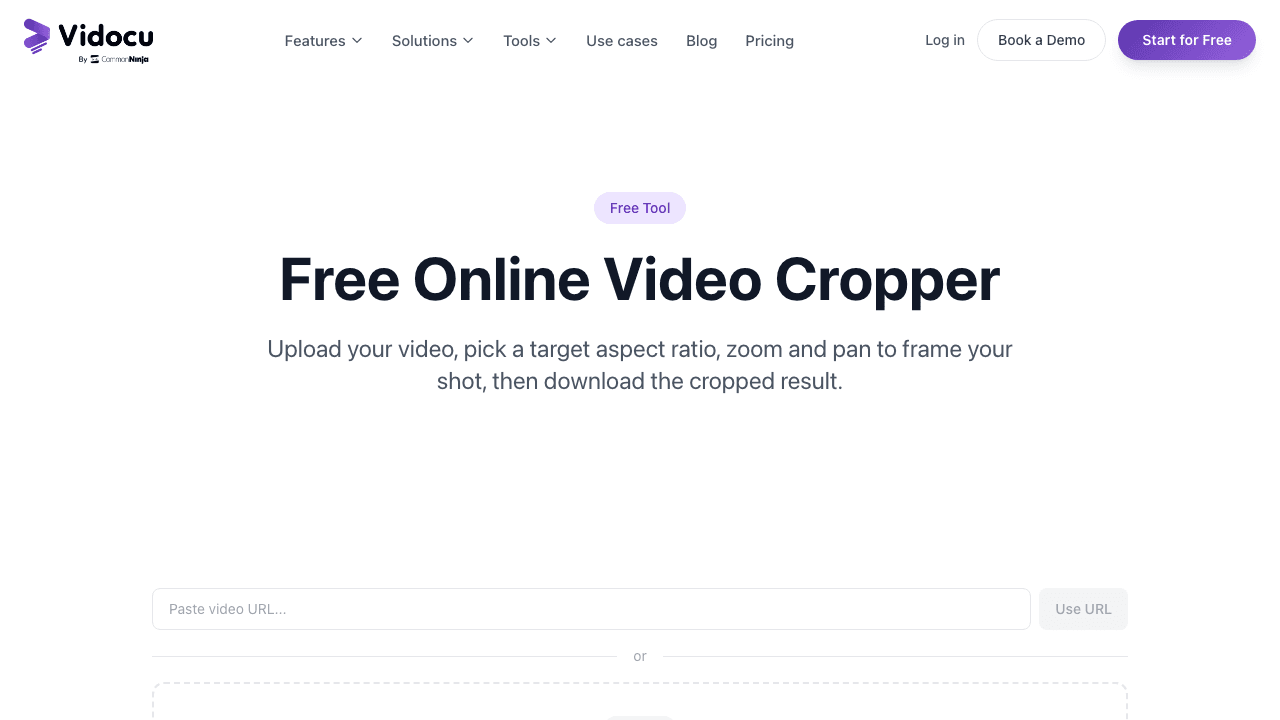
Vidocu is built for people who don't just need to crop a clip, they need to crop and add subtitles, and generate AI voiceover, and export a step-by-step doc, all from a single upload. The free video cropper handles the reframing piece in seconds.
You upload a video, drag a crop selector to your target aspect ratio (9:16, 1:1, 4:5, 16:9, custom), preview the cropped output, and export. There's no watermark on exports, the output is true HD, and once the video is in Vidocu you can stack other operations on top: burn captions in, add a voiceover in 30+ languages, auto-generate a help article from the same source clip.
That last part is the real edge. Most cropper tools stop at "video out." Vidocu is one of the few platforms where cropping is a single tab inside a wider AI video editor that also handles subtitles, voiceover, and translation. If you publish content across TikTok and a help center, that's a 5x time saver compared to bouncing between tools.
Pros
- No watermark, no resolution downgrade on free exports
- Built-in aspect-ratio presets for TikTok, Reels, Shorts, square, custom
- Stacks cropping with subtitles, voiceover, screenshots, and translation in one upload
- Modern interface, browser-based, no install
- Generous free tier
Cons
- Newer brand vs. legacy tools like Clideo or VEED
- Best fit for tutorials, SOPs, training, and product content, not heavy VFX work
Best for: Creators, founders, support teams, and educators who need the cropped video to flow into a wider tutorial or documentation workflow.
Try it: vidocu.ai/free-video-cropper
2. Clideo: the simplest one-off cropper
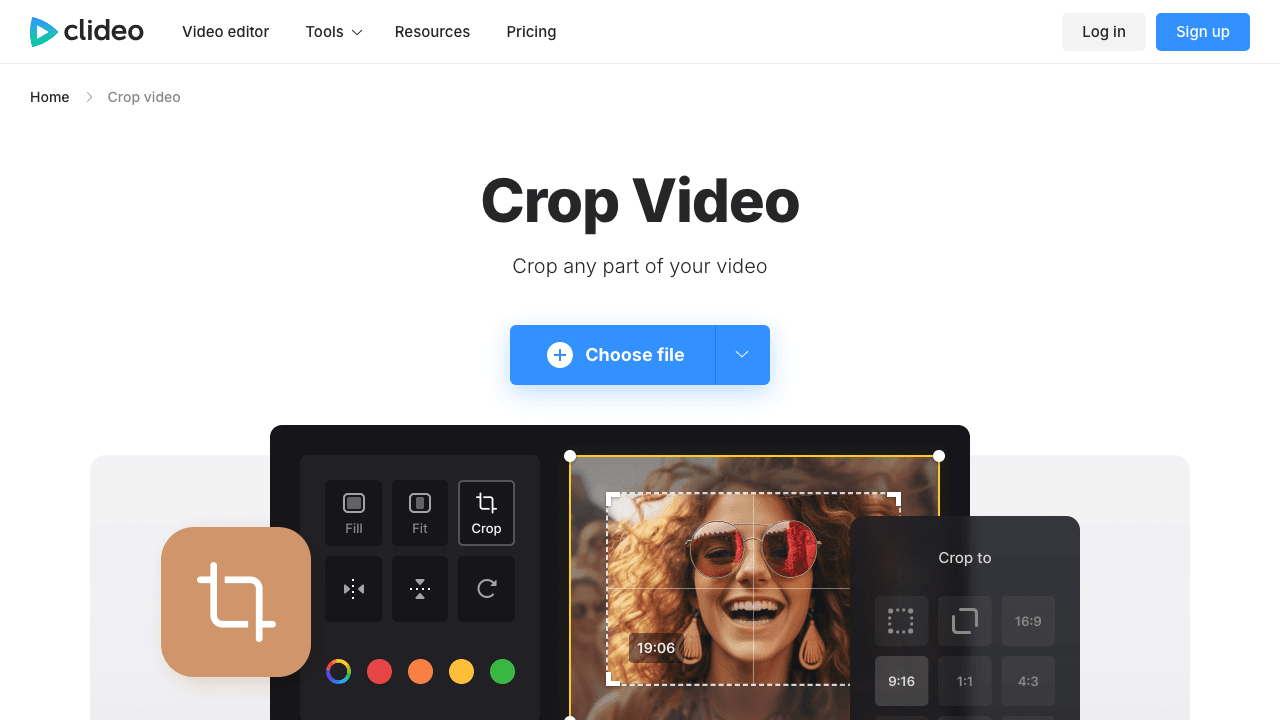
Clideo is the "no-thinking-required" pick. The crop tool has a clean interface, supports MP4/MOV/AVI/MKV/WMV, and lets you drag the crop window or pick a preset aspect ratio. It works without an account, until you hit export.
The catch: free exports come with a Clideo watermark in the corner. You can only remove it by upgrading to a paid plan. Free file size is capped at 500 MB, which is enough for most short-form clips but a problem for raw screen recordings.
Pros
- Genuinely simple interface, fast for one-off crops
- Aspect-ratio presets (Instagram, YouTube, TikTok, Facebook)
- Browser-based, no install
Cons
- Watermark on free exports
- 500 MB free upload cap
- No real editor, strictly crop only
Best for: Quick one-and-done crops where the watermark doesn't matter (or the user will pay).
3. Kapwing: solid mid-tier with collaboration
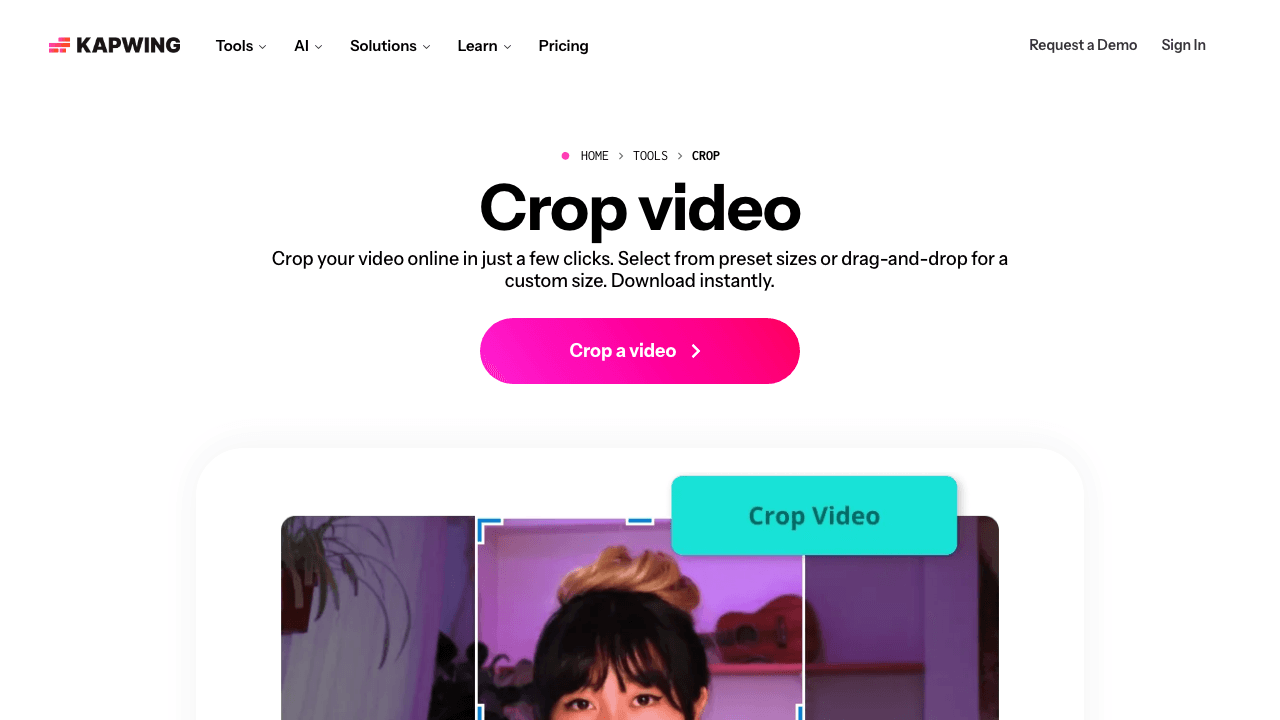
Kapwing is positioned as a full collaborative video editor in the browser. Cropping is one feature inside a much bigger toolbox that also handles subtitles, transitions, layered editing, and team workspaces. The free tier is usable but limited: a small monthly export cap, 4-minute length per project, and a Kapwing watermark on free exports.
If your work is collaborative and editor-heavy, Kapwing's free tier is a sensible starting point and the paid tier (currently $24/mo for solo) unlocks watermark-free HD. If you only need to crop, it's overkill.
Pros
- Strong all-in-one browser editor
- Real-time collaboration on the paid plan
- AI tools for subtitles, captions, removing silences
Cons
- Watermark on free exports
- 4-minute project length cap on free tier
- Paid plan is needed for any serious creator workflow
Best for: Teams that already do most editing in the browser and want crop as part of a larger workflow.
Skip the watermark grind
Vidocu's free tier exports cropped video at HD with no watermark. Add subtitles or voiceover in the same upload.
Crop a video free4. VEED.io: creator-focused with strong polish
VEED.io is one of the more polished browser-based video editors, with a strong creator following. The crop tool sits inside the broader VEED editor, where you can crop, trim, add captions, and apply filters.
VEED's free tier exports videos with a watermark and limits clip length to a few minutes; the paid plan unlocks watermark-free exports and longer videos. The interface is genuinely good, closer to a desktop editor than most browser tools.
Pros
- Excellent UI/UX, near-desktop quality
- AI subtitle and translation features
- Brand kit and creator-style features on paid plans
Cons
- Watermark on free exports
- Free length and file size are capped
- Best features (HD, no watermark, long clips) require paid plan
Best for: Creators who edit regularly and want a polished editor, but expect to pay.
5. Canva: for design-led creators
Canva isn't strictly a video cropper, but its online video cropper inside the broader Canva editor handles aspect-ratio changes well, and it's free for most basic uses. If you already use Canva for static design assets and want crop + branded overlays in one place, this is a sensible pick.
The trade-off: Canva is design-first, video-second. You won't find creator-grade controls (precise frame trimming, advanced subtitle tools) like you would in VEED or Vidocu. For batching with subtitles or voiceover, look elsewhere, but for slicing a video into a TikTok crop while reusing brand templates, it's solid.
Pros
- Massive template library
- Brand kit + design assets in one place
- No forced watermark on most exports
- Strong free tier for casual use
Cons
- Video editor is secondary to the design tool
- Some elements/templates are paid-only (Canva Pro)
- Not designed for tutorial/documentation workflows
Best for: Marketers and small businesses who want crop + brand design in one app.
6. Adobe Express: clean, free, watermark-free crops
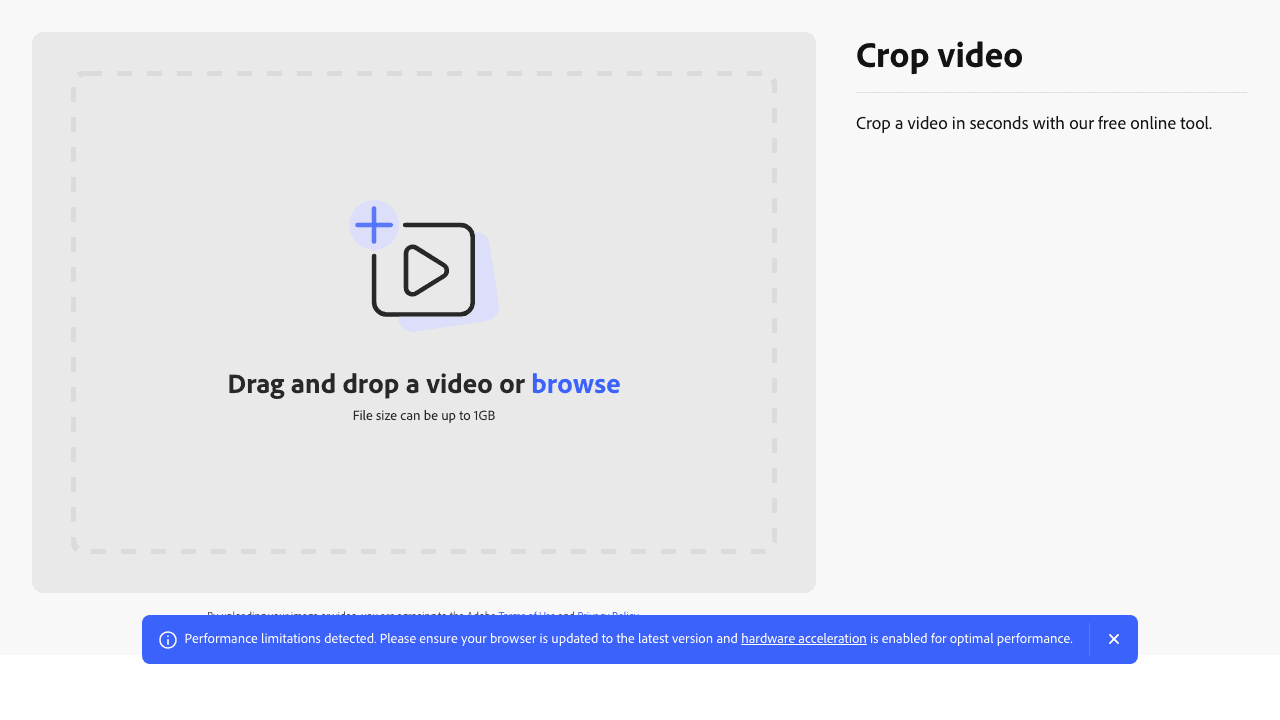
Adobe Express's crop tool is a surprisingly good free option from Adobe. It's web-based, has aspect-ratio presets (1:1, 9:16, 16:9, 4:5), exports without a watermark on the free tier, and feels markedly more polished than the average free cropper.
You need an Adobe ID to export, which is free. The trade-off: file size and feature limits push you toward Creative Cloud over time, and there's no native subtitle/voiceover stacking like Vidocu offers.
Pros
- No forced watermark on free crops
- Adobe-grade UI polish
- Good aspect-ratio presets, fast export
- Generous free tier
Cons
- Requires Adobe ID
- Feature ceiling pushes you toward paid Creative Cloud
- Crop only, no subtitle/voiceover/translation in the same upload
Best for: Anyone who wants Adobe's polish on a one-off crop without paying for Creative Cloud.
7. FlexClip: template-driven cropper
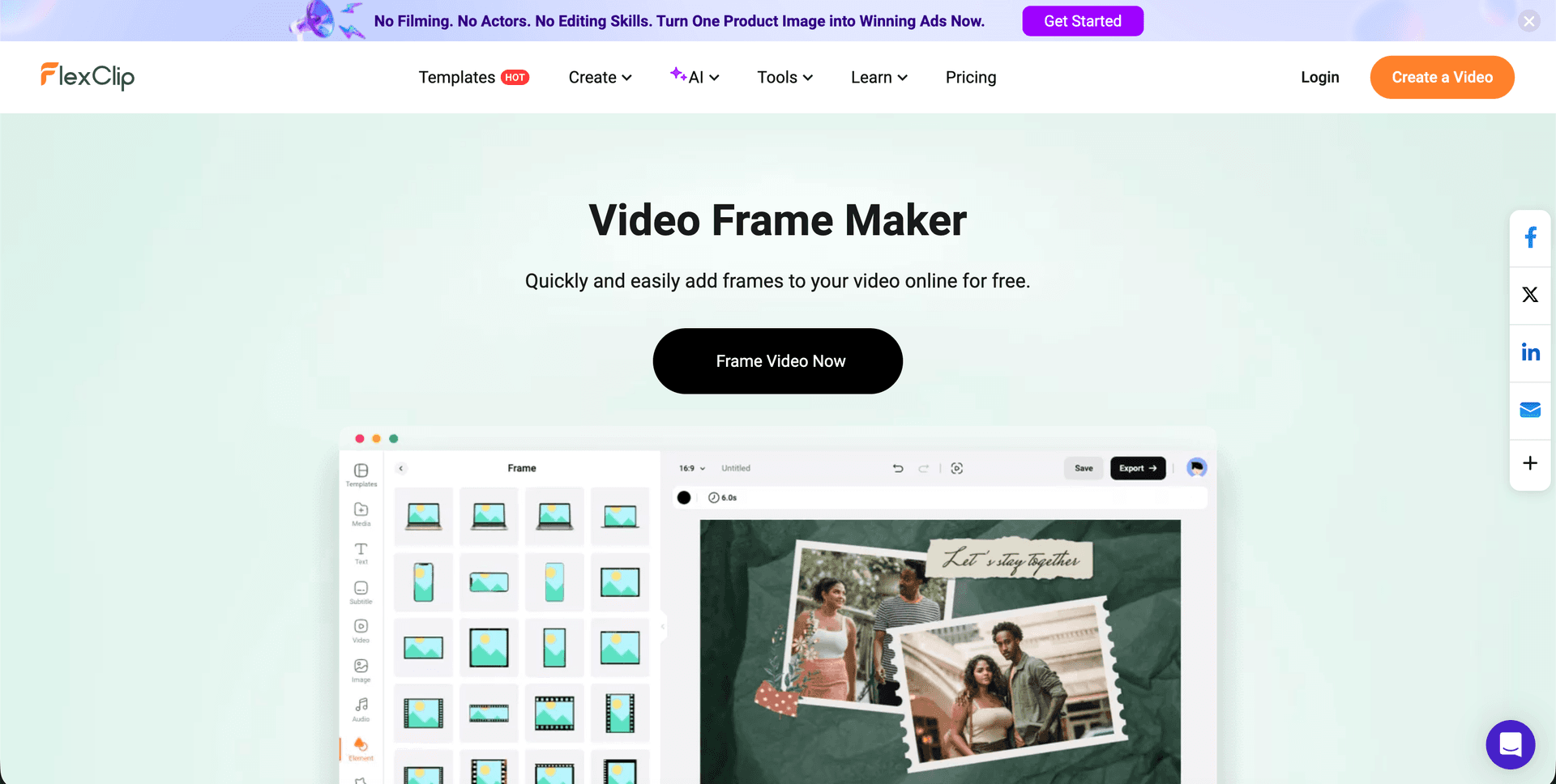
FlexClip leans into templates: marketing videos, slideshows, social posts. The cropper is a small slice of a bigger editor that also handles trimming, text overlays, and stock media. Free exports are limited to 480p and stamped with a FlexClip watermark; paid plans unlock HD and remove the watermark.
If you want a "make a TikTok ad in 5 minutes from a template" experience, FlexClip earns its slot. As a pure cropper, it's average.
Pros
- Big template library
- Stock footage and music included
- Decent timeline editor
Cons
- 480p free export
- Watermark on free tier
- Paid plan is needed for almost anything serious
Best for: Small businesses making short marketing videos from templates.
8. EzGif: the no-frills cropper for small clips
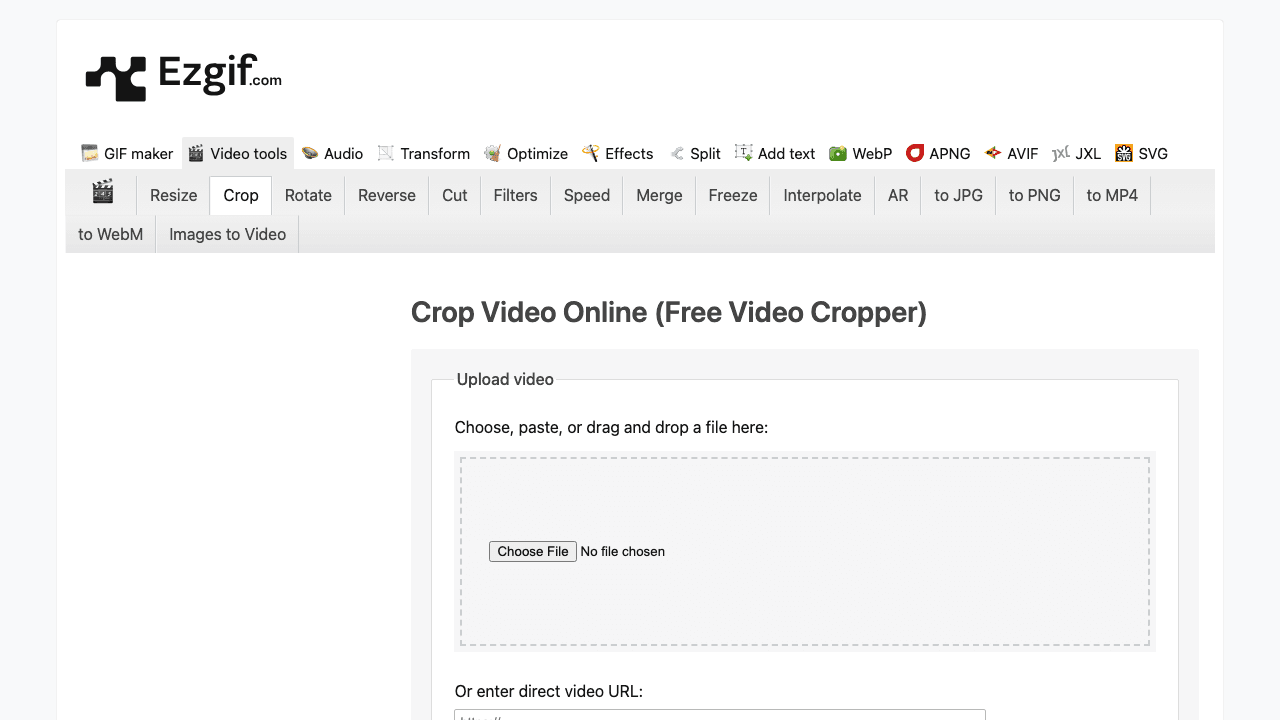
EzGif is a stripped-down toolkit popular with developers and people who originally came for GIF tools. The crop video tool is free, watermark-free, and has zero account requirement. The catch is the 100 MB upload cap, fine for short clips, useless for raw screen recordings.
The interface is dated and the workflow is "form and submit." But for a fast, anonymous crop on a small file, it works.
Pros
- No signup, no watermark, no email
- Pure utility, load, crop, download
- Also handles GIF, video-to-GIF, etc.
Cons
- 100 MB upload cap
- Old-school UI, no visual frame
- No editor features
Best for: Power users who want a fast, anonymous crop on a small file.
9. Online Video Cutter (123apps): fast, generous, basic
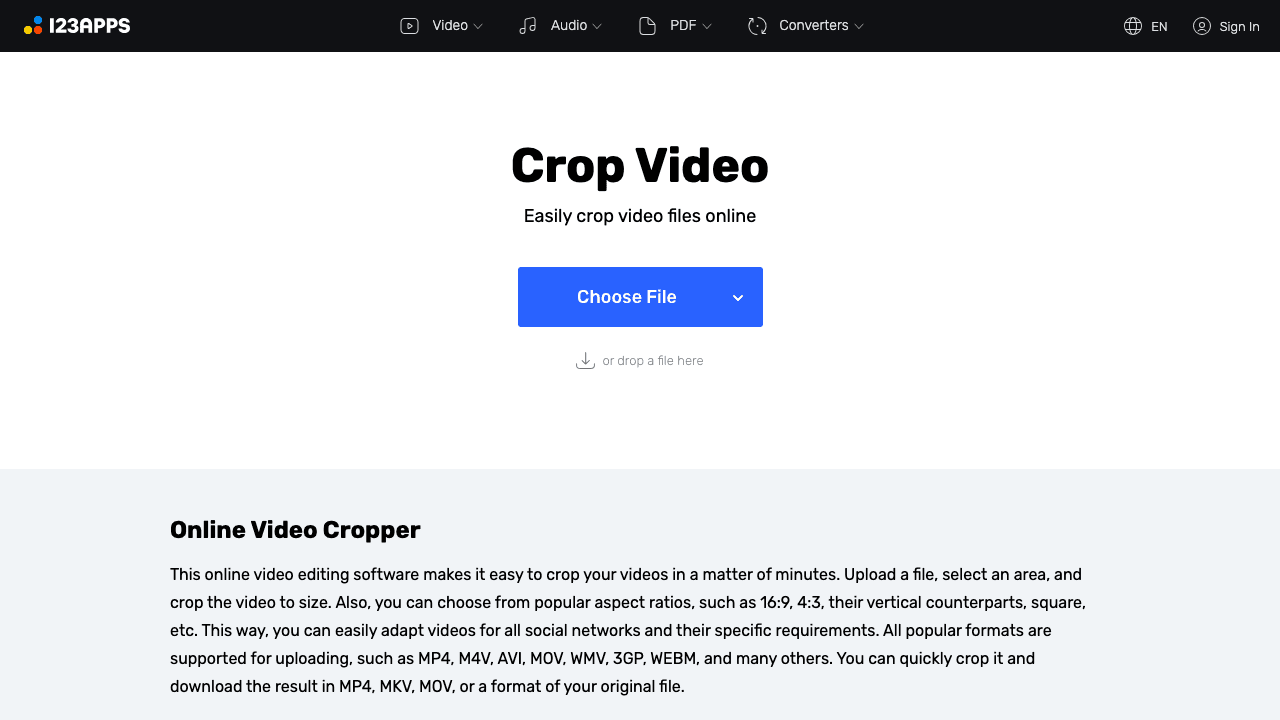
Online Video Cutter from 123apps offers a free in-browser crop tool with one of the more generous free upload limits in this list (up to 4 GB on free tier, depending on the operation). Crops are watermark-free for the basic flow. The trade-off: minimal creator features and aging UI.
If your only goal is to drag a crop window, hit Save, and download a clean file, this earns a slot.
Pros
- Generous file size limits
- No watermark on basic crop
- Browser-based, no install
Cons
- Older interface
- Limited editor features beyond crop
- Optional account features can feel pushy
Best for: Quick, fuss-free crops on larger files.
What a video cropper costs in 2026
Cropping itself is free almost everywhere. What you actually pay for is the export: watermark removal, resolution, file size, and length.
| Tool | Free tier | Entry paid plan | What paying unlocks |
|---|---|---|---|
| Vidocu | Free account, first run on us, no watermark | Pro $39/mo, Business $149/mo | Unlimited runs across every tool, plus subtitles, voiceover, translation, and documentation |
| Clideo | Watermarked export, 720p, 500 MB, 14-day storage | Pro $9/mo billed yearly ($108/yr) | Watermark removal, 4K, unlimited file size and storage |
| Kapwing | Watermarked exports, 4 min, 720p | Pro $16/user/mo billed yearly ($192/yr), or $24 monthly | No watermark, 4K, 6 GB uploads, 2-hour exports |
| VEED.io | Watermarked export | Creator $10/user/mo billed yearly ($116/yr) | No watermark, unlimited auto subtitles, full asset catalog |
| Canva | Free plan, 5 GB storage | Pro $120/year for one person | Premium content, Brand Kit, background remover |
| Adobe Express | Free plan, watermark-free basic exports | Premium $9.99/mo | Premium templates and assets, 250 generative credits a month |
| FlexClip | 720p, 10 min max, watermark | Plus $11.99/mo billed yearly ($143.88/yr), or $19.99 monthly | 1080p, no watermark, unlimited length, Brand Kit |
| EzGif | Fully free, 100 MB cap | No paid plan at all | Not applicable |
| Online Video Cutter (123apps) | 5 files a day, 500 MB, ads | Premium (priced regionally) | Unlimited files, 4 GB uploads, no ads |
All prices above were checked directly on each vendor's own pricing page in August 2026.
The honest read: if cropping is genuinely all you need, you should not pay anyone. EzGif and Online Video Cutter do it free, and Adobe Express exports most basic crops without a watermark. Paying starts to make sense when the crop is one step in a longer job, which is where a full video cropper that also produces subtitles, voiceover, and documentation from the same upload changes the maths.
How to pick the right cropper
Match the tool to your real workflow, not the marketing copy:
- Crop + subtitle + voiceover in one upload? Use Vidocu. The whole pipeline is built around stacking edits on a single source video, which is exactly what you want for tutorials, SOPs, and product content.
- Compiling several clips into one vertical video? Join them with a free video merger first, then crop the finished file once to 9:16 so every section shares the same framing.
- One-off crop, don't care about a watermark? Clideo or FlexClip are quick.
- Watermark-free + Adobe polish? Adobe Express is the strongest free pick.
- Already in Canva? Stay in Canva.
- Big files, no signup? Online Video Cutter wins on quota.
- Tiny files, no signup? EzGif is the fastest path.
- Editor-heavy creator workflow? Kapwing or VEED.io, paid tier.
The two questions worth asking before picking:
- What aspect ratio do I actually need? If you're cropping for TikTok, Reels, and Shorts, you need a tool with a real 9:16 preset that previews the cropped frame so you can position the action.
- Will I do this once or repeatedly? One-off = the simplest tool. Recurring workflow = pick something that batches with your other edits, otherwise the time spent context-switching between tools eats the time the cropper saved.
Stop bouncing between cropper, captioner, and voiceover tools
One upload. Vidocu generates the crop, the subtitles, the voiceover, and a step-by-step article. Free to start.
Try Vidocu freeHow to crop a video for TikTok, Reels, and Shorts (the right way)
Whatever tool you use, the core workflow is the same:
- Upload your source video. Use the highest-quality master you have. Cropping discards pixels, so you want headroom.
- Pick the target aspect ratio. TikTok/Reels/Shorts: 9:16. Square (some IG posts): 1:1. Stories/feed-style: 4:5.
- Position the crop frame. This is the step most people get wrong. The "interesting" part of the original 16:9 frame (a face, a screen, the action) needs to sit inside the 9:16 selection. If you're cropping a screen recording, decide whether to track a region or accept the full screen squashed.
- Preview the output. Don't trust the source preview, trust the cropped preview.
- Export at native resolution. Don't downsample. If you start with 1080p, export 1080p.
- Add subtitles. Vertical clips on muted feeds need them. Tools like Vidocu's subtitle generator can burn captions in after cropping.
- (Optional) Add voiceover or translation. If you're repurposing for international markets, Vidocu's video translation keeps the cropped output and re-voices it in 30+ languages.
If you're doing this for help center content rather than social, you can stop at step 5, but if the source clip becomes a tutorial, turning the same recording into a step-by-step doc saves you redoing the work.
What's changing in 2026
A few trends worth flagging:
- AI-driven smart crop is becoming standard. Newer tools track the subject (face, screen, object) and dynamically reposition the crop frame as the action moves. This matters most for vertical reframes of horizontally-shot content.
- One-upload-many-outputs workflows are the new bar. Cropping in isolation is becoming obsolete, the pipelines that win are the ones where one upload produces the cropped video, the subtitles, the voiceover, and the article. That's why we built Vidocu this way.
- Watermark-on-free-tier is in retreat for serious tools. Free tiers without watermarks are the baseline expectation now, and competitive tools are following.
If you're choosing a cropper today, factor in where it's headed, not just where it is.
FAQ
What's the best free video cropper in 2026?
It depends on the workflow. For one-off crops where you don't need anything else, Adobe Express and Online Video Cutter are excellent watermark-free picks. For creators and teams who need to crop plus generate subtitles, voiceover, or step-by-step documentation from the same upload, Vidocu is the only tool in this list that combines all four in one workflow without watermarks on the free tier.
Can I crop a video to 9:16 for TikTok or Reels for free?
Yes. Almost every tool in this list supports a 9:16 preset for TikTok, Reels, and Shorts. The differences are file size limits, watermarks, and resolution. If you want a clean, watermark-free 1080p export, Vidocu's free video cropper is the simplest path.
Will cropping reduce the quality of my video?
Not by itself. Cropping discards pixels around the edges but keeps the inner pixels at full resolution, assuming the tool exports at the native pixel count of the cropped region. The quality loss most people complain about comes from the tool re-encoding the export at a lower bitrate or resolution. Pick a tool that exports at native HD (1080p+) and you'll keep your original quality.
What's the difference between cropping and resizing a video?
Cropping chops away part of the frame (you keep a rectangle of the original pixels). Resizing stretches or shrinks the frame to a new size (you keep all the pixels but at different dimensions). For TikTok/Reels reformatting, you want cropping, squishing a 16:9 frame into a 9:16 box looks distorted and unprofessional.
How much does a video cropper cost in 2026?
Nothing, if cropping is all you need. EzGif and Online Video Cutter are free, and Adobe Express exports most basic crops without a watermark. Paid plans start at roughly $9 to $12 a month (Clideo $9/mo billed yearly, Adobe Express $9.99/mo, VEED Creator $10/user/mo billed yearly, FlexClip $11.99/mo billed yearly). You pay more when the crop is part of a bigger workflow: Vidocu Pro is $39/mo and bundles subtitles, voiceover, translation, and documentation with the crop.
Do I need a paid plan to crop a video without a watermark?
Not necessarily. Vidocu, Adobe Express, EzGif, and Online Video Cutter all offer watermark-free crops on their free tiers. Tools like Kapwing, VEED, and Clideo apply a watermark on free exports unless you upgrade.
Crop, subtitle, and translate in one upload
If cropping is the only thing you need, any of the watermark-free tools above will do. But if cropping is one step in a workflow that also needs subtitles, voiceover, translation, or step-by-step documentation, you'll save hours by stacking those operations on a single upload instead of bouncing between four tools.
That's where Vidocu fits. Crop your video for TikTok, Reels, or Shorts, then in the same project, generate AI subtitles, add a natural-sounding voiceover in 30+ languages, or export the same source clip as a step-by-step help article with screenshots.
Try the free video cropper. No watermarks. No credit card. No reason not to.

Written by
Daniel SternlichtDaniel Sternlicht is a tech entrepreneur and product builder focused on creating scalable web products. He is the Founder & CEO of Common Ninja, home to Widgets+, Embeddable, Brackets, and Vidocu - products that help businesses engage users, collect data, and build interactive web experiences across platforms.