
AI-Powered
Video Editing
Training
Product
Solutions
Help Article Generator
Help-center ready articles
AI Knowledge Base Generator
Generate content & structure
AI Video Documentation
Video + docs + localization
Video to Blog Post
Repurpose tutorial videos
SOP Template
Free template, or let AI write it
User Manual Generator
Manuals from screen recordings
Work Instructions
Visual steps from one recording
Integrations
Free Tools
Video Intro Maker
Animate your logo into an intro
Article to Video
Turn articles into MP4
Script to Voiceover
Turn text into AI audio
Transcript to Help Article
Clean docs from transcripts
Video Trimmer
Cut and trim video clips
Subtitle Creator
Generate captions from audio
Transcript Extractor
Get text from any video
Video Watermark
Add logo or text overlay
Video Cropper
Resize and crop frames
AI Video Reframer
Auto crop with subject tracking
Video to FAQ
Turn video into Q&A
Video to Help Article
Auto-generate help docs
Video to Quiz
Generate quizzes from videos
Subtitle Translator
Translate captions instantly
Background Music
Add royalty-free tracks
Thumbnail Generator
Create click-worthy thumbs
Description Generator
SEO-optimized descriptions
AI Video Trimmer
Smart cuts, auto highlights
Video Merger
Combine multiple clips
Before & After Video
Side-by-side comparisons
Coming Next Video
PiP teaser into next clip
Video Rotator
Flip or rotate footage
Speed Changer
Speed up or slow down
Format Converter
Convert between formats
Video Compressor
Shrink file size, keep quality
Video to GIF
Turn clips into animated GIFs
Video Fade In/Out
Smooth intro and outro
Video Summary
AI-powered key takeaways
Video FAQ Generator
Extract FAQs from video
Video Report Generator
Custom report from any video
Image Annotator
Mark up screenshots
Video Annotator
Shapes, arrows & text on video
Audio Extractor
Extract audio from video
Audio Cleanup
Remove noise, level volume
Audio File Cleanup
Clean up an MP3 or WAV
Subtitle Burner
Burn captions into video
PDF to Video
Convert PDF to video
PowerPoint to Video
Convert PPT & PPTX to video
Keynote to Video
Convert Keynote to video
Presentation to Video
PDF, PPTX, or Keynote
Google Slides to Video
Turn Google Slides into video
Video Lighting
Brightness, contrast & more
Guide your viewer's eye
Add smooth zoom and pan effects to highlight exactly what matters in your video. Click to set zoom points, adjust easing, export frame-perfect.
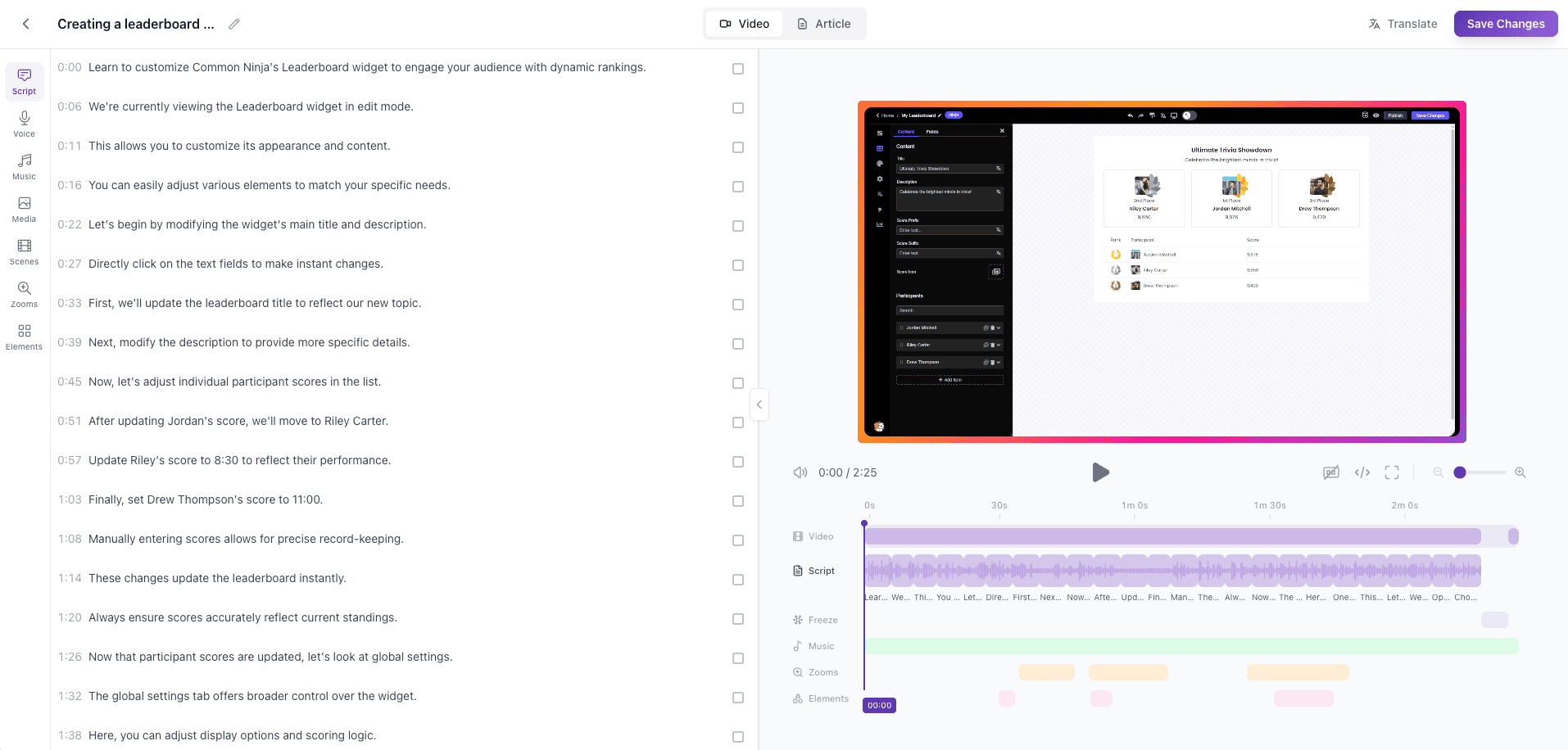
How It Works
Upload your video
Start with any screen recording or tutorial video.
Click to set zoom points
Click anywhere on the video to place zoom targets. It's that simple.
Adjust zoom level and easing
Set how far to zoom and how smooth the transition should be.
Export with effects
All zoom and pan effects are rendered into the final video.
Upload your video
Start with any screen recording or tutorial video.
Click to set zoom points
Click anywhere on the video to place zoom targets. It's that simple.
Adjust zoom level and easing
Set how far to zoom and how smooth the transition should be.
Export with effects
All zoom and pan effects are rendered into the final video.
Key Capabilities
Click-to-zoom placement
Just click where you want to zoom. No coordinates or keyframes to manage.
Natural spring motion
Zooms settle like a camera move, not a hard cut. Tune how fast they travel.
Custom zoom levels
Zoom in just a little or all the way. Full control over magnification.
Pan transitions
Smoothly pan across your video to follow actions or UI elements.
Timeline-based control
Set when zooms start and end with precise timeline controls.
Works with all other effects
Combine zoom with subtitles, annotations, and more.
Who It's For
Tutorial creators
Focus on the exact UI element you're demonstrating. No more 'see that tiny button in the corner' moments.
Product demos
Highlight features step by step with smooth, professional zoom transitions.
Training videos
Draw attention to key actions and important details that learners need to see.
How Vidocu Compares
| Feature | Vidocu Zoom | Manual Screen Recording Zoom |
|---|---|---|
Precision | Pixel-perfect | Approximate |
Editable after recording | ||
Smooth animations | Professional easing | Jerky manual zoom |
Change zoom targets later | Must re-record | |
Consistent across videos | Varies |
Frequently Asked Questions
Click anywhere on the video preview to set a zoom target. Adjust the zoom level and duration in the sidebar.
Yes. Set the zoom level to 100% and just change the focal point to create a smooth pan effect.
Every zoom runs through a tuned spring simulation, so it accelerates and settles the way a real camera move does. You set the speed; the motion stays smooth at any setting.
Yes. Everything is non-destructive. Move, resize, or remove zoom points at any time.
Yes. All effects layer together — zoom, subtitles, annotations, and more.
We render at your video's original quality. Zoom is applied during export, so quality loss is minimal.
Make every click crystal clear
Professional zoom effects in seconds. No keyframe editing required.
Your knowledge is valuable. Make it usable.
Upload once. Use everywhere.
The AI Knowledge Platform. One upload becomes videos, SOPs, guides, articles, and training - in any language.
© 2026 Vidocu. All rights reserved.