
AI-Powered
Video Editing
Training
Product
Solutions
Help Article Generator
Help-center ready articles
AI Knowledge Base Generator
Generate content & structure
AI Video Documentation
Video + docs + localization
Video to Blog Post
Repurpose tutorial videos
SOP Template
Free template, or let AI write it
User Manual Generator
Manuals from screen recordings
Work Instructions
Visual steps from one recording
Integrations
Free Tools
Video Intro Maker
Animate your logo into an intro
Article to Video
Turn articles into MP4
Script to Voiceover
Turn text into AI audio
Transcript to Help Article
Clean docs from transcripts
Video Trimmer
Cut and trim video clips
Subtitle Creator
Generate captions from audio
Transcript Extractor
Get text from any video
Video Watermark
Add logo or text overlay
Video Cropper
Resize and crop frames
AI Video Reframer
Auto crop with subject tracking
Video to FAQ
Turn video into Q&A
Video to Help Article
Auto-generate help docs
Video to Quiz
Generate quizzes from videos
Subtitle Translator
Translate captions instantly
Background Music
Add royalty-free tracks
Thumbnail Generator
Create click-worthy thumbs
Description Generator
SEO-optimized descriptions
AI Video Trimmer
Smart cuts, auto highlights
Video Merger
Combine multiple clips
Before & After Video
Side-by-side comparisons
Coming Next Video
PiP teaser into next clip
Video Rotator
Flip or rotate footage
Speed Changer
Speed up or slow down
Format Converter
Convert between formats
Video Compressor
Shrink file size, keep quality
Video to GIF
Turn clips into animated GIFs
Video Fade In/Out
Smooth intro and outro
Video Summary
AI-powered key takeaways
Video FAQ Generator
Extract FAQs from video
Video Report Generator
Custom report from any video
Image Annotator
Mark up screenshots
Video Annotator
Shapes, arrows & text on video
Audio Extractor
Extract audio from video
Audio Cleanup
Remove noise, level volume
Audio File Cleanup
Clean up an MP3 or WAV
Subtitle Burner
Burn captions into video
PDF to Video
Convert PDF to video
PowerPoint to Video
Convert PPT & PPTX to video
Keynote to Video
Convert Keynote to video
Presentation to Video
PDF, PPTX, or Keynote
Google Slides to Video
Turn Google Slides into video
Video Lighting
Brightness, contrast & more
Add presentation slides right inside your video
Insert title cards, chapter breaks, and bullet-point slides between any scene. Anchored to your script, styled to your brand, animated automatically.
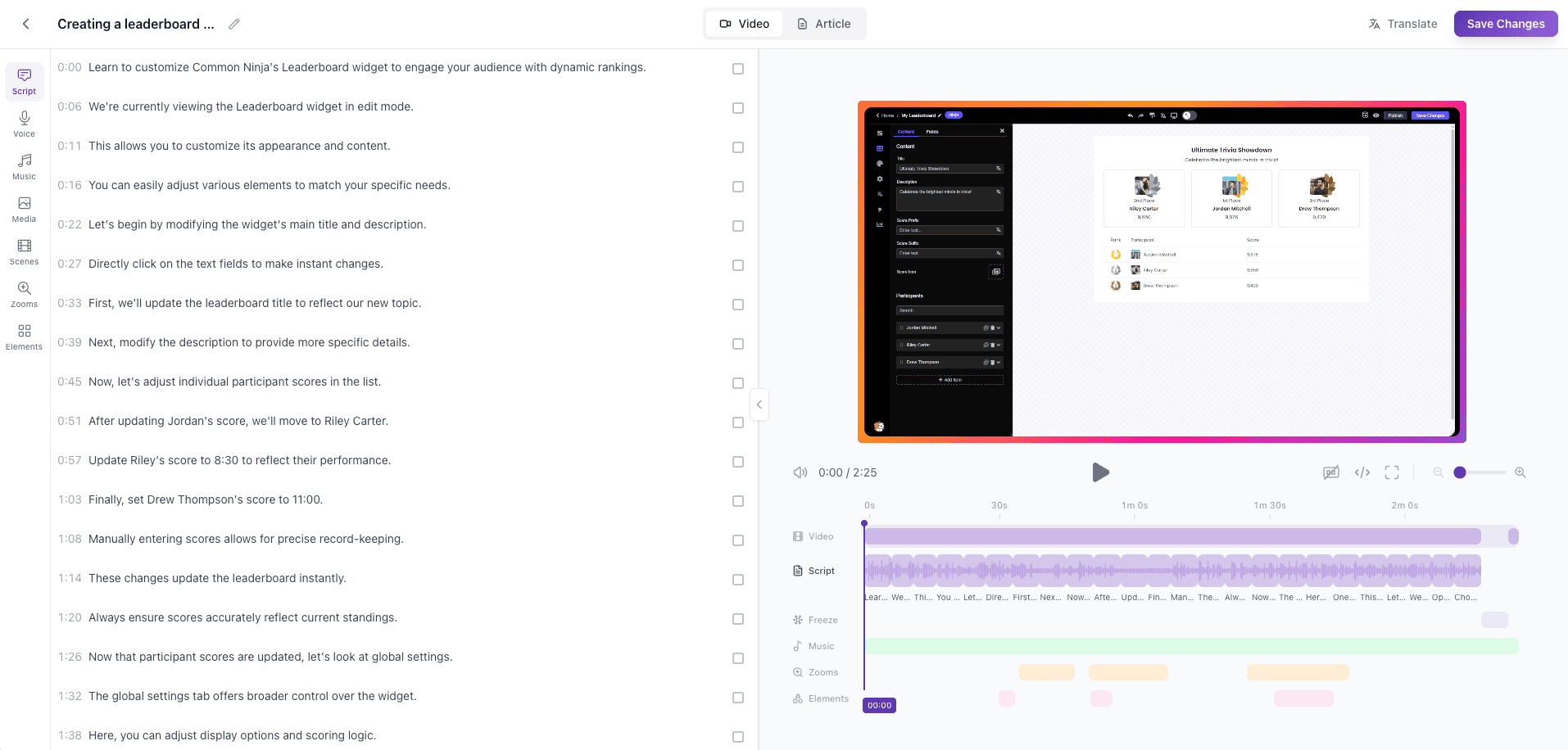
How It Works
Pick a position in your script
Hover between any two subtitles and click the + button. The slide anchors to that point in the script, if you change subtitle timing, the slide moves with it.
Choose a template and type your content
Pick from Title, Title + Subtitle, Title + Bullets, or Title + Image. Click directly on the preview to edit text inline, no separate form fields.
Style it to match your brand
Choose from color presets or pick custom background and text colors. All text on the slide updates together so everything stays consistent.
Play, export, done
Slides fade in with a smooth waterfall animation and fade out at the end. They export in full quality with your video, no post-processing needed.
Pick a position in your script
Hover between any two subtitles and click the + button. The slide anchors to that point in the script, if you change subtitle timing, the slide moves with it.
Choose a template and type your content
Pick from Title, Title + Subtitle, Title + Bullets, or Title + Image. Click directly on the preview to edit text inline, no separate form fields.
Style it to match your brand
Choose from color presets or pick custom background and text colors. All text on the slide updates together so everything stays consistent.
Play, export, done
Slides fade in with a smooth waterfall animation and fade out at the end. They export in full quality with your video, no post-processing needed.
Key Capabilities
Anchored to subtitles
Slides are tied to your script, not to an absolute timestamp. Edit subtitle timing and the slide follows automatically.
Inline editable preview
Click any text on the slide preview to edit it directly. No switching between form fields and preview, what you see is what you get.
4 flexible templates
Title only, Title + Subtitle, Title + Bullets, and Title + Image. Each adapts to your video's aspect ratio including vertical formats.
Custom colors
Start with a preset theme or pick exact background and text colors. One click changes all text on the slide for consistent styling.
Waterfall fade animation
Text elements fade in one after another with a smooth staggered animation, then fade out before the next scene.
Drag to reorder
Drag a slide card to move it between subtitle positions. Works in both the script editor and the timeline.
Music plays through
Background music continues at normal volume during slides, no awkward ducking or silence between scenes.
Image upload
Use the Title + Image template and upload images directly. Files go straight to cloud storage, no size limits to worry about.
Respects voiceover timing
If the previous subtitle's voiceover is still playing, the slide waits. No audio cutoff, no overlapping content.
Who It's For
Product teams
Add chapter titles and feature callouts to product demos and onboarding videos without leaving the editor.
Training & enablement
Break tutorials into clear sections with title cards. Bullet-point slides reinforce key takeaways between video segments.
Marketing teams
Brand every video with styled intro and section slides. Consistent colors, consistent messaging, zero design work.
How Vidocu Compares
| Feature | Vidocu | Traditional Editing |
|---|---|---|
Add a title slide between scenes | Click between subtitles | Export, open PowerPoint, re-import |
Slide stays synced to script | ||
Edit text inline on preview | ||
Animated fade-in / fade-out | Built-in | Manual keyframes |
Custom brand colors | ||
Works with voiceover timing | Automatic | Manual sync |
Extra software required | None | PowerPoint + video editor |
Frequently Asked Questions
Yes. There's a dedicated intro slide position before the first subtitle. Use it for title cards or branding.
The slide is anchored to a specific subtitle, not to an absolute timestamp. If you move the subtitle, the slide moves with it.
Each subtitle position supports one slide. You can add slides after different subtitles to have multiple slides throughout the video.
Yes. Slides are rendered in full quality during export using the same Remotion pipeline as the rest of the video. The waterfall fade animation is preserved.
Yes. Use the Title + Image template and click the Upload button to add an image directly from your computer.
No. Music continues at normal volume through slides. Voiceover ducking only happens when AI narration is playing, not during slides.
Yes. Drag a slide card in the script editor to move it to a different position between subtitles.
Slides that live inside your video
No PowerPoint. No extra exports. Just click, type, and play.
Your knowledge is valuable. Make it usable.
Upload once. Use everywhere.
The AI Knowledge Platform. One upload becomes videos, SOPs, guides, articles, and training - in any language.
© 2026 Vidocu. All rights reserved.