
Quick answer: the best free MP4 to GIF converters in 2026 are Vidocu (tutorial GIFs inside a docs workflow), Ezgif (power-user control), Adobe Express and Canva (branded output), FreeConvert and CloudConvert (large or unusual files), Kommodo (private, in-browser), VEED (editor attached), and IMG2GO (fast one-offs). All nine convert MP4 to GIF free. Seven export with no watermark. Paid plans, where they exist at all, start between $6.50 and $39 per month.
The fastest way to turn a video clip into a GIF is a browser-based tool that lets you upload, trim, pick a frame rate, and export, without installing software, creating an account, or slapping a watermark on the result. The nine tools below all do that well, and each has a slightly different sweet spot: some are built for speed, some for quality, some for tutorial creators who need GIFs that fit inside a broader documentation workflow.
If you just need to convert one clip right now, Vidocu's video to GIF converter does it in the browser with no install. The rest of this post is for choosing between tools.
If you're making GIFs for product docs, onboarding emails, changelog posts, or social replies, the pick usually comes down to four things: how short and sharp the resulting GIF is, how small the file size gets, whether the tool leaves a watermark, and what it costs once you outgrow the free tier. We'll cover all of that below, tool by tool, with a quick comparison table first so you can scan.
Quick comparison: 9 free MP4 to GIF converters
| Tool | Free tier | Paid from | Watermark | Trim / crop | Best for |
|---|---|---|---|---|---|
| Vidocu | Converter free, 500 MB file, 25 sec clip | $39/mo (full platform) | No | Trim + FPS + width | Tutorial GIFs + full doc workflow |
| Ezgif | Free, 200 MB file | No paid plan | No | Trim + crop + effects | Quick edits, power users |
| Adobe Express | Free with Adobe account | $9.99/mo | No | Trim + basic edits | Branded marketing GIFs |
| FreeConvert | 20 convert min/day, 1 GB file | $12.99/mo | No | Trim + advanced settings | Large source files |
| Canva | Free plan | $120/yr (Pro) | No | Trim + design tools | Social/branded GIFs |
| CloudConvert | ~10 conversions/day, 1 GB | ~$8/mo | No | Trim + format options | Format-heavy conversions |
| Kommodo | Free, runs on your device | No paid plan | No | Trim only | Privacy-first, offline |
| VEED | Free, 720p, 10 min cap | $10/user/mo (billed yearly) | Yes on free | Trim + full editor | Quick social clips |
| IMG2GO | Free, limited processing | ~$6.50/mo | No | Trim + basic settings | Simple one-off jobs |
Now let's look at each tool in detail, starting with the one we built, and why we built it.
How much does an MP4 to GIF converter cost in 2026?
Almost nothing, if you only need GIFs. Every tool on this list converts MP4 to GIF on a free tier, and two of them (Ezgif and Kommodo) have no paid plan at all. Pricing only starts to matter when you hit one of three walls: file size, daily conversion volume, or a watermark.
Here is what each tool actually charges once you cross that line. Prices are in USD and reflect list pricing as of August 2026; annual billing is usually cheaper than the monthly rate shown.
| Tool | What the free tier gives you | Entry paid plan | What paying unlocks |
|---|---|---|---|
| Vidocu | GIF converter free to use, no account for the basic flow, no watermark, 500 MB source, 25 sec output | Pro $39/mo (Business $149/mo) | The rest of the platform: AI voiceover, translation into 65+ languages, docs generation, watermark removal on video exports, longer recordings |
| Ezgif | Everything, 200 MB source, ad supported | None | Not applicable, the tool is fully free |
| Adobe Express | Conversion and basic editing, free Adobe account required | Premium $9.99/mo | Premium templates, brand kit, full Adobe asset library |
| FreeConvert | 20 conversion minutes/day, 5 min per file, 1 GB source | Basic $12.99/mo | 1,500 conversion min/mo, 1.5 GB files, no ads, unlimited daily jobs |
| Canva | Free design plan with conversion | Pro $120/yr | Premium assets, brand kit, background remover, larger storage |
| CloudConvert | About 10 conversions/day, 1 GB, 5 min processing cap | From ~$8/mo (1,000 credits) | Unlimited file size, unlimited processing time, priority queue, API headroom |
| Kommodo | Everything, bounded only by your device | None | Not applicable, the tool is fully free |
| VEED | 720p export with a VEED watermark, 10 min cap | Creator $10/user/mo billed yearly ($116/yr) | Watermark removal, 1080p, 25 min projects, 4 GB uploads |
| IMG2GO | Limited processing, no batch, no queue priority | From ~$6.50/mo (480 credits) | Batch processing, priority queue, 64 GB files, ad-free |
The honest read: if GIFs are all you need, pay for nothing. Ezgif and Kommodo cover the job at zero cost forever. Paid plans on this list are almost never sold on GIF conversion itself; they're sold on the surrounding product (design assets for Canva and Adobe, bulk conversion for FreeConvert and CloudConvert, video editing for VEED, and the full video-to-documentation pipeline for Vidocu). Choose based on what else you need that tool to do.
1. Vidocu: Best for tutorial GIFs inside a full docs workflow
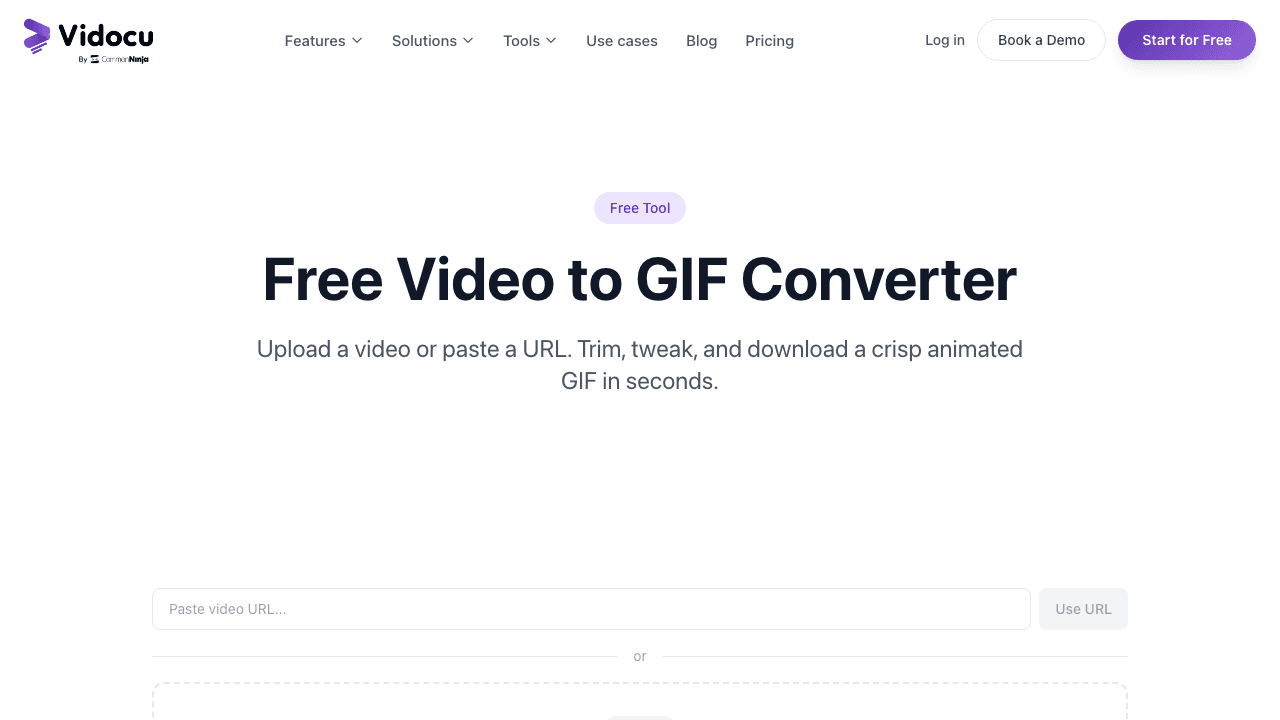
Vidocu's free video to GIF converter is built for a very specific job: turning short clips from screen recordings, product demos, and tutorial videos into clean, lightweight GIFs you can drop into help articles, Slack threads, changelog posts, and onboarding docs. If the clip is the wrong shape for where it is going, crop a video online or rotate a video online before you convert.
What it does well:
- Upload MP4, MOV, or WebM (up to 500 MB) and set a precise start/end point with a 25-second cap, which is almost always the right ceiling for a useful product GIF.
- Choose frame rate (10, 15, or 24 fps) and output width (320, 480, 640, or original) with a live size estimate so you see roughly how big the GIF will be before you export.
- Two-pass palette encoding, the reason the gradients and skin tones come out clean instead of blocky. Most free tools skip this and the result looks noisy.
- No watermark. No forced sign-up for the basic flow. Output loops by default, and you can toggle looping off.
Pricing: the GIF converter is free to use. Vidocu's paid plans ($39/mo Pro, $149/mo Business) exist for the wider platform, not for GIF conversion, so you never need a plan to make a GIF here.
Where Vidocu stands out: it isn't just a one-off GIF tool. The same upload can be used across Vidocu's broader platform, you can pull subtitles, turn a tutorial recording into step-by-step documentation, add AI voiceover, or translate the video into multiple languages. If you're making GIFs today and help docs tomorrow, you don't need a second tool.
Limitations to know: 25-second max clip (intentional, longer GIFs get huge and annoying), and audio isn't preserved (that's how GIFs work everywhere).
Best for: product teams, technical writers, support teams, and solo founders who need tutorial-grade GIFs and don't want to stitch together five separate tools.
Turn any MP4 into a clean GIF, free
Trim, set FPS, pick your width, and export. No watermark, first conversion free.
Try the free GIF converter2. Ezgif: The classic power user tool
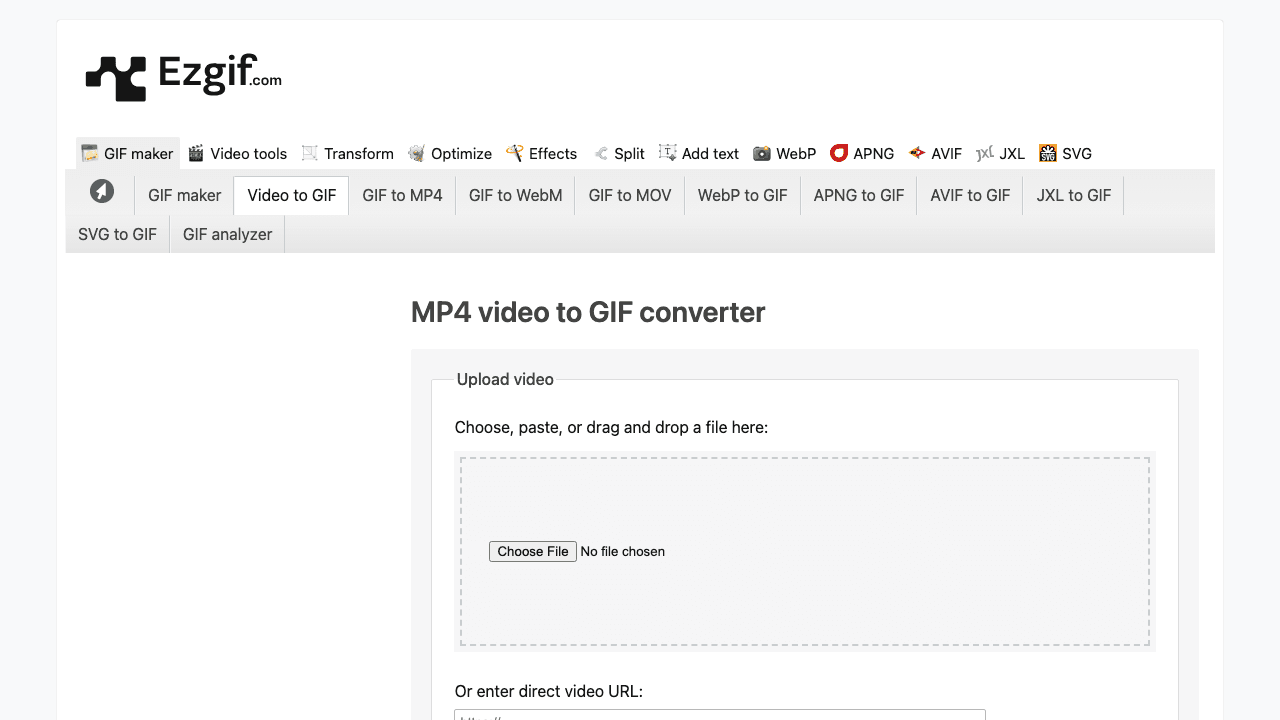
Ezgif is the oldest name in the space and still one of the most capable. The interface looks like it was built in 2012 (because it was), but it's fast, reliable, and loaded with options that matter: input formats from MP4 to WebM to FLV to WMV, crop, resize, speed control, reverse, optimize, effects, and frame-by-frame editing.
What it does well: no watermark, no forced login, no artificial daily limit on basic conversions, and a long list of companion tools (GIF optimizer, crop, rotate, speed) that chain together naturally. If you already think in terms of "upload → trim → optimize → re-export," Ezgif feels like home.
Pricing: free, with no paid tier at all. The site is ad supported, which is the trade you're making.
Trade-offs: the UI is dense, there's no hand-holding, and file size limits sit around 200 MB. It's powerful but not friendly for non-technical teammates. If your team includes people who would rather not figure out "lossy GIF compression" on their own, this isn't the shared tool.
Best for: designers, developers, and anyone who wants direct control over every knob.
3. Adobe Express: Best for branded marketing GIFs
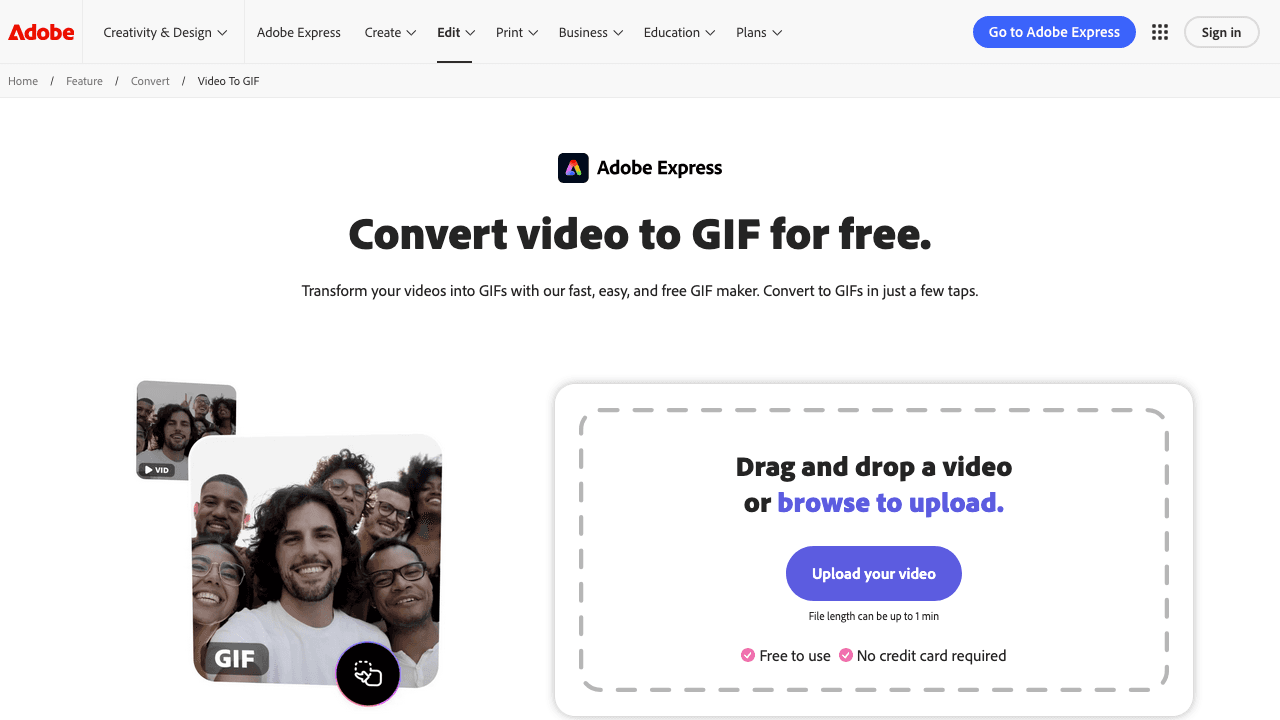
Adobe Express has a dedicated video-to-GIF page and a free tier that does the job cleanly, with the kind of polish you'd expect from Adobe. Upload MP4, AVI, MKV, WEBM, or FLV; trim; export. No watermark on the free export.
What it does well: the output quality is consistently strong, the tool integrates with the rest of Express (so you can layer text, stickers, or brand elements before converting), and file size limits are generous. If you're making GIFs for marketing emails, landing pages, or social, where "looks designed" matters, Express is a reasonable pick.
Pricing: free tier with an Adobe account; Premium runs $9.99/mo (about $99.99/yr) and is sold on templates and brand assets, not on conversion.
Trade-offs: Adobe requires a free Adobe account for most exports, and the tool is really built for Adobe's design ecosystem, not for documentation or tutorials. It's overkill for plain "clip → GIF" jobs.
Best for: marketing teams already using Adobe tools.
4. FreeConvert: Best for large source files
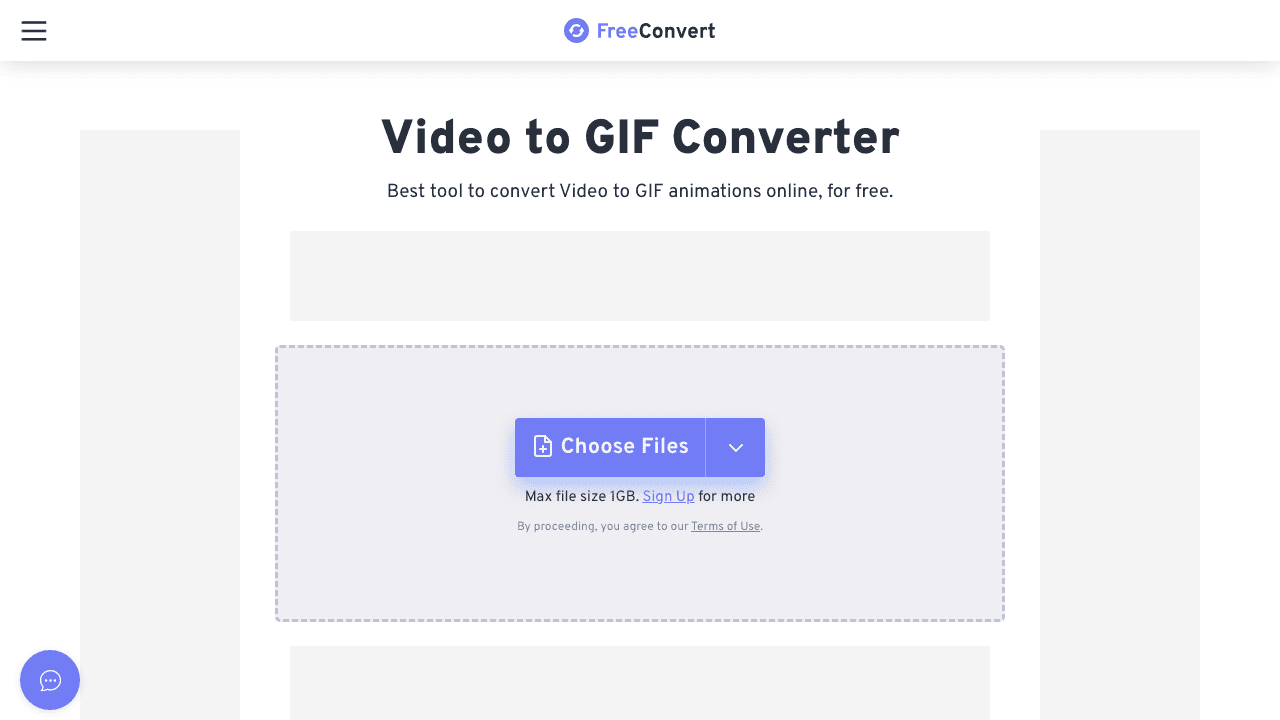
FreeConvert supports source files up to 1 GB on the free tier, which is rare. If you've got a long, high-bitrate screen recording and you want to extract a short GIF without pre-compressing the source, FreeConvert handles it without complaint.
What it does well: large file handling, advanced conversion settings (FPS, resolution, quality), and no watermark on the output. The tool also offers batch conversion and keeps conversions queued server-side so you can start a job and come back.
Pricing: the free tier gives 20 conversion minutes per day with a 5-minute-per-file ceiling. Paid plans run $12.99/mo (Basic, 1,500 min), $24.99/mo (Standard), and $29.99/mo (Pro, 5 GB files).
Trade-offs: the interface is ad-heavy, the UX is generic conversion-site territory (lots of upsell to paid plans), and conversion time can be slow during peak hours because everything happens on their servers.
Best for: one-off conversions of large video files.
Want docs, subtitles, and voiceover too?
Vidocu turns one video upload into a GIF, help article, subtitles, and voiceover, in one workflow.
See how Vidocu works5. Canva: Best for social and branded GIFs
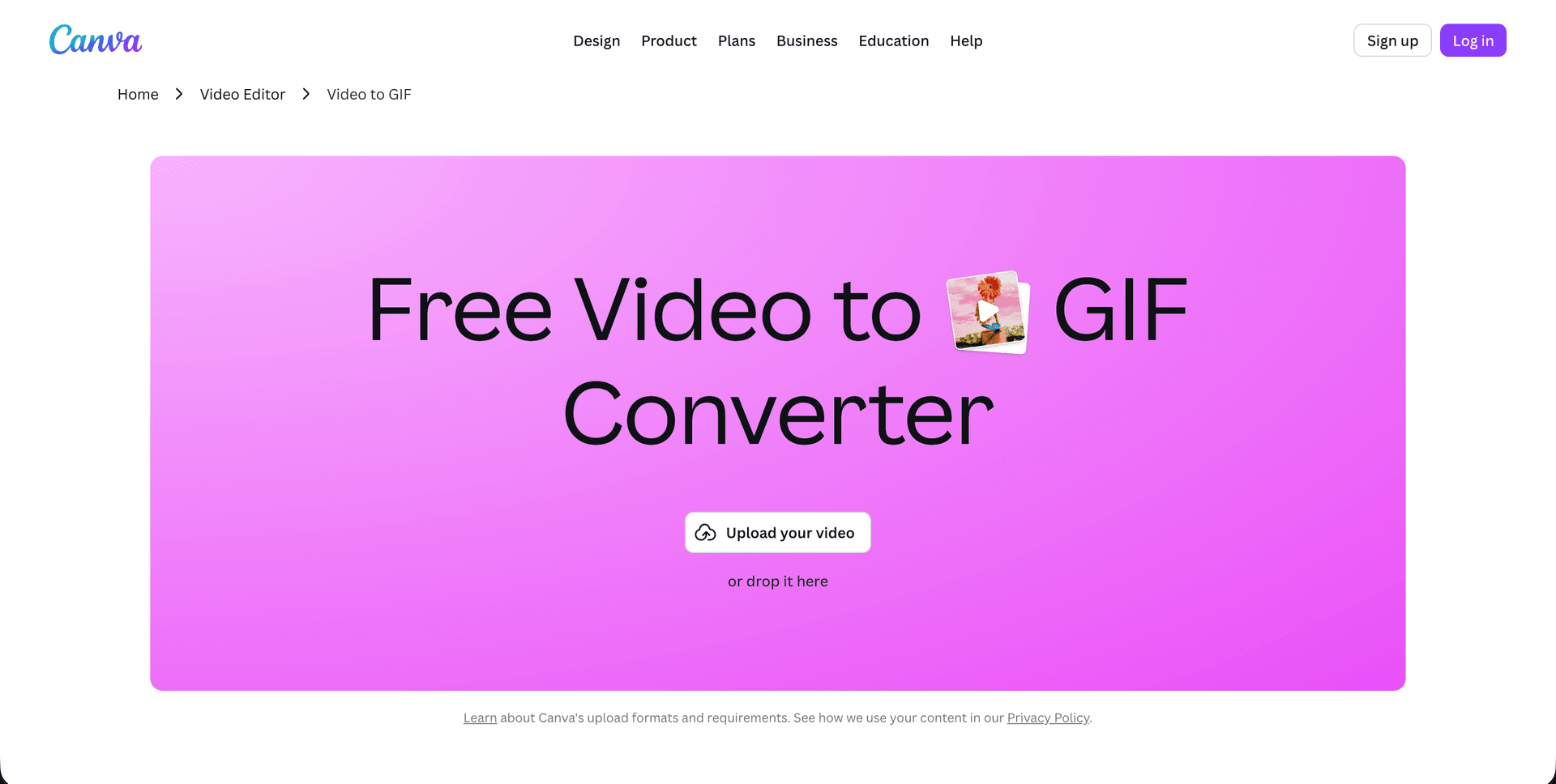
Canva's MP4-to-GIF converter is free, simple, and fits naturally into Canva's broader design workflow. If you're already making thumbnails, carousels, and social graphics in Canva, staying inside one tool for GIFs is a clean workflow.
What it does well: the output is high quality, the editing layer lets you add text, stickers, or brand elements before export, and there's no watermark on the free tier for GIF export (the watermark restriction mostly applies to premium assets). Canva also has a built-in GIF maker for stitching multiple images into a GIF.
Pricing: the free plan converts fine. Canva Pro is $120/yr for one person and Business is $210/yr per person (around $25/user/mo, both sold on design assets rather than conversion.
Trade-offs: Canva is a design tool first and a converter second. For plain "trim this clip into a GIF" jobs, it's heavier than it needs to be, and the free tier has limits on project size and some features.
Best for: social media and content teams already running on Canva.
6. CloudConvert: Best for unusual formats and API access
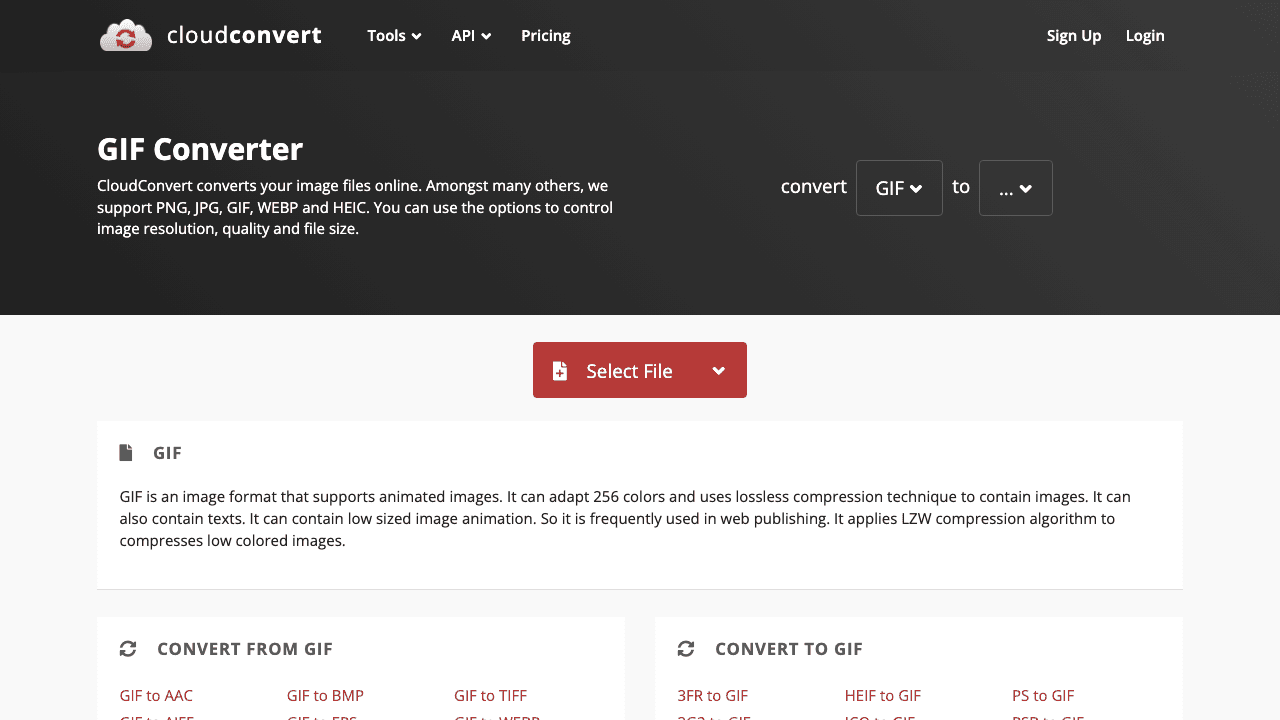
CloudConvert supports more than 200 file formats and is the tool to reach for when your source file is something odd, an old MTS from a camcorder, an RMVB, a VOB from a DVD rip. The conversion quality is reliable, there's no watermark, and they also expose a public API if you want to automate conversions.
What it does well: breadth of format support, clean output, and automation options that most consumer tools don't offer. If you're building a product that needs to accept arbitrary video input and spit out GIFs, CloudConvert's API is a serious option.
Pricing: the free tier allows roughly 10 conversions a day with a 1 GB file ceiling and a 5-minute processing cap. Subscriptions start around $8/mo for 1,000 credits, and one-time credit packages are available if your usage is lumpy.
Trade-offs: the free daily allowance is tight if you convert in batches, and advanced settings (higher quality, priority processing) sit behind a paid plan.
Best for: developers and anyone converting unusual formats. For video processing more broadly, including subtitles, voiceover, and documentation, Vidocu's developer API covers workflows CloudConvert doesn't.
7. Kommodo: Best for privacy and offline conversion
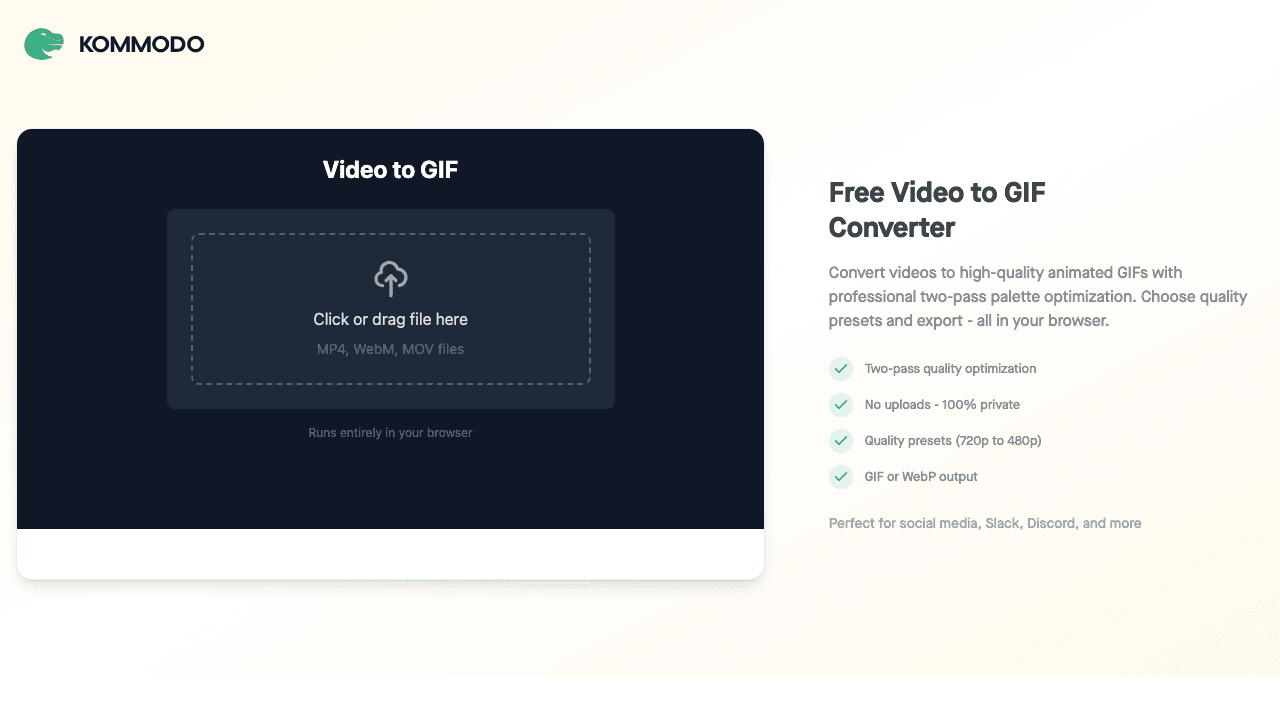
Kommodo runs FFmpeg compiled to WebAssembly directly in your browser. Your video file never leaves your device, the conversion happens locally. That's a real distinction if you're working with sensitive footage, NDA material, or anything you'd rather not upload to someone else's server.
What it does well: true in-browser conversion, no upload step, full privacy, and support for MP4, WebM, MOV, and most common video formats. No watermark, and quality presets that top out around 720p.
Pricing: free, with no paid tier and no account. Because processing happens on your machine, there's no server cost to pass on.
Trade-offs: the conversion is bound by your device's RAM and CPU, so large source files can be slow or fail. There's no editing layer beyond the basics, and the tool is newer, so the polish isn't on Ezgif or Canva's level yet.
Best for: anyone converting confidential or private footage.
8. VEED: Best for quick social clips with an editor attached
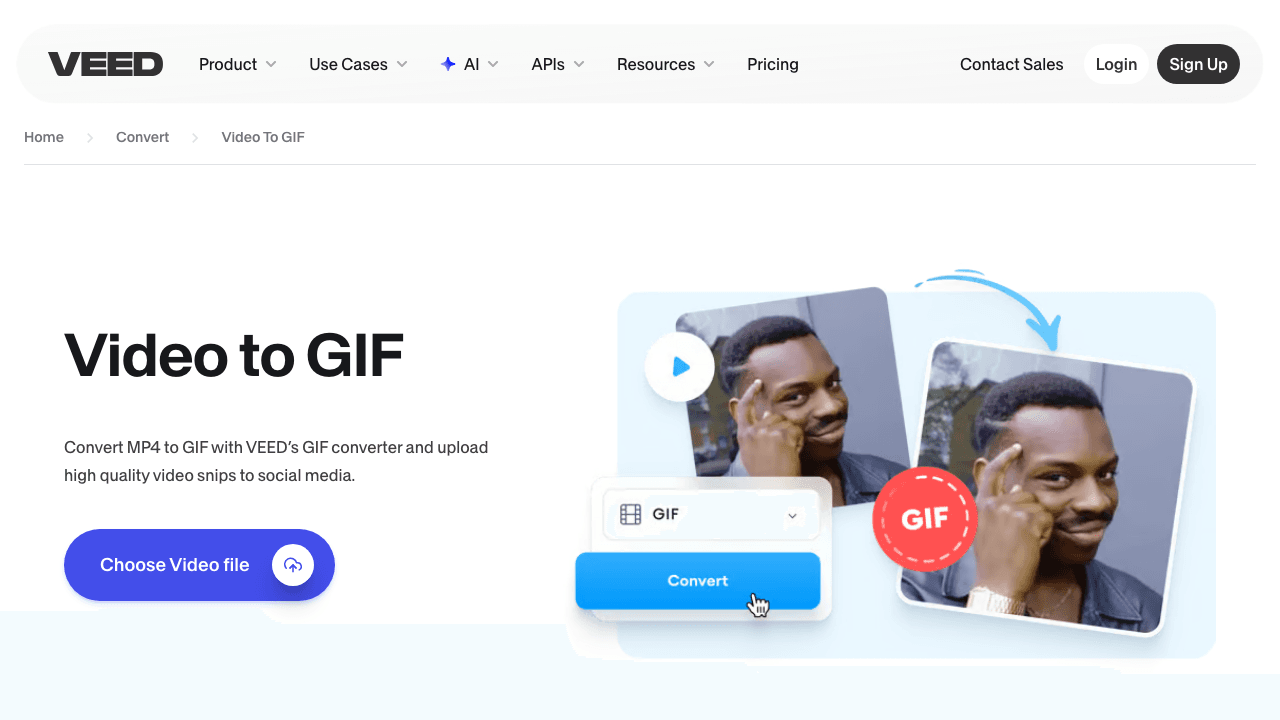
VEED is a full online video editor, and the video-to-GIF tool is one feature inside it. That matters because you can do real editing, cut, crop, add subtitles, filters, captions, before exporting the result as a GIF.
What it does well: the editor is genuinely good, the conversion is fast, and the tool works across MP4, MOV, AVI, WebM, and more. If you're making GIFs for social and want the flexibility to add a caption or a zoom before exporting, VEED earns its place.
Pricing: the free plan exports at 720p with a VEED watermark and a 10-minute project cap. Creator is $10/user/mo billed yearly ($116/yr), and Pro is $21/user/mo billed yearly (about $24 month to month) and removes the watermark; Pro sits higher again.
Trade-offs: it's the only tool on this list that watermarks free exports, so the free tier is really a trial. That's the usual trade-off for editor-first tools. If you want an editor-first workflow without the watermark trade-off, Vidocu's video editor is built around the same idea but with free export for tutorial content.
Best for: quick social clips where you want light editing before export.
9. IMG2GO: Best for simple one-off jobs
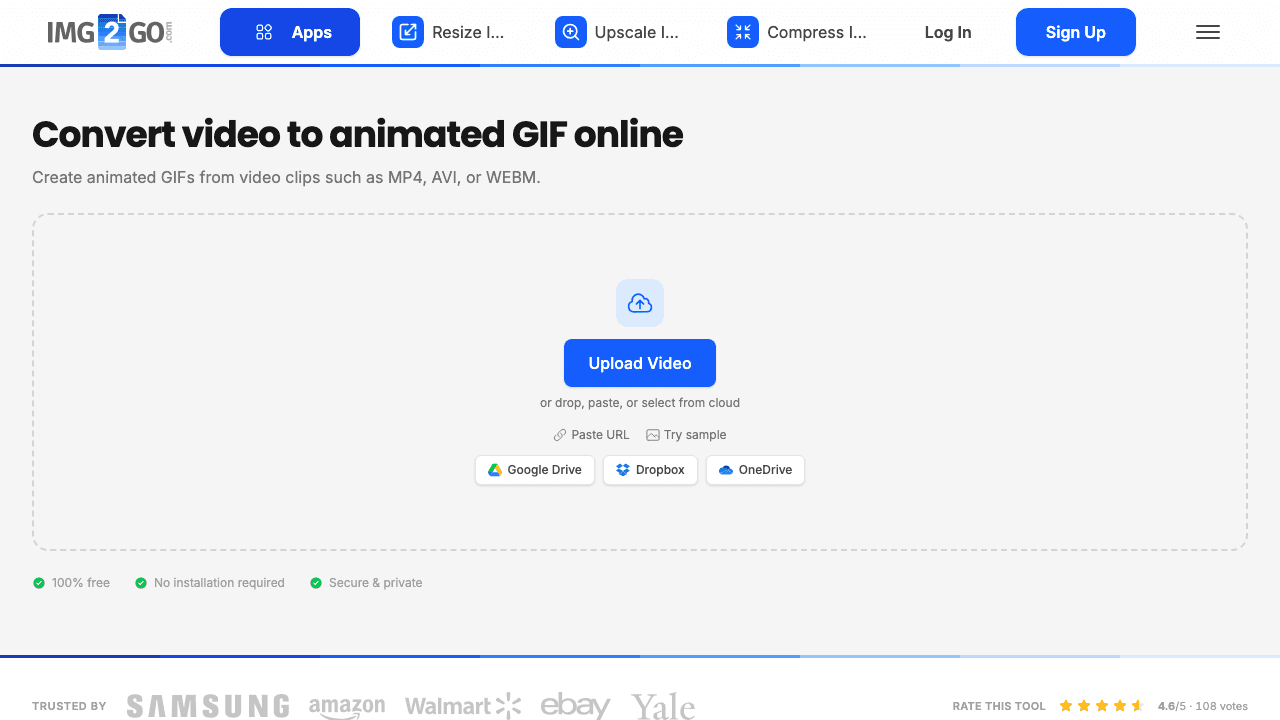
IMG2GO is the no-frills pick. Upload the file, hit convert, download the GIF. There's a trim option and a few basic settings, and that's it.
What it does well: it's fast, there's no watermark, and it doesn't demand a login for the basic flow. If you need one GIF, right now, and you don't want to read anything, IMG2GO gets out of your way.
Pricing: free for occasional use with limited processing and no batch. Credit plans start around $6.50/mo for 480 credits, making it the cheapest paid entry point on this list.
Trade-offs: free processing capacity is limited, there's no real editing layer, and the UX is generic. Not a tool you'd adopt for a team workflow, more a utility you'd bookmark.
Best for: single quick conversions with no editing required.
Converting MP4 to GIF: online vs desktop vs phone
Most people searching for an MP4 to GIF converter don't actually care where the conversion runs, but the choice does change what you get.
- Online (all nine tools above). No install, works on any operating system, and you're done in under a minute. The limits are file size and, on some tools, a daily conversion cap. This is the right default for almost everyone.
- In-browser but local (Kommodo). Looks like an online tool, behaves like a desktop app. Nothing uploads, so it's the only option that's genuinely safe for confidential footage. Speed depends on your laptop.
- Desktop software (FFmpeg, Photoshop, HandBrake). Worth it only for batch jobs, scripted pipelines, or frame-level control. FFmpeg with a two-pass palette gives the best possible quality if you're comfortable in a terminal, but it's a poor fit for a one-off.
- Phone (iOS and Android). iPhone can convert a Live Photo or a screen recording to GIF through Shortcuts without any app; Android generally needs an app. For a clip you already have on your desktop, the online tools are faster than moving the file to a phone.
For product and support teams, the practical answer is almost always an online converter, because the GIF is going into a doc, a ticket, or a changelog that you're already writing in a browser.
How to pick the right MP4 to GIF converter
A few simple filters get you to the right tool fast:
- If your clip is short (under 25 seconds) and the GIF is going into product docs, help articles, or changelog posts: use Vidocu. The output is clean, the workflow extends into subtitles and documentation, and you don't end up stitching tools together.
- If you need to tighten the frame before converting, crop the source first with a free online video cropper. A smaller frame is the single easiest way to cut a GIF's file size.
- If your GIF needs to span more than one clip, join the sources before converting with a free video merger. One GIF cut from one continuous file reads better in docs than three separate GIFs stacked on a page.
- If you need advanced editing (reverse, crop, effects) and don't mind a dense UI: use Ezgif.
- If your source file is over 500 MB: use FreeConvert.
- If you're already designing in Canva or Adobe Express: stay in that tool.
- If privacy matters and the file shouldn't leave your machine: use Kommodo.
- If budget is the only constraint: Ezgif and Kommodo are free forever with no paid tier, so there is nothing to outgrow.
- If you're automating conversions from code: use CloudConvert's API or Vidocu's API (which also handles subtitles, voiceover, and docs).
For most product and support teams, the answer is "the tool that fits the rest of my workflow." A GIF maker isn't a long-term investment, but if the same upload can also produce help articles, subtitles, and translations, you've saved yourself a week of busywork per month.
Using Vidocu's MP4 to GIF converter, step by step
- Open the MP4 to GIF converter.
- Drop in an MP4, MOV, or WebM (up to 500 MB).
- Drag the trim handles to mark your start and end, keep it under 25 seconds for a snappy GIF.
- Pick your frame rate (15 fps is usually the sweet spot, 24 fps looks smoother but doubles the file size).
- Choose a width (480 is a good default for embedding in docs; 320 for Slack; 640 for landing pages).
- Toggle looping on or off.
- Export. Download. Paste into your doc, email, or help article.
That's the whole workflow. If you're turning the same recording into a written tutorial too, check how to turn a screen recording into a step-by-step guide with screenshots.
FAQ
How much does an MP4 to GIF converter cost?
Nothing, for most people. All nine tools here convert MP4 to GIF on a free tier, and Ezgif and Kommodo have no paid plan at all. Where paid plans exist, they start at roughly $6.50/mo (IMG2GO), $8/mo (CloudConvert), $9.99/mo (Adobe Express), $12.99/mo (FreeConvert), $120/yr (Canva Pro), $10/user/mo billed yearly (VEED Creator), and $39/mo (Vidocu Pro, which covers the whole video-to-documentation platform rather than GIF conversion). You only need to pay when you hit a file size limit, a daily conversion cap, or a watermark.
Is there a free MP4 to GIF converter with no watermark?
Yes. Eight of the nine tools on this list (Vidocu, Ezgif, Adobe Express, FreeConvert, Canva, CloudConvert, Kommodo, IMG2GO) export GIFs with no watermark on the free tier. VEED is the exception and watermarks free exports. For tutorial-grade GIFs, Vidocu's free converter is watermark-free and your first conversion is free.
What's the best frame rate for a GIF?
15 fps is the sweet spot for most product GIFs, smooth enough to look natural, small enough to keep the file under a few megabytes. Drop to 10 fps if file size matters more than smoothness (email, Slack). Go to 24 fps only if the clip has fast motion that looks choppy at lower rates.
How long should a GIF be?
Under 10 seconds is ideal for product docs and social. 10 to 25 seconds works for longer demos. Past 25 seconds, the file size gets unusable fast and you're better off embedding the actual video. That's why Vidocu caps GIF output at 25 seconds, it's the point past which a GIF stops being useful. If your source clip runs long, speed up the video online free before converting; playing a screen capture at 1.5x or 2x often brings a 20-second flow down to GIF-friendly length.
How do I convert an MP4 from YouTube to a GIF?
You need the file first. None of the tools on this list pull directly from a YouTube URL for GIF conversion, so download the video (or the clip you need) as an MP4, then upload and trim it like any other source. Convert only content you own or have the rights to use. If you're recording your own screen anyway, you can skip the download step entirely and go straight from recording to GIF with Vidocu.
Does converting a video to a GIF keep the audio?
No. GIFs don't support audio, they're an image format. If audio matters, stay with video (MP4/WebM). If you want the best of both, use a short MP4 with AI-generated subtitles burned in, which behaves like a GIF visually but keeps the audio track. And if you only wanted the sound and not the picture, skip the GIF entirely and extract audio from the video as an MP3 instead.
What's the difference between a GIF and a short MP4?
MP4 is much smaller than GIF at the same length and quality, often 5 to 10x smaller, and supports audio. GIF is universally embeddable (email, Slack, old forums, documentation platforms that don't support video). Use GIF for embed compatibility; use MP4 for quality, length, and file size.
Vidocu turns any video into subtitles, AI voiceover, step-by-step help articles, and translated versions, all from one upload. If you're making GIFs today, you're probably making help docs next. Try Vidocu for free.

Written by
Daniel SternlichtDaniel Sternlicht is a tech entrepreneur and product builder focused on creating scalable web products. He is the Founder & CEO of Common Ninja, home to Widgets+, Embeddable, Brackets, and Vidocu - products that help businesses engage users, collect data, and build interactive web experiences across platforms.