
Sometimes a video says more than a doc, but the video alone isn't enough. You need to point at something. Circle a button. Label a step. Blur a customer's email before the recording ships to a client.
That's what a video annotator is for. You drop arrows, boxes, text callouts, and blur regions on top of your footage so viewers actually see what you're talking about. Tutorials get clearer, bug reports get faster, product demos stop drifting into "watch me move my mouse" territory.
The good news: you don't need Premiere Pro or a $300 license to annotate a video anymore. Browser-based tools cover 90% of real use cases for free. We compared the most popular options and narrowed it down to the nine best free video annotator tools online in 2026. (Working with static screenshots instead of footage? See our guide to the best free image annotation tools.)
Short answer: for timed arrows, callouts, and blur on a tutorial or screen recording, use Vidocu. For a free, watermark-free general editor, Clipchamp is the strongest pick, and Canva is watermark-free too as long as you stick to free elements. Paid plans across this list start at $9/month billed yearly (Clideo), and most sit between $10 and $24/month. Prices below were checked on each vendor's pricing page in September 2026.
Quick Comparison
| Tool | Best For | Timeline Control | Free Tier | Paid From |
|---|---|---|---|---|
| Vidocu | Tutorials + documentation teams | ✅ | 1 free tool run, no watermark on the result | $39/mo (Pro) |
| VEED.IO | Creators on social | ✅ | Free (watermark) | $10/user/mo, billed yearly |
| Flixier | Fast cloud editing | ✅ | 10 min export/mo, 720p, watermark | Starter (price localized by region) |
| FlexClip | Marketing videos | ✅ | 720p, videos up to 10 min, watermark | $11.99/mo, billed yearly |
| Descript | Podcasters, YouTubers | ✅ | 60 media min/mo | $16/mo, billed yearly |
| Clideo | One-off annotations | ❌ | 10 credits/mo, 720p, watermark | $9/mo, billed yearly |
| Clipchamp | Free exports without a watermark | ✅ | 1080p, no watermark | Microsoft 365 Personal, $99.99/yr |
| Kapwing | Social-first teams | ✅ | 4-min exports, 720p, watermark | $16/member/mo, billed yearly |
| Canva | Design-led teams | ✅ | No watermark with free elements | Pro $120/yr |
1. Vidocu
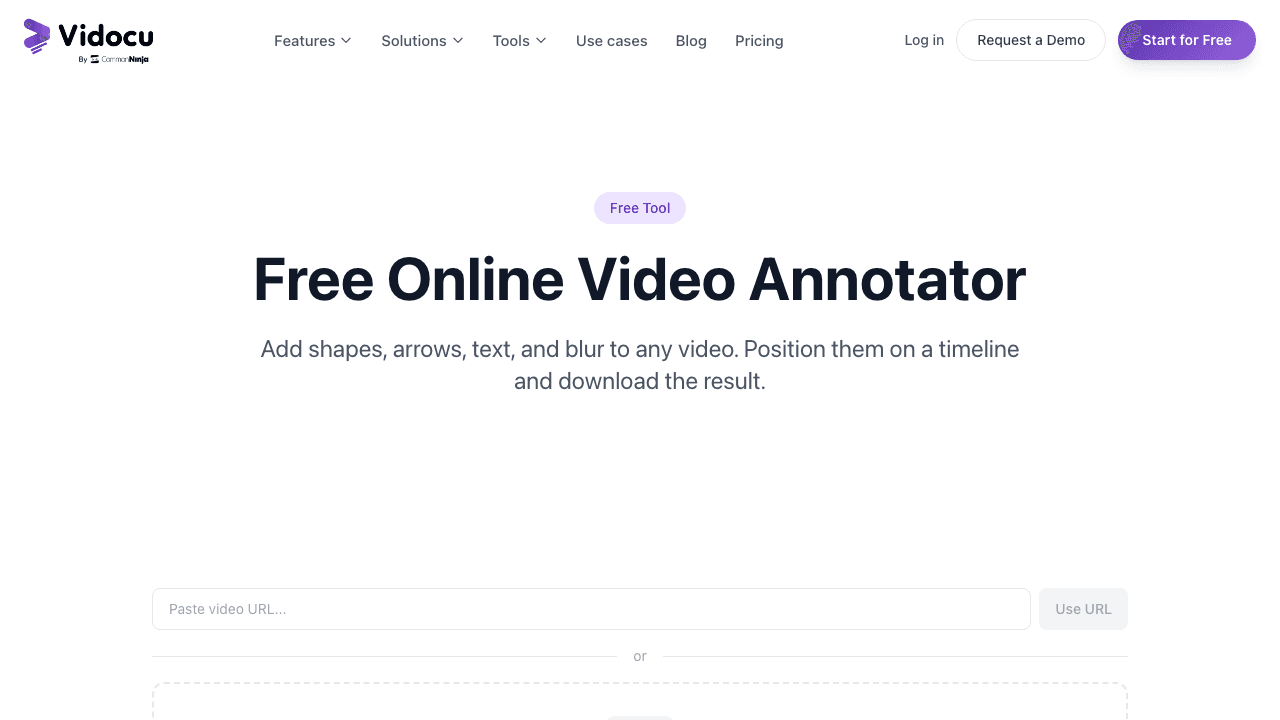
Vidocu's free video annotator is a browser-based tool built for teams that annotate video as part of a real documentation workflow. Upload an MP4, MOV, or WebM, draw rectangles, circles, arrows, and text callouts on the timeline, blur anything sensitive, and export an MP4. The annotated result carries no watermark, and your first run is on us with a free Vidocu account.
What sets it apart is timeline control. Each annotation has a start and end time, so an arrow can appear exactly when the narrator says "click here" and disappear two seconds later. Clideo stamps annotations across the whole clip, and the full editors on this list make you trim each overlay on a multi-track timeline. Vidocu's annotator is built around exactly that one job.
The deeper advantage is context. The annotator sits alongside the rest of Vidocu's video-to-documentation workflow. You can annotate a product walkthrough, then auto-generate subtitles, add an AI voiceover, translate the result into any language, and publish the whole thing as a step-by-step help article. If you're annotating videos as part of a tutorial, SOP, or knowledge base article, everything stays in one tool.
Key features:
- Rectangles, circles, arrows, text callouts, and blur on a timeline
- Per-annotation start/end times with visual scrubber
- Ten color presets and adjustable stroke thickness
- Blur tool for hiding faces, emails, and credentials
- Export as MP4 with no watermark
- Works with MP4, MOV, WebM, and most common formats
Pricing: The Free plan ($0) includes one free tool run, so you can annotate and export a video at no cost. After that, tools run on credits (most cost 1 credit per run): Pro is $39/month and includes every tool with no run limits, plus AI voiceover, video translation, and watermark removal on full platform exports. Business is $149/month for teams.
Best for: Documentation, support, and product teams that create tutorial content and need annotations that match a narrator's timing. Bonus if you're also generating SOPs, translated videos, or help articles in the same session.
Annotate a video in your browser. No watermark.
Drop arrows, text, and blur on a timeline. Works with MP4, MOV, WebM. Your first run is free.
Try the free video annotator2. VEED.IO
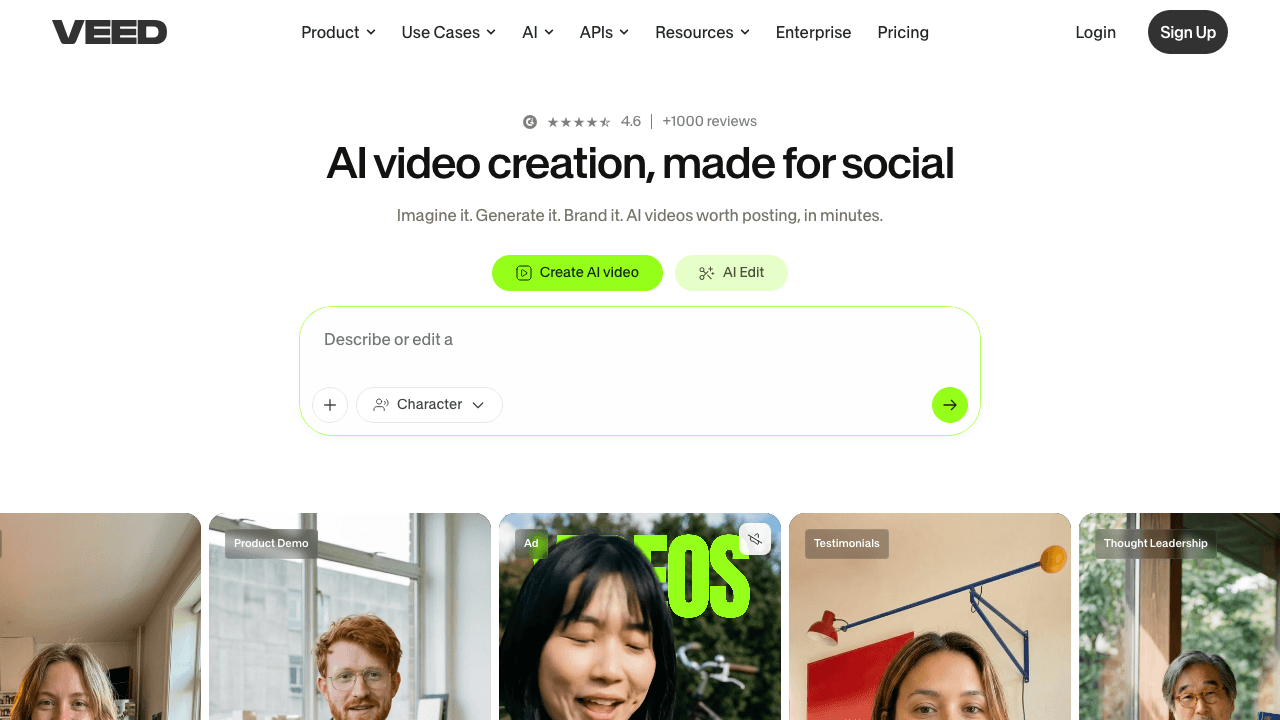
VEED.IO is one of the best-known online video editors. Its annotation tool is part of the broader editor, which means you get arrows, shapes, text, progress bars, emojis, and freehand drawing in the same workspace where you'd trim or add subtitles.
The upside is flexibility. Because annotations live inside a full editor, you can layer them with transitions, captions, and B-roll. The downside is the watermark: every paid VEED plan lists "No watermark" as a feature, so free exports carry VEED branding. For anything going to a client or a public audience, you'll likely need to upgrade.
Key features:
- Arrows, lines, shapes, text, emojis, and freehand drawing
- Timeline-based editing with transitions
- Auto-generated subtitles
- Multi-track editor with B-roll and overlays
Pricing: Free plan exports carry a VEED watermark. Creator is $10/user/month billed yearly ($116/yr), Pro is $21 ($257/yr), and Studio is $35 ($414/yr).
Best for: Content creators who want annotations alongside editing, subtitles, and effects in one workspace.
3. Flixier
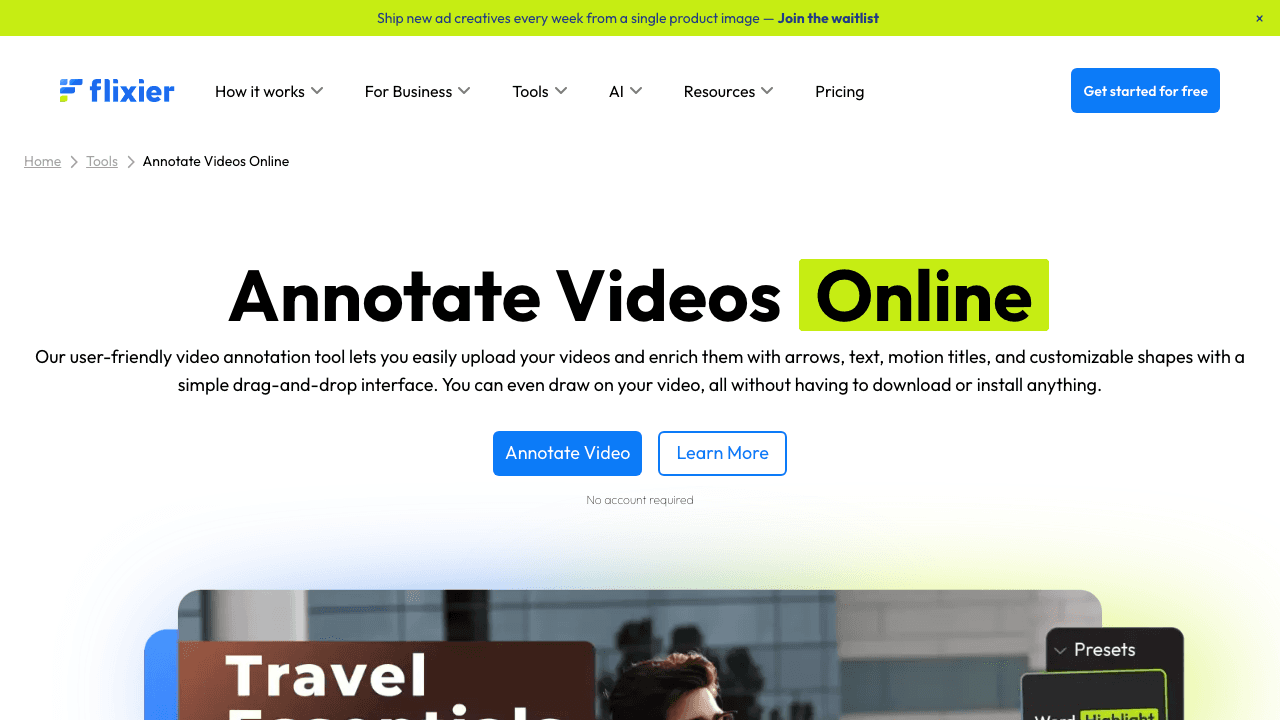
Flixier is a cloud-based video editor. The annotate feature is front and center: drag arrows, motion titles, shapes, and text onto the timeline, customize color and size, and export. Its help center also covers drawing on video and blurring or pixelating regions.
Flixier's pitch is speed. Rendering happens in the cloud, so exports don't lean on your laptop's CPU. The free tier is tight, though: 10 minutes of video export per month at 720p with a Flixier watermark, so it's best as a fast first pass before upgrading.
Key features:
- Arrows, motion titles, customizable shapes, and text
- Cloud rendering (no local CPU load)
- Drag-and-drop timeline
- Direct publishing to YouTube, Vimeo, and social platforms
Pricing: Free includes 10 min of video export per month, 720p, 2 GB storage, and a watermark. Starter (1080p, no watermark, 60 export minutes per seat per month) is the first paid tier, followed by Creator and Business. Flixier localizes its prices by region, so check the figure shown for your country.
Best for: Teams on slow machines who want cloud rendering for annotated videos.
4. FlexClip
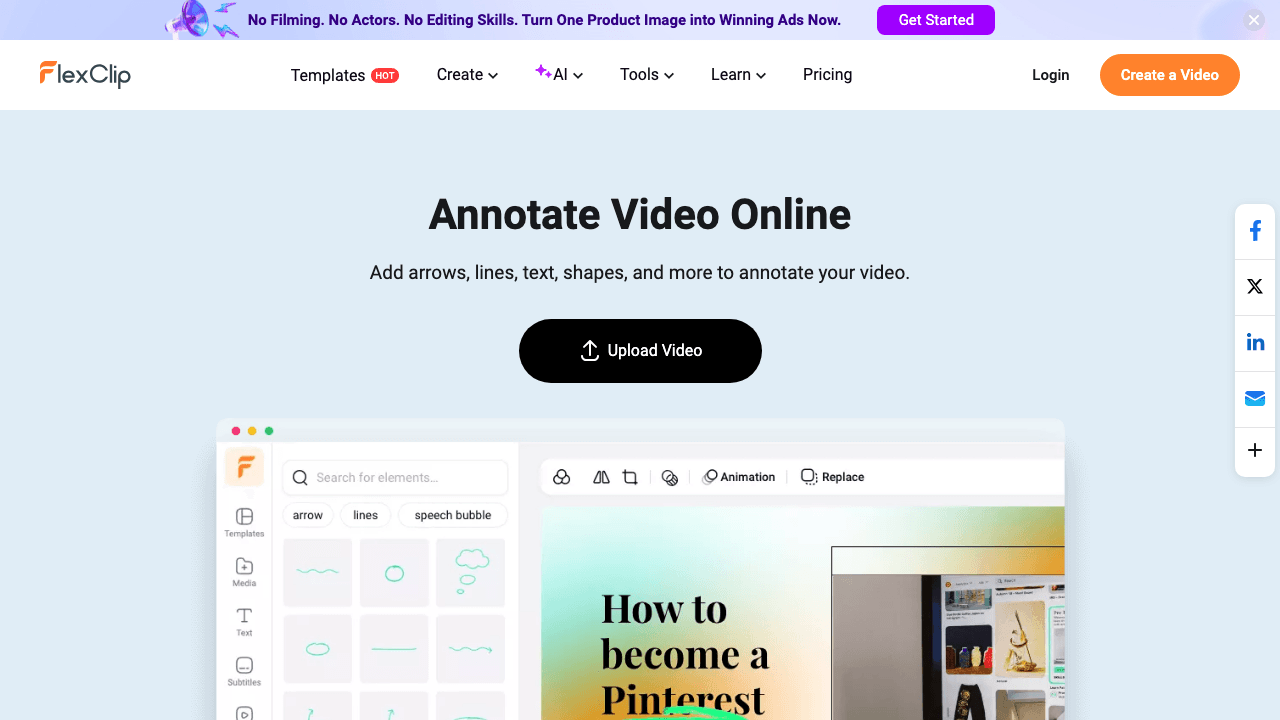
FlexClip leans marketing. Its annotate video tool includes arrows, lines, shapes, animated text, and a large library of pre-designed callout styles. If you're producing promo clips or social ads, the templated look can save real time.
The tradeoff is that FlexClip's free tier is restrictive: 720p downloads, videos up to 10 minutes, a maximum of 12 projects, and a FlexClip watermark (removing it is a paid-plan feature). For a quick one-off annotation it works. For anything production-grade, the paid tier is essentially required.
Key features:
- Arrows, lines, shapes, and animated text
- Pre-designed callout and annotation templates
- Built-in stock media library
- Brand kits (paid)
Pricing: Free is 720p, up to 10 minutes, 12 saved projects, with a watermark. Plus is $11.99/month billed annually ($143.88/yr) or $19.99 monthly, with 1080p and no watermark. Business is $19.99/month annually or $29.99 monthly, with 4K.
Best for: Marketing and social teams that want polished, templated annotation styles.
5. Descript
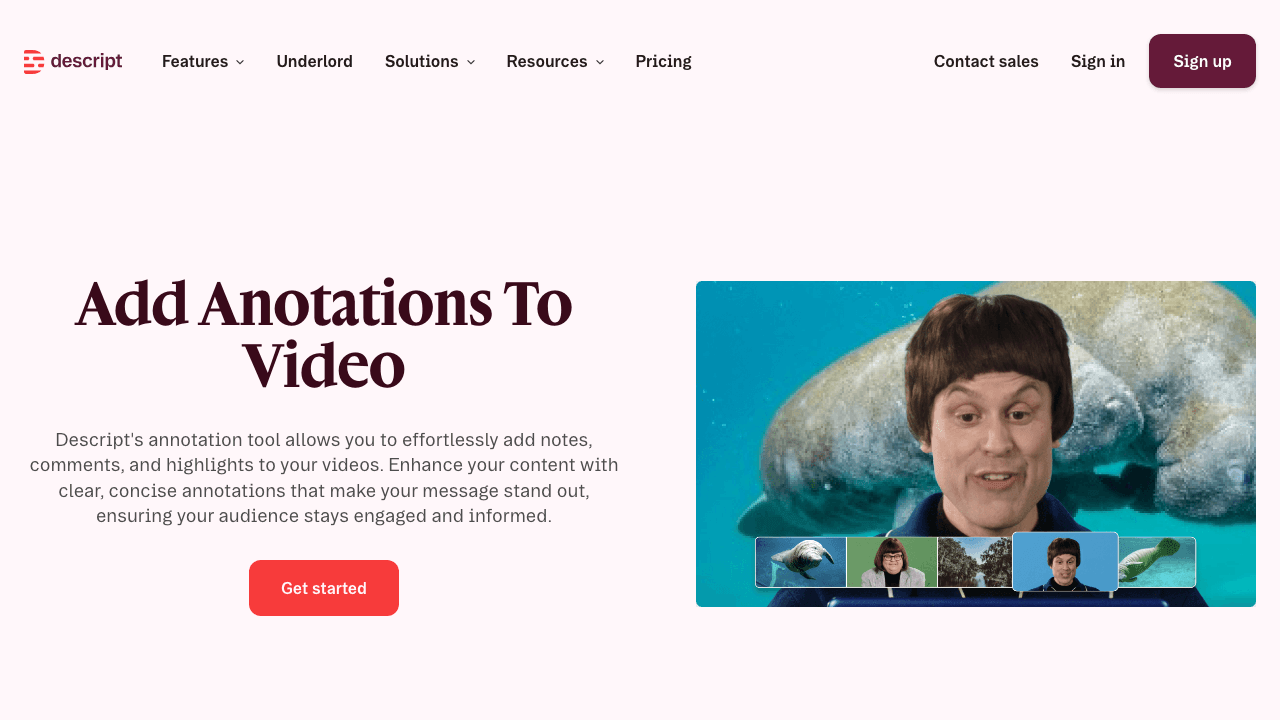
Descript treats video like a text document. Edit the transcript, edit the video. Its annotation tool adds text, shapes, arrows, and highlights in the same workspace you'd use for cutting filler words or generating subtitles.
Descript shines for creators who already work transcript-first. Adding annotations is fast because you can jump to any moment by searching the transcript. The Free plan gives you 60 media minutes per month and 100 one-time AI credits; watermark-free export is advertised starting on Hobbyist. If you want to see how Descript compares for broader workflows, we wrote a full Descript vs Vidocu breakdown.
Key features:
- Text, shapes, arrows, and highlights on the timeline
- Transcript-based editing (search text, cut video)
- AI voice cloning and dubbing
- Studio Sound audio cleanup
Pricing: Free is $0 with 60 media minutes per month. Hobbyist is $16/month billed annually or $24 monthly (1080p, watermark-free), Creator is $24 or $35 (4K), and Business is $50 or $65 per person.
Best for: Podcasters, YouTubers, and solo creators who edit transcript-first.
6. Clideo
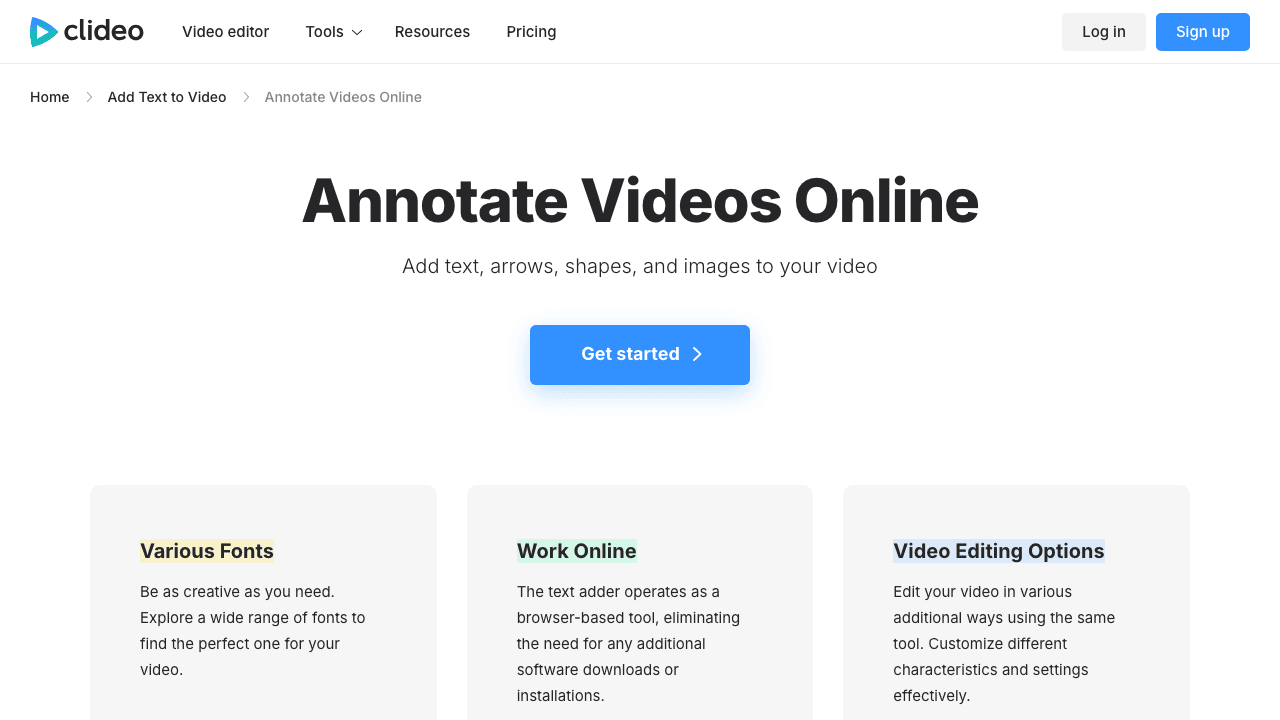
Clideo is a no-frills online tool that does one job at a time: trim, merge, compress, annotate. Its annotate feature covers the basics: arrows, shapes, and text boxes drag-and-drop onto the video with simple customization.
There's no timeline control, which is the main limitation. Annotations show up across the entire clip, so if you only want an arrow visible for a few seconds, Clideo isn't the tool. For a single stamped callout across a short clip, it's fast.
Key features:
- Arrows, shapes, and text overlays
- Simple drag-and-drop editor
- Works across all major video formats
- No download required
Pricing: Free is 10 credits per month, 720p exports, a 500 MB upload cap, 14-day storage, and a watermark. Pro is $9/month billed yearly ($108), with no watermark, 4K, and unlimited upload size. Clideo publishes no tier above Pro.
Best for: One-off annotations where you only need a simple stamped callout.
7. Clipchamp
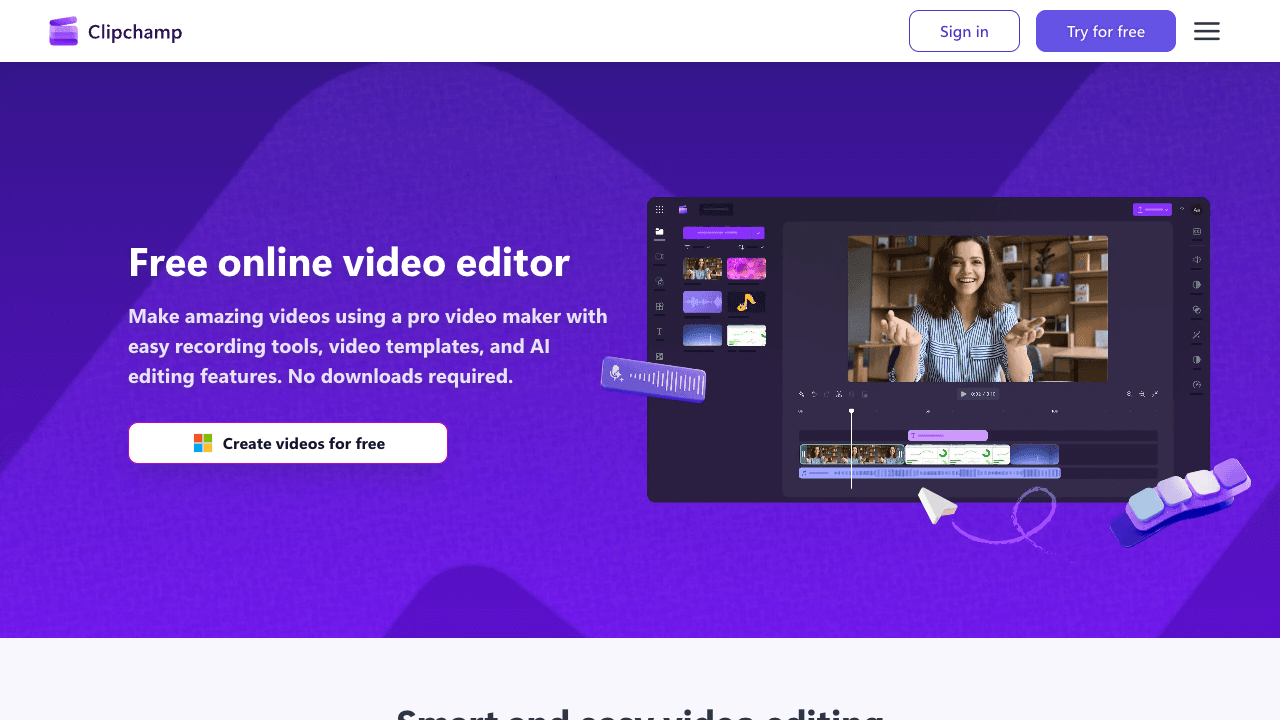
Clipchamp is Microsoft's browser-based video editor, and it has the most generous free tier on this list: watermark-free exports up to 1080p with a personal Microsoft account. Annotation happens through text overlays, animated titles, and annotation and call-to-action stickers that you place and trim on a multi-track timeline.
The catch is that Clipchamp is a general editor, not an annotation tool. There's no dedicated callout workflow, so timing an arrow to a narrator means dragging each sticker's edges on the timeline by hand. It also has no built-in link from the annotated video to docs or help articles. For a clean, free export of a short annotated clip, though, it's hard to beat.
Key features:
- Text overlays, animated titles, and annotation stickers
- Multi-track timeline with trim, crop, and rotate
- Screen, camera, and voice recorder built in
- AI voiceover (text to speech)
Pricing: Free with a personal Microsoft account, including watermark-free exports up to 1080p. Premium features (4K exports, premium stock, brand kit) come with Microsoft 365 Personal at $99.99/year or $9.99/month, or Family at $129.99/year.
Best for: Anyone who needs a free, watermark-free export and doesn't mind placing annotations by hand.
8. Kapwing
Kapwing is a social-first online video editor. The annotate workflow includes arrows, shapes, text, animated stickers, and speech-bubble callouts, most of which are designed to read well on phone screens.
The free tier limits exports to 4 minutes each (30 minutes per month) at 720p, with a Kapwing watermark. Good for short tutorial clips or social how-tos. Less ideal for longer-form content.
Key features:
- Arrows, shapes, text, and animated stickers
- Speech-bubble and meme-style callouts
- Blur tool and auto-subtitles
- Social-sized export presets (TikTok, Reels, Shorts)
Pricing: Free is 10 credits, exports up to 4 minutes long (30 min/month), 720p, with a watermark. Pro is $16/member/month billed annually or $24 monthly, with no watermark, 4K, and exports up to 2 hours. Business is $50 annually or $64 monthly.
Best for: Social and TikTok-style creators annotating short vertical videos.
9. Canva
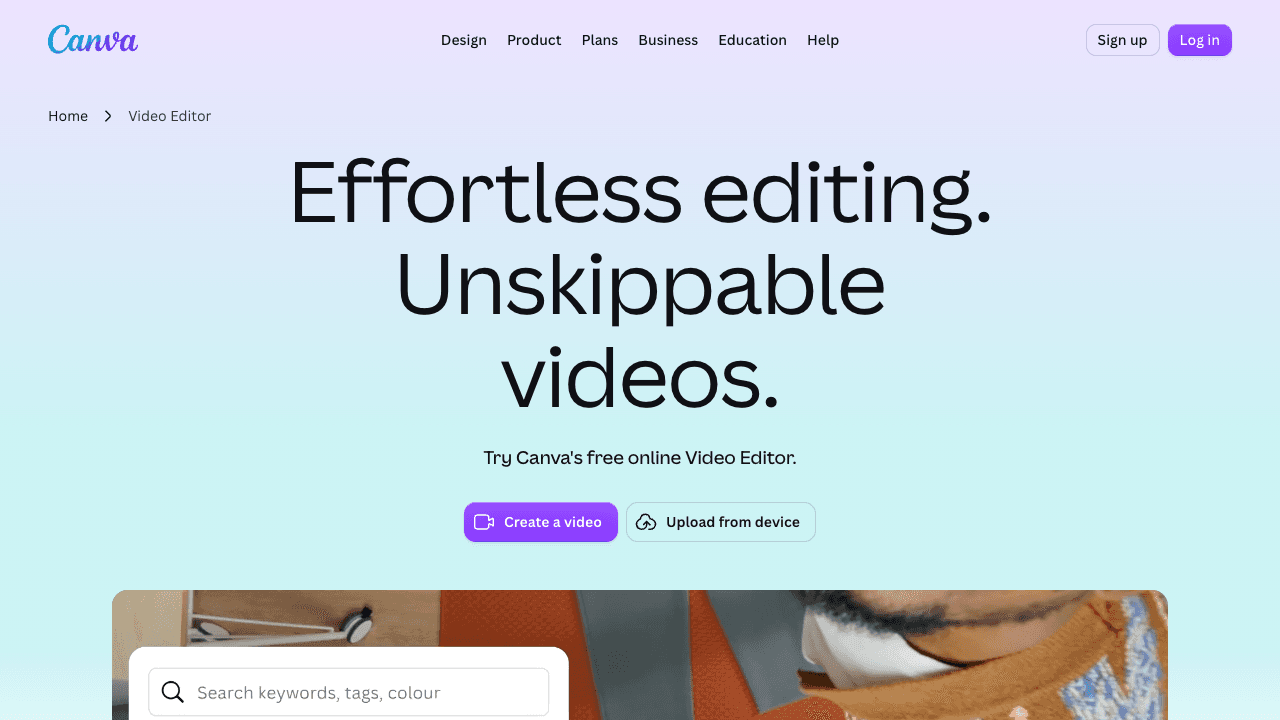
Canva's video editor brings its design library to footage. Drop shapes, arrows, lines, and text from the elements panel onto a multi-layered timeline, then set how long each one stays on screen. If your team already builds slides and social graphics in Canva, annotated clips will match the rest of your brand.
The watermark rule is worth knowing. Free accounts export video without a watermark as long as every element is free. Use a Pro element (marked with a crown) and it gets watermarked unless you upgrade or license that element. Canva also isn't built for screen-recording tutorials: there are no step-level callouts and no path from the video into written documentation.
Key features:
- Shapes, arrows, lines, and text from a huge elements library
- Multi-layered drag-and-drop timeline
- Templates and brand kits
- Stock footage, audio, and graphics
Pricing: Free is $0 (5 GB storage, up to 20 AI uses). Pro is US$120/year for one person, and Business is US$210/year per person.
Best for: Design and marketing teams who want annotated clips that match their existing Canva brand assets.
How to Choose a Video Annotator
The nine tools above cover almost every use case, but picking one comes down to three questions:
1. Do you need timeline control? If an annotation has to appear at a specific moment (for example, "click this button at 0:14") you need a tool with per-annotation timing. Vidocu, VEED.IO, Flixier, FlexClip, Descript, Clipchamp, Kapwing, and Canva all offer it. Clideo doesn't. The difference is how fast it is: Vidocu gives each callout its own start and end time, while the general editors make you trim overlay layers by hand.
2. Will this ship to an external audience? If the annotated video is going to a customer, a client, or a public page, avoid free tiers that stamp a watermark. VEED, Flixier, FlexClip, Clideo, and Kapwing all do. Vidocu's annotator, Clipchamp, and Canva (with free elements only) export without one.
3. Is annotation part of a bigger workflow? If you're also generating subtitles, adding voiceover, creating SOPs, or translating a tutorial into multiple languages, the annotator should live alongside those features. Otherwise you'll bounce between five tabs for a single video.
Annotation is one step. Vidocu handles the whole workflow.
Annotate, subtitle, voiceover, translate, and turn video into docs in one place.
See what Vidocu doesWhat Video Annotators Actually Cost in 2026
Free tiers get you started, but most of them cap something: export length, resolution, or a watermark. Here's where each tool's paid tiers start, checked on the vendors' pricing pages in September 2026.
| Tool | Free | Entry paid plan | Next tier |
|---|---|---|---|
| Vidocu | $0 (1 free tool run) | Pro $39/mo | Business $149/mo |
| VEED.IO | $0 (watermark) | Creator $10/user/mo, yearly | Pro $21/user/mo, yearly |
| Flixier | $0 (10 min/mo, watermark) | Starter (localized pricing) | Creator (localized pricing) |
| FlexClip | $0 (720p, watermark) | Plus $11.99/mo yearly, $19.99 monthly | Business $19.99/mo yearly, $29.99 monthly |
| Descript | $0 (60 min/mo) | Hobbyist $16/mo yearly, $24 monthly | Creator $24/mo yearly, $35 monthly |
| Clideo | $0 (10 credits, watermark) | Pro $9/mo, billed $108/yr | None published |
| Clipchamp | $0 (1080p, no watermark) | Microsoft 365 Personal $99.99/yr | Microsoft 365 Family $129.99/yr |
| Kapwing | $0 (4-min exports, watermark) | Pro $16/member/mo yearly, $24 monthly | Business $50 yearly, $64 monthly |
| Canva | $0 (free elements only) | Pro $120/yr | Business $210/yr per person |
Two patterns stand out. First, the cheapest way to remove a watermark is not paying at all: Clipchamp's free tier and Vidocu's free run both export clean. Second, yearly billing changes the math a lot. Descript and Kapwing charge 50% more on monthly billing, and FlexClip Plus costs 67% more.
What Video Annotations Actually Improve
When you're writing how-to content, adding visual markers on top of footage isn't cosmetic. It changes how viewers absorb the material.
Tutorials get clearer. A labeled arrow pointing at a "Save" button in the top-right saves the narrator three seconds of describing where it is. Over a 5-minute walkthrough, that adds up. Viewers follow along without pausing.
Bug reports get faster. Instead of writing "the CTA button on the pricing page, the second one from the left, has a broken hover state," you record 10 seconds, draw a red circle around the button, and send it. One annotation replaces a paragraph.
Product demos focus attention. Prospects watching a demo scan the whole screen by default. An arrow or highlight tells them where to look. That's how you stop losing people in the middle of a walkthrough. If you're producing demos, our guide to product demo videos that convert covers the full structure.
SOPs become watchable. Written SOPs die in binders. Video SOPs with annotations turn into actual training material, and if you want to generate one from a screen recording automatically, Vidocu's video-to-SOP workflow handles the full pipeline. Our SOP creation playbook walks through the format.
Documentation scales. Annotated videos paired with AI-generated transcripts become searchable, translatable, and embeddable across your help center. The annotation itself is a small thing, but it's what makes the video readable at a glance.
FAQ
What's the best free video annotator online?
For timeline-controlled annotations with no watermark, Vidocu's free video annotator is the strongest free option in 2026. It needs a free account, and your first run is on us. It supports rectangles, circles, arrows, text callouts, and blur (each with precise start/end times) and exports an MP4 without a watermark. If you need a general-purpose free editor with watermark-free exports, Clipchamp is the best alternative.
Can I add annotations to a video online for free without a watermark?
Yes. Vidocu's annotator exports without a watermark on your free run, Clipchamp's free plan exports watermark-free up to 1080p, and Canva exports without a watermark as long as you only use free elements. VEED, Flixier, FlexClip, Kapwing, and Clideo add a watermark on their free tiers and require an upgrade to remove it.
How much does a video annotator cost?
Most paid plans on this list fall between $9 and $24 per month. Clideo Pro is the cheapest at $9/month billed yearly, VEED Creator is $10/user/month yearly, FlexClip Plus is $11.99/month yearly, and Descript Hobbyist and Kapwing Pro are $16/month yearly. Vidocu Pro is $39/month and bundles every tool with AI voiceover, subtitles, translation, and documentation.
How do I add arrows and text to a video online?
Upload your video to a browser-based annotator like Vidocu, select the arrow or text tool, click or drag on the video to place it, and set the start and end times on the timeline. Export as MP4. The whole process takes under a minute for a short clip. No software installation required.
Can I blur part of a video for free?
Yes. Vidocu's video annotator includes a blur tool that lets you mask faces, emails, credit card numbers, or any sensitive region on a timeline. You choose when the blur appears and disappears. It's useful for anonymizing screen recordings before sharing a tutorial externally. If the recording came out of several takes, put the clips together into one video first so your annotation timings line up with the final cut.
What's the difference between video annotation and video labeling?
Video annotation in the creator sense means adding visual overlays (arrows, text, boxes, blur) to help viewers understand what's happening. That's the focus of this article. Video labeling (sometimes called video annotation in ML) means tagging frames or objects to train computer vision models, which uses very different tools like CVAT or Labellerr. If you're creating tutorials, demos, or documentation, you want creator-style annotation.
Ready to annotate your first video? Try Vidocu's free video annotator. Your first run is free and the result has no watermark.

Written by
Daniel SternlichtDaniel Sternlicht is a tech entrepreneur and product builder focused on creating scalable web products. He is the Founder & CEO of Common Ninja, home to Widgets+, Embeddable, Brackets, and Vidocu - products that help businesses engage users, collect data, and build interactive web experiences across platforms.