
Combining two or three clips into one video used to mean opening a heavy desktop editor, waiting for a project to render, and dealing with watermarks on the way out. In 2026, you can merge videos in a browser tab in under a minute, often without watermarks, and increasingly with AI features like auto-subtitles, voiceover, and translation built into the same workflow.
This guide compares the 9 best free video merger tools available online in 2026, with honest pros and cons, watermark policies, and which workflows each one fits best.
You may also see this called a video joiner, and the task described as joining videos online. It is the same job as merging: take two or more clips and stitch them into a single file, so every tool below works whether you call it a video joiner or a video merger.
9 Best Free Video Merger Tools at a Glance
| Tool | Free Watermark | Max File Size | Paid From | Best For |
|---|---|---|---|---|
| Vidocu | No watermark | 500 MB, first merge free | $39/mo | Tutorials, training, docs (subtitles + merge) |
| Clideo | Watermark on free | 500 MB | $9/mo billed yearly | Fast one-off merges |
| Kapwing | Watermark on free | 7 min export free | $16/mo billed yearly | Social media creators |
| Canva | No watermark on basic | Limited storage | $120/yr | Designers already on Canva |
| VEED.io | Watermark on free | 50 MB / 10 min | $10/user/mo billed yearly | Quick browser editing |
| Adobe Express | No watermark on free | Limited features | $9.99/mo | Adobe ecosystem users |
| FlexClip | Watermark on free | 1 min export free | $11.99/mo billed yearly | Stock-heavy edits |
| Online Video Cutter (123apps) | No watermark | 500 MB free, 5 files/day | 6 euro/mo | Quick ad-supported merges |
| Clipchamp | No watermark on free | Microsoft account | Microsoft 365 bundle | Windows users |
Merge videos and turn them into tutorials in one workflow
Vidocu lets you combine clips, then auto-generate subtitles, voiceover, and step-by-step docs from the merged video.
Try Vidocu FreeWhat to Look For in a Video Merger Tool
Most "free video merger" tools are interchangeable for a basic two-clip stitch. Where they differ is what happens around the merge: watermarks, file size limits, transitions, subtitle support, and whether the tool can do anything else useful with the combined video.
When picking a tool, run through this checklist:
- Watermark policy. Half the "free" tools online slap a watermark on the export. If you're publishing the video anywhere public, that's a dealbreaker.
- File size and length limits. Browser-based mergers often cap exports at 720p, 100 MB, or 5 minutes on free plans.
- Format support. MP4 is universal. If you're merging clips from a phone (HEVC) or a screen recorder (WebM), make sure the tool reads them.
- Transitions and trim controls. A hard cut is fine for most cases. If you need fade-in, dissolve, or precise trimming before merging, check what the tool offers.
- What else can it do? If you're going to add subtitles, voiceover, music, or translate the merged video, you'll save time using a platform that handles all of it instead of jumping between four tools.
For software walkthroughs, training content, and tutorials specifically, the video-to-documentation workflow means the same merged file can also become a written SOP and translated versions in 65+ languages, all from a single upload.
1. Vidocu
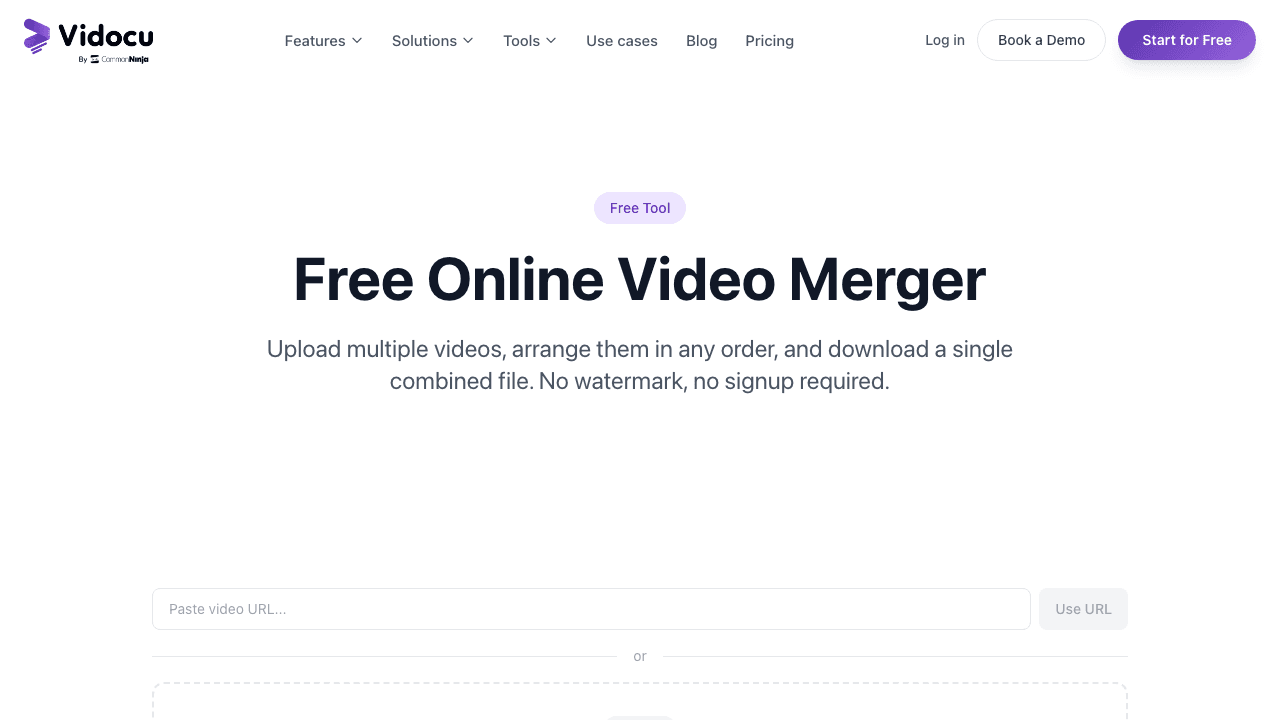
Vidocu is an AI video platform built for tutorials, training, and documentation. The video merger sits inside a broader workflow that turns a recording into subtitles, AI voiceover, a written step-by-step guide, and translated versions in 65+ languages.
For pure clip-stitching, Vidocu is overkill. For anyone merging tutorial segments, training videos, or product walkthroughs, it's the only tool on this list that combines the merge with AI subtitles, AI voiceover, video translation, and auto-generated documentation. You upload your clips, drag them into the order you want, and the platform also gives you a polished, captioned video plus a written guide with screenshots ready to ship to a knowledge base.
Best for: Anyone creating tutorial videos, employee training, software walkthroughs, or product demos who needs more than just a merge.
Pros:
- No watermark on the free tier
- Combines merge with AI subtitles, AI voiceover, and translation in one workflow
- Auto-generates step-by-step written documentation from the merged video
- Browser-based, no installation
- Translates the merged video into 65+ languages
Cons:
- Built for content workflows, not pure 30-second TikTok edits
- Heavier interface than a one-trick merger
Pricing: Free plan available. Paid plans unlock longer videos, higher resolution, and unlimited translations.
2. Clideo
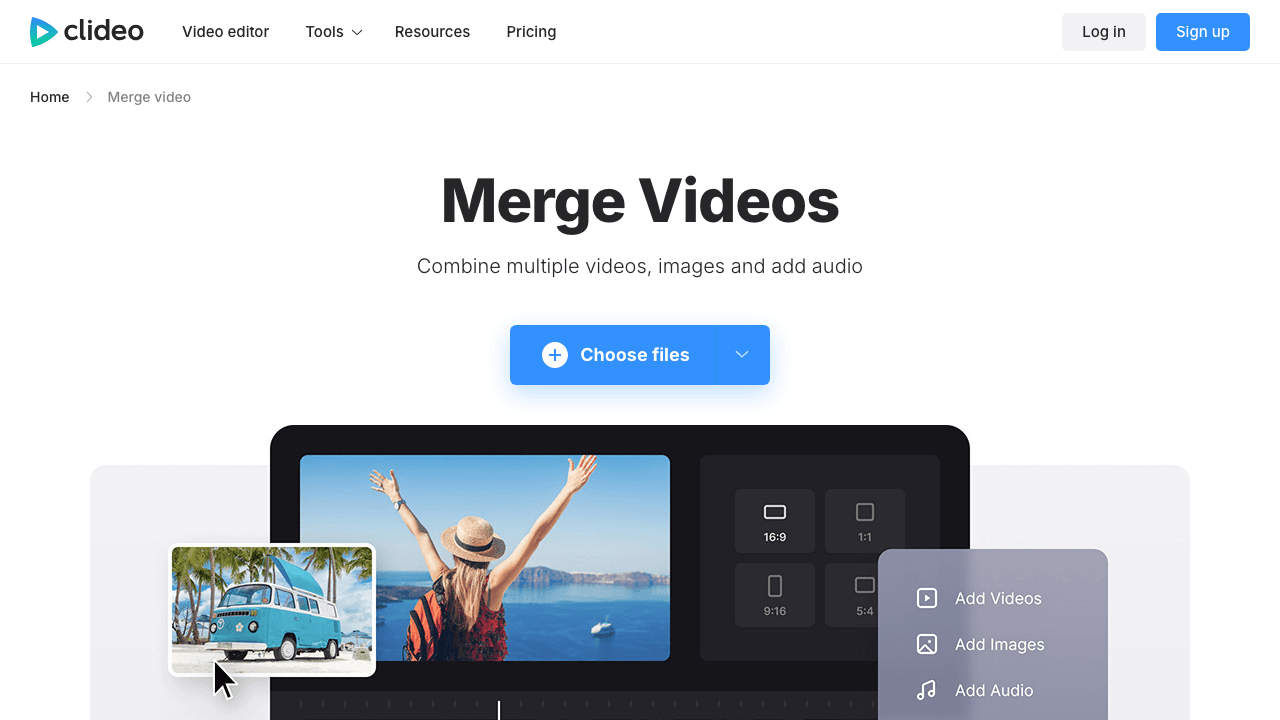
Clideo is one of the longest-running browser-based video tools and its merger is dead simple. Upload up to ten clips, drag to reorder, pick an aspect ratio, hit merge.
One thing to watch: if your source clips have different aspect ratios, most mergers letterbox them instead of matching them. Standardize them with a free video cropper before you merge and the joined video stays edge to edge.
The catch is the watermark on the free plan. Clideo also caps free uploads at 500 MB total across all clips you're merging, which is fine for short social clips but cramped for anything HD or longer than a few minutes.
Best for: Quick one-off merges where a watermark is acceptable or where you'll buy a one-day pass.
Pros:
- Extremely simple interface, almost no learning curve
- Supports MP4, MOV, AVI, WMV, and more
- Browser-based, works on any device
Cons:
- Watermark on the free export
- 500 MB combined upload limit on free
- No subtitle, voiceover, or translation features
Pricing: Free with watermark. Paid plans remove watermarks and lift size limits.
3. Kapwing
Kapwing is a modern browser editor that's built for short-form social creators. The merge is a side feature inside a fuller editor, so you can trim, add text overlays, and apply transitions in the same flow.
The free plan caps exports at 7 minutes and adds a watermark unless you're under a certain export length. Beyond the merge, Kapwing has solid auto-subtitles and a clean templates library, which makes it useful for anyone publishing to TikTok, Reels, or YouTube Shorts.
Best for: Social media creators who want a polished editor with merge built in.
Pros:
- Modern, well-designed editor
- Auto-subtitles included
- Transitions, text, and effects beyond a basic merge
- Browser-based, works on Chromebook
Cons:
- Watermark on free exports past a length
- 7-minute export cap on free
- Heavier interface for someone just stitching two clips
Pricing: Free tier with limits. Paid plans unlock longer videos, no watermark, and team features.
4. Canva
Canva isn't the first name people think of for video, but its video editor handles basic merges well, and if you're already a Canva user the workflow is familiar. Drop clips on the timeline, drag to reorder, export.
Canva's free tier is generous: no watermark on basic exports, unlimited projects, and a huge stock library. The trade-off is that it's a design tool first and a video tool second, so things like aspect ratio handling and longer exports feel a bit clunky compared to dedicated video tools.
Best for: Designers, marketers, or anyone already paying for Canva who needs a quick merge alongside their thumbnails and social graphics.
Pros:
- No watermark on basic free exports
- Massive stock and template library
- Familiar interface for existing Canva users
- Decent transitions and text overlays
Cons:
- Designed for design, not video editing
- File handling can be slow with larger uploads
- Subtitle generation is paid
Pricing: Free tier available. Canva Pro unlocks full features.
5. VEED.io
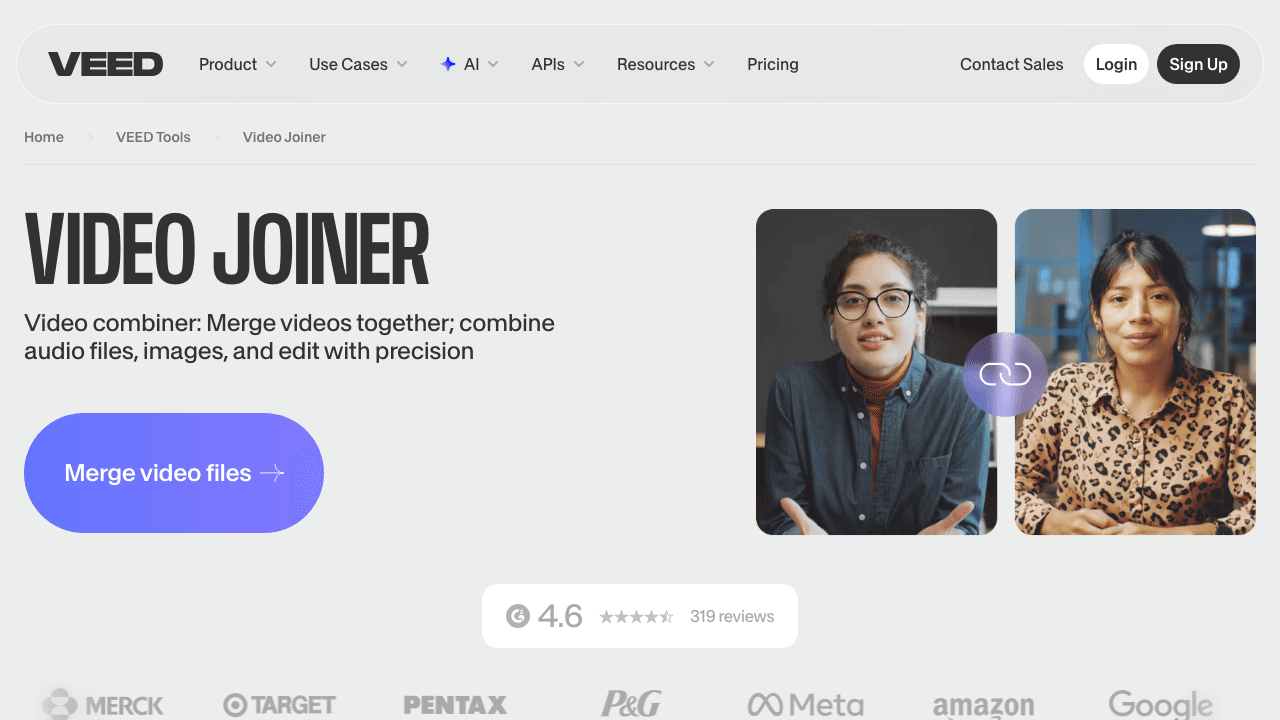
VEED is a browser editor that has built a strong following with creators thanks to its clean UI and decent auto-subtitles. The merge function works well: upload, drag to reorder, trim before joining if needed, export.
The free plan caps exports at 720p and adds a watermark, plus there's a 10-minute export limit on free. For short clips and quick edits it's perfectly fine, but anything beyond a few minutes pushes you to a paid plan.
Best for: Browser-first editors who like a clean UI and are okay with watermark on free.
Pros:
- Clean, modern interface
- Auto-subtitles in the same flow
- Solid trim and transition controls
- Works on any device
Cons:
- Watermark on free
- 50 MB upload limit and 10-minute export on free
- Subtitles, translations, and longer exports require paid plans
Pricing: Free tier with limits. Paid plans for higher resolution, no watermark, and more features.
6. Adobe Express
Adobe Express is the lighter, browser-based cousin of Premiere Pro. The free plan supports basic video merging, trimming, and transitions, no watermark.
Where it shines is for users already inside the Adobe ecosystem who want something quicker than firing up Premiere for a 30-second merge. The downside is that the free plan is intentionally limited: most of the AI features and any of the more advanced video controls are gated behind a paid subscription.
Best for: Adobe ecosystem users who want a fast browser merge without opening Premiere.
Pros:
- No watermark on free exports
- Adobe-grade typography and design assets
- Integrates with the rest of Adobe Creative Cloud
Cons:
- Free features are intentionally narrow
- Limited audio editing
- Heavier than browser-only tools
Pricing: Free plan available. Adobe Express Premium unlocks more.
7. FlexClip
FlexClip is a template-driven video maker with a built-in merger. Where it stands out is its stock library: millions of free clips, music tracks, and image assets you can pull into a project alongside your own videos.
The free plan is restrictive: 1-minute export length and a watermark on output. Useful if your goal is to combine your footage with stock B-roll for a social spot. Less useful if you just want to stitch two screen recordings end to end.
Best for: Marketing teams making short stock-heavy promo videos.
Pros:
- Massive stock and music library
- Template-driven, fast for marketing-style edits
- Decent transitions and text animations
Cons:
- 1-minute export cap on free
- Watermark on free
- Heavy template focus is overkill for simple merges
Pricing: Free with limits. Paid plans unlock longer exports, more storage, and HD output.
8. Online Video Cutter (123apps)
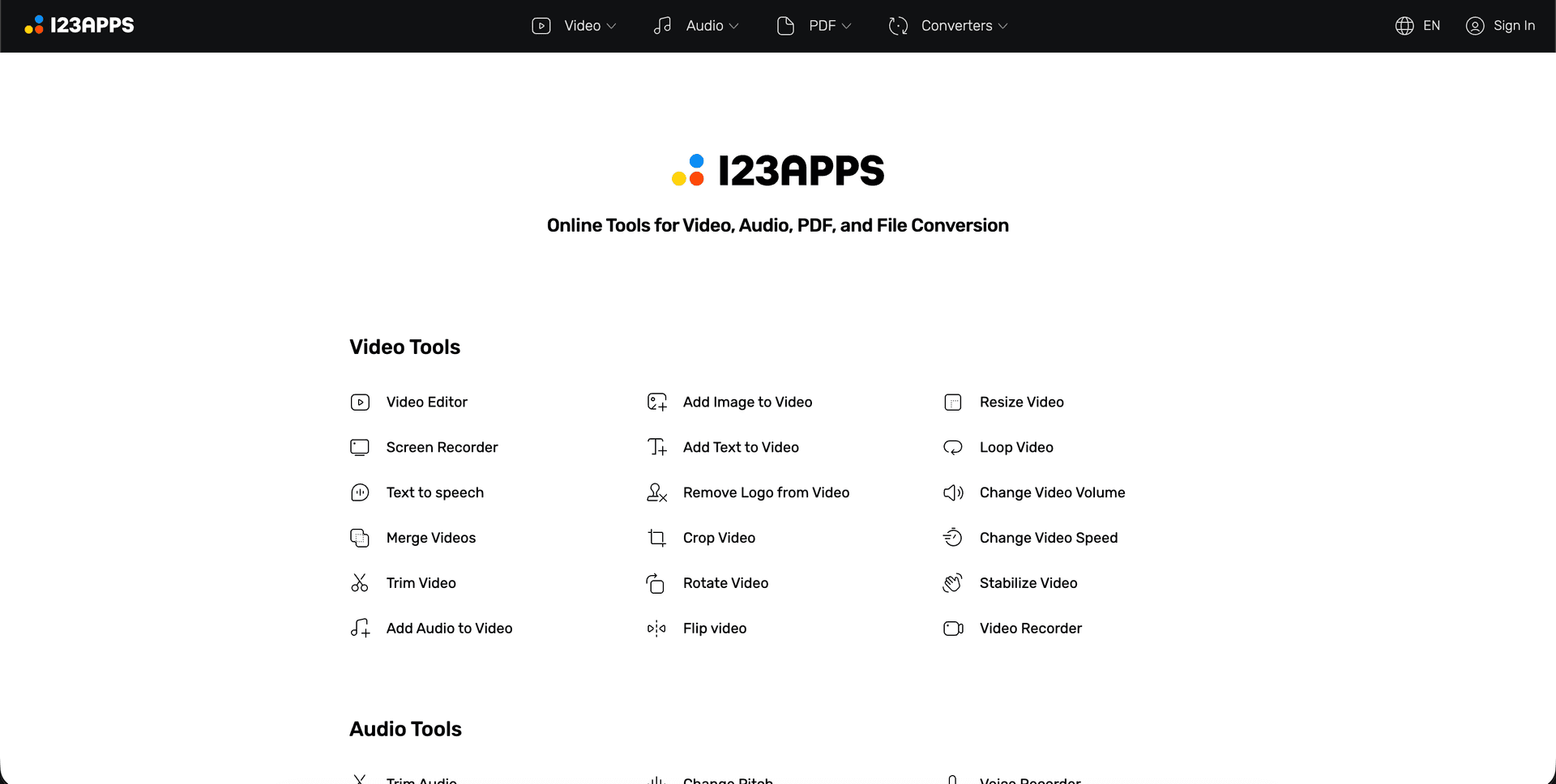
Online Video Cutter (part of the 123apps suite) is a no-frills, no-signup-required tool that does exactly what its name implies, plus merging. It's one of the fastest tools on this list for a simple two-clip stitch.
The big win is the lack of watermark on the free tier and the surprisingly generous 4 GB upload limit. The trade-off is the interface: it looks dated, doesn't have advanced features like AI subtitles or transitions, and feels more like a utility than an editor.
Best for: Anyone who wants the fastest possible no-signup merge, watermark-free.
Pros:
- No watermark on free
- No signup required
- 4 GB upload limit, generous for free
- Works on any browser
Cons:
- Dated UI
- No subtitles, voiceover, or AI features
- Limited transitions
Pricing: Free, with optional paid plans for batch processing and higher limits.
9. Clipchamp
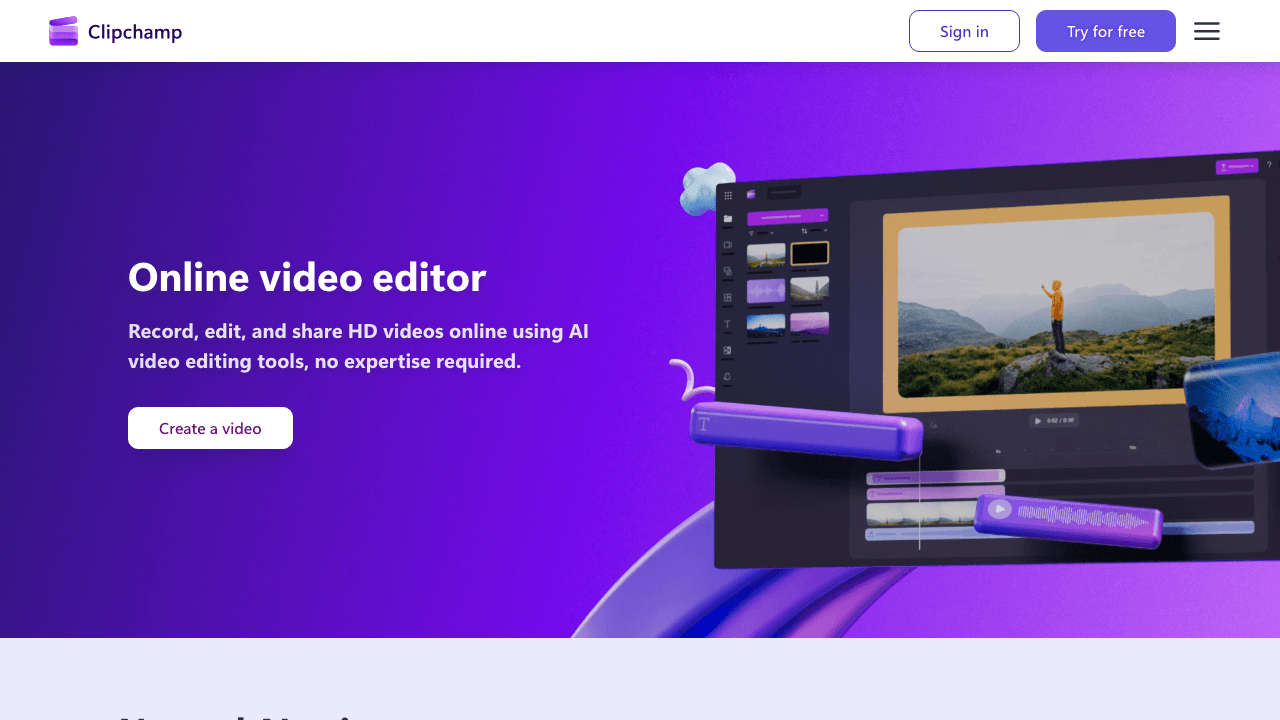
Clipchamp is Microsoft's browser-based video editor, free with a Microsoft account and bundled into Windows 11. The merger is full-featured: drag clips onto a timeline, trim, add transitions, export.
The free plan exports at 1080p with no watermark, which makes Clipchamp one of the strongest free options if you don't mind being inside the Microsoft ecosystem. Its weakness is that some AI features (auto-captions, stock content) are gated behind a paid plan or require a Microsoft 365 subscription.
Best for: Windows users and Microsoft 365 subscribers.
Pros:
- No watermark on free
- 1080p export on free
- Tight integration with Windows and Microsoft 365
- Solid timeline editor
Cons:
- Requires Microsoft account
- Some AI features locked behind paid plans
- Less cross-platform polish than competitors
Pricing: Free with Microsoft account. Paid plans add stock content and brand kits.
From merged clips to multi-language tutorial in minutes
Vidocu combines your clips, generates subtitles and voiceover, and translates the result into 65+ languages. All from one upload.
Start with VidocuWhat Each Video Merger Costs in 2026
Every tool here merges videos free, so price only matters once you hit a limit: a watermark, an export cap, a resolution ceiling, or a daily file quota. Here is what each one charges to lift them.
| Tool | What the free tier gives you | Paid from | What paying unlocks |
|---|---|---|---|
| Vidocu | 200 credits (roughly 4 min of AI video), 1 free tool run, no watermark on the merge | $39/mo Pro | Watermark removal, AI voiceover, video translation, unlimited tool runs, 820 credits/mo |
| Clideo | 500 MB, 720p, watermark on the export | $9/mo billed yearly ($108/yr) | Watermark-free exports and higher resolution |
| Kapwing | 720p, 1-minute exports, 30 min/mo | $16/mo billed yearly ($24 month-to-month) | Watermark removal, 4K, longer exports |
| Canva | No watermark on a basic merge, limited storage | $120/yr Pro | Premium stock, Brand Kit, background remover |
| VEED.io | Watermarked exports, 50 MB / 10 min | $10/user/mo billed yearly (Creator) | Watermark-free 1080p, longer projects |
| Adobe Express | No watermark, 5 GB storage | $9.99/mo Premium | 200M+ stock assets, generative credits, brand kits |
| FlexClip | 720p, 1-minute export | $11.99/mo billed yearly ($19.99 monthly) | 1080p and 4K, longer exports, no watermark |
| Online Video Cutter (123apps) | 5 files/day, 500 MB, ads | 6 euro/mo (44 euro/yr) | Unlimited files, 4 GB uploads, no ads |
| Clipchamp | Watermark-free 1080p exports | Bundled with Microsoft 365 | 4K export, premium stock, brand kit |
Two honest notes on this table. Clipchamp no longer sells a standalone premium tier: its paid features arrive through a Microsoft 365 Personal or Family subscription, so the real cost depends on a bundle you may already own. And 123apps prices in euros, so your card will be charged at the prevailing conversion rate.
The cheapest option is not automatically the right one. If a merge is the only thing you will ever do, Clideo or 123apps at under $10/mo is hard to beat. If the merged file is a tutorial that will also need captions, narration, or a written guide, paying once for a tool that does all of it beats stacking three subscriptions that each do one step.
Merging Videos With Your Own Watermark (Commercial and Brand Use)
There are two completely different watermark questions, and they get tangled constantly. The first is "will this tool stamp its logo on my export?" That is the column in the tables above. The second is "how do I keep my own branding on a merged video?" That one matters more for commercial work, where an unbranded clip is a clip anyone can re-upload as their own.
The order of operations is what trips people up. Apply your watermark after the merge, not before. When a tool re-encodes at the joins between clips, a logo burned into each source file can shift, rescale, or drop out entirely at the seams, and the failure is often invisible until you scrub to the exact transition. Merge to a single file first, then brand the finished video once.
A workable commercial sequence:
- Combine the clips into one continuous file with any tool in this list.
- Check the joins at full resolution before you brand anything.
- Add your logo or text overlay to the merged file with a video watermark tool, positioning it clear of captions and lower thirds.
- Export once at final resolution. Every extra round trip costs quality.
If you are picking a tool specifically for this, our roundup of the best free tools to add a watermark to any video compares them on placement control, opacity, and batch support.
One caveat worth stating plainly: on Vidocu, the merge itself is watermark-free on the free plan, but removing Vidocu branding across the wider platform and using the Brand Kit are Pro features at $39/mo. For a one-off branded merge the free tier is fine. For a recurring branded series, price in the paid plan.
How to Pick the Right Tool
If your goal is to stitch two short clips and post them to social media, the simpler tools (Online Video Cutter, Clideo, Clipchamp) get you there fast and free. Pick whichever interface you find least painful.
If your videos are tutorials, training, or product walkthroughs that need more than a hard cut, you'll save days by picking a tool that combines the merge with downstream content tasks. Vidocu is built specifically for this: merge your clips, then in the same upload get subtitles, voiceover, a written step-by-step guide, and translations. That's the difference between a 30-minute editing job and a 5-minute one.
For marketing-style edits with templates, transitions, and stock content, Kapwing and FlexClip are stronger picks. For Adobe-native workflows, Adobe Express. For the Microsoft ecosystem, Clipchamp.
For everyone else: pick the tool that matches your watermark policy, file size limits, and whether you'll need anything beyond the merge.
Beyond the Merge: Common Next Steps
Most people merging videos online aren't stopping at the merge. They go on to add subtitles, music, voiceover, or translate the final video for international audiences. Each of those steps is its own rabbit hole if you're using separate tools.
Common follow-up workflows:
- Adding subtitles: Once clips are merged, you usually want captions. See our list of the best caption generators from video or use Vidocu's free subtitle creator.
- Adding music: A merged video without background music feels naked. Browse the best free tools to add music to a video online or add music to video free online directly.
- Adding voiceover: Replace original narration with AI voiceover for a polished result.
- Translating the result: For international content, translate the merged video into other languages with subtitles and voiceover.
- Fixing the pacing: Merged clips often run long. Speed up the video online to tighten slow stretches, or slow down the moments viewers need to follow closely.
- Generating documentation: If the merged video is a tutorial, turn it into a step-by-step written guide automatically.
- Trimming and cleaning up: If you over-shot, see the best free video trimmer tools before merging.
Stacking the right tool means doing all of these in one platform rather than exporting to MP4, re-uploading to a different tool, exporting again, and watching quality degrade with each round trip.
FAQ
How much do video merger tools cost in 2026?
Merging itself is free in every tool on this list. Paid plans start at $9/mo for Clideo (billed yearly), $9.99/mo for Adobe Express, $10/user/mo for VEED, $11.99/mo for FlexClip, $16/mo for Kapwing, $120/yr for Canva Pro, and $39/mo for Vidocu Pro. Online Video Cutter charges 6 euro/mo, and Clipchamp no longer sells a standalone tier at all, its premium features come with a Microsoft 365 subscription. You only need a paid plan once you hit a watermark, an export cap, or a resolution ceiling.
Can I merge videos and keep my own brand watermark on the result?
Yes, and the order matters. Merge the clips into one file first, then apply your logo to the finished video, because re-encoding at the joins can shift or drop a watermark that was burned into the individual source clips. Use a video watermark tool on the merged export, and check the transitions at full resolution before you publish.
Is a video joiner the same as a video merger?
Yes. A video joiner and a video merger do the same thing: they take two or more clips and combine them into one continuous file. Some tools call themselves a video joiner online and others a video merger, but the workflow is identical. Every tool in this guide can join videos online for free, and Vidocu does it with no watermark, and the same upload can also carry subtitles, with voiceover and translation available on a paid plan.
Can I merge videos online for free without a watermark?
Yes. Vidocu, Canva, Adobe Express, Online Video Cutter (123apps), and Clipchamp all support merging videos with no watermark on their free tiers. The other tools on this list (Clideo, Kapwing, VEED, FlexClip) add a watermark on the free export, which can usually be removed with a paid plan or one-time pass.
What's the maximum length of a video I can merge for free?
This varies wildly. Online Video Cutter handles up to 4 GB. Clipchamp and Adobe Express are generous on length but limited on AI features. Kapwing caps free exports at 7 minutes. FlexClip caps at 1 minute. VEED caps at 10 minutes. Vidocu's free tier supports longer training and tutorial content. Always check the export length before starting your project.
Does merging videos online reduce video quality?
Most browser-based mergers re-encode the video on export, which can cause minor quality loss compared to the source. To minimize loss, choose a tool that supports your input resolution natively (1080p or 4K) and avoid running multiple round trips through different tools. Tools like Vidocu keep your video at the original resolution unless you explicitly downscale it.
Can I add subtitles to a merged video in the same tool?
Some tools yes, most no. Pure mergers (Online Video Cutter, Clideo) do not generate subtitles. Editors like Kapwing and VEED include auto-subtitles inside the same flow. Vidocu generates accurate AI subtitles automatically as part of the upload, plus translations into 65+ languages. If subtitles matter to your workflow, pick a tool that handles them in the same step rather than exporting and re-uploading.
What's the best free video merger for tutorials and training videos?
For tutorials and training content, the merge is rarely the final step. You usually need subtitles, captions, voiceover, and often a written guide. Vidocu is purpose-built for this: it merges your clips and in the same workflow generates subtitles, AI voiceover, translations, and a written step-by-step guide with screenshots. For pure social-media merges where you don't need any of that, Clipchamp or Online Video Cutter are simpler picks.
Can I merge videos in different formats (MP4, MOV, AVI)?
All tools on this list accept common formats like MP4, MOV, and AVI. The output is almost always MP4. If your source files are in less common formats (HEVC from iPhone, WebM from screen recorders), test with a short clip first since some tools struggle with HEVC. If you run into issues, the free video format converter handles conversions before merging.
Ready to merge your videos and turn them into tutorials, training, or documentation? Try Vidocu for free. Combine your clips and get subtitles, voiceover, translations, and a written guide in one upload.

Written by
Daniel SternlichtDaniel Sternlicht is a tech entrepreneur and product builder focused on creating scalable web products. He is the Founder & CEO of Common Ninja, home to Widgets+, Embeddable, Brackets, and Vidocu - products that help businesses engage users, collect data, and build interactive web experiences across platforms.