
Adding background music to a video shouldn't require downloading editing software or spending hours learning a timeline. Whether you're making a product demo, a social media clip, or a tutorial, the right music sets the tone and keeps viewers engaged.
Here are the best free tools that let you add music to any video directly in your browser, no installs, no hassle.
How We Picked These Tools
We evaluated dozens of online video editors on what matters most for adding music:
- Free tier quality: can you actually export without a watermark?
- Music library: does it include royalty-free tracks, or do you need to bring your own?
- Ease of use: how fast can you go from upload to export?
- Format support: MP4, MOV, AVI, WebM, and common audio formats
- Extra features: volume control, fade in/out, trimming, multiple tracks
| Tool | Free Export Is Watermark-Free | Free Tier Limits | Built-in Music Library | Multiple Audio Tracks | Paid From (USD) |
|---|---|---|---|---|---|
| Vidocu | Yes (free tools) | 1 free tool run, free account | Paid plans only | Yes | $39/mo (Pro) |
| Canva | Yes | Premium tracks locked | Yes (500K+ tracks) | No (1 track) | $120/yr (Pro) |
| Clipchamp | Yes | 1080p max | Yes (free stock music) | Yes | Bundled with Microsoft 365 |
| Kapwing | No (watermarked) | 720p, 4-min exports, 10 credits/mo | Yes | Yes | $24/mo, or $16/mo annual |
| Adobe Express | Yes | 30-min video, 2,000+ tracks, no 4K | Yes (Adobe Stock audio) | No | Geo-priced, check locally |
| VEED | No (watermarked) | Watermark on all free exports | Yes | Yes | Geo-priced, check locally |
| Clideo | No (watermarked) | 720p, 500 MB | No | No | Geo-priced, check locally |
| Flixier | No (watermarked) | 720p, 10 min/mo export, 2 GB | Yes | Yes | Geo-priced, check locally |
| Media.io | No (watermarked) | 720p, 1 video/mo | Yes | Yes | Geo-priced, check locally |
Prices and limits were re-verified against each vendor's own pricing page in August 2026. Where a cell reads "geo-priced," that vendor's pricing page renders a different currency and figure depending on where you load it, so we have not quoted a USD number we could not confirm. Every free-tier limit in the table was confirmed directly.
1. Vidocu
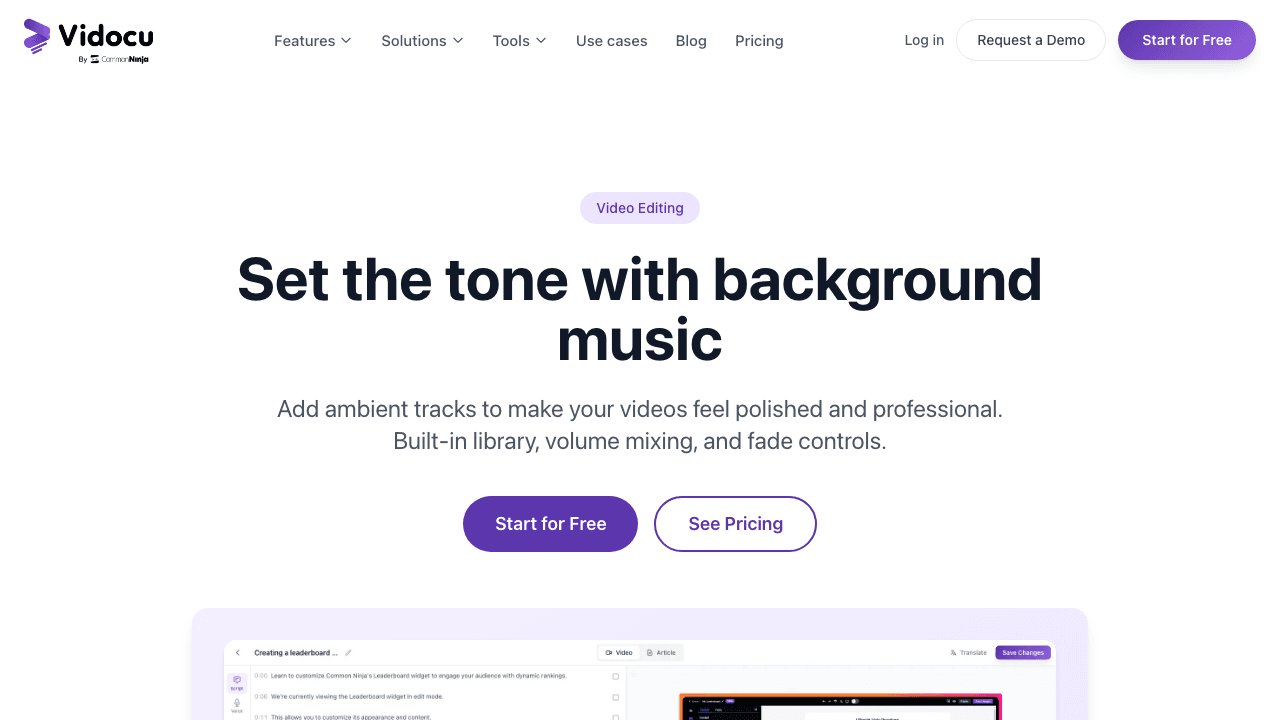
Vidocu is an AI-powered video platform that does a lot more than add music, but its background music feature is worth highlighting on its own.
Vidocu splits this across two surfaces, and it is worth knowing which one you are using. The free music tool takes an audio file you upload (MP3, WAV, M4A, AAC, or OGG), mixes it in at the volume and fade you set, and exports with no Vidocu branding. It has no music library: you bring the track. The background music feature inside the paid editor is the reverse, a curated library licensed for use in videos you make with Vidocu, though it does not accept your own uploads yet. You can also fine-tune timing with the built-in video editor, add AI-generated subtitles, or generate a full help article with screenshots from the same upload.
Key features:
- Curated licensed music library on paid plans, your own uploads on the free tool
- Volume mixing controls
- Works alongside subtitles, voiceover, and documentation generation
- No watermark on exports
Best for: Teams creating tutorials, product demos, and training videos who want music as part of a larger production workflow.
Pricing: Free plan available. Paid plans unlock more export minutes and AI features.
Add music to your video with Vidocu →
2. Canva
Canva has become the go-to design tool for non-designers, and its video editor is surprisingly capable. The music library alone has over 500, 000 tracks, from ambient backgrounds to upbeat pop, plus sound effects and the option to generate AI music.
The catch: Canva only supports one audio track per video project. If you need to layer music with voiceover or sound effects, you'll hit a wall.
Key features:
- 500, 000+ royalty-free tracks and sound effects
- AI music generation
- Drag-and-drop timeline editor
- Upload your own audio files
- No watermark on free plan exports
Best for: Social media creators and marketers who already use Canva for graphics.
Pricing: Free plan with full music library access. Canva Pro ($120/yr for one person) unlocks premium tracks and Brand Kit.
3. Kapwing
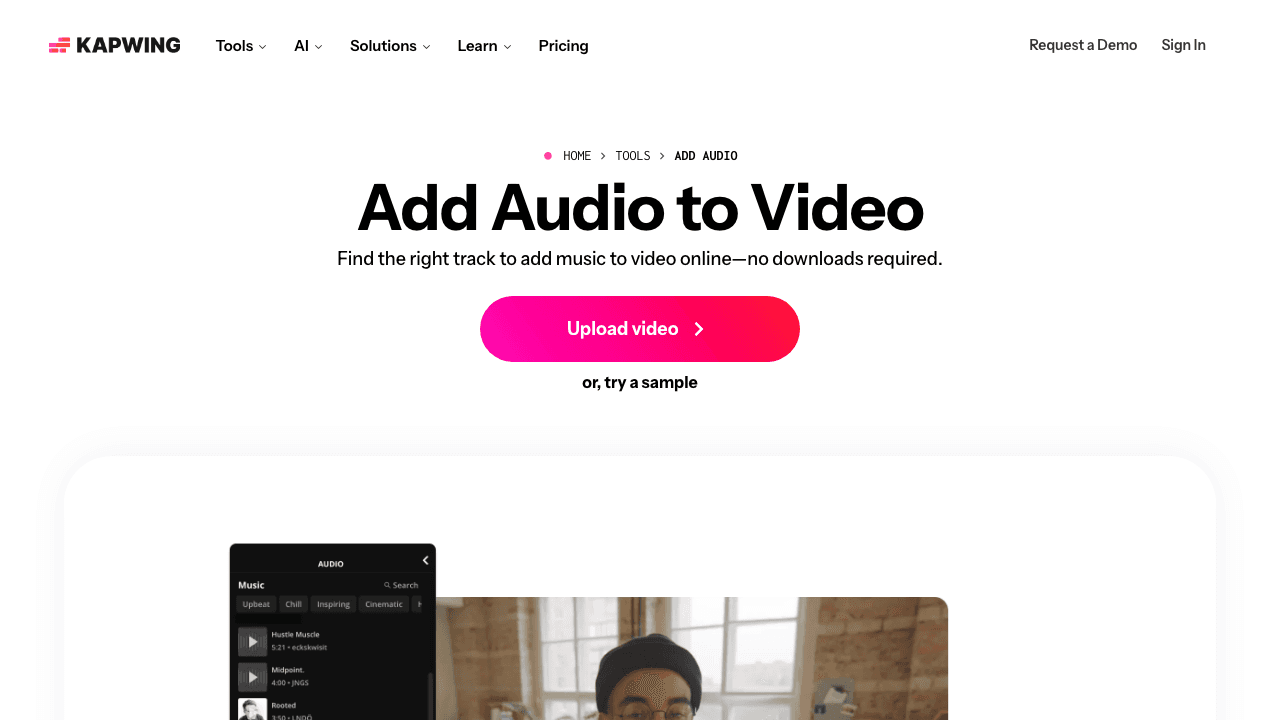
Kapwing is a browser-based video editor built for speed. Its audio tools let you drag royalty-free music and sound effects directly onto a multi-track timeline, adjust volume per track, and sync audio to specific scenes.
Kapwing's free tier exports without a watermark if your project is under certain limits (resolution and duration). Beyond that, you'll need to upgrade.
Key features:
- Multi-track audio timeline
- Built-in royalty-free music and sound effects
- Real-time collaboration (Google Docs-style)
- Auto-subtitle generation
- No watermark under free limits
Best for: Teams who need fast, collaborative video editing with music.
Pricing: Free plan watermarks every export and caps you at 720p, 4-minute exports, and 10 credits a month. Pro is $24/mo, or $16/mo billed annually. Business is $64/mo, or $50/mo annually.
4. Adobe Express
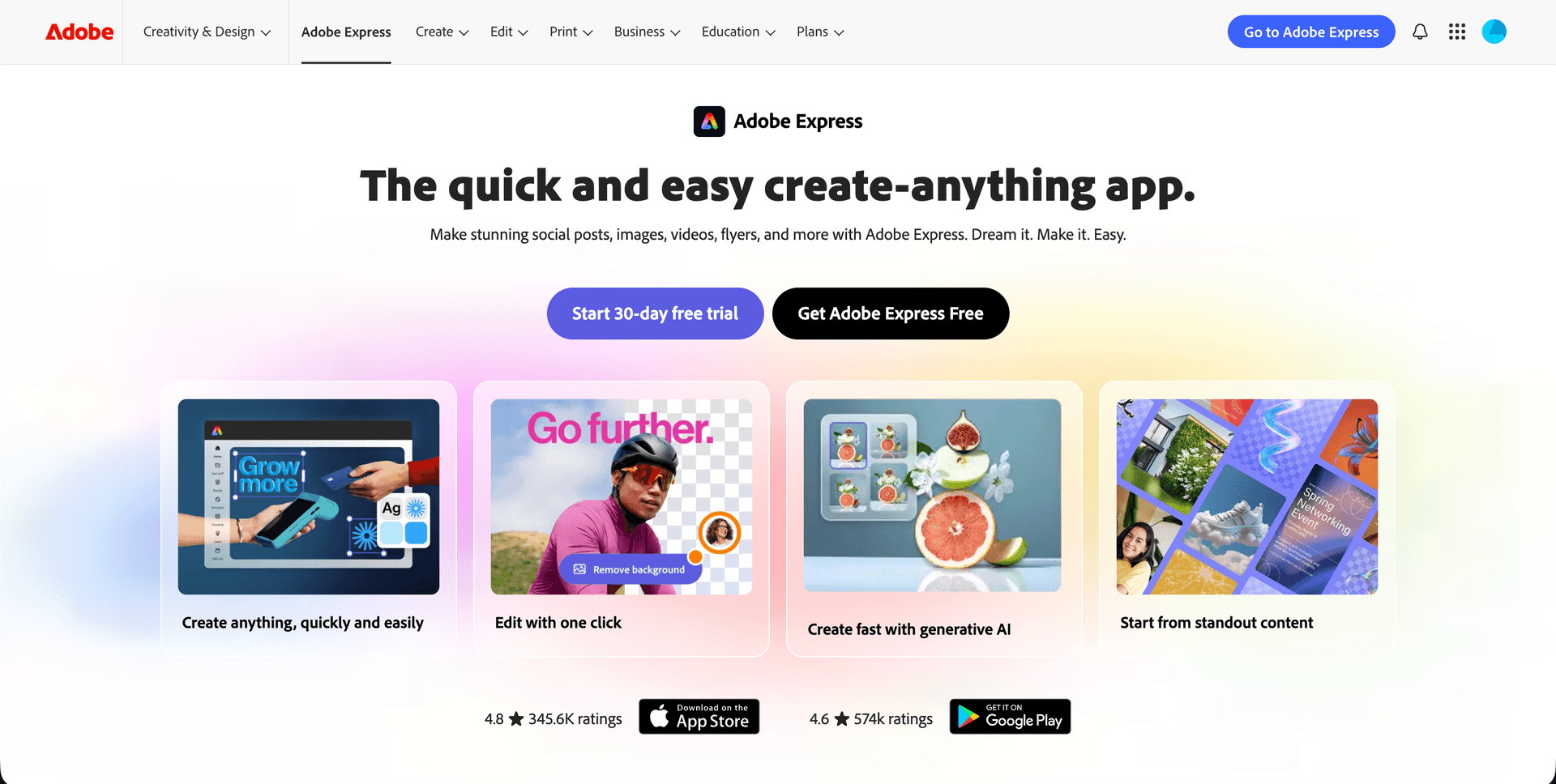
Adobe Express brings Adobe's polish to a simplified, browser-based editor. Adding music is straightforward: upload your video, browse the stock music library, drag a track onto your project, and export.
It's simpler than Premiere Pro by design, no complex timeline, no steep learning curve. The tradeoff is fewer advanced audio controls.
Key features:
- Adobe stock music library included
- Simple drag-and-drop interface
- No watermark on free exports
- Connects to other Adobe tools (Photoshop, Premiere)
Best for: Beginners and anyone already in the Adobe ecosystem.
Pricing: Free plan covers video up to 30 minutes with 2,000+ Adobe Stock music tracks, but no 4K. Premium adds 4K, 2-hour video, and a far larger asset library. Adobe geo-prices this page, so confirm the figure in your own currency.
5. Clipchamp
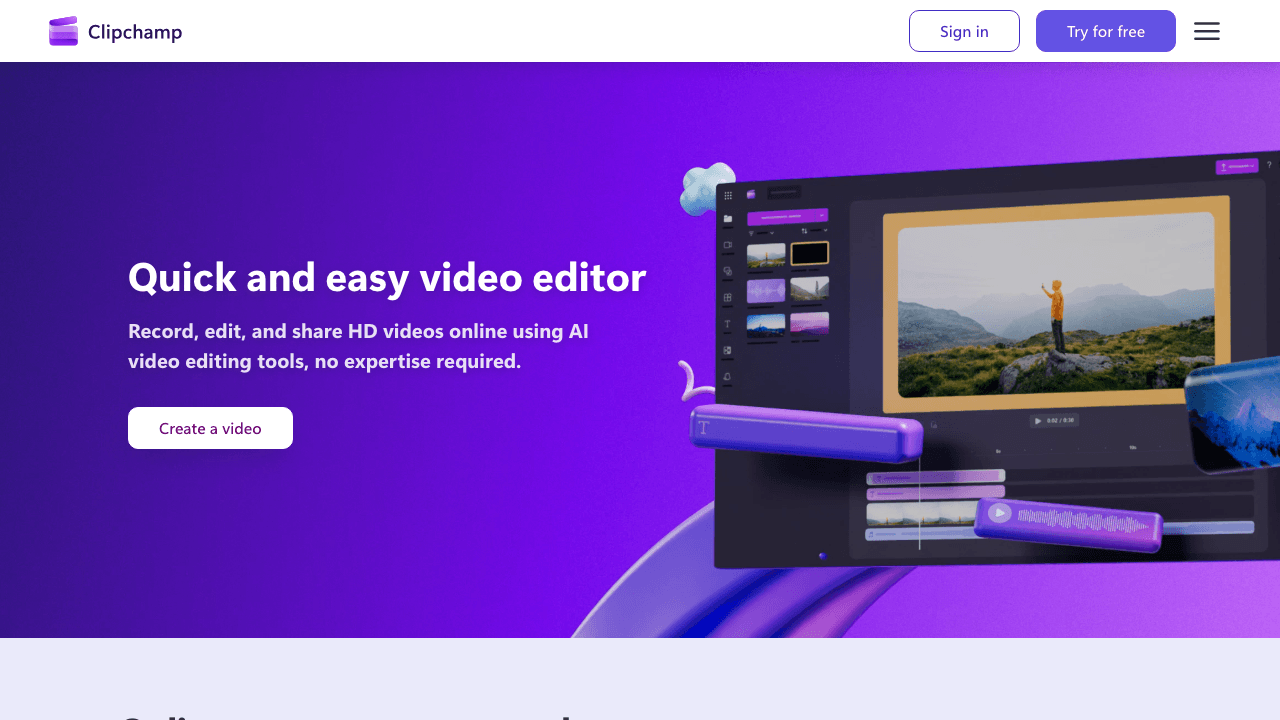
Clipchamp is Microsoft's free video editor, built into Windows 11 and available as a web app. Its stock music and sound effects library is solid, and the multi-track timeline makes layering audio straightforward.
Since Microsoft acquired Clipchamp, the free tier has become genuinely generous, 1080p exports, no watermark, and access to the full music library.
Key features:
- Free stock music and sound effects
- Multi-track timeline with volume controls
- 1080p export on free plan (no watermark)
- Built into Windows 11
- Text-to-speech and auto-captions
Best for: Windows users who want a free, no-compromise video editor.
Pricing: Free with a Microsoft account, and the free tier already exports watermark-free at up to 1080p with free stock music. There is no standalone paid Clipchamp tier any more: premium features (4K, premium stock, brand kit) now come with a Microsoft 365 Personal or Family subscription.
Add Background Music to Any Video, Free
Upload a video, pick a track from the royalty-free library, adjust the volume, and export. No watermark, first run free.
Try Vidocu's Music Tool6. VEED
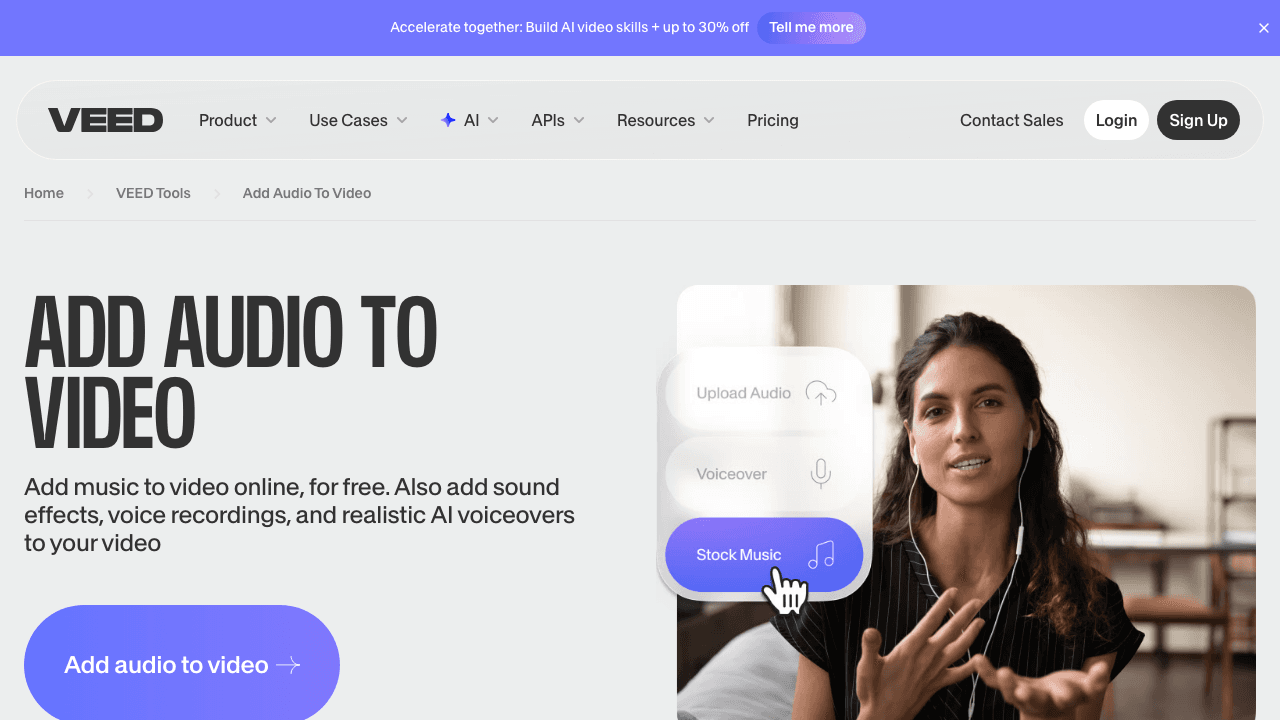
VEED is a polished online editor with strong audio capabilities. You get a multi-track timeline, volume controls, fade effects, and a stock music library, all in the browser.
The downside: VEED's free plan adds a watermark to exports. For watermark-free results, you'll need a paid plan. But if you're already paying for VEED for other features (subtitles, screen recording, AI tools), the music feature is solid.
Key features:
- Multi-track audio editing
- Stock music library with mood categories
- Fade in/out effects
- AI-powered subtitle generation and translation
- One-click audio cleanup
Best for: Creators who need professional-grade editing and don't mind paying for quality.
Pricing: Free plan (watermark). Creator starts at $10/user/mo billed yearly, Pro at $21/user/mo, Studio at $35/user/mo.
7. Clideo
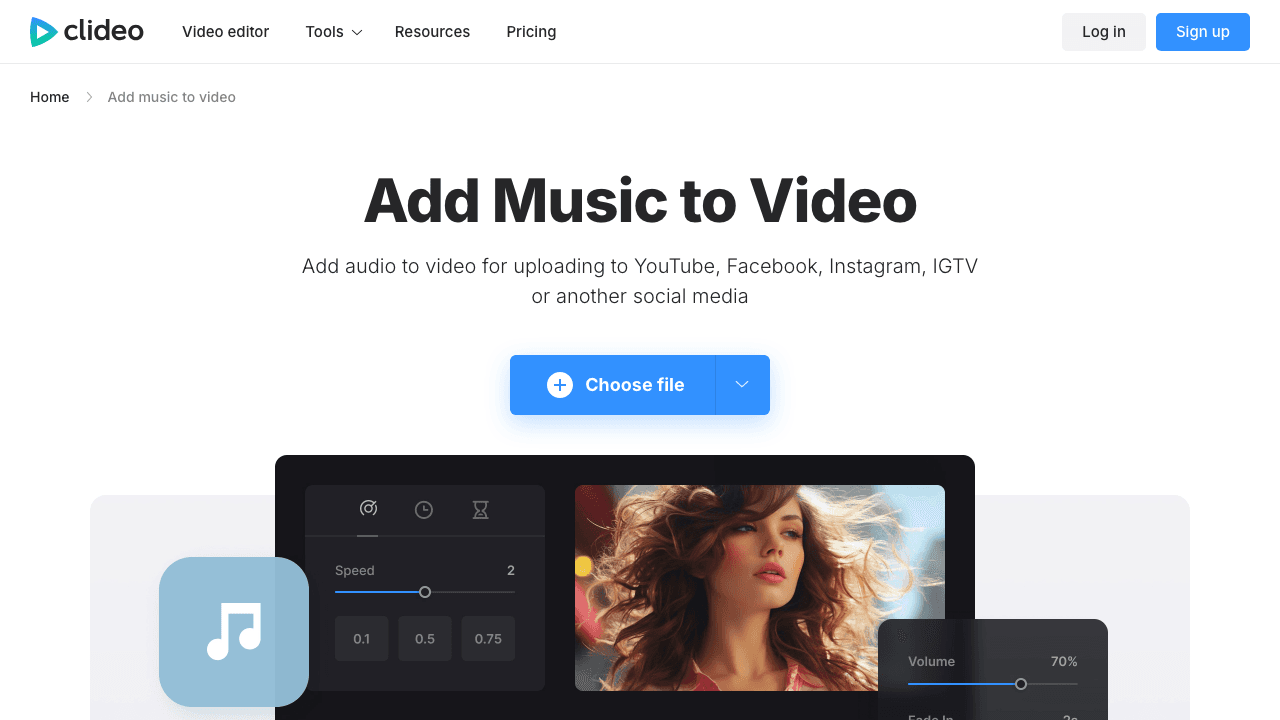
Clideo takes the opposite approach to full-featured editors: it does one thing and does it simply. Upload a video, upload an audio file, trim or loop the audio to match, and download.
There's no built-in music library, you need to bring your own tracks. And the free plan adds a watermark. But for quick, one-off edits when you already have the music file, Clideo is hard to beat for simplicity.
Key features:
- Dead-simple interface, upload, combine, download
- Auto-trim or loop audio to match video length
- Supports all major video and audio formats
- Works on any device (phone, tablet, desktop)
Best for: One-off edits when you already have the audio file and just need to combine it with video. If the video is still in pieces, combine the clips into one video before you lay the track over it.
Pricing: Free plan (watermark). Pro at $9/mo removes watermark and unlocks batch processing.
8. Flixier
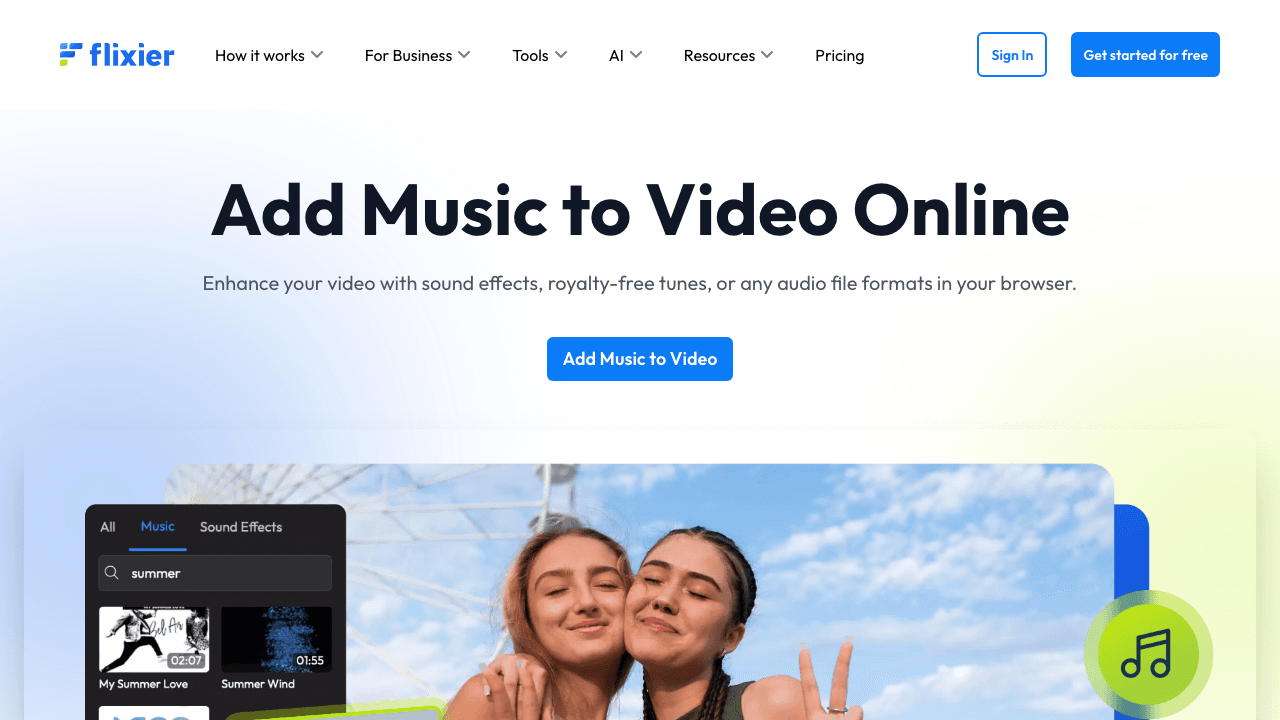
Flixier markets itself as the fastest online video editor, and it largely delivers. The cloud-based rendering means your computer's specs don't matter, edits export quickly regardless.
The music library includes royalty-free tracks and sound effects, and the multi-track timeline supports mixing multiple audio sources. Free exports are watermark-free but limited to 10 minutes and 720p.
Key features:
- Cloud-based rendering (fast exports on any device)
- Royalty-free music and sound effects library
- Multi-track audio with volume controls
- Supports MP4, AVI, MPEG, MP3, FLAC, OGG, and more
- Watermark-free exports on free plan (10 min, 720p)
Best for: Users who want fast cloud rendering and broad format support.
Pricing: Free plan watermarks exports and caps you at 720p, 10 export minutes a month, and 2 GB storage. Flixier geo-prices its paid tiers, so check them from your own location.
9. Media.io
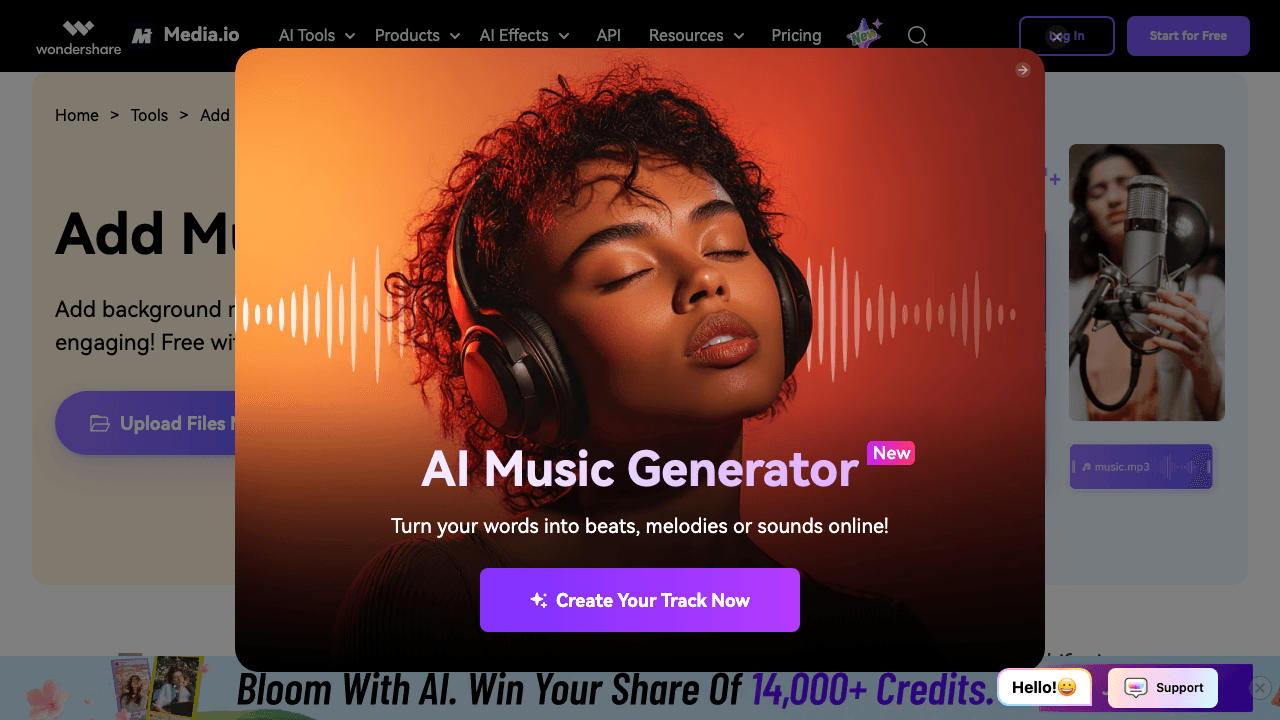
Media.io is a no-signup tool from Wondershare that lets you add music to videos without creating an account. The built-in royalty-free library covers different moods and scenarios, and you get volume controls, fade in/out, and basic trimming.
One caveat that is easy to miss: Media.io's own pricing page lists the free plan as exporting with a watermark, and caps it at 720p and one video per month. The no-signup browsing is real, but a clean export is not part of the free tier.
Key features:
- No signup required
- Royalty-free background music library
- Volume adjustment and fade effects
- Free exports carry a watermark, 720p, 1 video per month
- AI-powered audio tools (noise removal, voice enhancement)
Best for: Quick edits when you would rather not create an account, provided you can live with the watermark or upgrade.
Pricing: Free plan exports a watermark at 720p, 1 video/mo. Paid tiers exist but Media.io geo-prices them, so check the figure from your own location.
What Adding Music to a Video Actually Costs in 2026
Most of these tools are free to start and priced very differently once you outgrow the free tier. Three pricing shapes are worth separating, because they change the maths completely:
Per-year, per-person (Canva). Canva Pro is US$120/year for one person and Business is US$210/year per person. The free plan already gives you the music library; paying unlocks premium tracks, Brand Kits, and premium templates.
Per-month, with an annual discount (Kapwing, Vidocu). Kapwing Pro is $24/mo, dropping to $16/mo billed annually, with Business at $64/mo or $50/mo annually. Vidocu Pro is $39/mo and Business is $149/mo, and the built-in licensed music library sits on the paid tiers.
Bundled, with no standalone tier (Clipchamp). This is the one that has changed most. Clipchamp no longer sells its own subscription: premium features now arrive with a Microsoft 365 Personal or Family plan. If you already pay for Microsoft 365, Clipchamp Premium costs you nothing extra. If you do not, there is no way to buy it on its own.
The remaining tools (Adobe Express, VEED, Clideo, Flixier, Media.io) render different prices in different currencies depending on where you load their pricing pages, so any single USD figure quoted for them online has a good chance of being wrong for you. Check them from your own location rather than trusting a comparison table, this one included.
One practical note: if all you need is a music bed on an occasional video, the free tiers that export cleanly (Vidocu's free tool, Canva, Clipchamp, Adobe Express) cover it without a subscription at all. Paying is about volume, resolution, and brand control, not about access to the feature.
Can You Use a Free Music Tool for Commercial Work?
This question hides three separate questions, and conflating them is what gets people into trouble. Answer them in order:
1. Do you have the rights to the music? This is the one that actually causes takedowns and Content ID claims. A built-in library usually solves it, because the vendor has licensed the tracks for use in videos made with their tool. If you upload your own track, the licence you cleared is the only thing protecting you, and "I found it on YouTube" is not a licence. Note that a library licence is normally scoped to videos made with that tool, so exporting a track to use elsewhere is generally not covered.
2. Does the tool brand your export? Separate question entirely, and it is about the vendor, not the music. On the free tiers verified above, Kapwing, VEED, Clideo, Flixier, and Media.io all stamp a watermark on free exports. Canva, Clipchamp, Adobe Express, and Vidocu's free tools do not.
3. Do you want your own branding on it? This is the opposite of question 2 and it is a common reason commercial users go paid. Adding your own logo or wordmark to a client video is a trust and brand-protection move, and it needs a watermarking step rather than a watermark-removal one. You can add a watermark to a video separately, and our guide to the best free watermark tools covers the placement details. Apply your watermark after the music, not before.
A useful rule: the tool's licence governs the export, the music's licence governs the track, and your own branding is a third thing you add on purpose. Free tiers can be entirely fine for commercial work as long as all three line up.
How Canva Compares for Adding Music to Video
Canva comes up more than any other tool in this category, so it is worth a direct comparison rather than a section buried in a list:
| Vidocu | Canva | |
|---|---|---|
| Bring your own track | Yes, on the free tool | Yes |
| Built-in library | Paid plans, curated and licensed | Free plan, 500K+ tracks |
| Audio tracks per project | Multiple | One |
| Music alongside subtitles, voiceover, docs | Yes, from the same upload | Subtitles yes, docs no |
| Free export is clean | Yes | Yes |
| Paid from | $39/mo | $120/yr |
Canva genuinely wins on library size and on templates. If you want to open a project, browse half a million tracks by mood, and drop one under a social clip, Canva is the faster path and its free plan is generous about it.
Canva's real limit is the single audio track. Layering a music bed under a voiceover, or music plus a sound effect, is not something you can do in one Canva project. That matters most for tutorials and product walkthroughs, where narration and music coexist by default.
The other difference is what happens after the music. Vidocu treats the music step as one output of a single upload that also produces subtitles in 65+ languages, AI voiceover, and a written help article from the same recording. Canva is a design tool that also edits video; Vidocu is a video documentation platform that also adds music. Pick by which description matches the work you are doing.
How to Choose the Right Tool
The "best" tool depends on your workflow:
- Making a tutorial or product demo? Vidocu handles music alongside subtitles, voiceover, and documentation generation, so you don't need separate tools for each step.
- Creating social media content? Canva's massive library and template ecosystem make it the natural choice.
- Need multi-track mixing? Kapwing, Clipchamp, or Flixier give you a proper timeline.
- Just need to slap a track on a video? Clideo or Media.io get it done in under a minute.
- Want professional features? VEED is worth the subscription if you edit regularly.
If you're producing training videos, customer support content, or product walkthroughs, consider a tool that handles more than just music. Adding background music is often one step in a larger workflow that includes subtitles, voiceover, and documentation.
One Upload. Music, Subtitles, Voiceover, Docs.
Vidocu turns any video into professional content, add background music, generate subtitles, create AI voiceover, and build help articles. All from a single upload.
Try Vidocu FreeTips for Adding Music to Videos
Before you pick a tool, keep these best practices in mind:
-
Match the energy. Upbeat music for product launches, ambient tracks for tutorials, minimal for how-to guides. The music should support the content, not compete with it.
-
Watch your volume levels. Background music should sit at 10-20% of your narration volume. If viewers have to strain to hear you talk, the music is too loud.
-
Use royalty-free tracks. Uploading copyrighted music will get your video flagged or muted on YouTube and social platforms. Stick to the built-in libraries these tools provide, or use dedicated royalty-free sites.
-
Add fade in and fade out. Music that starts and stops abruptly feels jarring. Even a 1-2 second fade makes a noticeable difference.
-
Consider your platform. Instagram Reels and TikTok have their own music libraries. For YouTube, LinkedIn, or embedded website videos, you'll want to bake the music into the file using one of these tools.
FAQ
Can I add music to a video online for free without a watermark?
Yes, but by fewer tools than most lists claim. Verified against each vendor's own pricing page in August 2026: Canva, Clipchamp, Adobe Express, and Vidocu's free tools export without a watermark on the free tier. Kapwing, VEED, Clideo, Flixier, and Media.io all watermark free exports, including several that are widely described online as watermark-free.
Is it legal to add music to my videos?
It depends on the music. Using copyrighted songs without a license can result in takedowns or copyright strikes. Most of the tools listed here include royalty-free libraries whose tracks are cleared for use in videos made with that tool, which is narrower than "cleared for anything." Vidocu's free tool is the exception: it has no library, so the track you upload is governed entirely by the licence you obtained for it.
How do I add background music without drowning out the narration?
Lower the music volume to 10-20% of your voice track. Most tools on this list include volume sliders for each audio layer. Some, like VEED and Kapwing, also offer audio ducking, automatically lowering music when speech is detected.
Can I add music to a video on my phone?
All nine tools in this list work in a mobile browser. Canva and Clipchamp also have dedicated mobile apps. For a fully browser-based experience on any device, Vidocu's free music tool works without installing anything.
What audio formats are supported?
Most tools support MP3, WAV, AAC, and OGG. Some (like Flixier) also handle FLAC and WMA. If your audio file isn't supported, convert it to MP3 first, it's universally compatible.
How much does it cost to add music to a video without a watermark?
Nothing, if you pick a tool whose free tier exports cleanly. Canva, Clipchamp, Adobe Express, and Vidocu's free music tool all do. If you specifically want a tool that watermarks its free tier, budget from $16/mo (Kapwing billed annually) or $120/yr (Canva Pro). Clipchamp is a special case: its premium tier has no standalone price and comes with Microsoft 365.
Does Vidocu have a built-in music library?
On paid plans, yes: a curated library licensed for use in videos you create with Vidocu. The free music tool works the other way round, taking an audio file you upload and mixing it in, with no library attached. Custom track upload is not available inside the paid library feature yet, so the two surfaces genuinely serve different needs.

Written by
Daniel SternlichtDaniel Sternlicht is a tech entrepreneur and product builder focused on creating scalable web products. He is the Founder & CEO of Common Ninja, home to Widgets+, Embeddable, Brackets, and Vidocu - products that help businesses engage users, collect data, and build interactive web experiences across platforms.