A great recording can still feel amateurish if the lighting is off. A blown-out window in the background, a dim webcam shot, an interview that drifts from warm to cold halfway through. Reshooting is rarely an option, so the fix has to happen in post.
The good news: you no longer need DaVinci Resolve or a colorist to clean up footage. Browser-based lighting editors now cover the essentials (brightness, contrast, saturation, exposure, sometimes per-segment control) for free, and a few of them do it well enough for tutorials, course videos, product demos, and social posts.
Here are the seven tools worth trying in 2026.
How we picked
We looked at every credible online video lighting editor and cut anything that was either desktop-only, abandoned, or a thin wrapper around the same shared backend. What's left covers four use cases:
- Per-segment correction for footage where lighting changes across the timeline
- AI auto-brightening for dark or underexposed clips you want fixed in one click
- Pro-grade controls with exposure, highlights, shadows, and temperature
- Simple sliders for fast, no-signup tweaks
For each tool we checked the actual free-tier limits (file size, watermark, signup), the controls on offer, and whether the export looks broadcast-clean or hobby-grade.
Comparison Table
| Tool | Best for | Key controls | Free tier | Signup |
|---|---|---|---|---|
| Vidocu | Per-region timeline corrections | Brightness, contrast, saturation, vignette, fade | 500 MB MP4/MOV/WebM, no watermark | No |
| Descript | Pro-grade adjustments inside a full editor | Exposure, contrast, highlights, shadows, saturation, temperature | 1 hour/month, 720p export | Yes |
| VEED | Quick browser tweaks plus filters | Brightness, contrast, saturation, exposure, presets | Watermarked exports | Yes |
| Flixier | Most complete free slider set | Brightness, contrast, saturation, hue, gamma | Watermark on export, no signup to try | No |
| Kapwing | Preset-driven creators | Brightness, contrast, saturation, vignette, presets | 250 MB upload limit | Yes |
| Clideo | Minimalist watermarked freemium | Brightness, contrast, saturation, vignette, fade | 500 MB, watermark on free | Yes |
| Fotor | One-click brightening for dim footage | AI auto brightness, contrast, saturation | Free preview, 1080p export gated | Optional |
1. Vidocu
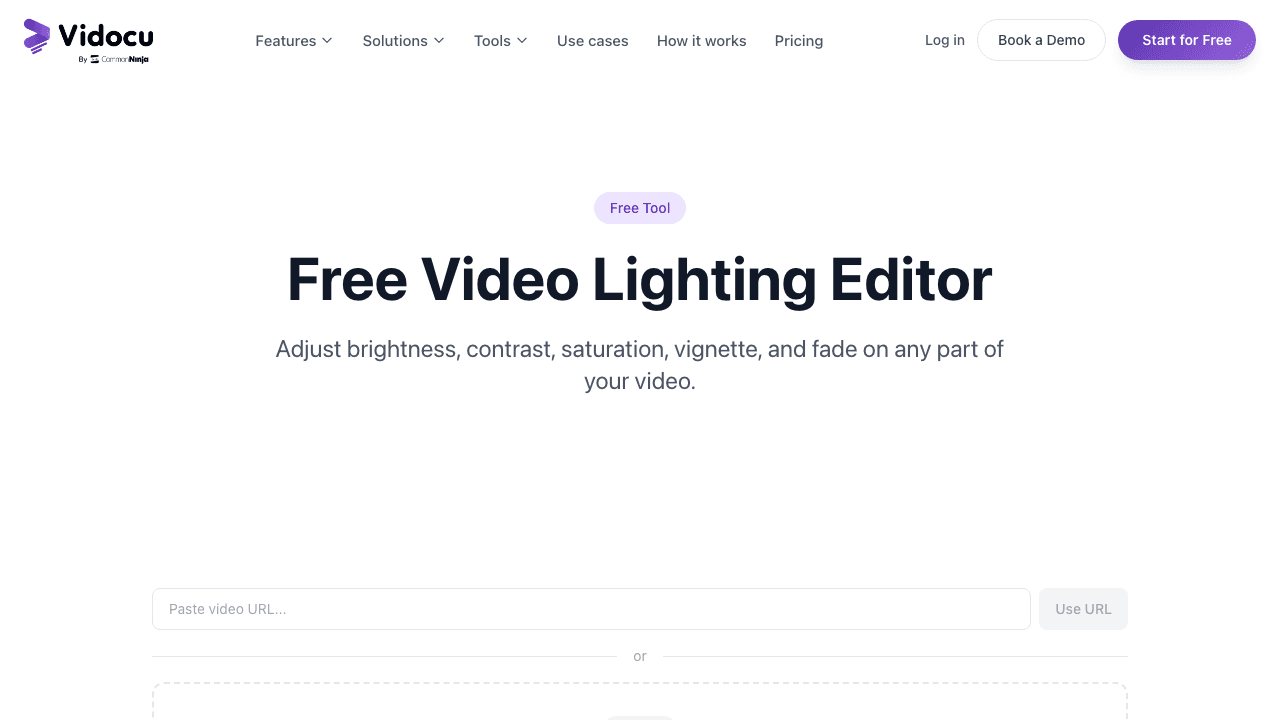
Most online lighting tools apply a single set of values to the whole clip. If your video gets darker halfway through (a window goes overcast, a lamp turns off, you cut from indoors to outdoors), one global slider can't fix it without making the rest of the clip look wrong.
Vidocu's free video lighting editor takes a different approach: you add multiple regions on the timeline and set different brightness, contrast, saturation, vignette, and fade values for each. The result is footage that stays consistent end to end, even when the source lighting wasn't.
Live preview means you can scrub the timeline and watch each region's adjustment apply in real time before you export. Files up to 500 MB in MP4, MOV, or WebM, and no watermark. It needs a free account, and your first run is on us.
If you want the same controls inside a full multi-track editor with cuts, transitions, captions, and voiceover, those live in Vidocu Studio. The standalone lighting tool is the right entry point if all you need is a fast color and brightness pass.
Fix uneven lighting in your videos for free
Per-region brightness, contrast, saturation, vignette, and fade. No watermark. MP4/MOV/WebM up to 500 MB.
Try the lighting editor2. Descript
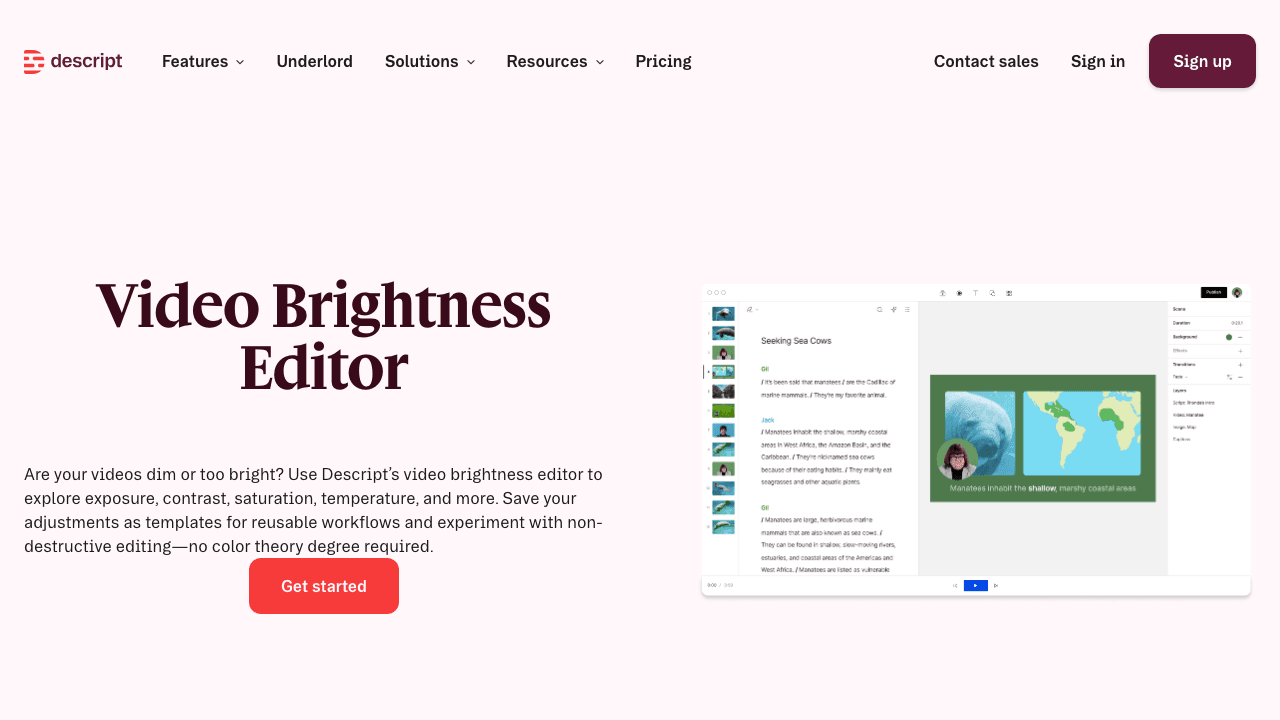
Descript is a podcast and video editor first, with brightness adjustment available as one of many color tools inside the app. It's the most professional option on this list, with controls for exposure (entered as percentages), contrast, highlights, shadows, saturation, and temperature. Adjustments are non-destructive and can be saved as reusable templates so a series of videos can carry the same look.
The catch: Descript is a full app, not a single-purpose tool. The free plan caps you at one media hour per month and exports at 720p. For richer use you're looking at the Hobbyist plan ($16/month annual) or Creator plan ($24/month annual). If your work already lives in Descript, the brightness tools are excellent. If not, the setup overhead is high for a single color pass.
If you've outgrown Descript or want something focused on tutorials and documentation rather than podcasts, the Descript alternatives roundup covers the field, and Vidocu vs Descript does the head-to-head.
3. VEED
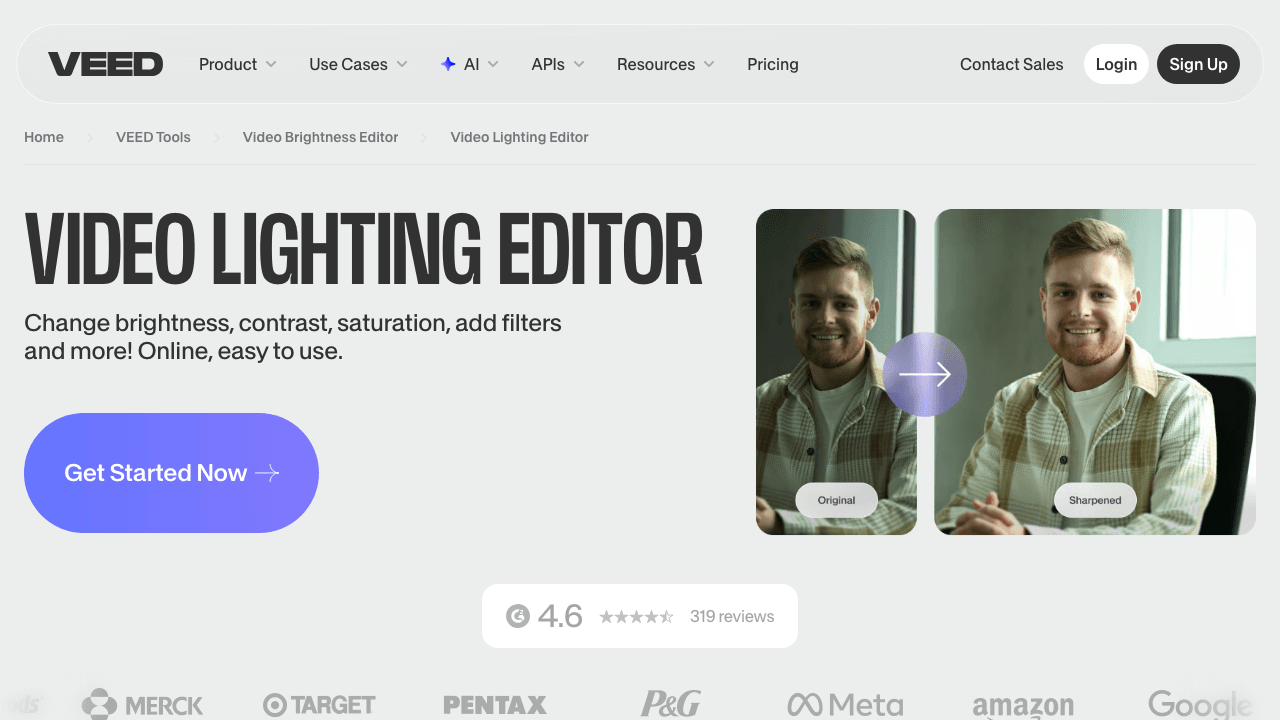
VEED is a well-known browser editor with an "Adjust" tab covering brightness, contrast, saturation, and exposure, plus filter presets like VHS, black and white, and sepia. It also handles resolution changes (1440p, 1080p, 720p) and frame rate tweaks in the same flow, which is useful when you're prepping footage for a specific platform.
The free tier exports with a watermark, which is the main reason it isn't higher on the list. Removing the watermark requires a paid plan, starting at $10/user/month billed yearly ($116/year) on the Creator plan. The editor itself is polished and fast, and signup is required before you can save anything. Worth using if you already have a VEED account; less worth signing up for if all you need is one lighting fix.
For more on how VEED stacks up against tutorial-focused editors, see Vidocu vs VEED.
4. Flixier
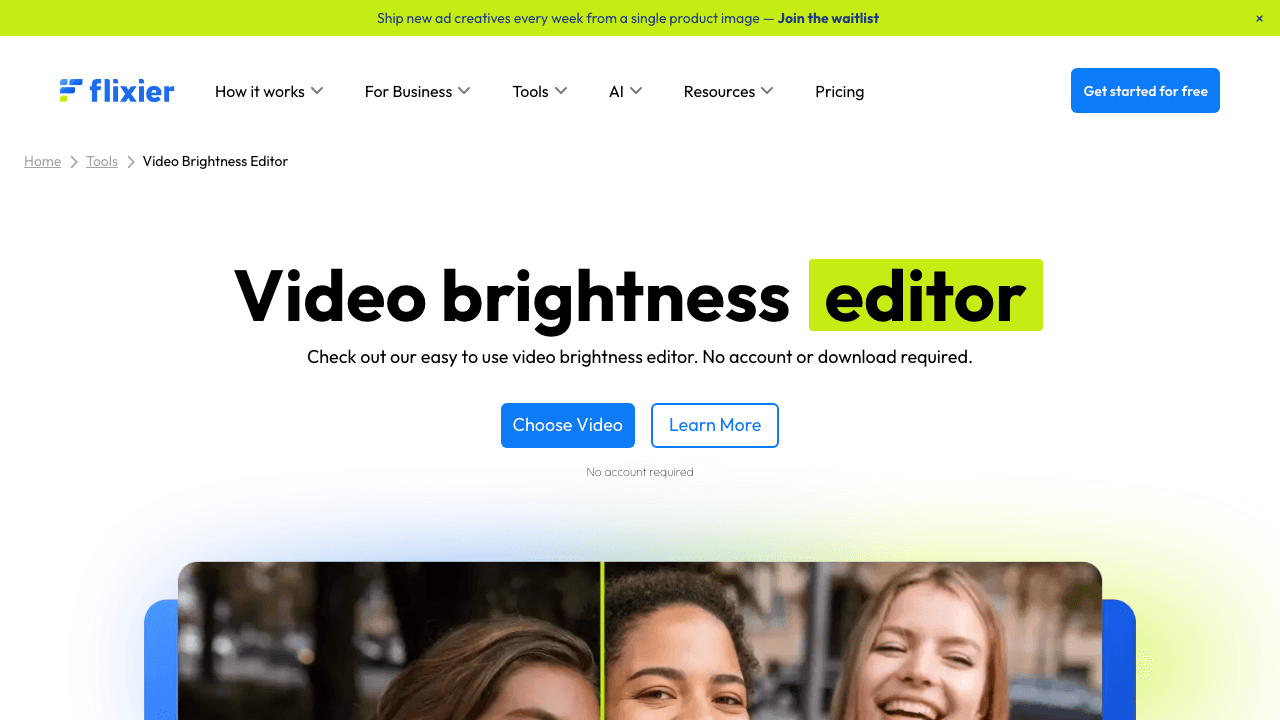
Flixier has the most complete free slider set on this list. You get brightness, contrast, saturation, hue, and gamma, which is unusual for a no-download tool. Gamma in particular gives you mid-tone control that brightness alone can't, and hue lets you correct a colour cast (a clip that's gone too green or too magenta) without touching saturation.
You can edit and share preview links without an account, and there's no watermark on those preview links. The catch arrives at export: downloads carry a watermark unless you upgrade to a paid plan ($10/month). For a one-off polish that's going to live as a private review link, Flixier's free tier is generous. For a public publish, you'll either pay or move the file to another tool.
5. Kapwing
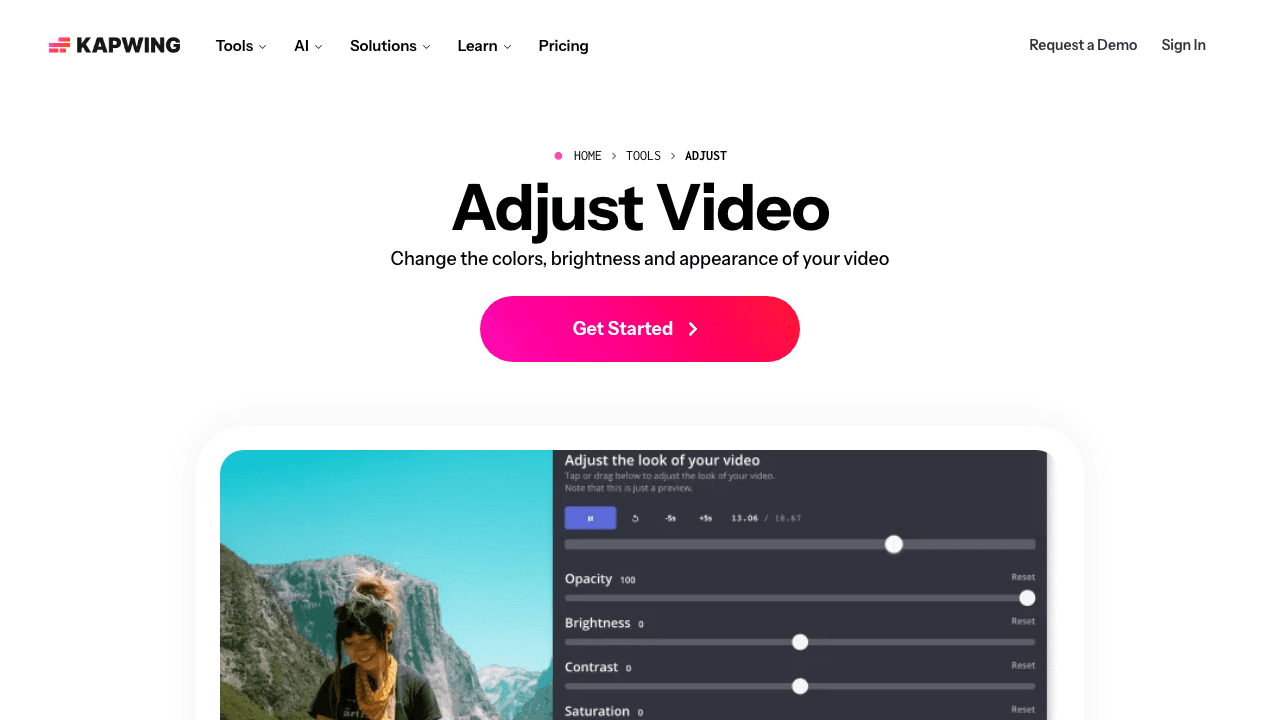
Kapwing leans into preset filters more than the others. You can manually tweak brightness, contrast, saturation, and vignette, but the workflow is built around picking a look first and adjusting from there. That makes it a good fit for creators publishing to social, where consistency across clips matters more than precision colour grading.
Free uploads cap at 250 MB, and signup is required before you can edit. The editor sits inside a broader Kapwing project, so you also get trim, crop, speed, and text in the same view. If you want a single tool that handles colour plus everything else for short-form content, Kapwing earns the slot.
6. Clideo
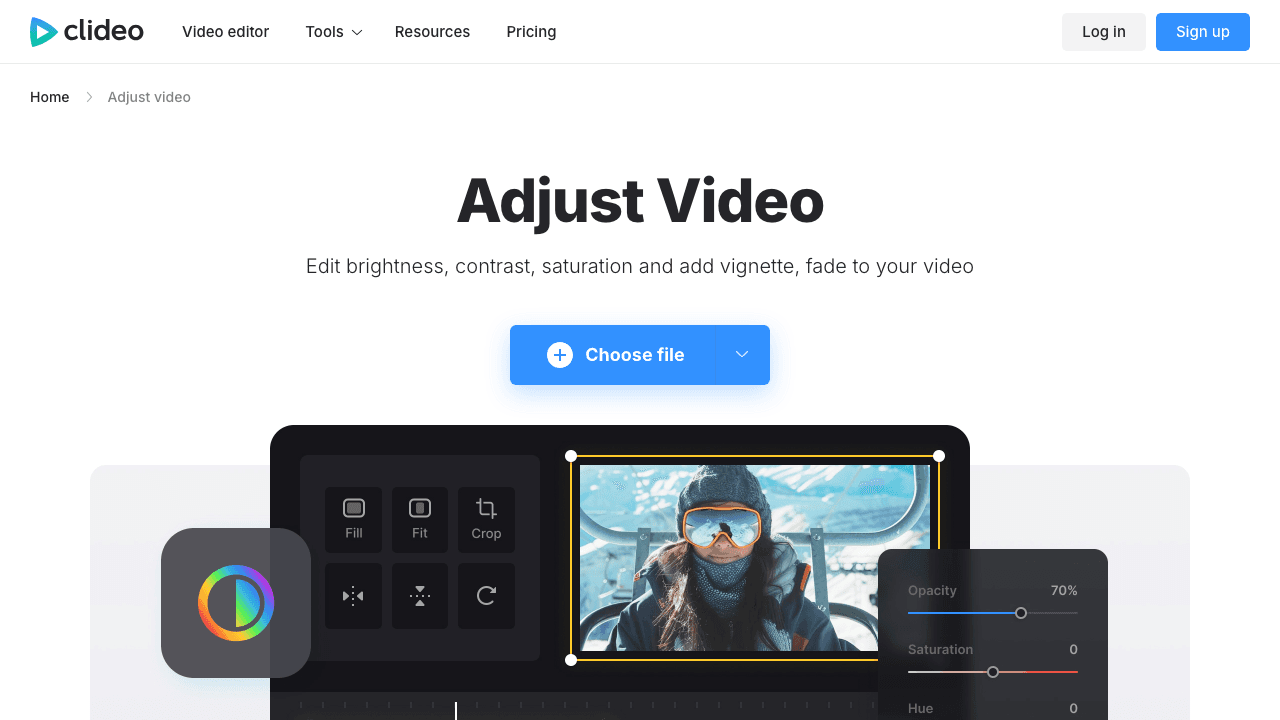
Clideo is the most stripped-back option here. Upload, drag five sliders (brightness, contrast, saturation, vignette, fade), preview in real time, export. Files up to 500 MB on the free tier, with broad format support (MP4, WMV, MOV, VOB, AVI, and others).
The downside is the watermark. Free exports carry the Clideo logo, and removing it costs $9/month or $72/year. If you can live with the watermark, it's the fastest path from raw clip to colour-corrected file. If you can't, the same five sliders are available watermark-free in Vidocu's lighting editor.
7. Fotor
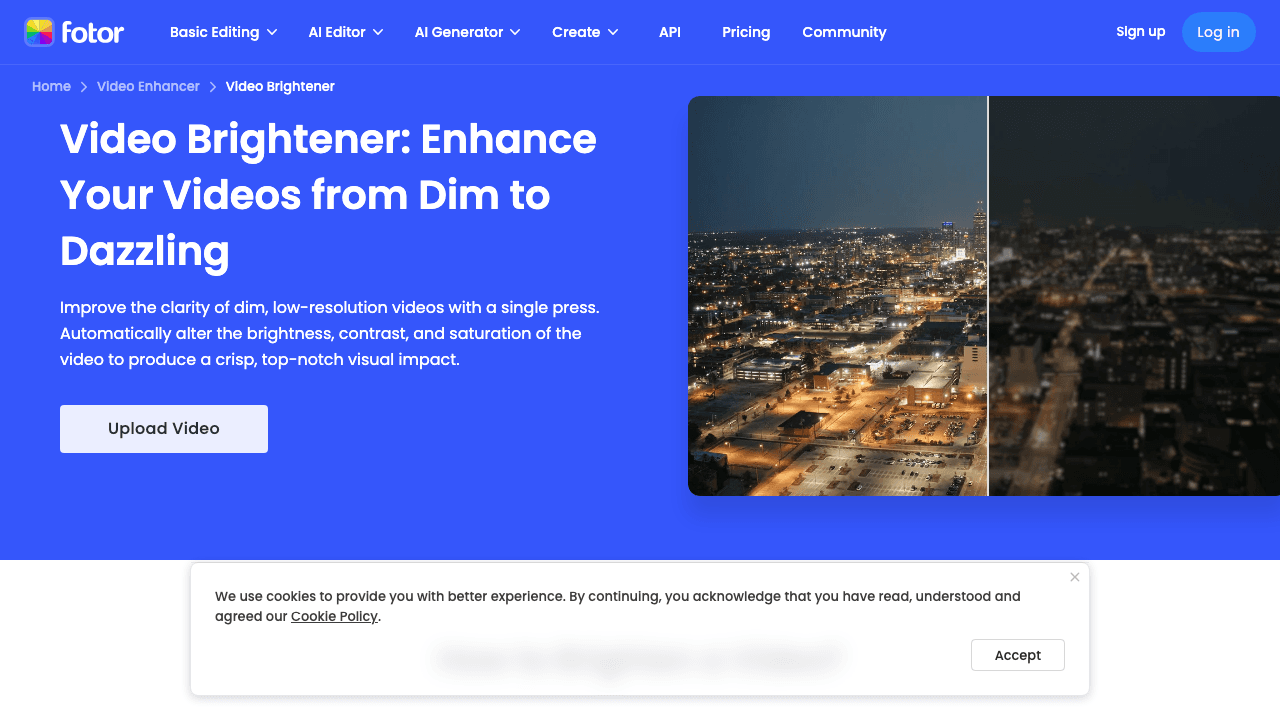
Fotor takes the AI-first route. Instead of giving you sliders, it analyses your video, identifies the underexposed sections, and brightens them automatically. It's specifically tuned for low-resolution dark footage (480p, 360p, 240p) where you're trying to rescue a clip rather than polish one.
You can still nudge brightness, contrast, and saturation manually, but the value is in the one-click auto pass. Free downloads come in a 1080p preview, and full HD export is gated behind a paid plan. Use it when the input is bad enough that manual sliders would take ten minutes per clip; skip it when you have time to dial in your own settings.
Build polished tutorials end to end in one tool
Vidocu Studio combines the lighting editor with cuts, voiceover, captions, zoom and pan, and AI-generated documentation.
Explore Vidocu StudioWhat to look for in a video lighting editor
Three things separate the tools that actually save you time from the ones that just look like they will.
Per-segment control. Lighting almost never changes evenly across a clip. A tool that only applies one global adjustment forces you to either accept the compromise or split the file and re-encode. Per-region timeline editing solves this in a single pass.
Honest free tiers. Watermarks, low-resolution exports, and locked formats are common ways "free" tools push you toward a subscription. Read the export limits before you upload anything, especially if you plan to publish the result.
Live preview. Sliders without instant feedback are slow and frustrating. Every tool on this list previews changes in real time; if you're evaluating something not on this list, that's the first feature to test.
Beyond lighting, most tutorial and documentation videos benefit from a second polish pass: trimming dead space, adding captions, smoothing audio, generating step-by-step docs from the same footage. Tools that bundle those (Descript, Vidocu, VEED) save a round trip; single-purpose tools (Clideo, Fotor) are faster for a one-shot fix. Pick based on whether this video is one of many in a series or a one-off.
If your videos are part of a tutorial pipeline, see how the lighting step fits into a video automation workflow, or how teams turn the same footage into AI-generated documentation without re-recording.
Related free tools
A lighting fix is usually one step in a longer video polish. A few related free tools that pair well with this one:
- Free video fade for clean fade in / fade out without re-encoding
- Free video watermark when you want a logo overlay on the corrected clip
- Free video annotator for arrows and callouts on tutorial footage
- Best free video fade tools for a deeper look at fade-specific editors
FAQ
What's the best free video lighting editor with no watermark?
Vidocu's lighting editor exports without a watermark on the free tier. Flixier is also watermark-free for preview links, but downloads carry a watermark unless you upgrade. Most other free tools (Clideo, VEED, Kapwing, Fotor) either watermark exports or gate full-resolution downloads behind a paid plan.
How do I brighten a dark video without losing quality?
Use exposure and shadow controls instead of just turning brightness up. Brightness lifts every pixel equally, which can blow out the highlights. Exposure (in tools like Descript) and shadows (in pro editors) lift the dark areas without touching the parts of the frame that are already correctly lit. For severely underexposed footage, Fotor's AI auto-brightener handles this in one click.
Can I adjust lighting on only part of a video?
Yes, but most tools require you to split the clip first. Vidocu is the exception: you can add multiple regions on the timeline and set different brightness, contrast, saturation, vignette, and fade values for each, then export the result as a single file.
Do free video lighting editors work in the browser?
All seven tools on this list run in the browser with no download required. Some (Descript, VEED, Kapwing, Clideo) require an account; others (Vidocu, Flixier, Fotor) let you start editing immediately. File size limits range from 50 MB on the strictest free tiers to 500 MB on Vidocu and Clideo.
What's the difference between brightness and exposure?
Brightness shifts every pixel up or down by the same amount, which can crush the shadows or blow out the highlights. Exposure mimics what the camera sensor would have captured at a different setting, which lifts dark areas more gently and protects the highlights. If your tool offers both, exposure is usually the right starting point for an underexposed clip; brightness is the right tool for a small final tweak.
The takeaway
If the only thing you need is to clean up brightness and contrast on a single clip, Clideo or Vidocu's lighting tool will get you there in under two minutes. If your footage has uneven lighting across the timeline, Vidocu's per-region control is the only browser tool that handles it cleanly. And if you're already living inside Descript or Kapwing, use the colour controls there before adding another tab to your workflow.
Try Vidocu for free if you want lighting, fade, captions, voiceover, and video-to-documentation in one place.

Written by
Daniel SternlichtDaniel Sternlicht is a tech entrepreneur and product builder focused on creating scalable web products. He is the Founder & CEO of Common Ninja, home to Widgets+, Embeddable, Brackets, and Vidocu - products that help businesses engage users, collect data, and build interactive web experiences across platforms.