
The fastest way to add a fade in or fade out to a video is a free browser tool: upload the clip, set the fade duration (0.5 to 3 seconds), pick black or white, and export. Vidocu, CapCut, Clipchamp, and Canva all do this free with no watermark. Vidocu is the quickest for simple intro and outro fades.
You want to add a smooth fade in or fade out to your video: maybe a cinematic opening, a clean ending, or a polished transition between clips. The good news: you don't need expensive software or editing skills. Several free online tools let you apply fade effects directly in your browser.
We tested the most popular options so you don't have to (updated July 2026). Here are the 9 best free video fade tools online, ranked by ease of use, output quality, and what you actually get for free.
Quick Comparison
| Tool | Fade In/Out | Between Clips | Free Watermark | Max Free Resolution | Paid From | Best For |
|---|---|---|---|---|---|---|
| Vidocu | ✅ | ✅ | None | 1080p | $39/mo (Pro) | Quick fade + documentation |
| CapCut | ✅ | ✅ | None | 1080p | Not published | Full editing with fades |
| Clipchamp | ✅ | ✅ | None | 1080p | Microsoft 365 only | Windows users |
| Canva | ✅ | ✅ | None | 1080p | $120/yr (Pro) | Social media creators |
| VEED | ✅ | ✅ | Watermark | 720p | $10/user/mo annual | AI-powered transitions |
| FlexClip | ✅ | ✅ | Watermark | 720p | $11.99/mo annual | Template-based editing |
| Kapwing | ✅ | ✅ | Watermark | 720p | $16/mo annual | Team collaboration |
| Flixier | ✅ | ✅ | Watermark | 720p | About $19/seat/mo | Fast cloud rendering |
| Clideo | ✅ | ❌ | Watermark | Unlimited | $9/mo billed yearly | Simple one-click fades |
1. Vidocu
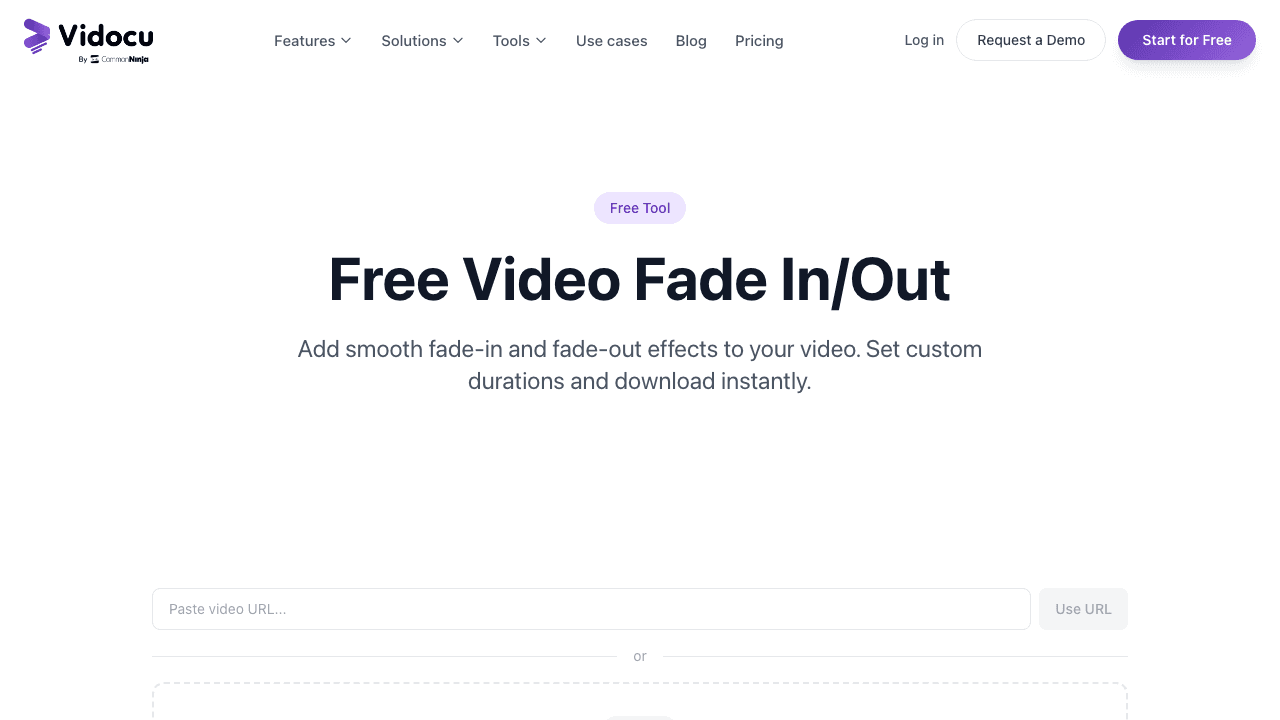
Vidocu's free video fade tool is built for speed. Upload your video, set your fade-in and fade-out durations (from 0.5 to 5 seconds), choose between black or white fade, and download. That's it.
There's no timeline to learn and no watermark on exports. Processing happens server-side so even large files render quickly. And because Vidocu is a full AI video documentation platform, you can also generate subtitles, voiceover, and step-by-step guides from the same upload.
Free tier: No watermark, 1080p export, fade in/out with black or white options.
Limitations: Focused on intro/outro fades; no transitions between clips in the free tool.
Fades are usually the last step. If the clip is still the wrong shape or orientation, crop a video online or rotate a video online before you add the fade.
Best for: Quickly adding professional fades to tutorial videos, product demos, or training content before turning them into documentation or help articles.
Once the clip looks right, a lot of teams stamp their logo on the export as the final step before publishing.
Add Fade Effects to Your Videos, Free
Upload a video and apply smooth fade in/out effects in seconds. No watermark, first run free.
Try the free fade tool2. CapCut

CapCut (by ByteDance) has become one of the most popular free video editors, and its fade features are solid. You get fade in and fade out sliders in the effects panel, plus dozens of transition effects (including dissolve and fade-to-black) that you can drag between clips on the timeline.
The keyframe system lets you create custom fade curves if the default linear fade isn't enough. CapCut also works across web, desktop, and mobile with synced projects.
Free tier: Extremely generous: 1080p export, no watermark, most effects included.
Limitations: Some AI features (auto-captions, background remover) are Pro-only at ~$8/month. Owned by ByteDance, which raises privacy concerns for some teams.
Best for: Creators who want a full-featured editor with professional fade controls at no cost.
3. Clipchamp
Microsoft's Clipchamp gives you fade in and fade out sliders directly on the clip properties panel. Select a clip, open the Fade tab, and drag the sliders to set your durations. It also offers transitions between clips including fade-to-black and cross dissolve.
Since Microsoft acquired Clipchamp, it's been tightly integrated into Windows 11 and Microsoft 365. The free tier includes 1080p export with no watermark, a rarity.
Free tier: 1080p, no watermark, fade in/out sliders, transition library.
Limitations: Some premium filters and stock media are locked. Performance can lag on very large files.
Best for: Windows users who want a built-in, no-download solution. If you're creating SOPs from screen recordings on a Windows machine, Clipchamp integrates natively.
4. Canva
Canva's video editor includes fade and dissolve transitions between pages (clips). Click the + icon between slides on the timeline, select "Add transition," and choose Dissolve for a classic fade effect. You can adjust the duration with a simple slider.
Canva also supports page-level animations including Fade, which applies a fade-in effect to all elements on a page. The template library is massive, making it easy to create branded content with smooth transitions.
Free tier: No watermark, 1080p export, dissolve/fade transitions, huge template library.
Limitations: Fade controls are more template-driven and less precise than dedicated video editors. No keyframe control over individual clip fades.
Best for: Marketing teams and social media creators who already use Canva for design and want consistent branding across their video content.
5. VEED

VEED offers a full transitions library including fade in, fade out, fade to black, and cross dissolve. You can apply them from the Transitions menu or toggle fade directly on individual clips via the timeline.
What sets VEED apart in 2026 is the AI transitions feature. Describe any transition you want in a text prompt ("dissolve into particles," "slide through a portal") and VEED generates it. It's overkill for a simple fade, but impressive for creative projects.
Free tier: 720p export, watermark on free tier, basic fade transitions included.
Limitations: Watermark on free exports, 10-minute video limit on free tier. Creator starts at $10/user/month billed yearly.
Best for: Teams that want AI-powered creativity on top of standard fade effects. Also strong for adding subtitles alongside transitions.
6. FlexClip
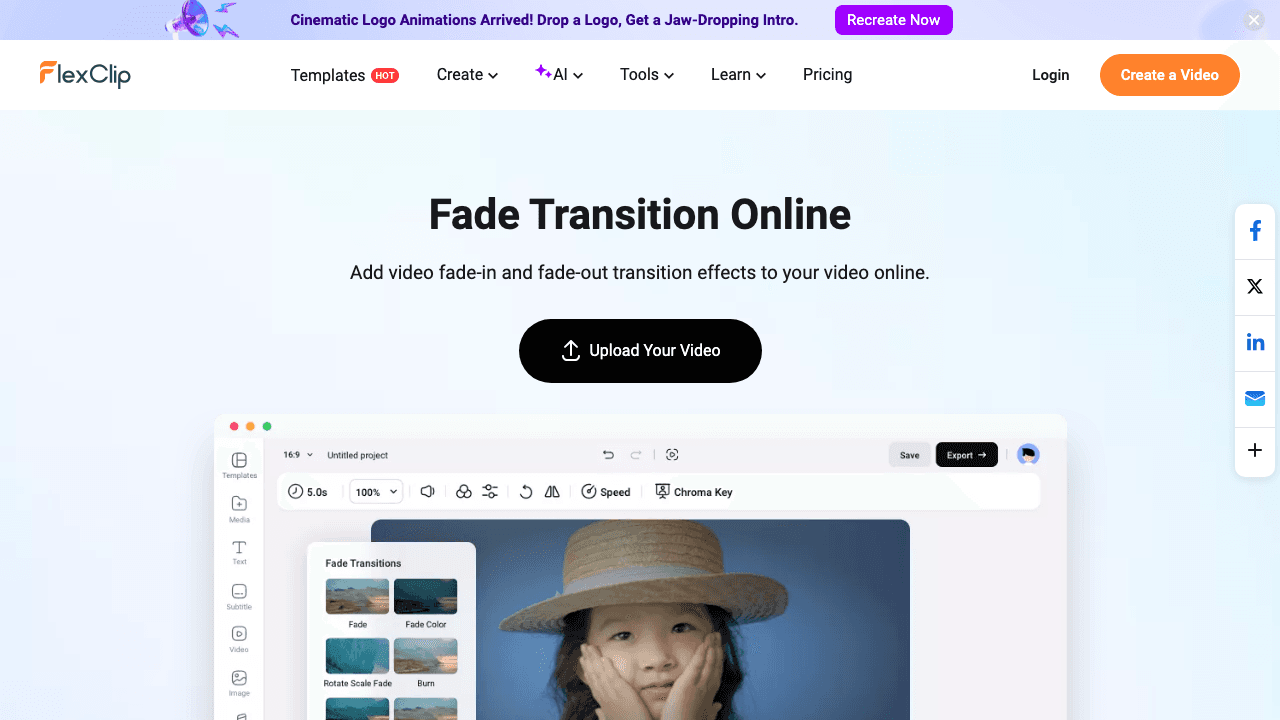
FlexClip has a dedicated fade transition tool at flexclip.com/tools/fade-transition. Upload your video, and apply fade in/out effects with a few clicks. The full editor also offers 20+ transition styles you can apply between clips.
The tool is template-heavy, which is great if you want pre-designed video layouts with built-in transitions for social media, ads, or presentations.
Free tier: 720p, watermark, up to 1-minute exports on some plans.
Limitations: The free tier is quite limited (720p + watermark + short export limit). Plus plans start at ~$10/month.
Best for: Quick social media clips where templates save time and fades add a professional touch.
7. Kapwing
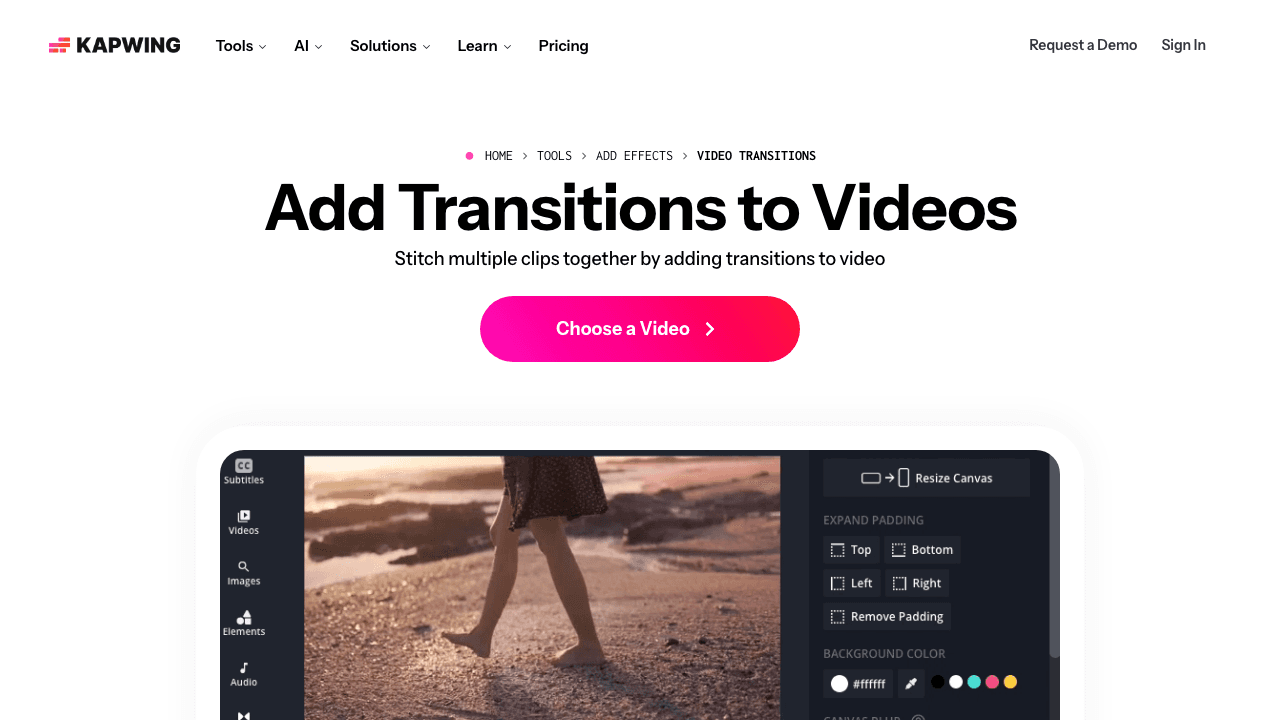
Kapwing's timeline editor includes a transitions library with fade, cross dissolve, glitch, wipe, and more. Drag a transition between clips, and adjust timing. You also get fade effects for individual elements (text fade-in, image fade-out) which is useful for layered compositions.
Kapwing is collaboration-friendly: you can share projects with teammates and edit together, making it popular with content teams.
Free tier: Watermark on exports, limited storage, basic transitions included.
Limitations: Watermark on all free exports. Pro removes it at ~$16/month.
Best for: Teams collaborating on video content who need fade transitions plus shared editing access.
8. Flixier
Flixier's main selling point is speed: it renders in the cloud, so exports are fast even on slow hardware. The Transitions tab includes a Fade option you can drag onto the start or end of any clip. It also has a fade-to-black transition for between clips.
Everything runs in the browser with no plugins or downloads. The interface is clean and straightforward.
Free tier: 720p, watermark, 10 minutes of video processing per month.
Limitations: Very limited free tier (10 min processing). Paid plans start at ~$8/month.
Best for: Users on underpowered machines who need fast cloud-based rendering with simple fade effects.
9. Clideo
Clideo keeps it simple. Their video editing suite includes fade-in and fade-out checkboxes. Literally check the box, and the effect is applied. No timeline, no drag-and-drop, just a straightforward toggle.
Files up to 500MB work on the free tier. The tool supports all common formats and processes server-side.
Free tier: Watermark, files up to 500MB, basic fade in/out toggles.
Limitations: Watermark on free exports. Very limited control: no custom durations on the free version. Pro at ~$9/month.
Best for: Anyone who just wants to add a fade in 30 seconds without learning an editor.
Need More Than Just Fades?
Vidocu adds subtitles, voiceover, and documentation to your videos automatically, plus fade effects for free.
See all featuresWhat Each Fade Tool Costs in 2026
Adding a fade is free in all nine tools. The paid tiers exist to remove a watermark, lift a resolution cap, or unlock the rest of the editor around the fade.
| Tool | Free tier | Paid entry price | What paying gets you |
|---|---|---|---|
| Vidocu | 1 free tool run, watermark-free 1080p output | $39/mo (Pro) | Unlimited runs of every free tool, plus subtitles, voiceover, translation, and documentation from the same upload |
| CapCut | Full basic toolkit, no watermark | Not published | 4K export and cloud storage; prices are in-app and vary by region |
| Clipchamp | All core features, no watermark | No standalone tier | Premium features come with a Microsoft 365 subscription |
| Canva | Basic transitions, no watermark | $120/yr per person | Premium elements and templates; Business $210/yr |
| VEED | Watermark, 720p | $10/user/mo billed yearly (Creator) | Watermark removal and higher resolution; Pro $21, Studio $35 |
| FlexClip | Watermark, 720p, 10 min | $11.99/mo annual ($19.99 monthly) | 1080p, no watermark, custom branding |
| Kapwing | Watermark, 720p, 3 exports/mo | $16/mo annual ($24 monthly) | Watermark removal, 4K, no export cap |
| Flixier | Watermark, 720p | About $19/seat/mo (Starter) | Watermark removal and longer exports; pricing is localized by region |
| Clideo | Watermark | $9/mo billed yearly ($108/yr) | Watermark removal across every Clideo tool |
Prices verified in August 2026 against each vendor's own site. Two exceptions to note: CapCut no longer publishes prices publicly, and Clipchamp has no standalone paid tier at all.
The honest summary: if all you need is a fade, do not pay for any of this. The four tools with no watermark on the free tier (Vidocu, CapCut, Clipchamp, Canva) cover the job outright. Paying only makes sense when the fade is one step inside a bigger production workflow.
When Should You Use Fade In and Fade Out Effects?
Fades aren't just decorative. Here's when they actually improve your video:
- Intro/outro: Fade from black at the start, fade to black at the end. It's the universal signal that a video is beginning or ending. Essential for tutorial videos and product demos.
- Scene transitions: A short fade-to-black between sections helps viewers mentally reset. Especially useful in longer documentation videos or training content.
- Stitching clips together: If you are building one video out of several takes, a short fade at each junction hides the seam. Join the clips first with a free video merger, then fade each transition.
- Music beds: A track that stops dead is more jarring than any visual cut. If you add music to a video free online, fade the music in and out instead of hard-cutting it, and drop the music volume under narration rather than muting it.
- Pacing control: A slow fade builds anticipation. A quick fade keeps energy high. Match the fade duration to your content's tempo. If a section drags even with tight fades, speed up or slow down the video online so the tempo matches the content.
- Emotional tone: Fade-to-white feels optimistic and clean. Fade-to-black feels conclusive and cinematic. Choose based on your video's mood.
The right duration depends on what you're making:
| Content type | Fade in | Fade out |
|---|---|---|
| Tutorials and product demos | 0.5–1s | 1s |
| Social media clips | Skip it, or 0.5s | 0.5s |
| Training and onboarding modules | 1s | 1–2s |
| Cinematic or brand content | 2–3s | 2–3s |
Two mistakes to avoid. First, don't put a fade between every cut: it slows your video down and viewers feel it. Use fades intentionally, at natural breaks. Second, don't open a tutorial with a long, slow fade in. Viewers decide whether to keep watching in the first seconds, and most tutorial videos lose their audience by the 30-second mark, so keep opening fades short and get to the content fast.
How to Add a Fade to Your Video (Step by Step)
Most tools follow a similar workflow:
- Upload your video: drag and drop or browse from your device.
- Select the fade type: fade in (start), fade out (end), or both. Some tools also offer fade-to-black between clips.
- Set the duration: 0.5–1 second for a subtle effect, 2–3 seconds for a dramatic one.
- Choose the color: black is standard, white works for a brighter feel. Some tools like Vidocu let you pick.
- Preview and export: check the timing, then download.
For a walkthrough with screenshots of each step, see the fade in/out tutorial.
If you're working with training or SOP videos, adding a fade-to-black at the end makes the content feel finished and professional before sharing it with your team.
FAQ
How much do video fade tools cost?
Nothing, for the fade itself. All nine tools here add fade in and fade out for free, and four of them (Vidocu, CapCut, Clipchamp, Canva) export without a watermark on the free tier. Paid plans start at $9 a month billed yearly (Clideo), $10 per user a month annually (VEED), $11.99 a month annually (FlexClip), and $16 a month annually (Kapwing). Vidocu's Pro plan is $39 a month and covers every free tool plus subtitles, voiceover, and documentation.
What's the difference between fade in, fade out, and crossfade?
Fade in gradually reveals your video from a solid color (usually black) at the start. Fade out gradually transitions to a solid color at the end. Crossfade (or cross dissolve) blends the end of one clip into the beginning of the next, creating a smooth overlap between scenes.
Can I add a fade to a video without downloading software?
Yes. Every tool in this list works directly in your browser, no downloads needed. Tools like Vidocu, CapCut, and Clipchamp let you add fades online for free.
What's the best fade duration for a professional look?
For most videos, 0.5 to 1.5 seconds works well for both fade in and fade out. Tutorial and documentation videos typically use shorter fades (0.5–1s) to keep the pace, while cinematic content can stretch to 2–3 seconds.
Which free video fade tool has no watermark?
Vidocu, CapCut, Clipchamp, and Canva all offer free exports without watermarks. VEED, FlexClip, Kapwing, Flixier, and Clideo add watermarks on their free tiers.
Can I add fade effects to a video on my phone?
Yes. CapCut and Canva have strong mobile apps with fade support. Clipchamp works on mobile browsers. Most other tools on this list are browser-based and work on mobile, though the editing experience is better on desktop.
Should every video have a fade in and fade out?
No. Standalone videos (tutorials, demos, training modules) benefit from a short fade in and fade out because it signals a clean start and finish. Skip fades on looping social clips, and keep opening fades under one second on tutorials so viewers reach the actual content before they lose interest.

Written by
Daniel SternlichtDaniel Sternlicht is a tech entrepreneur and product builder focused on creating scalable web products. He is the Founder & CEO of Common Ninja, home to Widgets+, Embeddable, Brackets, and Vidocu - products that help businesses engage users, collect data, and build interactive web experiences across platforms.