
Adding voiceover to a video used to mean one of two things: record it yourself (and deal with retakes, background noise, and awkward pacing) or hire a voice actor (and deal with budgets, turnaround times, and revision rounds).
Neither option scales. If you're producing tutorials, product demos, training videos, or documentation, you need voiceover that sounds professional, and you need it fast. AI voiceover tools now deliver both.
This guide walks you through every method for adding voiceover to video in 2026, from AI text-to-speech to recording your own, so you can pick the approach that fits your workflow.
Why Add Voiceover to Your Videos?
Before diving into the how, here's why voiceover matters:
- Accessibility. Not everyone can follow on-screen text or captions. Narration makes content accessible to visually impaired viewers and people who learn better through audio.
- Engagement. Videos with narration hold attention longer than silent walkthroughs. Viewers don't have to read and watch simultaneously.
- Professionalism. A narrated video feels polished. It signals that you've put effort into the content, which builds trust, especially for customer-facing material.
- Localization. AI voiceover makes it realistic to produce the same video in 10+ languages without re-recording anything. That's a game-changer for international markets.
Add AI Voiceover to Any Video
Upload a video, generate subtitles, and turn them into natural voiceover, in 65+ languages. No mic needed.
Try Vidocu FreeMethod 1: AI Text-to-Speech (Fastest, Most Scalable)
AI voiceover tools convert text into natural-sounding speech. You provide a script (or let the tool generate one from your video), pick a voice, and the tool renders an audio track synced to your video.
This is the best option when:
- You produce videos regularly and can't record every one
- You need voiceover in multiple languages
- You want consistent quality without depending on a single person's voice
- You're creating training documentation or SOPs from video at scale
How It Works (General Process)
- Upload your video to an AI voiceover tool
- Generate or paste a script: some tools auto-transcribe your video, others need you to type it
- Choose a voice: most tools offer dozens of voices across languages, genders, and tones
- Adjust timing: sync the narration to your video's pacing
- Export: download the video with voiceover baked in
Top AI Voiceover Tools
Here's a breakdown of the best tools for adding AI voiceover to video in 2026:
Vidocu
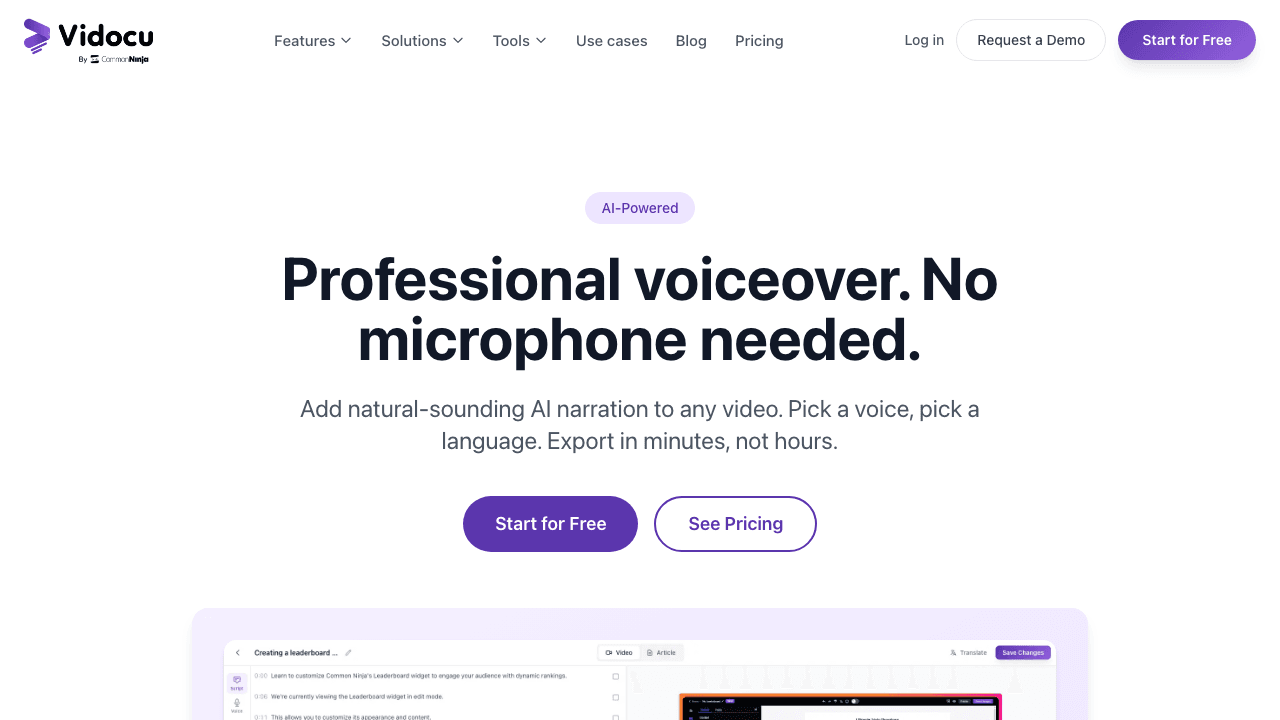
Vidocu takes a different approach to AI voiceover. Instead of requiring you to write a separate script, it generates voiceover directly from your video's subtitles. Upload a video, let Vidocu generate AI subtitles, review and edit them, then convert those subtitles into natural voiceover with one click.
This subtitle-first workflow means the narration is automatically synced to your video, no manual timing adjustments needed. And because Vidocu supports subtitle translation, you can generate voiceover in 65+ languages from a single upload.
Best for: Tutorial and documentation teams who want voiceover as part of a complete video workflow, subtitles, documentation, translation, and voiceover in one platform.
Pricing: Free plan at $0. Pro is $39/month and includes AI voiceover, translation, and watermark removal.
ElevenLabs
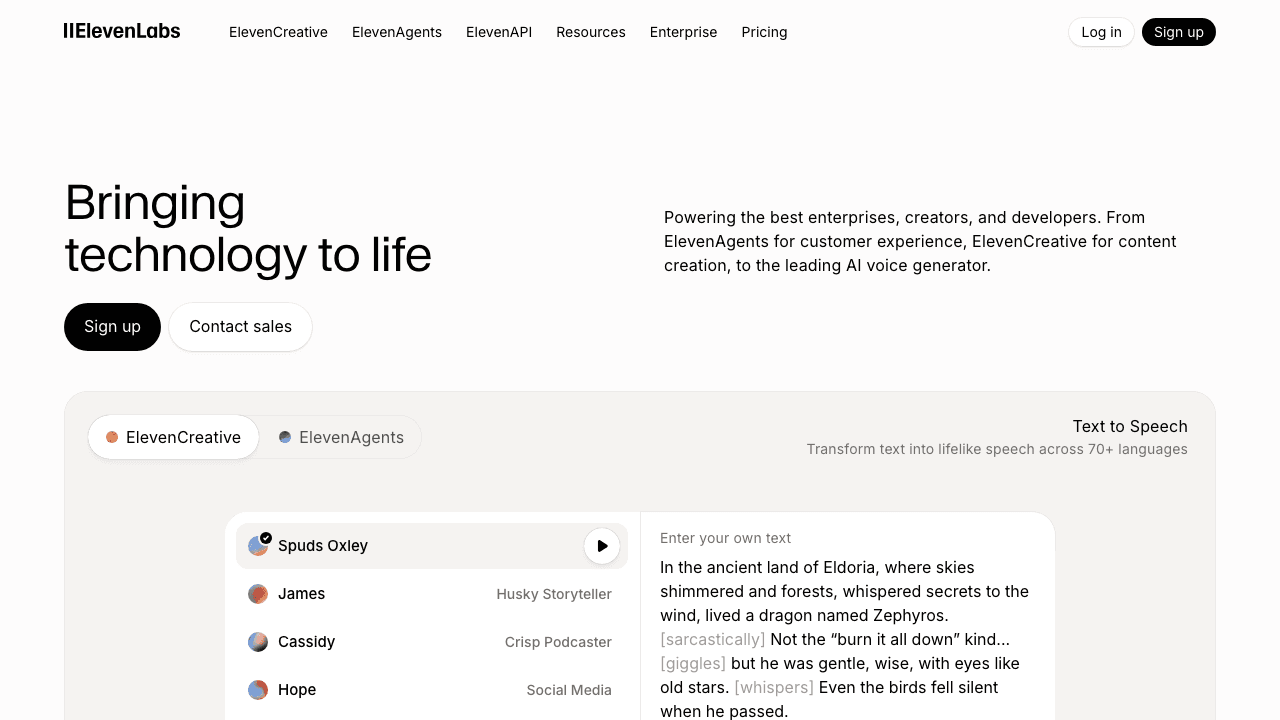
The current leader in AI voice quality. ElevenLabs offers the most realistic text-to-speech available, with fine-grained control over emotion, pacing, and tone. It supports 32 languages and offers voice cloning, meaning you can train a custom voice model from a short sample of your own voice.
Best for: Standalone voiceover generation where you need maximum realism. You'll need to sync the audio to your video separately (using a video editor).
Pricing: Free tier with 10, 000 characters/month. Paid plans from $5/month.
Limitation: ElevenLabs generates audio files, not finished videos. You still need a video editor to combine audio and video.
Descript
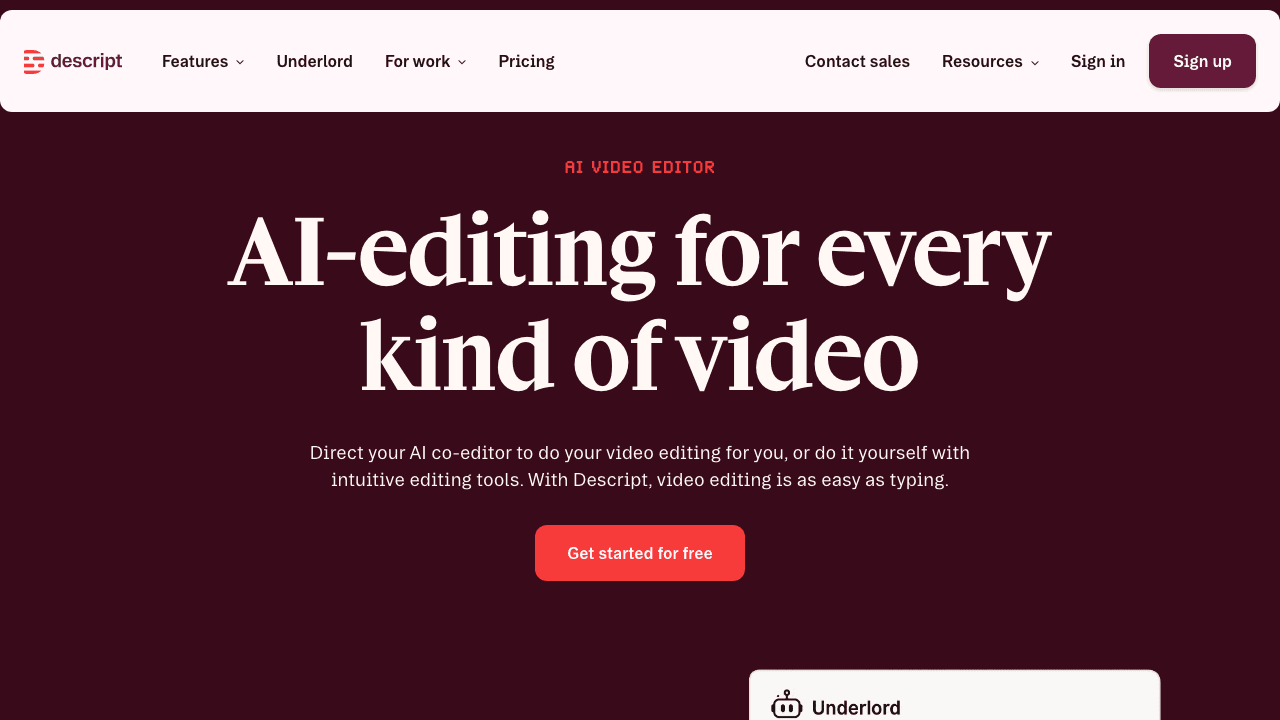
Descript is a video editor that treats audio like a text document. You can type to edit speech, replace words, and generate AI voiceover using its Stock Voices feature. It's particularly good for tutorial creators who want to edit narration the same way they'd edit a blog post.
Best for: Creators who want to edit video and voiceover in the same tool.
Pricing: Free tier available. Pro plan from $24/month.
Clipchamp (Microsoft)
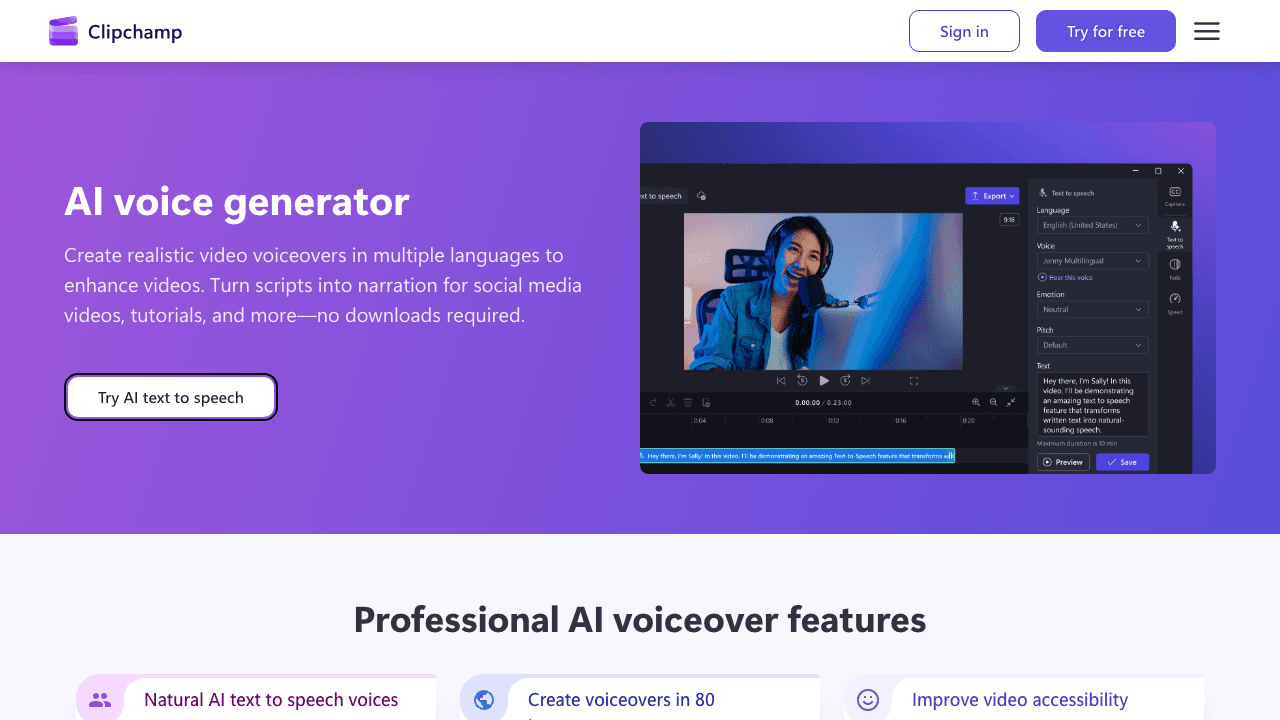
Clipchamp is Microsoft's free video editor, built into Windows 11. Its AI voiceover feature lets you type a script, pick from 170+ voices in 70 languages, and add the narration directly to your timeline.
Best for: Quick, free voiceover for simple videos. No sign-up friction if you're already in the Microsoft ecosystem.
Pricing: Free with Microsoft account. Premium features with Microsoft 365.
CapCut
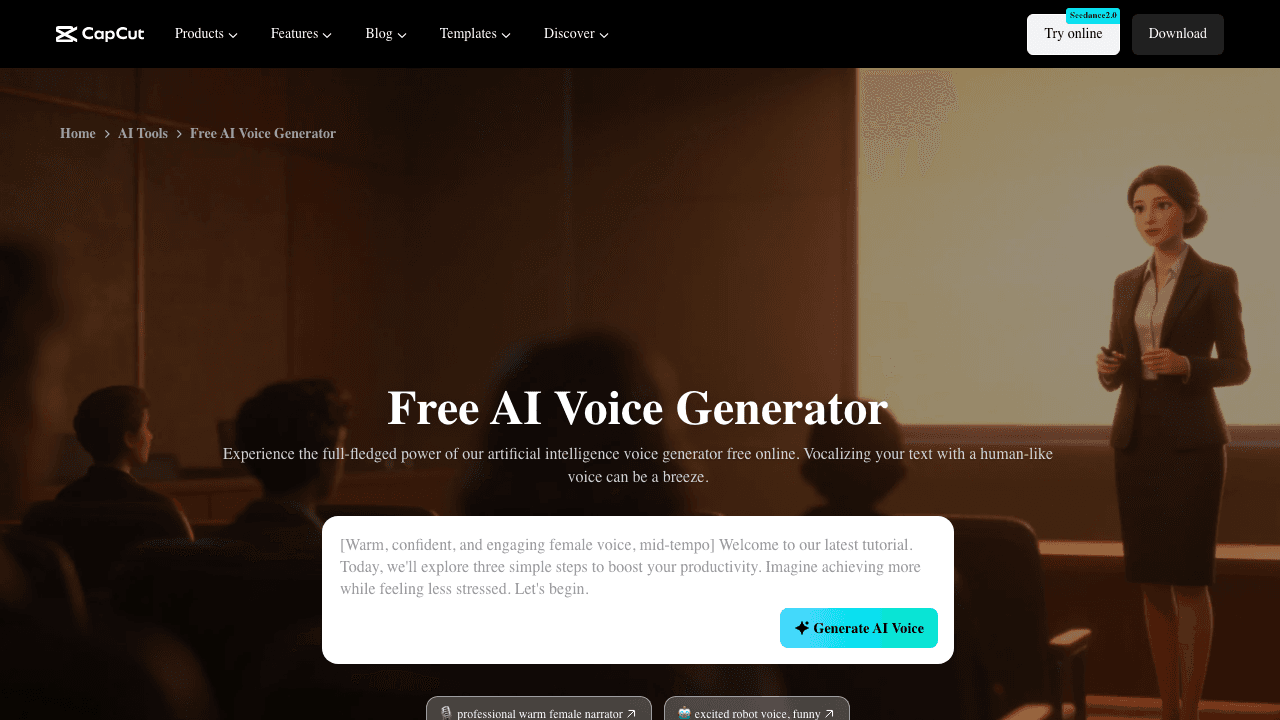
CapCut offers surprisingly capable AI voiceover for a free tool. It includes text-to-speech with adjustable tone, speed, and emotion controls, plus a voice enhancer that cleans up audio quality. Popular with social media creators.
Best for: Short-form video creators who want free AI voiceover with good quality.
Pricing: Free. Pro plan from $7.99/month.
Fliki
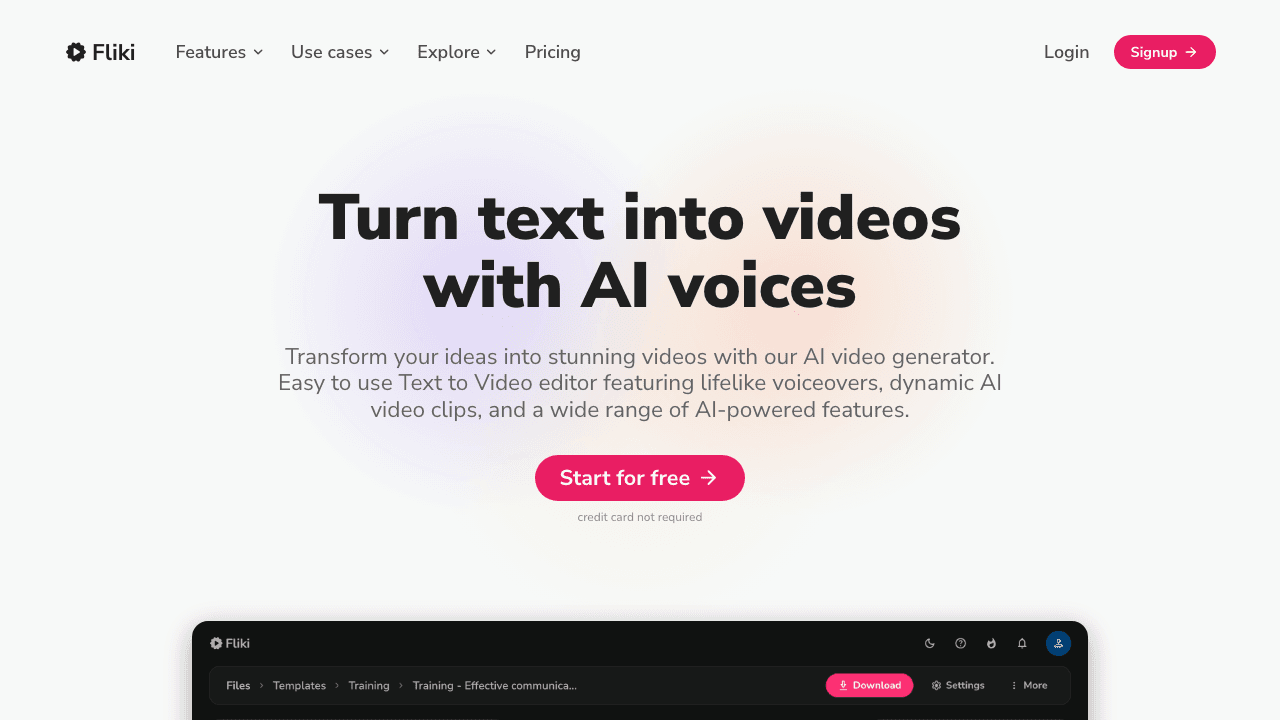
Fliki takes a text-first approach: paste a script or a blog post, and it generates a complete video with AI voiceover, stock footage, and subtitles. It offers 2, 500+ voices across 80+ languages and supports voice cloning.
Best for: Turning written content into narrated videos. Great for repurposing blog posts into video.
Pricing: Free tier with 5 minutes/month. Standard plan from $28/month.
Quick Comparison
| Tool | Voices | Languages | Video Editor | Auto-Sync | Free Tier | Starting Price |
|---|---|---|---|---|---|---|
| Vidocu | 50+ | 65+ | Yes | Yes | Yes | $39/mo |
| ElevenLabs | 100+ | 32 | No | No | Yes (10K chars) | $5/mo |
| Descript | 20+ | 24 | Yes | Yes | Yes | $24/mo |
| Clipchamp | 170+ | 70 | Yes | Yes | Yes | Free |
| CapCut | 100+ | 30+ | Yes | Yes | Yes | Free |
| Fliki | 2, 500+ | 80+ | Yes | Yes | Yes (5 min) | $28/mo |
Method 2: Record Your Own Voiceover
Sometimes AI isn't the right fit. If your brand depends on a recognizable voice, or you're creating content where personality and tone matter (think: YouTube tutorials, founder videos, customer stories), recording your own voiceover is worth the effort.
Equipment You Need
You don't need a studio. Here's the minimum setup:
- Microphone: A USB condenser mic like the Blue Yeti or Audio-Technica AT2020 ($50–$130) will dramatically improve quality over your laptop mic
- Quiet space: Close the door, turn off the AC, and record when it's quiet. A closet full of clothes is a surprisingly effective recording booth
- Recording software: Audacity (free), GarageBand (free on Mac), or any DAW
Recording Tips
- Write a script first. Don't wing it. Read through it twice before recording
- Speak slightly slower than normal. Most people rush when reading scripts
- Keep a consistent distance from the mic: about 6 inches
- Record in short segments. It's easier to re-record a single paragraph than an entire take
- Leave 2 seconds of silence at the start and end for easier editing
When to Choose This Method
- Your audience knows your voice and expects it
- The content is personal or opinion-based
- You're recording in a single language
- You have time for recording and editing
Method 3: Hire a Voice Actor
For high-stakes content, product launch videos, TV ads, enterprise training programs, a professional voice actor delivers a level of nuance that AI still can't match perfectly.
Where to Find Voice Actors
- Fiverr / Upwork: Budget-friendly, fast turnaround. Quality varies
- Voices.com / Voice123: Curated marketplaces with audition processes
- Fiverr Go: AI-assisted voiceover with human polish, a hybrid approach
Typical Costs
| Type | Per Minute | Turnaround |
|---|---|---|
| Budget freelancer (Fiverr) | $10–$30 | 1–3 days |
| Mid-range professional | $50–$150 | 2–5 days |
| Premium / broadcast quality | $200–$500+ | 3–7 days |
When to Choose This Method
- High-production content with significant budget
- Emotional range matters (AI struggles with subtle emotion)
- Single-language, low-volume projects
- Regulated industries requiring specific delivery standards
How to Add AI Voiceover with Vidocu (Step-by-Step)
Here's the complete workflow for adding voiceover using Vidocu:
Step 1: Upload Your Video
Go to vidocu.ai and upload your video. Vidocu accepts most video formats, MP4, MOV, WebM, and more.
Step 2: Generate Subtitles
Click Analyze to let Vidocu's AI generate subtitles from your video. This uses advanced speech recognition to transcribe everything spoken in the video. If your video has no speech (like a silent screen recording), Vidocu will analyze the visual content and generate descriptive narration.
Step 3: Review and Edit Subtitles
Open the subtitle editor to review the generated text. Fix any errors, adjust timing, or rewrite sections. These subtitles become your voiceover script, so take a moment to make sure the text reads naturally when spoken aloud.
Step 4: Generate Voiceover
Navigate to the Voiceover tab in the video editor. Choose from 50+ natural AI voices, select your language, and adjust the speed if needed. Click Generate: Vidocu will create a voiceover track that's automatically synced to your subtitle timings.
Step 5: Preview and Export
Play back the video with voiceover to check the result. The narration should line up with your video's visual content since it follows the subtitle timing. When you're happy, export the finished video.
Bonus: Translate and Generate Voiceover in Another Language
Need the same video in Spanish, German, or Japanese? Use Vidocu's translation feature to translate your subtitles, then generate voiceover from the translated text. You get a fully localized video, subtitles, voiceover, and all, without re-recording anything.
From Subtitles to Voiceover in One Click
Vidocu generates voiceover from your video's subtitles, perfectly synced, in any of 65+ languages.
Try It FreeTips for Natural-Sounding AI Voiceover
AI voices have come a long way, but there are still things you can do to make them sound better:
- Write for speaking, not reading. Short sentences. Simple words. Contractions. "You'll want to" beats "One would want to."
- Add punctuation for pacing. Commas create pauses. Periods create stops. Use them to control rhythm.
- Avoid jargon and acronyms. AI voices often mispronounce uncommon words. Spell out acronyms or use phonetic alternatives.
- Test multiple voices. The first voice you try is rarely the best. Spend 5 minutes testing different options.
- Match the voice to the content. A calm, measured voice works for documentation. An upbeat voice works for marketing. Don't use the same voice for everything.
- Keep narration concise. Viewers can read and listen simultaneously only for so long. Let visuals do some of the work, you don't need to narrate every click.
When to Use AI Voiceover vs. Recording vs. Hiring
| Factor | AI Voiceover | Record Yourself | Hire Voice Actor |
|---|---|---|---|
| Speed | Minutes | Hours | Days |
| Cost per video | $0–$20 | Free (your time) | $50–$500+ |
| Multilingual | One-click translation | Re-record each language | Hire per language |
| Consistency | Identical every time | Varies by session | Varies by actor |
| Personality | Improving, but limited | Maximum | High |
| Scale | Unlimited | Limited by your time | Limited by budget |
| Best for | Documentation, tutorials, training | Personal brand, YouTube | Ads, enterprise content |
The bottom line: For most teams producing tutorials, help articles, SOPs, or knowledge base content, AI voiceover is the clear winner. It's faster, cheaper, and scales across languages.
Reserve human voiceover for content where personality and emotional range are the priority, not the exception.
FAQ
Can AI voiceover sound as good as a human voice actor?
For most business content, tutorials, documentation, training videos, yes. Modern AI voices from tools like ElevenLabs and Vidocu are nearly indistinguishable from human speech. Where AI still falls short is emotional range: subtle sarcasm, genuine warmth, or dramatic delivery. For product demos and educational content, AI voiceover sounds perfectly professional.
How much does AI voiceover cost?
Most tools offer a free tier. Paid plans range from $5/month (ElevenLabs) to $28/month (Fliki). Vidocu includes AI voiceover in its Pro plan at $39/month, which also includes subtitles, documentation generation, and a full video editor. Per-video cost is effectively zero once you're on a plan.
Can I generate voiceover in multiple languages from the same video?
Yes. Tools like Vidocu and Fliki support multilingual voiceover. Vidocu's approach is particularly efficient: generate subtitles → translate them → generate voiceover from the translated text. One upload, any language. See our guide to multilingual tutorial videos for the full workflow.
Do I need to write a script for AI voiceover?
Not always. Some tools like Vidocu generate voiceover from your video's existing subtitles, no separate script needed. Others like Clipchamp and Fliki require you to paste or type a script. If your video already has speech, tools that auto-transcribe save you the most time.
Will AI voiceover replace human voice actors?
For high-volume, utility content (documentation, training, product walkthroughs), AI is already the practical choice. For creative and emotional content (ads, films, audiobooks), human voice actors still have the edge. The most likely outcome is a hybrid: AI handles the bulk, humans handle the premium.

Written by
Daniel SternlichtDaniel Sternlicht is a tech entrepreneur and product builder focused on creating scalable web products. He is the Founder & CEO of Common Ninja, home to Widgets+, Embeddable, Brackets, and Vidocu - products that help businesses engage users, collect data, and build interactive web experiences across platforms.