
You recorded a tutorial, a product demo, or a quick walkthrough. Now you need to cut the dead air at the start, trim the awkward ending, and remove that 30-second pause where you checked your notes. Simple enough, right?
Except most "free" video trimmers hit you with watermarks, force you to create an account, or cap exports at 720p. Some re-encode your entire file just to cut 10 seconds off the end, destroying quality in the process.
We tested dozens of online video trimmers to find the ones that actually deliver. Here are the 9 best free options in 2026, ranked by what matters most: no watermark, no quality loss, and no unnecessary friction.
Quick Comparison
| Tool | Watermark-Free | Paid From | Max File Size | Max Resolution | AI Trimming | Best For |
|---|---|---|---|---|---|---|
| Vidocu | Yes | $39/mo (Pro) | 500 MB | 1080p | Yes | Screen recordings & tutorials |
| CapCut | Yes | Not published | 500 MB | 4K | Limited | Social media creators |
| Clipchamp | Yes | Microsoft 365 only | No limit | 1080p | Yes | Windows users |
| Canva | Yes | $120/yr (Pro) | 1 GB | 1080p | Limited | Design-focused creators |
| Adobe Express | Yes | $9.99/mo (Premium) | 1 hour | 1080p | No | Adobe ecosystem users |
| Kapwing | No | $16/mo annual | 250 MB | 720p | No | Teams & collaboration |
| Online Video Cutter | Yes | 6 euro/mo | 500 MB | 1080p | No | Quick one-off trims |
| Clideo | No | $9/mo billed yearly | 500 MB | 1080p | No | Budget-conscious users |
| FlexClip | No | $11.99/mo annual | 1 GB | 720p | No | Template-based editing |
1. Vidocu
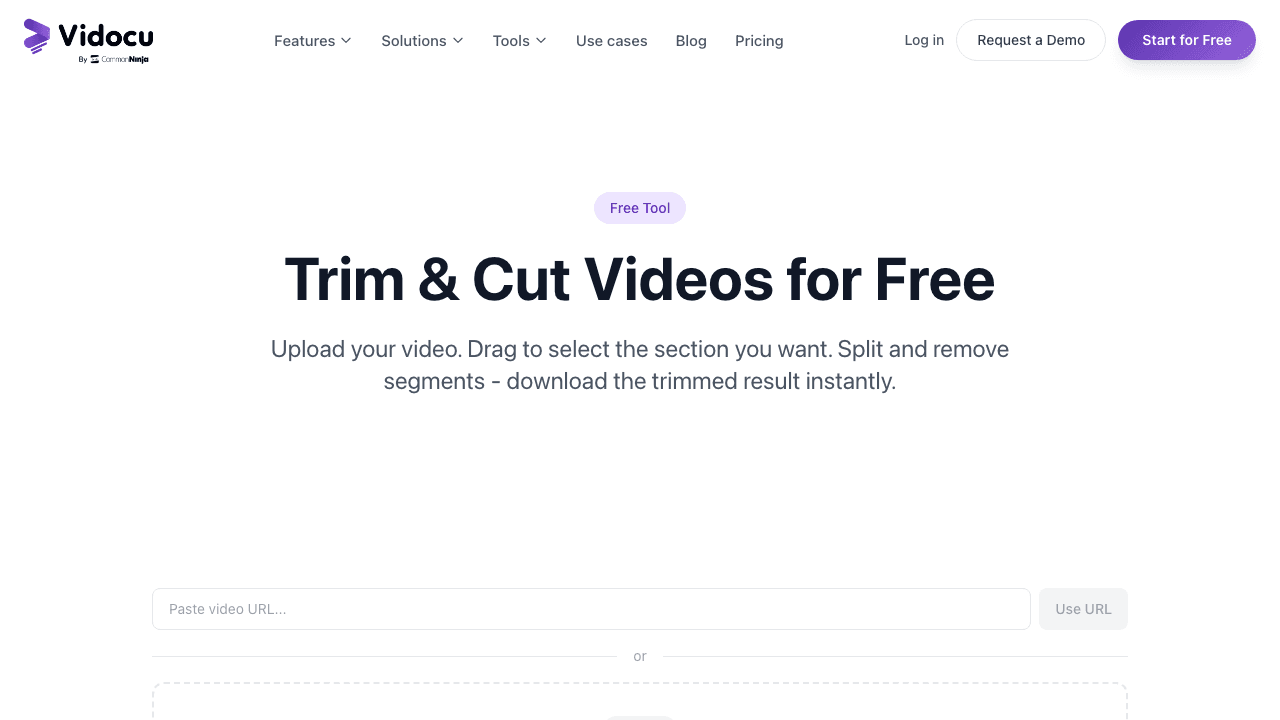
Vidocu offers two trimming modes: a standard timeline trimmer and an AI-powered Magic Trim that automatically detects and removes dead spots from your video.
The Magic Trim feature is what sets Vidocu apart. It uses AI to scan your video and identify five types of wasted time: silence longer than 2 seconds, frozen or static screens longer than 3 seconds, repeated content, long pauses, and dead air at the beginning and end. You review every suggested cut before applying it, so nothing gets removed without your approval.
For standard trims, you drag handles on a visual timeline to set your start and end points. Simple cuts use stream copy, which means zero re-encoding and zero quality loss. If the frame is wrong and not just the length, you can crop a video online or rotate a video online in the same free toolset. Multi-segment cuts use high-quality re-encoding to stitch everything together cleanly.
Key features:
- AI Magic Trim auto-detects silence, frozen screens, and dead air
- Stream copy for lossless simple trims
- No watermark on exports (a free account is required to run the tool)
- Supports MP4, MOV, WebM up to 500 MB
- Processing in under 30 seconds for most videos
Pricing: The Free plan includes one free tool run and needs a free Vidocu account. Pro is $39 a month for unlimited runs across every tool. After trimming, you can also add AI subtitles, voiceover, or generate step-by-step documentation from the same video.
Best for: Screen recordings, tutorials, and demos where dead air and frozen screens are common.
Trimming is also the cheapest form of compression, since a shorter video is a smaller file. When the trimmed clip is still too heavy to send, run it through one of the best free video compressors.
If the trimmed clip is going out to customers or prospects, the opposite move is sometimes the one you want: add your own watermark so the file stays identifiable after it gets forwarded.
Trim the dead air automatically
Vidocu's AI Magic Trim detects silence, frozen screens, and repeated content in your recordings. Review every cut before applying.
Try Magic Trim free2. CapCut
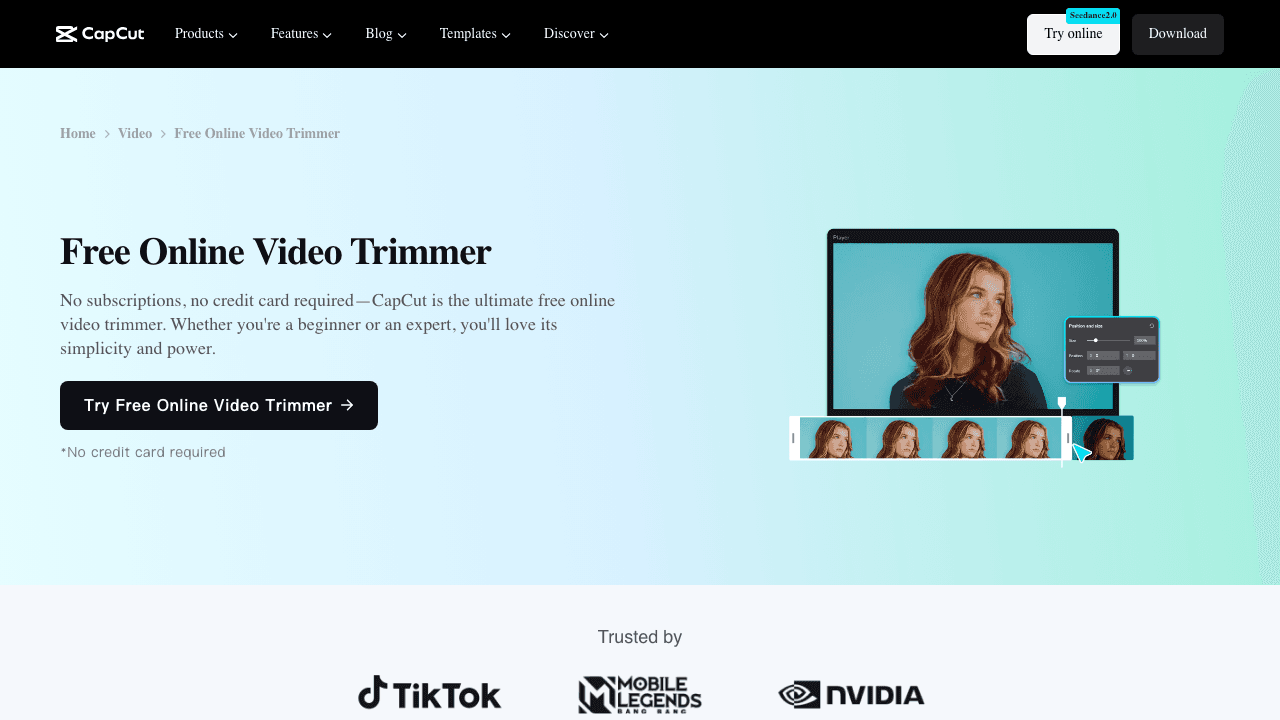
CapCut is a full-featured video editor from ByteDance (the company behind TikTok). Its free tier is genuinely generous, offering 1080p exports without watermarks, a multi-track timeline, and access to a massive library of templates, music, and effects.
For trimming specifically, you get a standard timeline editor where you can split clips, drag edges to shorten them, and rearrange segments. It also includes basic AI features like auto-captions and background removal on the free plan.
The catch? CapCut was temporarily banned in the US in early 2025 due to the TikTok legislation. While it has since returned, its availability for US users remains uncertain. If you rely on it for production work, that instability is worth considering.
Key features:
- Multi-track timeline editor
- 12M+ royalty-free templates, music, and effects
- 1080p export on free plan, no watermark
- Auto-captions and basic AI editing included free
- Strong mobile app for on-the-go edits
Pricing: Free with the full basic toolkit. CapCut no longer publishes subscription prices on its site: paid tiers are sold in-app, vary by region, and were restructured upward in 2026, so check the figure in the app rather than trusting a quoted number.
Best for: Social media creators who need more than just trimming and want templates, effects, and music in one place.
3. Clipchamp (Microsoft)
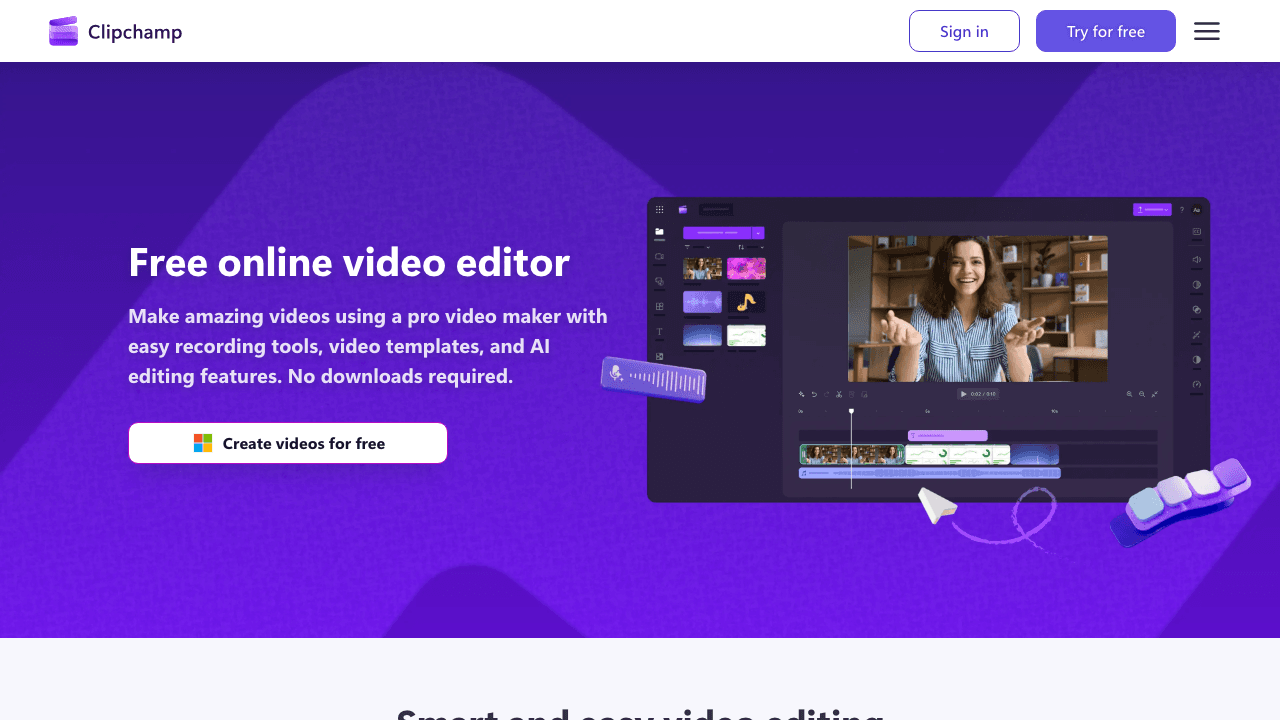
Clipchamp is Microsoft's answer to browser-based video editing. It comes pre-installed on Windows 11 and offers one of the most generous free tiers available: 1080p export, no watermark, and all core editing and AI features included.
The trimmer works through a standard timeline interface. You can split clips at any point, drag edges to trim, and use keyboard shortcuts for faster editing. Clipchamp also includes AI-powered silence removal and filler word detection, which automatically identifies and cuts "um," "uh," and awkward pauses.
The platform is heavily integrated with the Microsoft ecosystem. OneDrive storage, Teams integration, and Outlook sharing are all built in. That is a strength if you are already in that world, but less useful if you are not.
Key features:
- 1080p export, no watermark on free plan
- AI silence removal and filler word detection
- Built-in screen and webcam recorder
- AI subtitles in 80+ languages
- Pre-installed on Windows 11
Pricing: Free with all core features. Premium features (4K, premium stock, brand kit) unlock through a Microsoft 365 subscription.
Best for: Windows users who want a capable free editor with AI trimming features and tight Microsoft integration.
4. Canva

Canva is primarily a design tool, but its video editor has become surprisingly capable. You can trim, split, and splice video clips, add text overlays and graphics, and export at 1080p without a watermark on the free plan.
The AI Highlights feature is particularly useful for trimming. It analyzes longer videos and automatically generates shorter clips, pulling out the most engaging moments. This is helpful if you are repurposing a webinar or long recording into social media clips.
Trimming itself is straightforward: click on a clip in the timeline, drag the edges, or split at the playhead. The interface is clean and familiar if you have used Canva for anything else.
Key features:
- 1080p MP4 export, no watermark on free plan
- AI Highlights auto-generates short clips from long videos
- Drag-and-drop design elements, text, and transitions
- Massive template library for social formats
- Aspect ratio presets for every platform
Pricing: Free tier covers basic trimming. Pro is $120 a year per person and Business is $210 a year per person, which removes limits and adds premium templates.
Best for: Creators who also need to add design elements, branded text overlays, or thumbnails alongside trimming.
5. Adobe Express
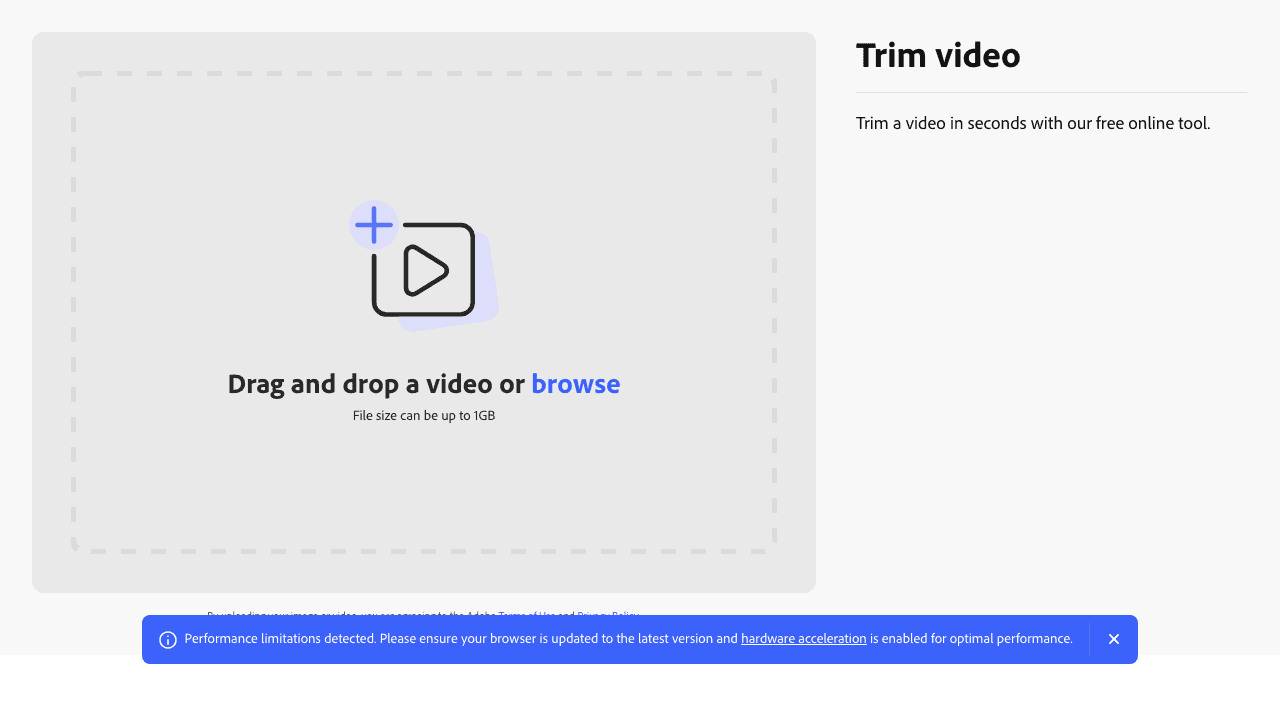
Adobe Express offers a clean, no-frills video trimmer. You set start and end points using sliders or type in exact timestamps, and it trims without re-encoding, which means no quality loss.
The standout feature is the generous length allowance. While most free tools cap videos at 5-10 minutes, Adobe Express handles videos up to 1 hour long. That makes it a solid option for trimming webinar recordings, long presentations, or full-length tutorials.
Beyond trimming, the free plan gives you access to thousands of templates, Adobe Stock images, and basic editing features. It is fairly limited compared to Adobe's professional tools, but for simple trim-and-export workflows, it gets the job done.
Key features:
- Slider-based or manual timestamp trimming
- Videos up to 1 hour long
- No quality loss on simple trims
- Quick aspect ratio changes for social platforms
- Works on all devices (desktop, iOS, Android)
Pricing: Free for basic trimming and editing. Premium is $9.99 a month, and it is also included with Adobe Creative Cloud subscriptions.
Best for: Users who need to trim long-form content (webinars, presentations) and are already in the Adobe ecosystem.
6. Kapwing
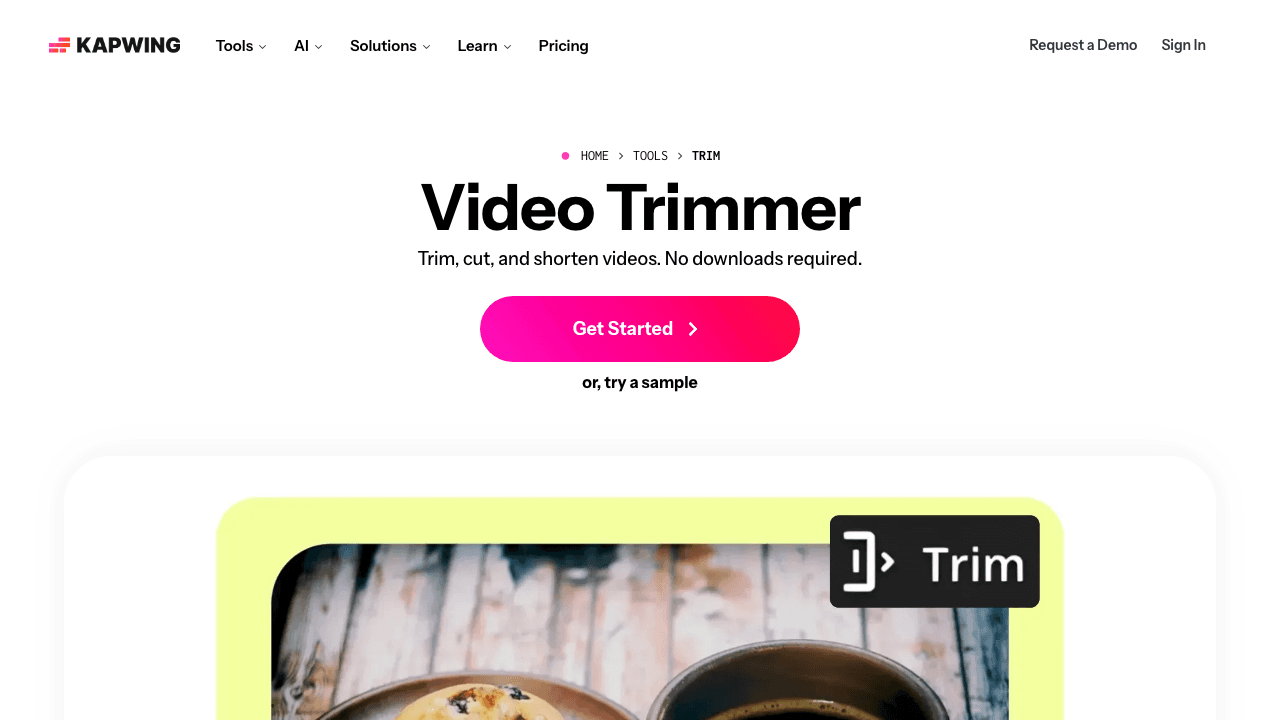
Kapwing is a browser-based editor built for teams. Its trimming tool uses a standard timeline where you can split, drag, and rearrange clips. The unique angle is collaboration: multiple team members can edit the same project, leave comments, and share assets.
The free plan is restrictive. Exports include a watermark, max resolution is 720p, upload limit is 250 MB, and you get only 3 exports per month. It is essentially a demo of the Pro plan.
If you are working with a team and need shared editing capabilities, Kapwing is worth the paid subscription. For individual trimming tasks, there are better free options on this list.
Key features:
- Browser-based timeline editor
- Real-time team collaboration and commenting
- Stock media library and subtitles
- Brand kit for consistent styling (Pro)
- Direct export to social platforms
Pricing: Free with watermark, 720p, 250 MB limit, 3 exports/month. Pro at $16/mo (annual) or $24/mo (monthly) removes all limits and adds 4K export.
Best for: Teams that need collaborative video editing with shared assets and commenting.
7. Online Video Cutter (123apps)
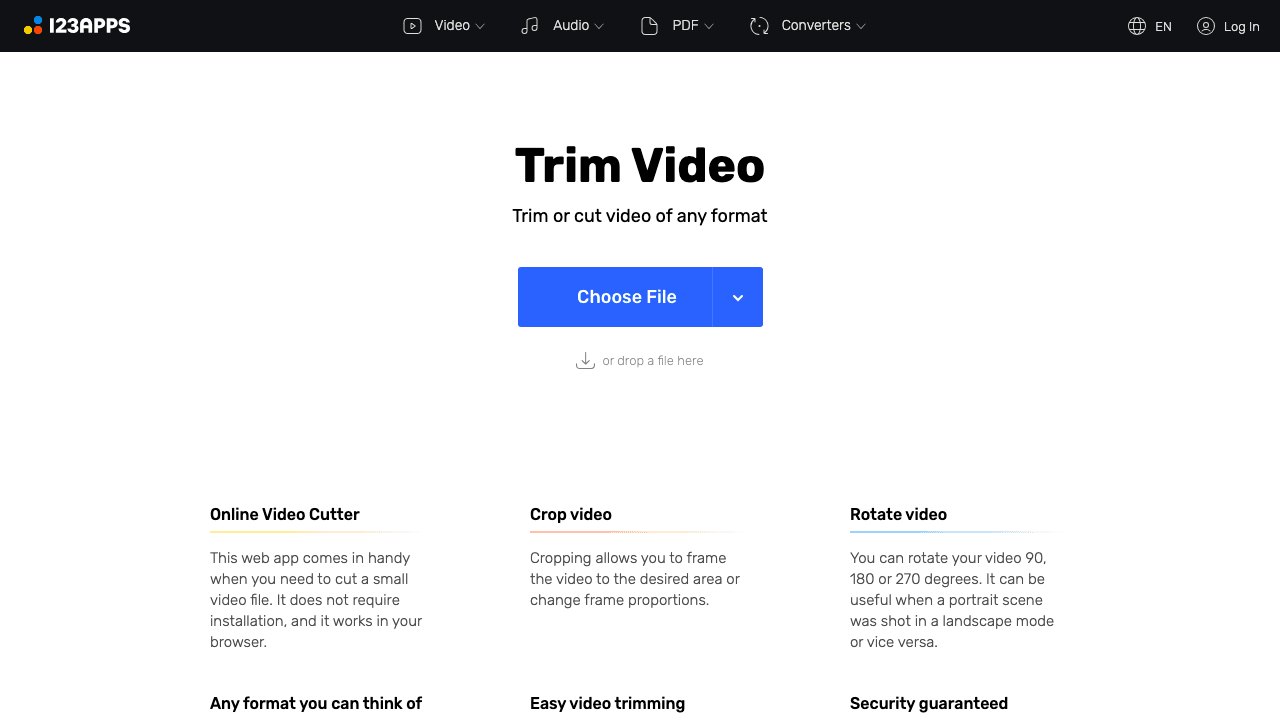
Online Video Cutter is one of the oldest and simplest tools on this list. No sign-up, no app to install. You upload a file (or paste a URL), set start and end points, and download the trimmed result. That is it.
The interface is bare-bones in the best sense. A waveform/thumbnail strip shows your video, you drag two handles to define the trim range, and you click "Save." It also offers basic crop, resize, and speed adjustment if needed.
Privacy is handled well: uploaded files are encrypted and automatically deleted within a few hours.
Key features:
- No sign-up required
- Trim via drag handles or manual timestamp input
- Supports MP4, AVI, MPG, 3GP, and more
- Basic crop, resize, and speed controls
- Files auto-deleted within hours
Pricing: Free for files up to 500 MB, capped at 5 files a day. Premium is 6 euro a month or 44 euro a year, adding faster processing, larger uploads, and no ads.
Best for: Quick, one-off trims when you do not want to sign up for anything or install software.
8. Clideo
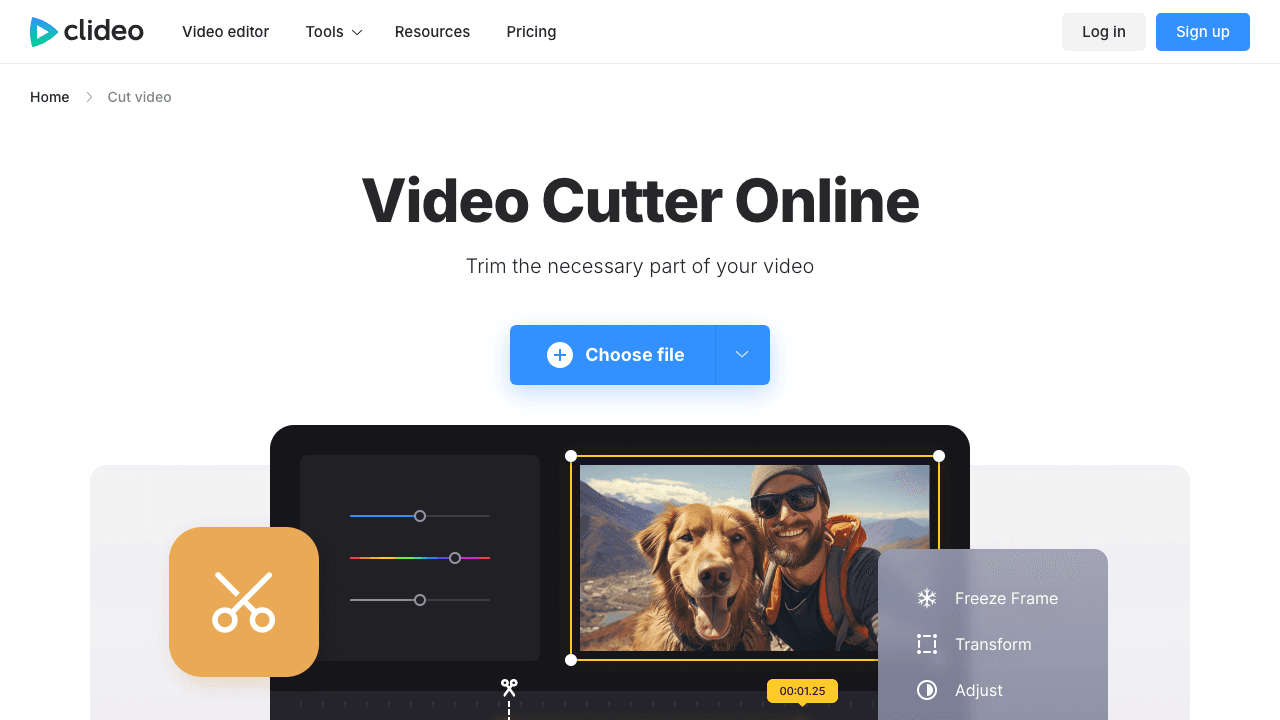
Clideo takes a single-purpose approach. Each editing function (trim, merge, compress, resize, subtitles) is a separate tool with its own interface. The trim tool is as simple as it gets: upload, set start/end points with sliders, download.
The downside of the modular approach is that if you need to trim and then compress, you re-upload between steps. There is no unified editor. But if all you need is a quick cut, the simplicity is a feature, not a bug.
Free exports carry a Clideo watermark. The paid plan to remove it is $9 a month billed yearly, which works out to $108 a year.
Key features:
- Dead-simple slider-based trimming
- Wide format support (AVI, MP4, VOB, MPG, MOV, and more)
- TLS encryption and GDPR compliance
- Files auto-deleted within 24 hours
- Separate tools for each editing function
Pricing: Free with a watermark, 720p, and a 500 MB ceiling. Pro is $9 a month billed yearly ($108 a year), which removes the watermark and unlocks all tools.
Best for: Users who want the simplest possible trimming experience and do not mind a watermark, or who want a cheap paid upgrade.
9. FlexClip
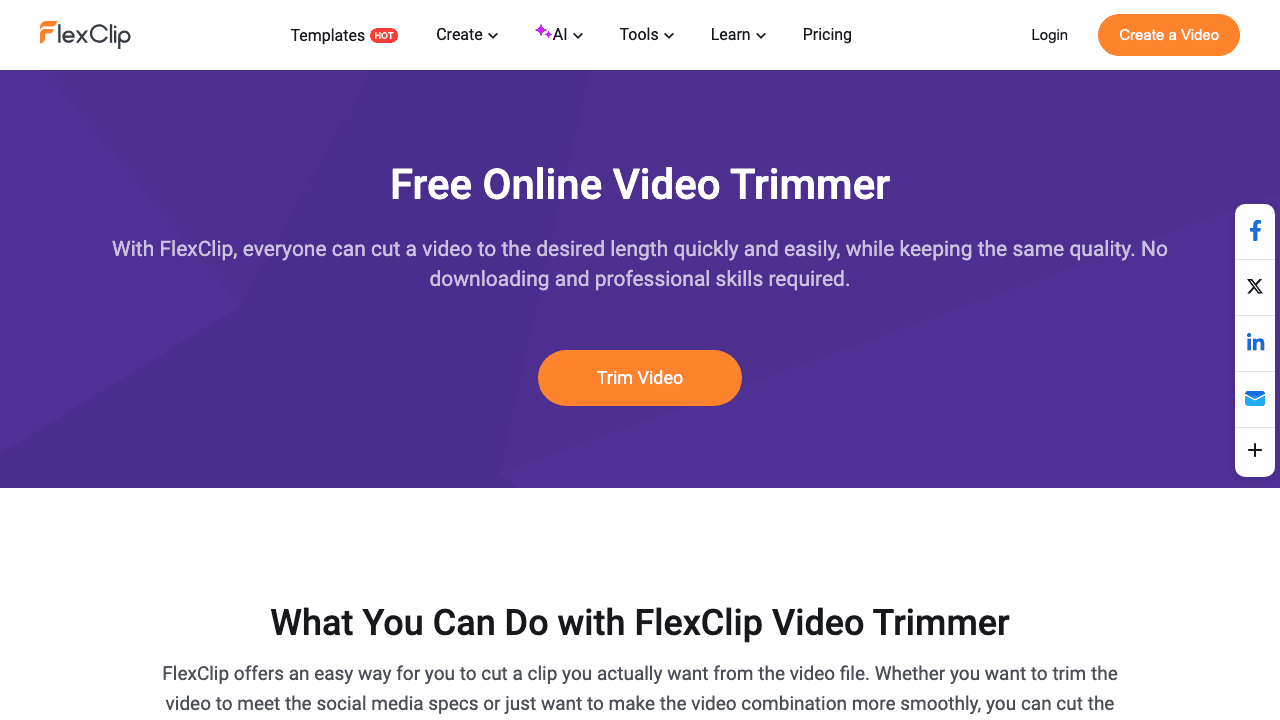
FlexClip is a template-first video editor with a built-in trimmer. You can trim via yellow slider handles, but the real draw is the 5,000+ video templates for marketing, social media, and business content.
The free plan is limited: 720p resolution, 10-minute max length, and a watermark on exports. If you just need to trim a video, these restrictions make FlexClip less competitive than other options on this list. But if you are building a video from templates and need to trim clips as part of a larger project, it has a role.
Key features:
- Trim via slider handles with start/end points
- 5,000+ video templates
- AI tools for video creation and text-to-speech
- Stock media library with music and footage
- Animations, transitions, and text effects
Pricing: Free with 720p, a 10-minute limit, and a watermark. Plus is $11.99 a month billed annually ($19.99 monthly) and adds 1080p and custom branding. Business is $19.99 a month billed annually and adds 4K and unlimited stock.
Best for: Users who want to build videos from templates and need trimming as part of a larger editing workflow.
What Each Video Trimmer Costs in 2026
Every tool here trims for free. What you pay for is removing a watermark, lifting a resolution cap, or getting past a file size limit.
| Tool | Free tier | Paid entry price | What paying removes |
|---|---|---|---|
| Vidocu | 1 free tool run, 500 MB | $39/mo (Pro) | Run limits across every tool, plus subtitles, voiceover, translation, and doc generation |
| CapCut | Full basic toolkit | Not published | 4K export and cloud storage (prices are in-app and regional) |
| Clipchamp | All core features | No standalone tier | Sold only inside a Microsoft 365 subscription |
| Canva | Basic trimming | $120/yr per person | Premium templates and elements; Business $210/yr |
| Adobe Express | Basic trimming | $9.99/mo | Premium features, also bundled with Creative Cloud |
| Kapwing | Watermark, 720p, 250 MB, 3 exports/mo | $16/mo annual ($24 monthly) | Watermark, resolution cap, export cap |
| Online Video Cutter | 500 MB, 5 files a day | 6 euro/mo (44 euro/yr) | Daily cap, ads, slower processing |
| Clideo | Watermark, 720p, 500 MB | $9/mo billed yearly ($108/yr) | Watermark and tool restrictions |
| FlexClip | 720p, 10 min, watermark | $11.99/mo annual ($19.99 monthly) | Watermark, 720p cap; Business $19.99/mo annual for 4K |
Prices verified in August 2026. Two caveats worth knowing before you budget: CapCut stopped publishing prices publicly, and Clipchamp has no standalone subscription at all, so its "premium" tier means buying Microsoft 365.
How to Choose the Right Video Trimmer
Your best option depends on what you are trimming and why:
For screen recordings and tutorials: Vidocu's AI Magic Trim is purpose-built for this. It automatically removes the silence, frozen screens, and dead air that are common in recorded demos and walkthroughs. No other free tool offers this. After trimming, you can continue with Vidocu's full workflow: add subtitles in 65+ languages, generate a step-by-step SOP from the same recording, or create a help article with auto-captured screenshots. And if the pacing still drags after the trim, you can speed up the video online free without exporting to yet another app.
For clips that need a soundtrack after the cut: trimming often leaves an awkward silence where the old audio used to breathe. You can add music to video online once the cut is locked, set the volume under any narration, and fade it out at the new ending.
For social media content: CapCut or Canva give you trimming plus templates, effects, and platform-specific presets in one place.
For quick one-off trims: Online Video Cutter or Clideo. Upload, trim, download. No account, no learning curve.
For Windows users: Clipchamp is already on your machine, exports at 1080p without a watermark, and includes AI silence removal.
For teams: Kapwing is the only option with real-time collaboration, but it requires a paid plan for usable exports.
If you are trimming tutorial or product demo content, also consider what happens after the trim. Most tools stop at export. With Vidocu, your trimmed video can feed directly into video documentation, video translation, or even a blog post generated from the recording.
Stop trimming silence manually
Upload a screen recording or tutorial and let Vidocu's AI find the dead spots. Review every cut, then export in seconds.
Try Vidocu freeFAQ
How much does a video trimmer cost?
Trimming itself is free in every tool on this list. Paid plans start at 6 euro a month (Online Video Cutter), $9.99 a month (Adobe Express Premium), $9 a month billed yearly (Clideo), and $11.99 a month annually (FlexClip). Vidocu is $39 a month on Pro, which covers unlimited runs of every free tool plus subtitles, voiceover, and documentation. CapCut no longer publishes prices, and Clipchamp is sold only as part of Microsoft 365.
What is the best free video trimmer without a watermark?
Vidocu, CapCut, Clipchamp, Canva, Adobe Express, and Online Video Cutter all offer watermark-free exports on their free plans. Among these, Vidocu and Online Video Cutter stand out because they also do not require an account.
Can I trim a video online without losing quality?
Yes. Tools that use stream copy (like Vidocu for simple trims and Adobe Express) cut the video without re-encoding, so there is zero quality loss. If you split and rearrange multiple segments, re-encoding is necessary, but most modern tools use high-quality encoding that makes the difference imperceptible.
What is the difference between trimming and cutting a video?
Trimming removes content from the beginning or end of a video. Cutting (or splitting) divides a video at any point in the middle. Most tools on this list handle both operations, even if they call themselves "trimmers." For the opposite job, joining several clips into a single file, use a video merger instead.
Is there an AI tool that trims videos automatically?
Yes. Vidocu's Magic Trim uses AI to detect silence, frozen screens, repeated content, and dead air, then suggests cuts for your review. Clipchamp offers AI silence removal and filler word detection. These are the only two free tools with meaningful AI trimming features.
How do I trim a video for Instagram Reels or TikTok?
Upload your video to any tool on this list, trim it to the section you want, and change the aspect ratio to 9:16 (vertical). Canva and CapCut have built-in presets for Reels, TikTok, and Shorts that handle the aspect ratio automatically. If your trimmer does not change aspect ratio, run the clip through a dedicated free video cropper afterwards to get a clean 9:16 frame.

Written by
Daniel SternlichtDaniel Sternlicht is a tech entrepreneur and product builder focused on creating scalable web products. He is the Founder & CEO of Common Ninja, home to Widgets+, Embeddable, Brackets, and Vidocu - products that help businesses engage users, collect data, and build interactive web experiences across platforms.