


Quick answer: the best free video compressors in 2026 are Vidocu (compression as one step in a full video workflow), FreeConvert (the most generous free allowance for one-off web jobs), Clideo (the simplest interface), VideoSmaller (no account, no settings to learn), CloudConvert (batch and API work), VEED (compression inside a browser editor), and HandBrake (free desktop software with no upload at all). All seven compress video without paying. They differ on file-size caps, whether the export carries a watermark, and how much control you get over the quality trade-off.
Video files get big for boring reasons. Screen recordings capture every frame of a mostly static screen. Phones shoot 4K by default. A 10-minute demo lands at 800 MB, your help desk rejects anything over 25 MB, and Slack quietly refuses to upload it.
Compression fixes that, and it is one of the few video tasks where free tools are genuinely good enough. The catch is that "free" means seven different things across seven tools.
What you are actually trading away
Every compressor makes the same bargain: smaller file, some loss of detail. The tools differ in how much of that bargain they let you control.
| Lever | What it does | When to use it |
|---|---|---|
| Bitrate reduction | Keeps resolution, throws away detail per frame | The default move. Barely visible at moderate settings |
| Resolution downscale | 4K to 1080p, or 1080p to 720p | Biggest single win when the video is watched on a phone or embedded in a doc |
| Frame rate cut | 60fps to 30fps | Screen recordings and talking heads. Avoid for fast motion |
| Audio removal | Strips the audio track entirely | Silent background loops and GIF-style clips only |
A screen recording is the easiest thing in the world to compress. It is mostly static pixels, so a good encoder throws away enormous amounts of redundant data with almost no visible change. Phone footage of a moving scene is the hardest.
Quick comparison: 7 free video compressors
| Tool | Free file cap | Watermark on free | Control over quality | Paid from | Best for |
|---|---|---|---|---|---|
| Vidocu | 500 MB | No | 3 levels + optional downscale | $39/mo | Compression inside a full video workflow |
| FreeConvert | 1 GB | No | Target size, quality, codec | $12.99/mo | The most generous free web allowance |
| Clideo | 500 MB | Yes | Automatic only | $9/mo billed yearly | The simplest possible interface |
| VideoSmaller | 500 MB | No | Width, low-compression toggle, audio removal | Free only | No account, no learning curve |
| CloudConvert | 1 GB | No | Full codec and bitrate control | Credit-based | Batch jobs and API automation |
| VEED | Editor limits apply | Yes | Automatic only | $10/user/mo billed yearly | Compressing inside an editor |
| HandBrake | No limit (local) | No | Total, every parameter | Free only | Large files and offline work |
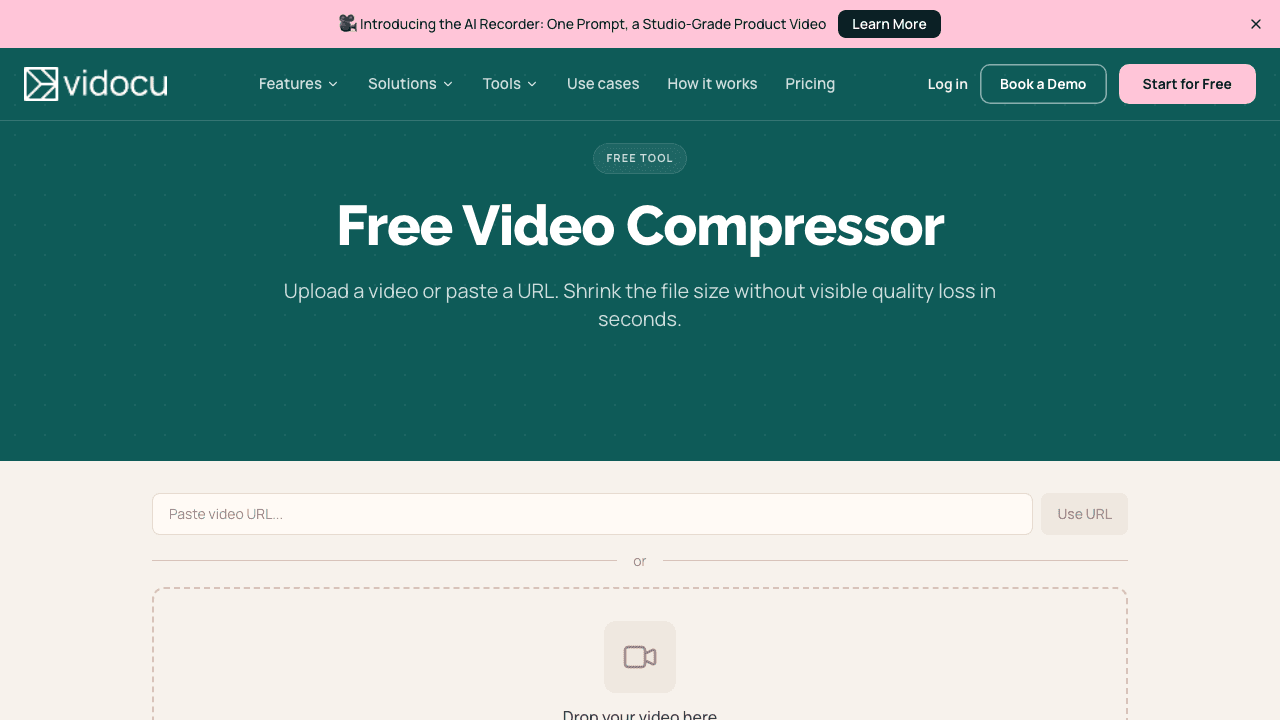
1. Vidocu: compression as one step, not the whole job
Vidocu's free video compressor is built around a specific assumption: you are compressing a video because you are about to do something else with it. Send it to a customer, embed it in a help article, attach it to a ticket.
You upload a file or paste a URL (MP4, MOV, WebM, AVI, MKV, and WMV up to 500 MB), pick Light, Balanced, or Strong, and optionally downscale to 1080p or 720p. Output is always MP4, the format that plays everywhere. You get the exact before and after file sizes, which sounds small but matters when you are trying to land under a hard limit.
The encoding is H.264 tuned for quality retention. Screen recordings and phone footage typically shrink by 50 to 80%. Already-optimized video shrinks much less, which is honest and worth knowing before you expect miracles.
What separates it from the rest of this list is what happens next. The same upload can produce AI subtitles, an AI voiceover, step-by-step documentation with screenshots, and translations into 65+ languages. If the compressed file is a tutorial headed for a knowledge base, you have already done the hard part of the next four tasks.
Free tier: Create a free account and your first run is on us, with no watermark on the result.
Paid: Pro is $39/mo and Business is $149/mo, which unlock unlimited runs across every tool.
Best for: Teams compressing tutorials, demos, and support videos that need to become something else afterwards.
The honest limit: the 500 MB cap is lower than FreeConvert's and CloudConvert's, and there is no local-only option. If your file is 3 GB, use HandBrake.
Compress your video, then do everything else with it
Shrink the file, then generate subtitles, voiceover, documentation, and translations from the same upload.
Try the free compressor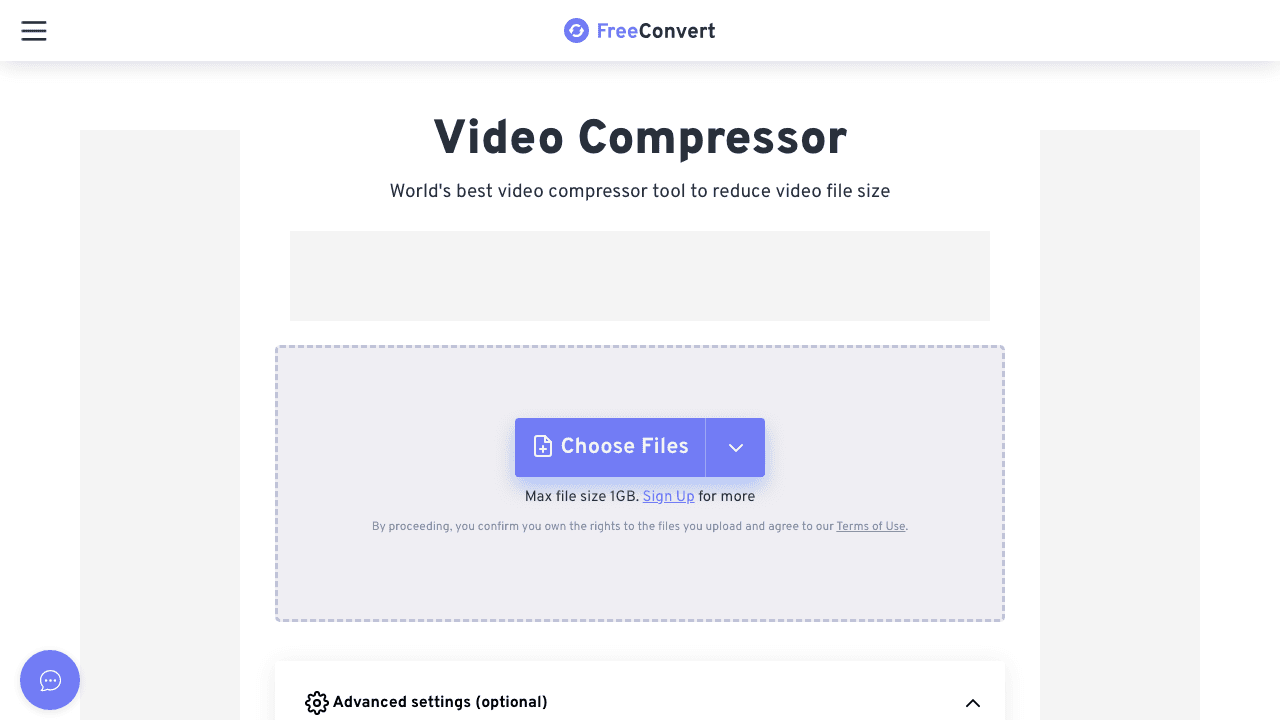
2. FreeConvert: the most generous free web allowance
FreeConvert gives you a 1 GB free file cap, which is double most browser tools, and its advanced settings are the best of any free web compressor. You can compress to a target file size (useful when you have a hard 25 MB limit), pick a quality percentage, or choose a codec directly.
The free tier allows 20 conversion minutes a day with a 5-minute-per-file limit, so it suits several short videos better than one long one.
Free tier: 1 GB per file, 20 conversion minutes a day, 5 minutes per file, no watermark.
Paid: Basic is $12.99/mo (1,500 minutes, 1.5 GB files), Standard $24.99/mo, Pro $29.99/mo.
Best for: Hitting a specific file size target without installing anything.
The honest limit: the 5-minute-per-file free cap rules out most full tutorials.
3. Clideo: the simplest interface on the list
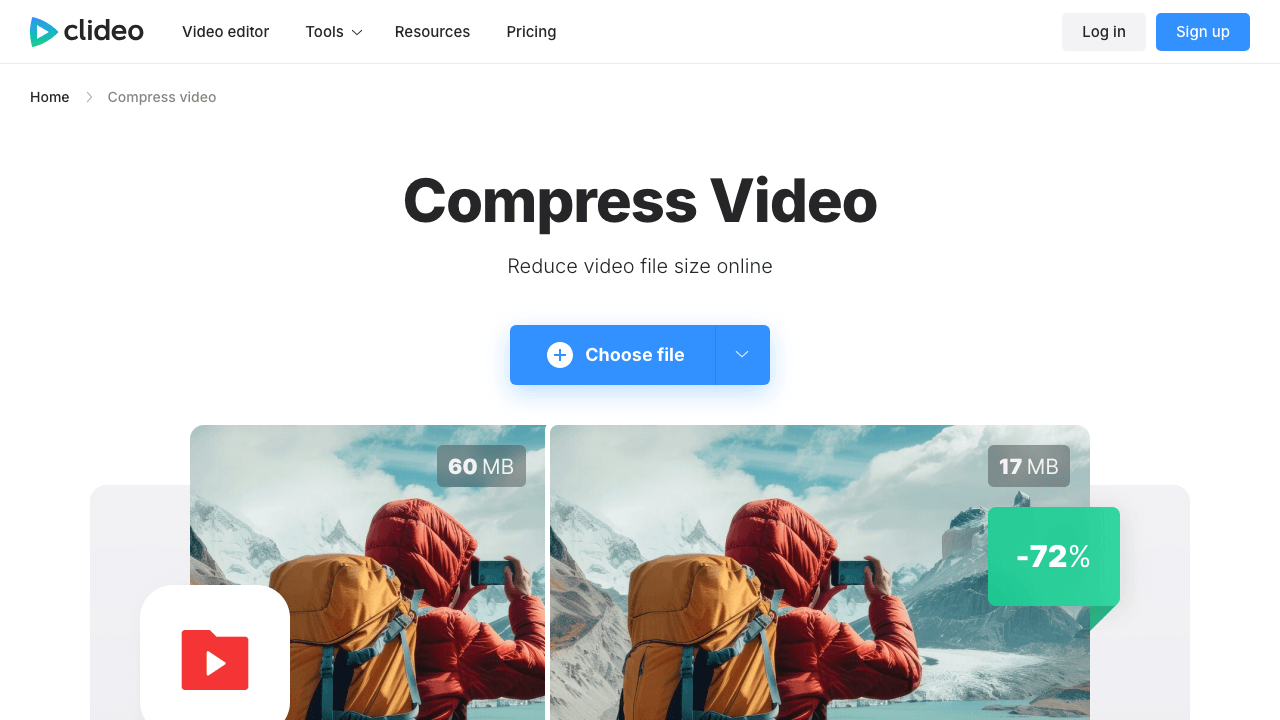
Clideo does one thing per page and does it without asking questions. Upload, wait, download. There are no compression settings at all, which is either the appeal or the dealbreaker depending on who you are.
The free tier is the catch. Exports carry a Clideo watermark, cap at 720p, and files are limited to 500 MB with 14-day storage.
Free tier: 500 MB, 720p, watermarked export, 14-day storage.
Paid: Pro is $9/mo billed yearly ($108/yr), which removes the watermark, unlocks 4K, and drops the file size limit.
Best for: People who want zero decisions and do not mind paying $9 to remove the watermark.
The honest limit: a watermark on a compressed video defeats the point for anything customer-facing.
4. VideoSmaller: no account, no settings, no fuss
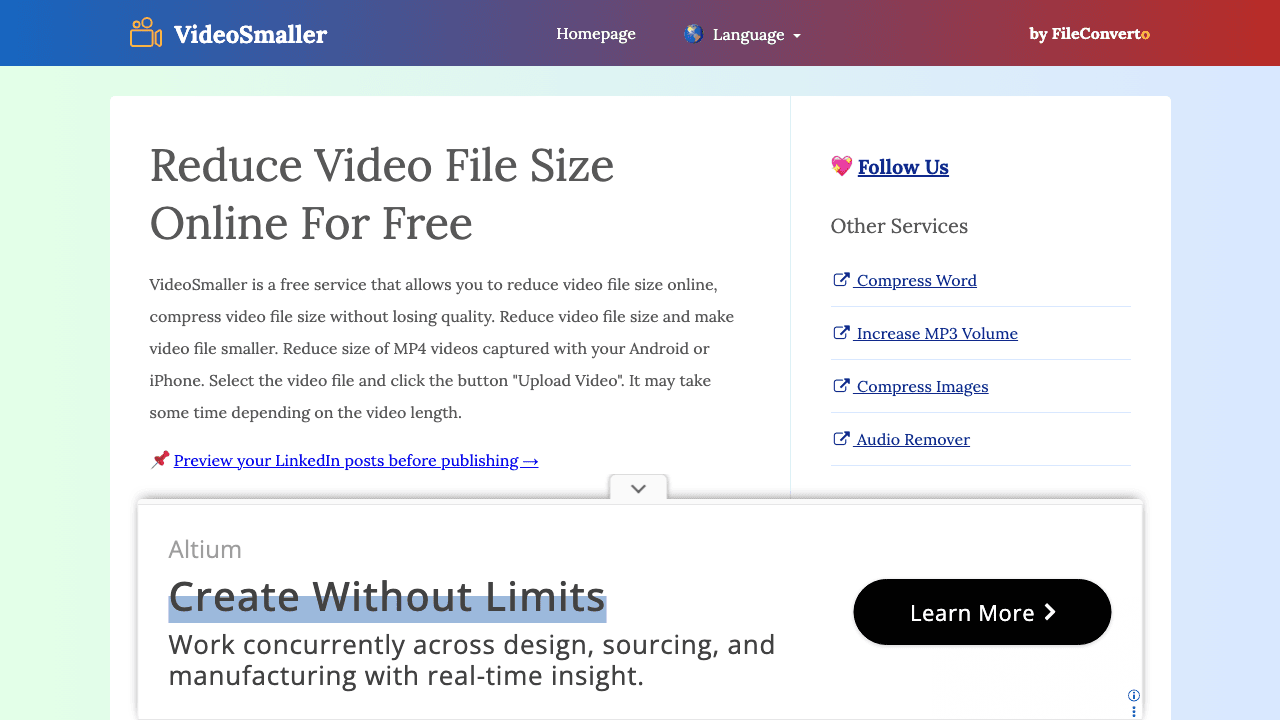
VideoSmaller is the closest thing to a utility on this list. No account, no upsell path, no watermark. You get three controls: scale the video down to a chosen width (anywhere from 1920 down to 160 pixels), a "use low compression level" checkbox for better quality, and a checkbox to remove audio entirely.
That last option is genuinely useful. Silent background loops and screen recordings destined for a GIF do not need an audio track, and dropping it is free savings.
Free tier: 500 MB per file, no account, no watermark.
Paid: none. There is no paid plan.
Best for: A one-off compression when you do not want to sign up for anything.
The honest limit: the interface is dated, the page carries ads, and there is no batch mode or fine-grained bitrate control.
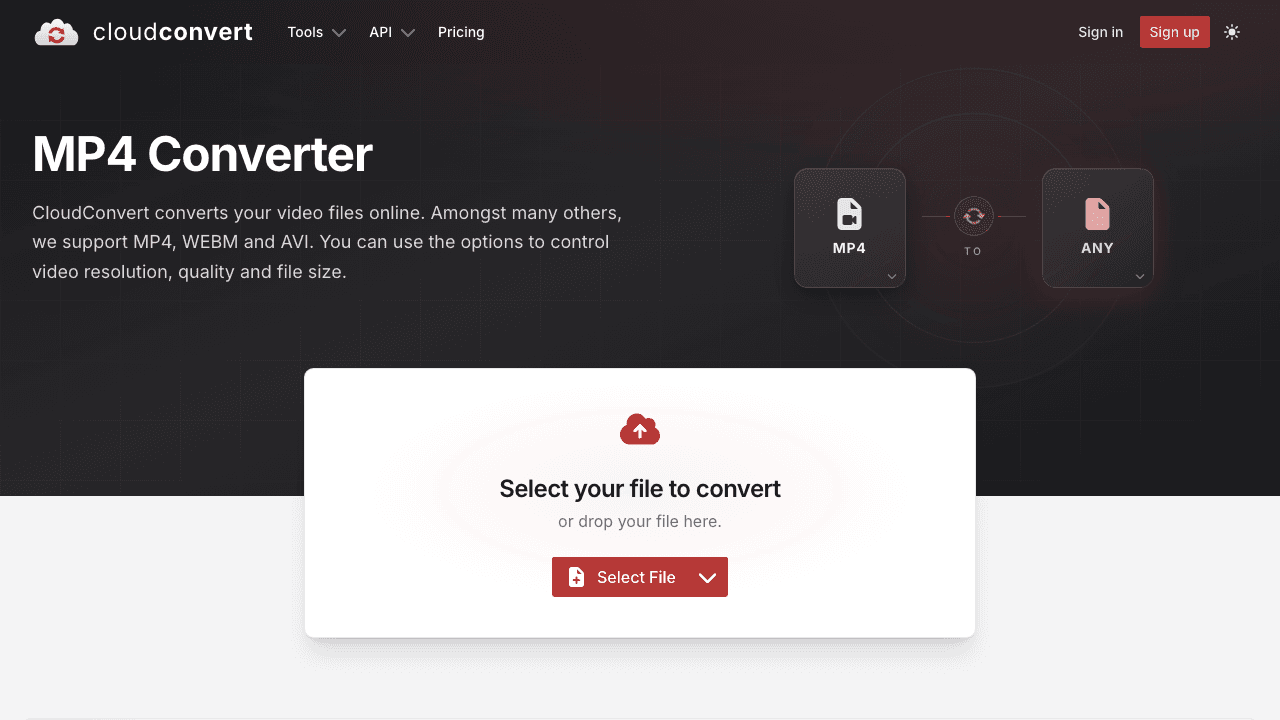
5. CloudConvert: for batch jobs and automation
CloudConvert is the one tool here that a developer would pick. It exposes real encoding parameters (codec, CRF, bitrate, profile, resolution, fps) and has a properly documented API, so compression can become a pipeline step rather than a manual chore.
The free tier allows 10 conversions a day with a 1 GB file cap, a 5-minute maximum processing time, and 5 concurrent tasks.
Free tier: 10 conversions a day, 1 GB per file, 5-minute processing cap.
Paid: credit-based, sold as one-time packages or monthly subscriptions priced by volume, with subscriptions cheaper per credit.
Best for: Batch compression and automated workflows.
The honest limit: the parameter list is intimidating if you do not already know what CRF means, and credits make cost forecasting harder than a flat plan.
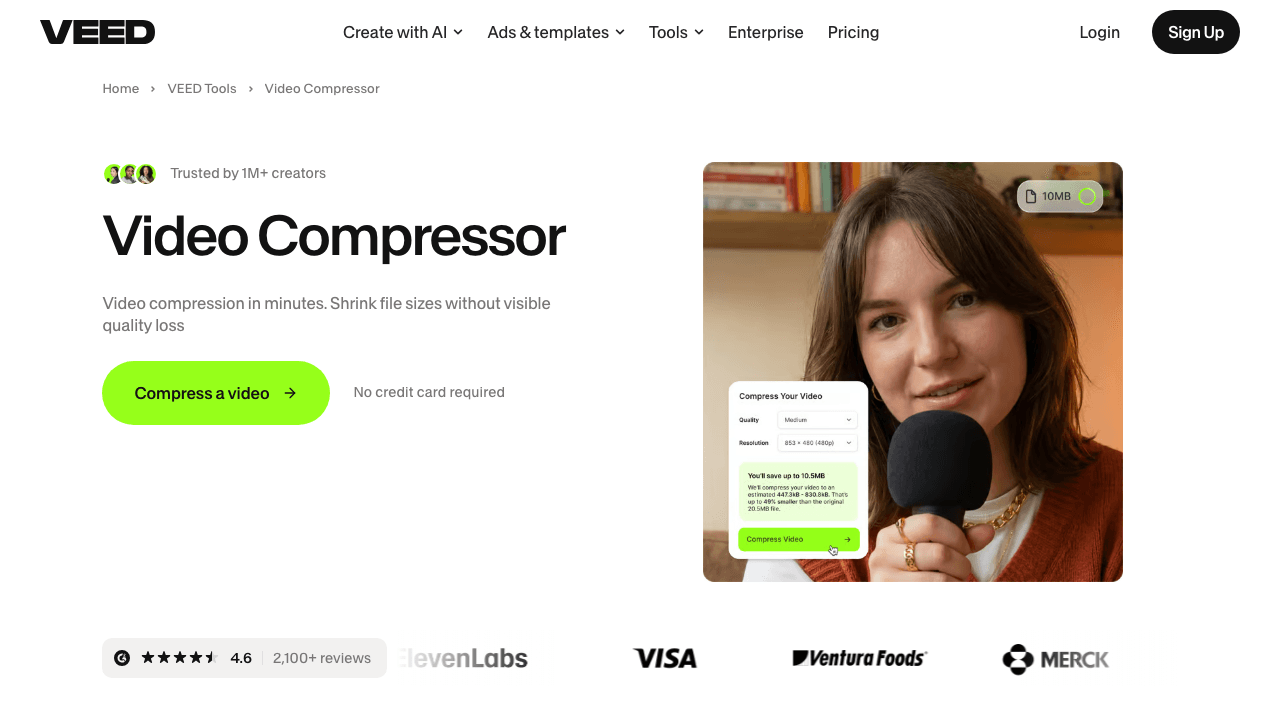
6. VEED: compression inside a browser editor
VEED's compressor is a front door to its editor. That is the reason to use it: if you also need to trim the video, add subtitles, or drop in a logo, doing all of it in one place beats moving the file between four tools.
As a pure compressor it is unremarkable, and the free tier watermark is a real constraint.
Free tier: watermarked export with the editor's free-plan limits.
Paid: Creator is $10/user/mo billed yearly ($116/yr) and removes the watermark. Pro is $21/user/mo and Studio is $35/user/mo, both billed yearly.
Best for: People already editing in VEED.
The honest limit: if compression is all you need, you are paying (in watermark or in dollars) for an editor you are not using.
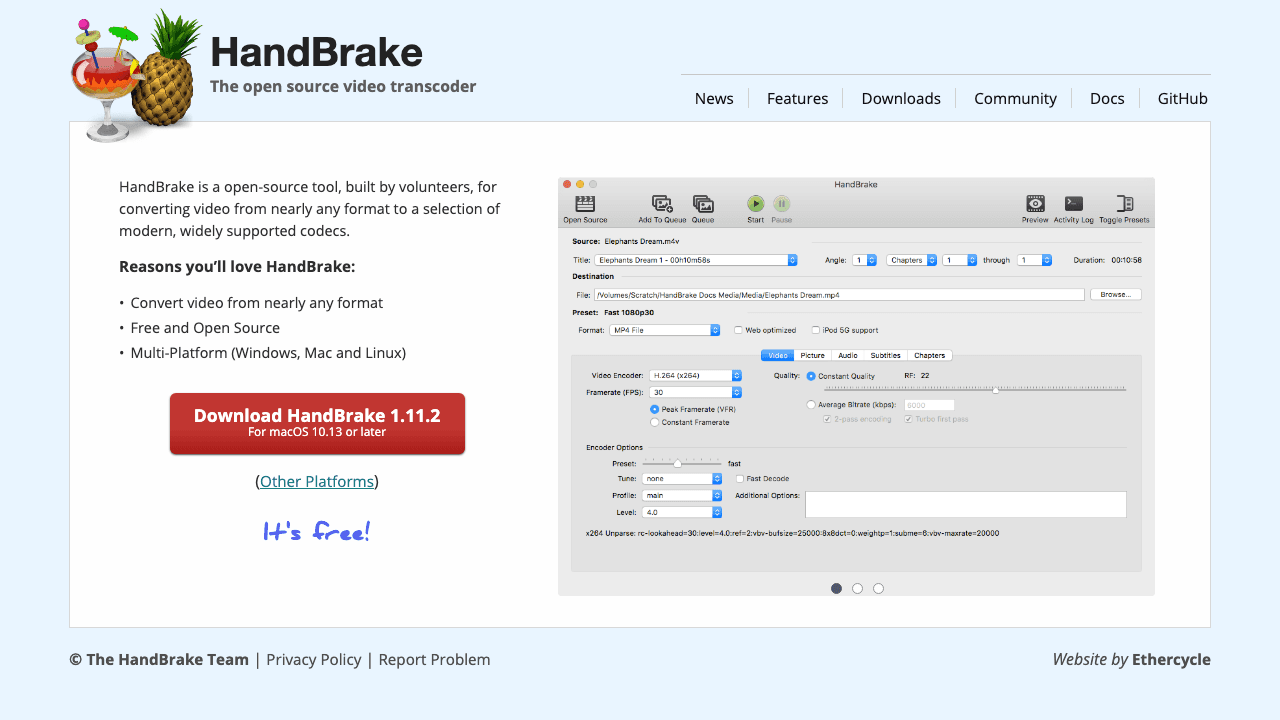
7. HandBrake: free, offline, and unlimited
HandBrake is open-source desktop software for Windows, Mac, and Linux, built by volunteers and completely free with no tiers, no caps, and no account. Nothing uploads anywhere, which makes it the only genuinely private option here and the only one that handles a 5 GB file without complaint.
It ships with presets ("Fast 1080p30" handles most jobs) and exposes every encoding parameter underneath for people who want them.
Free tier: everything. There is no paid version.
Best for: Large files, sensitive footage, and anyone compressing video regularly.
The honest limit: it is an install, the interface is dense, and it does nothing beyond transcoding. No subtitles, no sharing, no collaboration.
What a video compressor costs in 2026
| Tool | Free tier | Entry paid plan | What paying unlocks |
|---|---|---|---|
| Vidocu | Free account, first run on us, 500 MB, no watermark | Pro $39/mo, Business $149/mo | Unlimited runs across every tool, plus subtitles, voiceover, translation, documentation |
| FreeConvert | 1 GB files, 20 min/day, 5 min/file | Basic $12.99/mo | 1,500 min/mo, 1.5 GB files, no ads |
| Clideo | 500 MB, 720p, watermarked | Pro $9/mo billed yearly ($108/yr) | Watermark removal, 4K, unlimited file size |
| VideoSmaller | 500 MB, no account | No paid plan | Not applicable |
| CloudConvert | 10 conversions/day, 1 GB, 5-min cap | Credit packages or monthly subscriptions | Higher volume, larger files, API headroom |
| VEED | Watermarked export | Creator $10/user/mo billed yearly ($116/yr) | Watermark removal, full editor |
| HandBrake | Unlimited, offline | No paid plan | Not applicable |
All prices above were checked directly on each vendor's own pricing page in August 2026.
The honest read: if compression is genuinely all you need, you should not pay anyone. VideoSmaller and HandBrake are free forever, and FreeConvert's free tier covers most short files. Paying makes sense when compression is one step in a job that continues afterwards.
How to compress without wrecking the video
A few rules that hold across every tool on this list.
Downscale before you crush the bitrate. Going from 4K to 1080p removes three quarters of the pixels and looks nearly identical on a laptop or phone. Squeezing the bitrate at full 4K to hit the same size looks far worse.
Match the resolution to where it will be watched. A video embedded in a help article at 800 pixels wide gains nothing from a 4K source. 720p is usually plenty.
Compress last. Do your trimming, cropping, and merging first, then compress the finished file once. Every re-encode costs quality, so stacking them multiplies the damage.
Do not compress twice. If a file is already small for its length, it has been compressed before. Running it again mostly destroys detail without saving much.
Cut the dead air instead. The cheapest way to shrink a 12-minute screen recording is to make it 7 minutes. Removing silence and fumbling shrinks the file and makes the video better, which compression never does.
Turn one upload into subtitles, docs, and translations
Compress the file, then let Vidocu generate captions, a voiceover, and step-by-step documentation from the same video.
Start freeHow to pick
- Just make it smaller, right now: VideoSmaller or FreeConvert.
- The file is huge or confidential: HandBrake. Nothing leaves your machine.
- You need a specific file size: FreeConvert's target-size mode.
- Compressing dozens of files or automating it: CloudConvert.
- You also need to edit: VEED.
- The video becomes a help article, an SOP, or a translated tutorial: Vidocu, because compression is the smallest part of that job.
Also worth knowing: compression is not always the right tool. If the problem is the format rather than the size, a video format converter is the better fix, and if the video is simply too long, trimming it or speeding up the slow parts beats crushing the bitrate.
FAQ
How much can I compress a video without losing quality?
Most videos shrink 50 to 80% with no visible difference, especially screen recordings, which are mostly static pixels. Phone footage of fast motion compresses less before artifacts appear. The reliable trick is to downscale the resolution to match where the video will actually be watched rather than pushing the bitrate down at full resolution.
What is the best free video compressor with no file size limit?
HandBrake. It runs on your own machine, so the only limit is your disk. Every browser-based tool here caps free uploads somewhere between 500 MB and 1 GB.
Do free video compressors add a watermark?
Most do not. Clideo and VEED watermark their free exports. Vidocu, FreeConvert, VideoSmaller, CloudConvert, and HandBrake do not.
How much does a video compressor cost in 2026?
Nothing, for most people. VideoSmaller and HandBrake have no paid plan at all, and FreeConvert, CloudConvert, and Vidocu all compress on a free tier. Paid plans start at $9/mo (Clideo, billed yearly), $10/user/mo (VEED Creator, billed yearly), and $12.99/mo (FreeConvert). Vidocu Pro is $39/mo and bundles subtitles, voiceover, translation, and documentation alongside compression.
Is it safe to upload videos to a free online compressor?
For public marketing footage, generally yes. For anything containing customer data, internal pricing, or credentials, read the retention policy first, or use HandBrake so the file never leaves your machine. Most browser tools delete uploads within days (Clideo's free tier stores files for 14 days), but "deleted eventually" is not the same as "never uploaded".
Should I compress before or after adding subtitles?
Compress first if you are burning subtitles into the picture, because a second encode after burn-in softens the text. If you are exporting subtitles as a separate SRT file, the order does not matter, since the subtitle track is not part of the video stream.
Compression is a small task that blocks a surprising number of bigger ones. Pick whichever tool clears the blockage fastest, and if the video is going on to become documentation, a translated tutorial, or a help article, try Vidocu for free and get the rest of it done in the same upload.

Written by
Daniel SternlichtDaniel Sternlicht is a tech entrepreneur and product builder focused on creating scalable web products. He is the Founder & CEO of Common Ninja, home to Widgets+, Embeddable, Brackets, and Vidocu - products that help businesses engage users, collect data, and build interactive web experiences across platforms.