
You recorded a video in MOV. The platform you're uploading to wants MP4. Or you grabbed an old clip in AVI and your editor refuses to touch it. Format conversion is the most boring problem in video, and yet it blocks shipping more often than it should.
The good news is that you don't need a paid app for it anymore. The best free video format converters in 2026 cover MP4, MOV, AVI, MKV, WebM, WMV, FLV and 100+ other formats, run entirely in the browser, and hand back a clean file in under a minute. Some go further and turn the same upload into subtitles, voiceover, or documentation while they're at it.
Here are the nine free video format converters worth your time this year, ranked by what they do best.
Quick Comparison
| Tool | Type | Free Limit | Paid From (USD) | Formats | Bonus |
|---|---|---|---|---|---|
| Vidocu | Browser | 200 credits (~4 min) | $39/mo | 30+ | Subtitles, voiceover, docs in same upload |
| CloudConvert | Browser + API | 10 conversions/day | $10/mo or $18 one-time | 200+ | Developer API |
| FreeConvert | Browser | 20 min/day, 5 min/file | $12.99/mo | 1,500+ | Largest free file size |
| HandBrake | Desktop | Unlimited | Free, open-source | 30+ | Open-source, batch presets |
| Convertio | Browser | 100 MB/file | $6.99/mo billed yearly | 300+ | Cleanest UI |
| VEED.io | Browser | Watermarked | $10/user/mo billed yearly | 20+ | Built-in editor |
| Movavi Online | Browser | Limited | Geo-priced, check locally | 180+ | Trusted brand, fast |
| Shutter Encoder | Desktop | Unlimited | Free, open-source | 400+ | Pro codec support |
| Zamzar | Browser | 50 MB / 2 files per day | $12/mo | 1,200+ | Email delivery |
1. Vidocu: Best for Conversion + Anything Else You Need
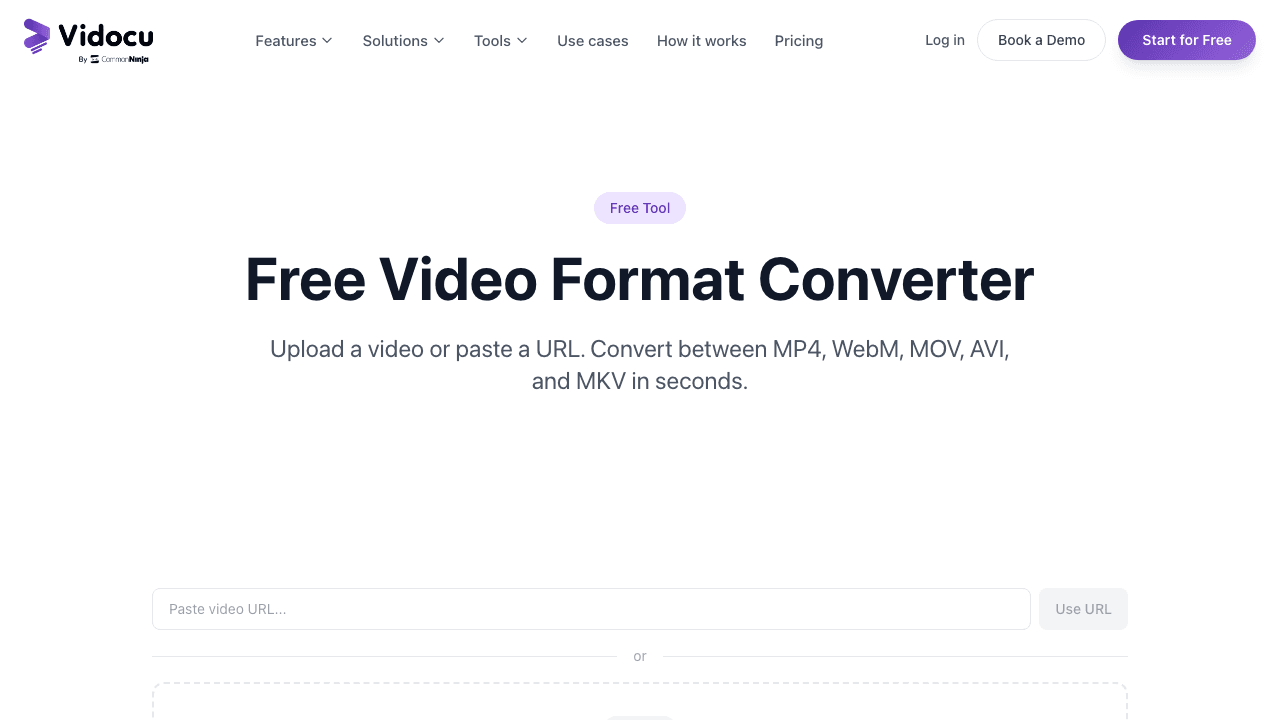
Vidocu is built for people who upload a video to do something with it: ship it, document it, translate it, share it. Format conversion is one piece of that workflow, not the whole product, and that's exactly what makes it the most useful tool on this list.
Drop your file into Vidocu's free video format converter, pick the output format (MP4, MOV, WebM, GIF and more), and download. Your first conversion is free. But if you want subtitles burned in, a voiceover swapped to a different language, or a step-by-step guide written from the video, it's all the same upload. You don't move your file across three different tools. The same applies to reframing: crop a video online or rotate a video online without leaving the workflow.
Most converters end at the conversion. Vidocu starts there.
Best for: Teams who convert videos as part of a real workflow (publishing, support, training, sales) rather than as a one-off chore.
Converting and compressing are different jobs that get mixed up constantly: a converter changes the container or codec, while a compressor targets file size. If the file plays fine and is simply too big, start with the best free video compressors.
Conversion is rarely the last step either. Teams shipping converted files to people outside the company often add their own logo watermark first.
Free tier: 200 credits a month (video analysis costs 50 credits per minute, so roughly 4 minutes of video), recordings up to 3 minutes, one free tool run, and no watermark on conversion output.
Paid: Pro at $39/mo (820 credits, roughly 16 minutes of video, recordings up to 10 minutes) adds AI voiceover, video translation, word-level captions, and Brand Kit. Business is $149/mo for 4,000 credits and 30-minute recordings.
Convert your video and do everything else in one upload
Subtitles, voiceover, documentation, translation, all from the same file you uploaded to convert.
Try Vidocu free2. CloudConvert: Best for Developers and Professional Workflows
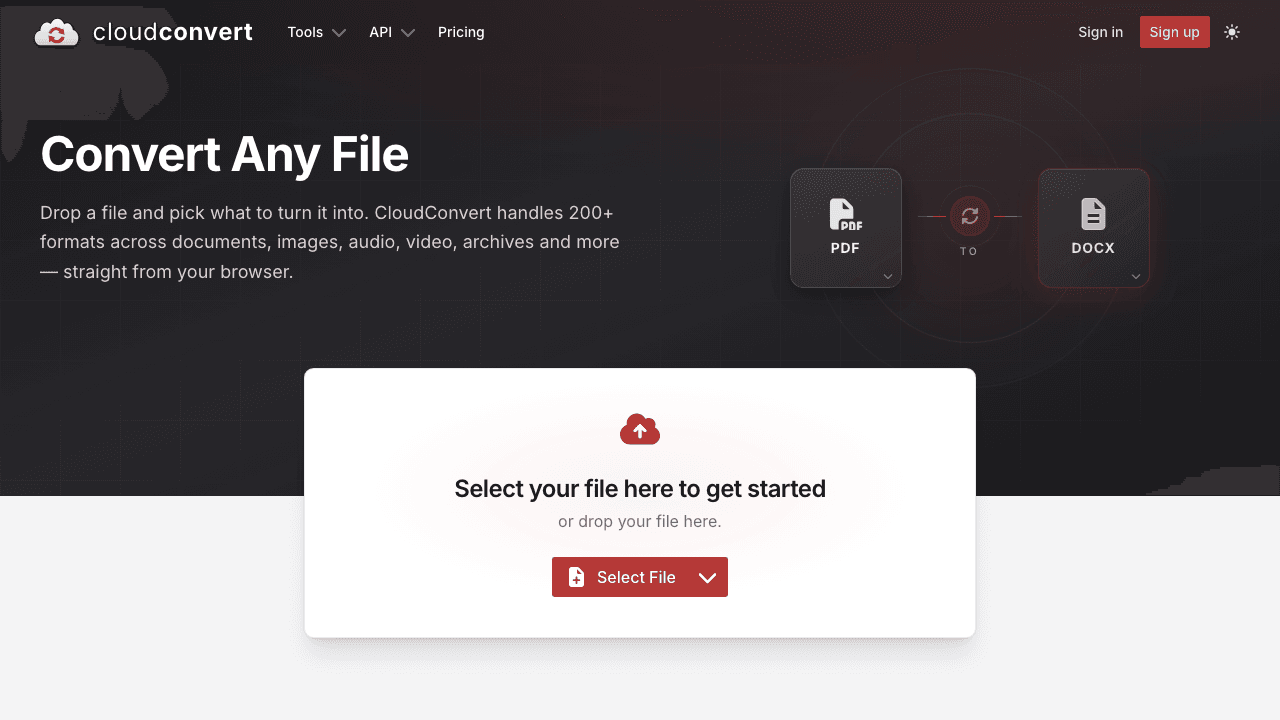
CloudConvert has been around long enough that it's practically infrastructure. Over 200 supported formats, a clean job queue, and a serious API that powers conversions inside other apps. If you're a developer building file conversion into a product, CloudConvert is usually the answer.
The free tier gives you 10 conversions per day without a credit card, which is enough for occasional jobs but tight for anything regular. Paid plans come in two shapes, and the difference matters: one-time credit packages never expire, while monthly subscriptions are cheaper per credit but reset every month with no rollover. CloudConvert bills roughly one credit per minute of conversion time, with a minimum of one credit per job.
Best for: Developers, agencies, and ops teams who need a reliable converter behind an API. If you're integrating conversion into your own app, see our roundup of the best video editing APIs for developers for broader options.
Free tier: 10 conversions per day, no credit card.
Paid: Packages from $18 one-time (credits never expire, about $0.018 per credit) or subscriptions from $10/mo for 1,000 credits a month (about $0.01 per credit, resets monthly).
3. FreeConvert: Best Free File Size Limit
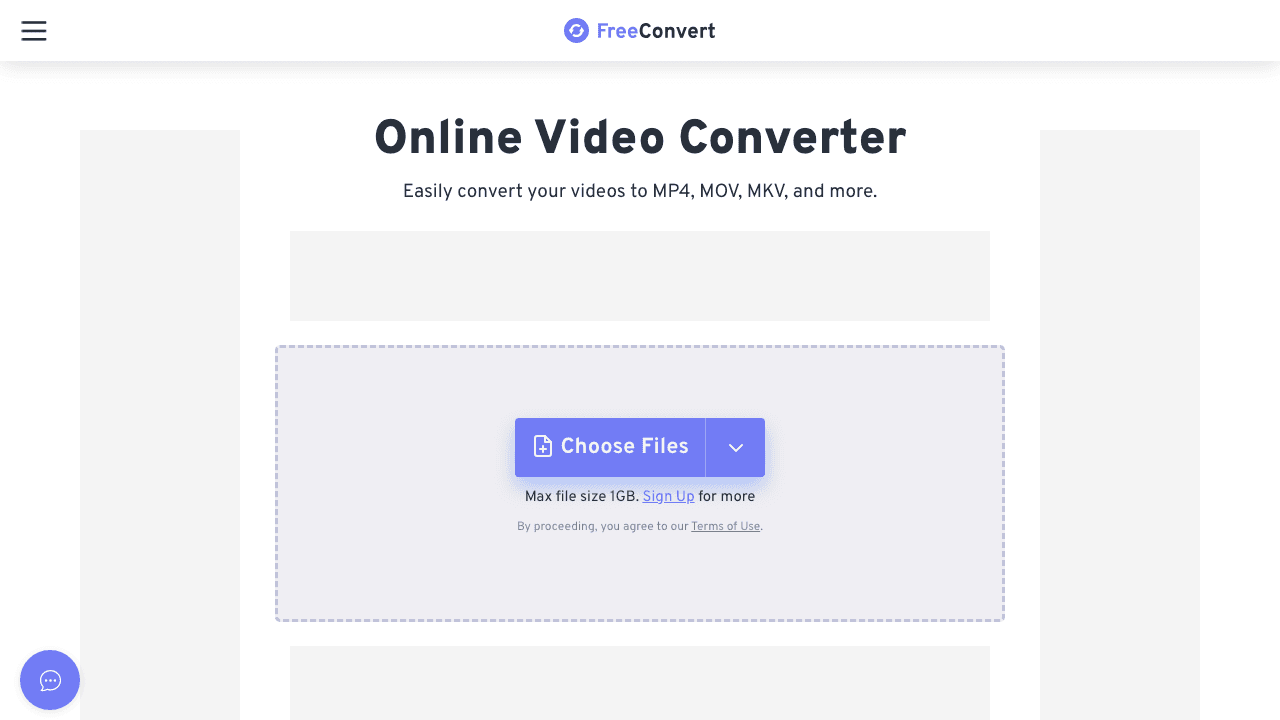
FreeConvert's headline number is 1 GB. That's the largest free file size limit on this list, by a wide margin, and it makes FreeConvert the right pick when you're working with high-bitrate footage from a real camera and don't want to pay just to compress it down first.
The interface is straightforward, batch processing works, and the format coverage is wide (1,500+ supported conversions, including video, audio, image and document). Files auto-delete from servers after a few hours, with 256-bit SSL in transit.
Best for: Casual users converting big single files (gameplay captures, raw camera footage, screen recordings) without wanting to install anything.
Free tier: Up to 1 GB per file, but capped at 20 conversion minutes per day and 5 conversion minutes per file, which is the limit that actually bites on long footage. No account needed.
Paid: $12.99/mo for 1,500 conversion minutes, $24.99/mo for 2,000, $29.99/mo for 4,000. Paying yearly gives you two months free.
4. HandBrake: Best Open-Source Desktop Tool
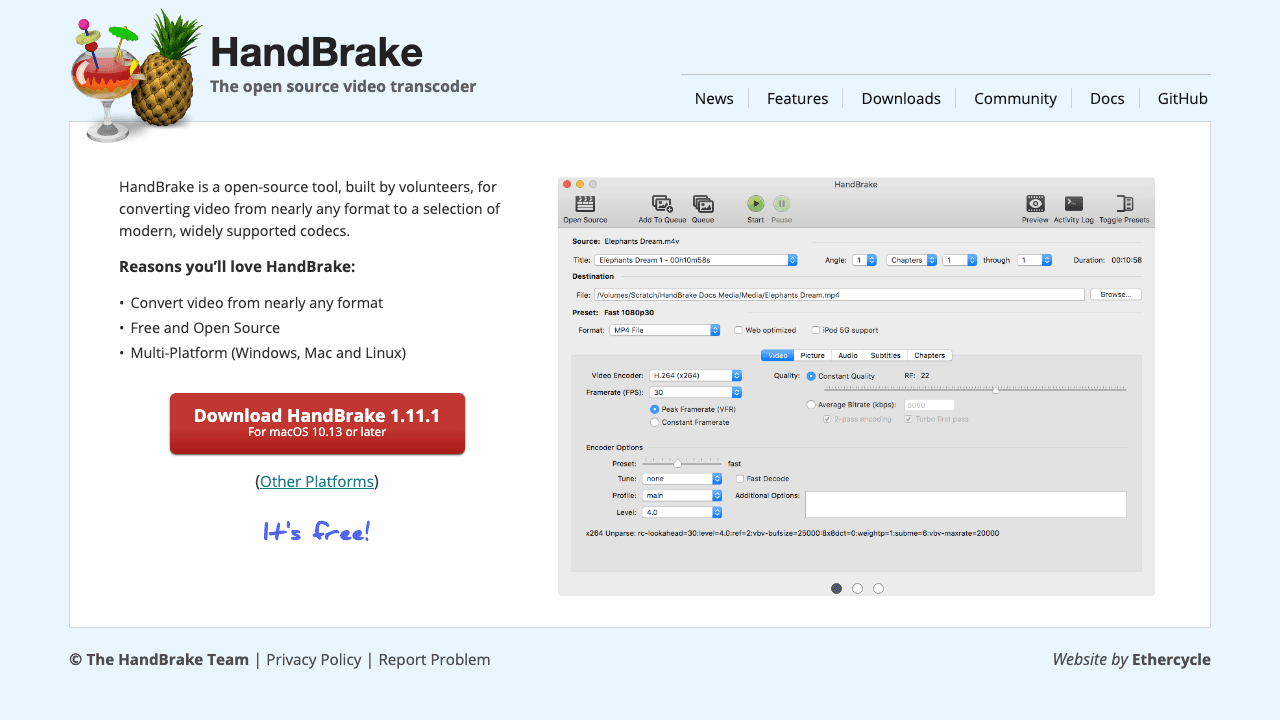
HandBrake is the open-source reference standard. Free, no watermarks, no upload limits, multi-platform, and powerful enough to be used by professional encoders. Version 1.11 added DNxHR and ProRes encoder support with proxy/HQ presets up to 4K, plus modern codecs (H.264, H.265, VP9, AV1).
The trade-off is the learning curve. HandBrake's interface assumes you understand bitrate, codec, container, and a dozen other terms. But once you set up a preset for the kind of video you make, you can batch-convert entire folders unattended.
Best for: Anyone converting videos regularly on their own machine and willing to invest 30 minutes in learning the tool.
Free tier: Unlimited. The whole thing is free, forever.
Paid: None. It's open-source.
5. Convertio: Best All-Round Browser Converter
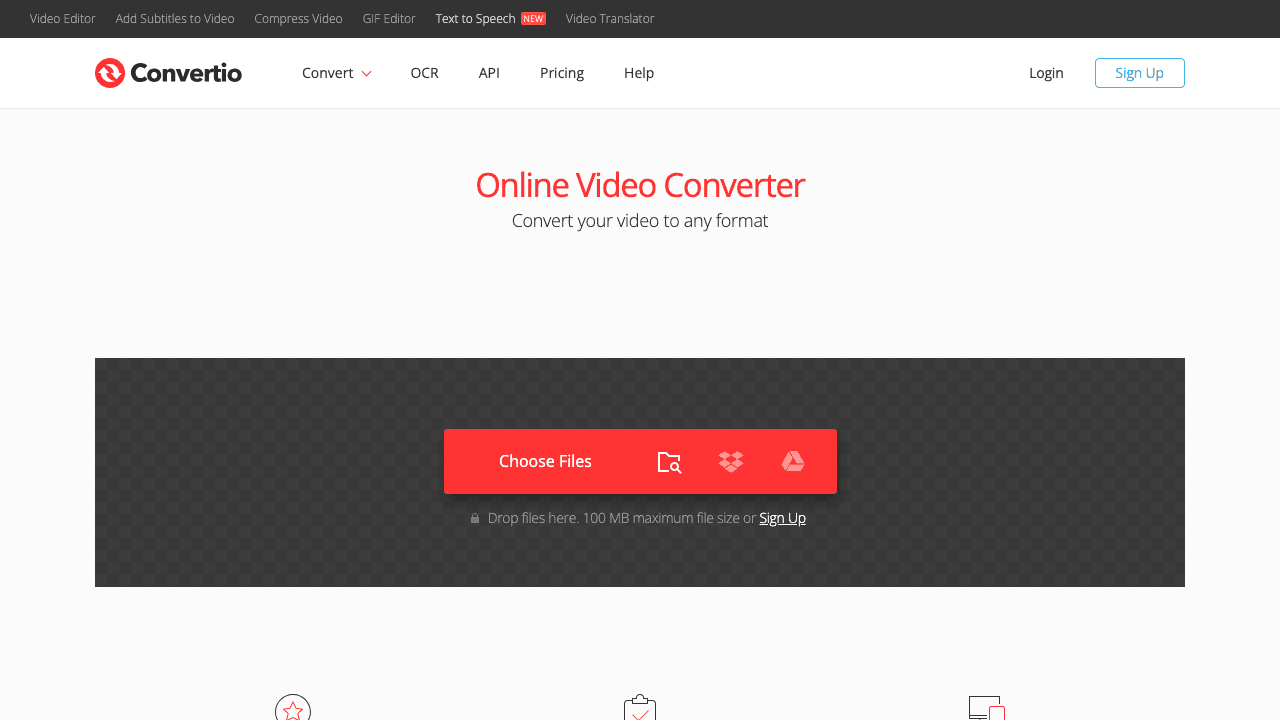
Convertio is the converter you send your non-technical colleagues to. The UI is the cleanest on this list, format support is broad (300+ formats, 25,600+ conversion combinations), and the free tier handles files up to 100 MB without an account.
It's not the most powerful tool here, but it's the one most people will figure out without asking questions. For light, occasional use, it's hard to beat.
Best for: Quick one-off conversions when you don't want to think about it.
Free tier: 100 MB per file, no account.
Paid: Lite $6.99/mo billed yearly (1 GB files, 1,000 credits/mo), Basic $13.99 (3 GB, 3,000 credits), Pro $25.99 (10 GB, 10,000 credits). All paid plans lift the daily conversion-minute limit entirely.
6. VEED.io: Best Browser-Based with Built-In Editor
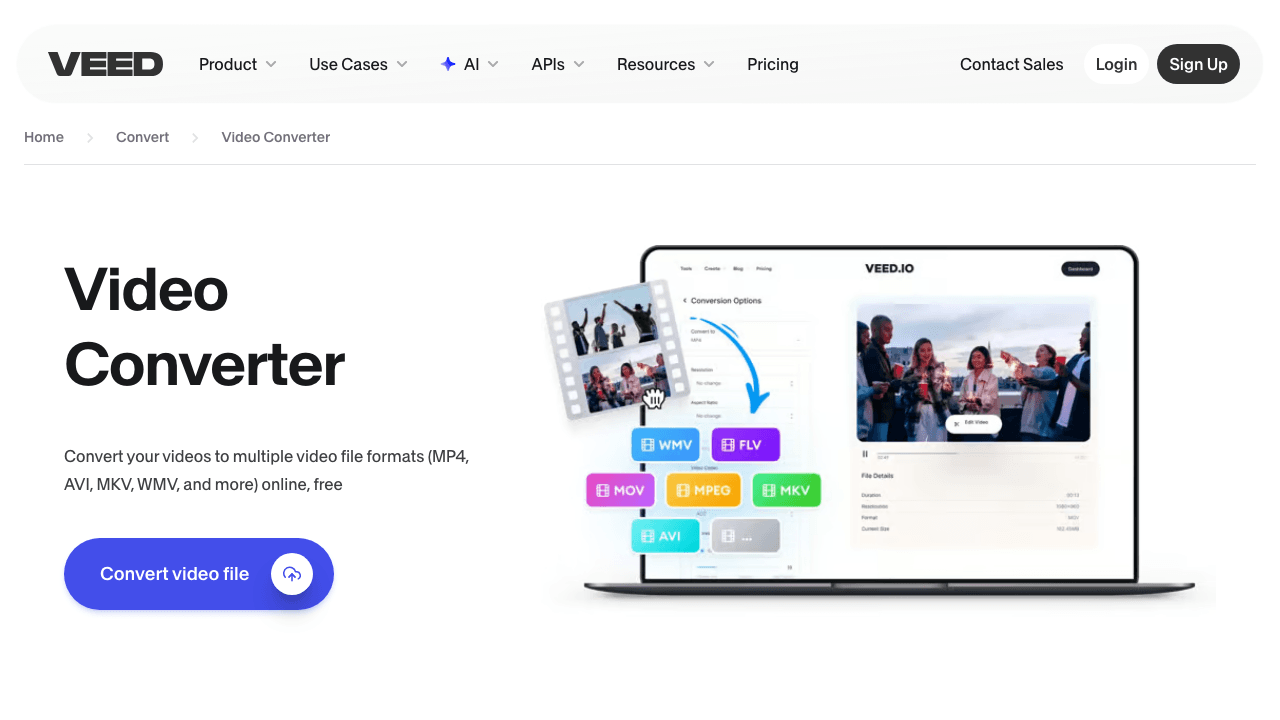
VEED is positioned as a browser video editor first and a converter second, which means after you change formats you can also trim, add captions, or apply filters in the same tab. The free tier outputs with a watermark, so plan for that or use it as a trial before upgrading.
If you're already inside VEED's editor for other reasons, the converter is a nice bonus. As a standalone converter, the watermark is the dealbreaker. For a watermark-free in-browser editor with conversion built in, Vidocu's video editor covers the same ground.
Best for: People who already use VEED for editing and want to convert without leaving.
Free tier: Watermarked output.
Paid: $10 per user/mo billed yearly (billed as $116), $21 for Pro, $35 for Studio. The paid tier is what removes the watermark.
7. Movavi Online: Best Brand Reputation
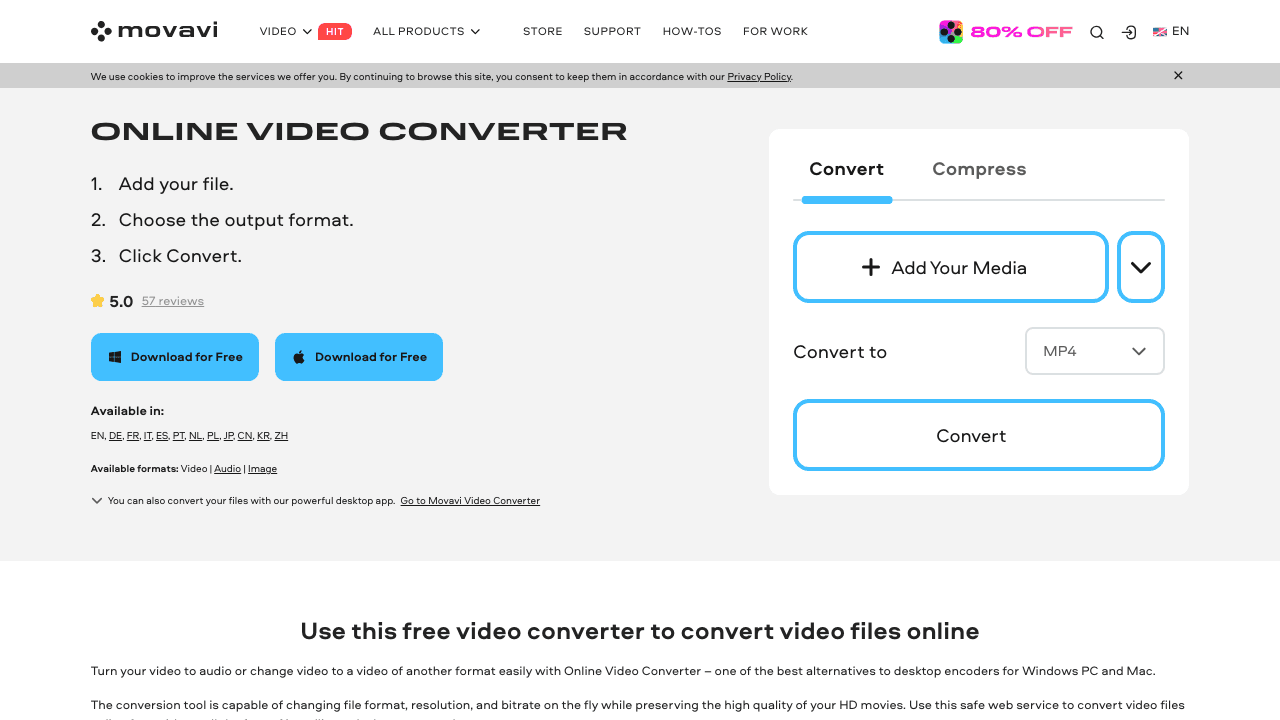
Movavi has been making consumer video software for nearly two decades, and the online converter is essentially their desktop product condensed into a browser. Format support is solid (180+), conversions are fast, and the workflow is familiar to anyone who's used Movavi's desktop apps.
The free online version covers casual use without watermarks. The desktop version (also called Movavi Video Converter) is now sold as a subscription rather than the one-time licence it used to be, with monthly and yearly options.
Best for: Users who already trust the Movavi brand and want a quick browser conversion.
Free tier: Online conversions with light limits, no watermark.
Paid: Movavi Video Converter, sold as a monthly or yearly subscription. Movavi prices its store in your local currency, so check the figure it shows you rather than trusting a USD number quoted in an article.
8. Shutter Encoder: Best Advanced Free Desktop Tool
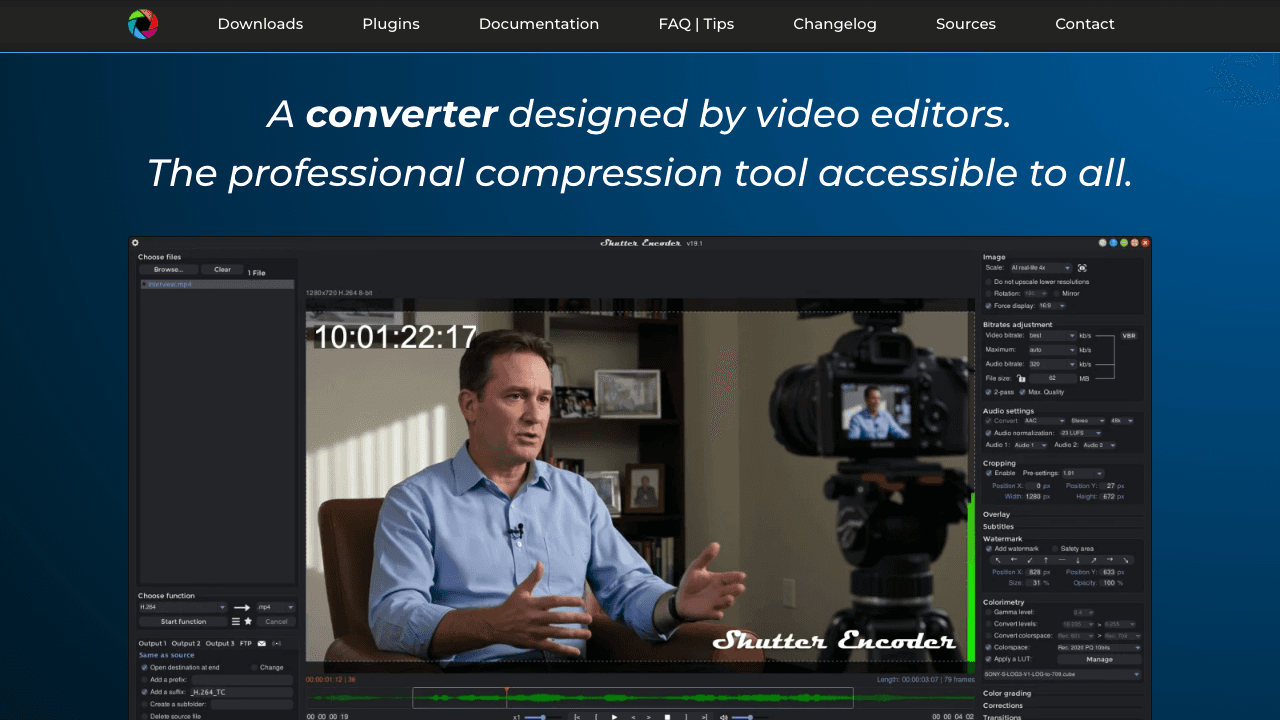
Shutter Encoder is the tool video professionals quietly recommend when HandBrake feels limiting. Open-source, no restrictions, supports 400+ formats including pro codecs and broadcast standards, plus a built-in editor for cuts, joins, crop, text, and color. New releases ship every week or two.
If you're working with broadcast formats, ProRes, DNxHR, or anything with serious codec demands, Shutter Encoder handles things HandBrake won't. The trade-off is that the interface is even denser, and the documentation assumes you know what you're doing.
Best for: Video professionals, post-production folks, and anyone who's outgrown HandBrake.
Free tier: Fully unrestricted. Open-source.
Paid: None.
9. Zamzar: Best for Occasional Small Files
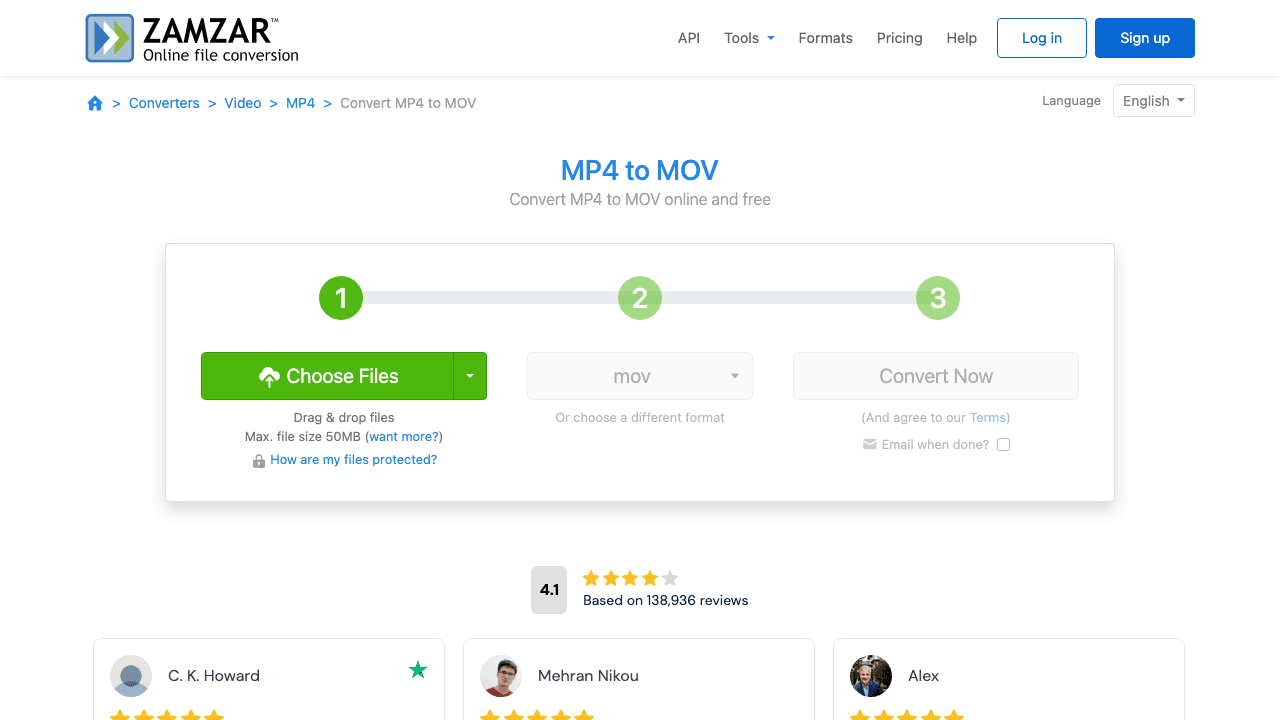
Zamzar has been online since 2006 and supports an astonishing 1,200+ conversion types across video, audio, document, image, ebook, CAD, and archive formats. The free tier is the most restrictive on this list (50 MB total, 2 files per 24 hours), which makes it suitable only for very occasional use.
What Zamzar does well is breadth. If you're handed a weird old video format from a legacy system (3GP, VOB, RM, GVI, MOD), Zamzar probably handles it.
Best for: Rare, small-file conversions, especially of legacy or unusual formats.
Free tier: 50 MB total / 2 files per 24 hours.
Paid: Basic $12/mo (200 MB files), Pro $19/mo (400 MB), Business $39/mo (2 GB). Every paid tier lifts the free plan's 2-files-per-day limit.
How Much Does a Video Format Converter Cost in 2026?
For most people converting video, the honest answer is nothing. Format conversion is a commodity, and the free tiers on this list cover the overwhelming majority of real jobs. You only start paying when you hit volume, file size, or a watermark.
What makes comparison confusing is that these tools do not price the same thing. There are three pricing shapes in this market, and knowing which one you are looking at matters more than the headline number.
Per-minute-of-conversion. FreeConvert and CloudConvert meter the processing time your files consume, not how many files you send. A handful of short clips costs almost nothing; one long 4K export can eat a day's allowance by itself.
Per-file-size tier. Convertio and Zamzar sell you a maximum file size. The number of conversions is effectively unlimited; what you are buying is the ceiling on any single upload.
Per-seat editor subscription. VEED and Vidocu charge for a product that includes conversion rather than for conversion itself. If conversion is genuinely all you need, this is the wrong shape to buy.
| Tool | Free tier | Entry paid plan | What paying actually unlocks |
|---|---|---|---|
| Vidocu | 200 credits/mo (~4 min of video) | $39/mo Pro | Voiceover, translation, captions, documentation from the same upload |
| CloudConvert | 10 conversions/day | $10/mo (1,000 credits) or $18 one-time | Higher volume, API access, priority queue |
| FreeConvert | 20 min/day, 5 min/file | $12.99/mo (1,500 min) | Bigger per-file budget, faster queue |
| Convertio | 100 MB/file | $6.99/mo billed yearly | 1 GB files, 1,000 credits, no daily cap |
| Zamzar | 50 MB, 2 files/day | $12/mo Basic | 200 MB files, unlimited web conversions |
| VEED.io | Watermarked output | $10/user/mo billed yearly | Removes the watermark |
| Movavi Online | Light limits, no watermark | Geo-priced subscription | Desktop app, AI upscaling, batch |
| HandBrake | Unlimited | Free forever | Nothing. It is open-source |
| Shutter Encoder | Unlimited | Free forever | Nothing. It is open-source |
Prices verified against each vendor's own pricing page in August 2026. Two cautions worth carrying: Movavi renders its store in your local currency, so any USD figure you see quoted for it in a comparison article is probably someone's rough conversion rather than what you will be charged. And VEED's headline number is the yearly-billed rate; paying monthly costs more.
The honest read: if conversion is the only thing you need, you should not be paying for it at all. Install HandBrake or Shutter Encoder and stop uploading files to anyone. Paying makes sense in exactly three situations: you need conversion inside your own product (CloudConvert's API), you are regularly converting files big enough to hit a per-file cap (FreeConvert or Convertio), or conversion is one step in a workflow that also needs subtitles, voiceover, or documentation, in which case you are buying the workflow and the conversion comes along with it.
Converting on Desktop, in a Browser, or on Your Phone
The right tool depends less on the format than on where you are working.
In a browser is the default for one-off jobs. Nothing to install, works on a borrowed machine, and every browser tool on this list handles the common containers. The cost is that your file has to travel to someone else's server and back, which is both slow on large files and a genuine consideration for anything confidential.
On the desktop is the correct answer if you convert regularly. HandBrake and Shutter Encoder have no file limits, no queue, no upload, and no per-minute meter, because your own machine is doing the work. Set up a preset once and you can batch entire folders unattended.
On a phone, be realistic about what you are doing. The browser tools here work in mobile Safari and Chrome for small clips, and that is genuinely useful for a quick MOV to MP4 before sending something. But phone conversion is throttled by upload bandwidth and by the fact that a long video may not survive a backgrounded tab. For anything over a few minutes, wait until you are at a computer.
Converting AVI to MP4 deserves a note because it is the single most common request in this category. AVI is a container from 1992 and modern players increasingly refuse it, while the video inside is often already a codec MP4 can hold. Any tool on this list will do it, and if the codecs happen to match, a desktop tool can do a lossless container swap in seconds rather than re-encoding the whole file.
What to Look For in a Video Format Converter
Not every tool on this list fits every job. Here's what actually matters when you're picking one:
The free-tier limit, and which kind it is. This is the first thing that will trip you up, and the limits are not measured the same way. CloudConvert caps at 10 conversions per day, FreeConvert at 20 conversion minutes a day with 5 minutes per file, Convertio at 100 MB per file, Zamzar at 50 MB and 2 files per day. FreeConvert leads on raw file size at 1 GB, but a 20-minute screen recording will hit its per-file minute cap long before it hits 1 GB. Check which unit the limit is in before you upload.
Output quality. Cheap online converters often re-encode aggressively and you end up with worse video than you started with. Look for tools that let you pick the codec (H.264, H.265, AV1) and bitrate, or that default to lossless when the input and output share a codec.
Watermarks. Some "free" converters slap a watermark on the output. VEED's free tier does this. Vidocu, CloudConvert, FreeConvert, Convertio, HandBrake, and Shutter Encoder don't.
Batch processing. If you're converting more than one file, tools that handle batch (FreeConvert, HandBrake, Shutter Encoder, Vidocu via folder uploads) save real time.
What you do after the conversion. This is the question most people skip. If you're converting a video to upload it somewhere, you usually also need subtitles, maybe a voiceover in another language, maybe step-by-step documentation of what's in the video. Those needs determine whether you want a pure converter or a workflow.
One upload, every output you actually need
Stop bouncing between converter, subtitle generator, voiceover tool, and doc writer. Do it all in one place.
See how Vidocu worksWhen a Standalone Converter Is the Wrong Tool
A pure format converter is the right pick when you have one specific need: change the container, change the codec, change the resolution. Done.
But a lot of "I need to convert this" requests aren't really about format. They're about:
- Making a video uploadable to a specific platform (YouTube, LinkedIn, social), which usually means you also want the right thumbnail, captions, and maybe a description.
- Sharing internal training material, which usually means you want a written version too.
- Combining several clips that arrived in different formats. Converting each one separately is the slow path: a video merger that normalizes mixed formats handles the conversion and the join in a single pass.
- Localizing for international users, which means subtitles and voiceover in the target language, not just a different file extension.
- Fixing playback speed at the same time. If the clip also runs too slow or too fast, a free tool to speed up a video online changes the speed and re-encodes in one pass.
- Converting to GIF for documentation. Try a dedicated video to GIF converter instead.
- Starting from a document rather than a video. If the source is a PDF manual or a report, no video converter will help: you need to convert a PDF to video, which renders each page as a frame instead of transcoding an existing file.
- Pulling the sound out of a clip. If what you actually want is the MP3, that is not a format conversion at all. A free tool to extract audio from a video gives you the audio track on its own in MP3, WAV, AAC, FLAC, or OGG.
If your "convert" is really one of those, a single-purpose converter wastes time. You'll be uploading the same file into three more tools after this one. See our video-to-documentation workflow and video translation guide for end-to-end alternatives.
FAQ
What's the best free video format converter for large files?
FreeConvert allows up to 1 GB per file on the free tier, which is the largest of the browser-based options. For unlimited file sizes, HandBrake or Shutter Encoder (both desktop, both open-source) handle whatever you throw at them.
Can I convert videos without losing quality?
Yes, if the input and output share a codec, most desktop tools (HandBrake, Shutter Encoder) can do a lossless container swap (e.g. MKV to MP4 with the same H.264 stream). For browser tools, look for converters that let you pick a high bitrate or "original quality" setting. Re-encoding to a different codec always loses some quality, so prefer same-codec conversions when possible.
What format should I convert my videos to for the web?
MP4 with H.264 video and AAC audio. It plays in every browser, on every device, on every platform, with no special configuration. WebM (VP9 or AV1) is more efficient but has narrower playback support. For YouTube, social, or your own site, default to MP4/H.264.
How much does a video format converter cost?
Most people should pay nothing. HandBrake and Shutter Encoder are free and unlimited forever, and every browser tool here has a free tier that covers occasional use. If you do need to pay, entry plans run from $6.99/mo (Convertio, billed yearly) through $10/mo (CloudConvert) and $12/mo (Zamzar) to $12.99/mo (FreeConvert). Vidocu's Pro plan is $39/mo, but that buys a whole workflow rather than conversion alone.
Are online video converters safe to use?
The major ones (CloudConvert, FreeConvert, Convertio, Zamzar) encrypt files in transit and auto-delete them after a few hours. For sensitive content (internal training, customer videos, anything proprietary), prefer a desktop tool like HandBrake that never uploads your file, or a converter with explicit privacy guarantees like Vidocu, where files stay tied to your account and aren't shared.
Why is my converted video bigger than the original?
You probably re-encoded with a higher bitrate than the source, or switched to a less efficient codec. Drop the bitrate, or pick a more efficient codec (H.265 or AV1 instead of H.264). On HandBrake, the "Web Optimized" preset usually produces a smaller output than the input.
The Short Version
If you just want to swap a container without thinking, CloudConvert or Convertio in the browser will do it in 30 seconds. If your file is huge, FreeConvert has the most generous free limit. If you convert videos all the time, install HandBrake and stop uploading anything.
If conversion is part of a larger thing you're doing with the video, like publishing it, translating it, writing documentation from it, adding voiceover, or generating subtitles, use Vidocu. It's the only tool here built around the assumption that you came for the conversion but you're going to need ten other things.
Try Vidocu free. No card and no watermark on output.

Written by
Daniel SternlichtDaniel Sternlicht is a tech entrepreneur and product builder focused on creating scalable web products. He is the Founder & CEO of Common Ninja, home to Widgets+, Embeddable, Brackets, and Vidocu - products that help businesses engage users, collect data, and build interactive web experiences across platforms.