
Just want to annotate an image right now?
Upload any screenshot to Vidocu's free image annotator to add arrows, text, blur, and shapes in your browser. No watermark.
Annotate an Image FreeLooking for the best free image annotation tool? The nine below all run in the browser, all handle arrows, text, and shapes, and all are free to start. They differ on three things that actually matter: whether you need an account, whether there's a blur tool for sensitive screenshots, and whether they generate numbered step callouts. If you just want to mark up one screenshot right now, skip the comparison and use Vidocu's free image annotator.
This guide compares the nine best free online image annotation tools in 2026. Every tool on this list runs in the browser (some also offer optional desktop apps), so there is no required install. Whether you're filing a bug report, building a tutorial, or creating an SOP from a screen recording, there is one here that fits.
Which Free Image Annotation Tool Is Best? (30-Second Answer)
For documentation and support teams, Vidocu is the pick: a blur tool for sensitive screenshots, no watermark, and the same workflow extends into video and written docs. For fast one-off screenshot markup, Annotely is the lightest option. For bug reports with numbered steps, Monosnap. For design feedback threads, Markup.io. For heavier image editing, Photopea.
All nine run in the browser, and the browser-based ones keep processing local, so your image never leaves your device. For teams that also work with video tutorials, Vidocu pairs image annotation with video-to-documentation and AI subtitles in one workflow.
Quick Comparison: 9 Best Online Image Annotation Tools
| Tool | Best For | Free Tier | Paid From | Blur Tool | Numbered Steps |
|---|---|---|---|---|---|
| Vidocu | Documentation teams | 1 free tool run | $39/mo (Pro) | ✅ | ❌ |
| Annotely | Quick screenshot markup | Full tool, free | No paid plan | ✅ | ✅ |
| Monosnap | Developers + bug reports | Free tier | Not published | ✅ | ✅ |
| Markup.io | Design feedback | 14-day trial | $79/mo (Pro) | ❌ | ❌ |
| Markup Hero | Team collaboration | Free tier | Not published | ❌ | ❌ |
| Zight | Async screenshot sharing | Free tier | $9.95/user/mo | ✅ | ✅ |
| Photopea | Advanced editing | Free with ads | Premium (ad-free) | ✅ | ❌ |
| Pixlr | Quick photo edits | Free tier | 2.49 euro/mo (Plus) | ✅ | ❌ |
| Canva | Polished, designed annotations | Free tier | $120/yr (Pro) | ❌ | ❌ |
1. Vidocu
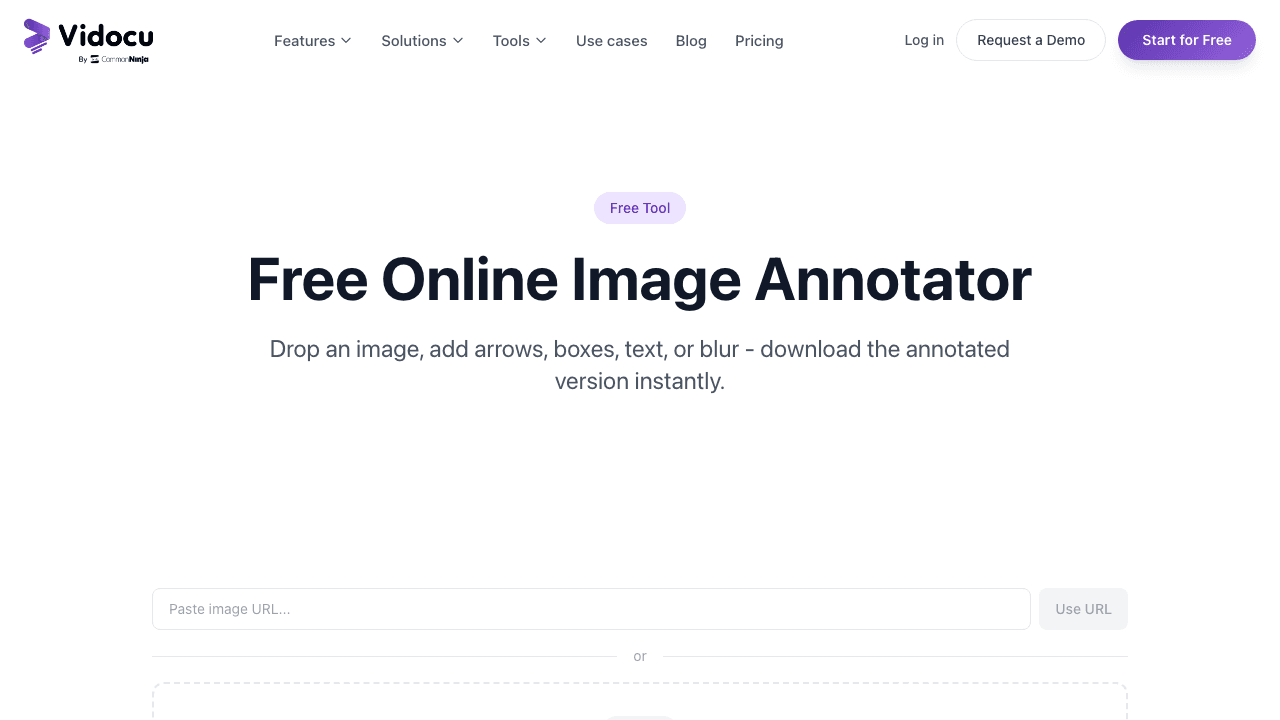
Vidocu's free image annotator is a browser-based annotation tool built for documentation, tutorial, and support teams. Upload a PNG, JPEG, or WebP file (up to 50 MB), add arrows, boxes, text labels, and blur regions, then download. Your first run is free.
The difference is context. The image annotator is part of a larger platform that turns video recordings into step-by-step documentation with AI-generated subtitles, voiceover, and multi-language translation. If your workflow involves both video tutorials and annotated screenshots, everything lives in one place.
Key features:
- Arrows, boxes, and text labels with six color options
- Blur tool for hiding sensitive information
- Undo individual annotations or clear all at once
- All processing happens in-browser, so your image never leaves your device
- Supports PNG, JPEG, and WebP up to 50 MB
Pricing: The Free plan includes one free tool run and needs a free Vidocu account. Pro at $39 a month removes run limits across every tool; Business is $149 a month.
Best for: Documentation and support teams that also work with video content and want annotation as part of a broader video-to-documentation workflow.
The same instinct that makes teams blur a sensitive detail tends to make them want attribution on the way out. For video exports, that job belongs to a video watermark.
2. Annotely
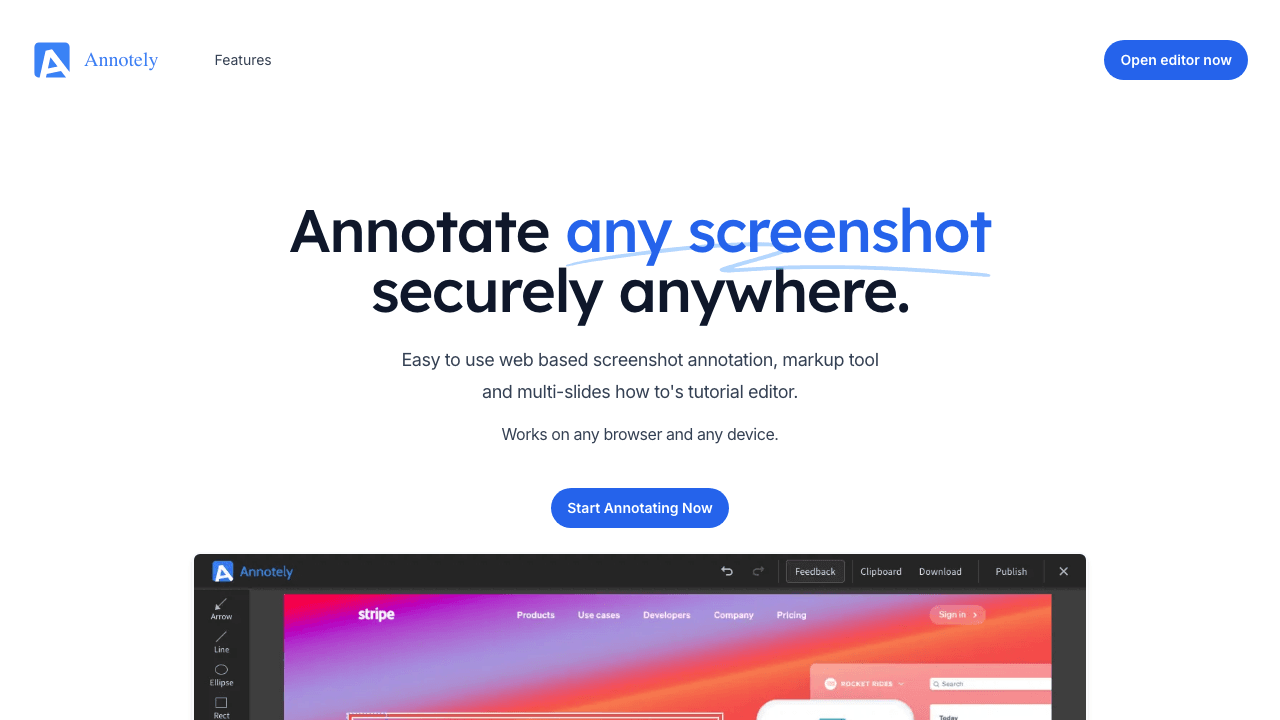
Annotely is a dedicated web-based screenshot annotation tool. It is laser-focused on markup (no photo editing, no design features), just the tools you need to annotate a screenshot and share it.
The feature set is well-rounded for a free tool. You get arrows, lines, rectangles, ellipses, freehand drawing, highlight, blur, zoom, numbered pins, and labels. The numbered pins are particularly useful for creating step-by-step guides where you need to show a sequence of actions on a single screenshot.
Annotely also supports multi-slide annotations, so you can build simple visual tutorials with multiple annotated images in a single project.
Key features:
- Arrows, lines, rectangles, ellipses, and freehand drawing
- Highlight, blur, and zoom tools
- Numbered pins and labels for step-by-step callouts
- Crop functionality
- Multi-slide how-to editor
- Works on all browsers and devices (including mobile)
Pricing: Completely free. No signup required.
Best for: Quick one-off screenshot annotations when you need a wider range of shapes and numbered steps.
3. Monosnap
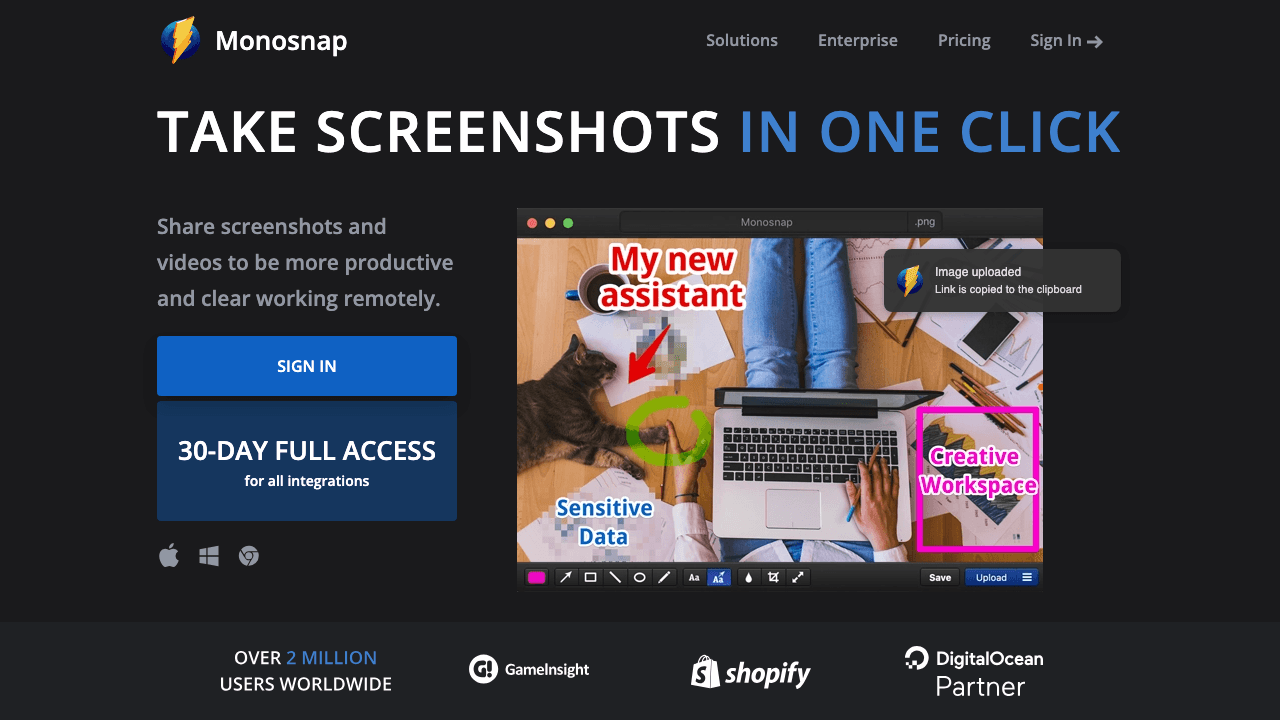
Monosnap is a screenshot and annotation tool popular with developers and product teams. While it offers desktop apps for Mac, Windows, and a Chrome extension, the web editor lets you upload any image and annotate it directly in the browser.
The toolkit covers everything a bug report or quick markup needs: arrows, rectangles, ellipses, text, freehand pen, blur, and a numbered-steps counter that auto-increments. The numbering is the standout: each new step gets the next number without manual counter management, which is exactly what you want when annotating multi-step bug reproductions.
Free accounts get 2 GB of cloud storage and direct sharing links. For solo developers or small teams, the free tier is usually enough.
Key features:
- Browser-based editor plus optional Mac, Windows, and Chrome apps
- Arrows, shapes, text, freehand pen, and blur
- Auto-numbered step counter for sequential annotations
- Direct upload to cloud with shareable links
- Image and video capture (desktop apps only)
- 2 GB free cloud storage
Pricing: Free tier plus paid plans. Monosnap has moved to a new domain and its pricing page is not currently loading, so there is no figure we can verify first-hand.
Best for: Developers and product teams who file bug reports with numbered reproduction steps.
4. Markup.io
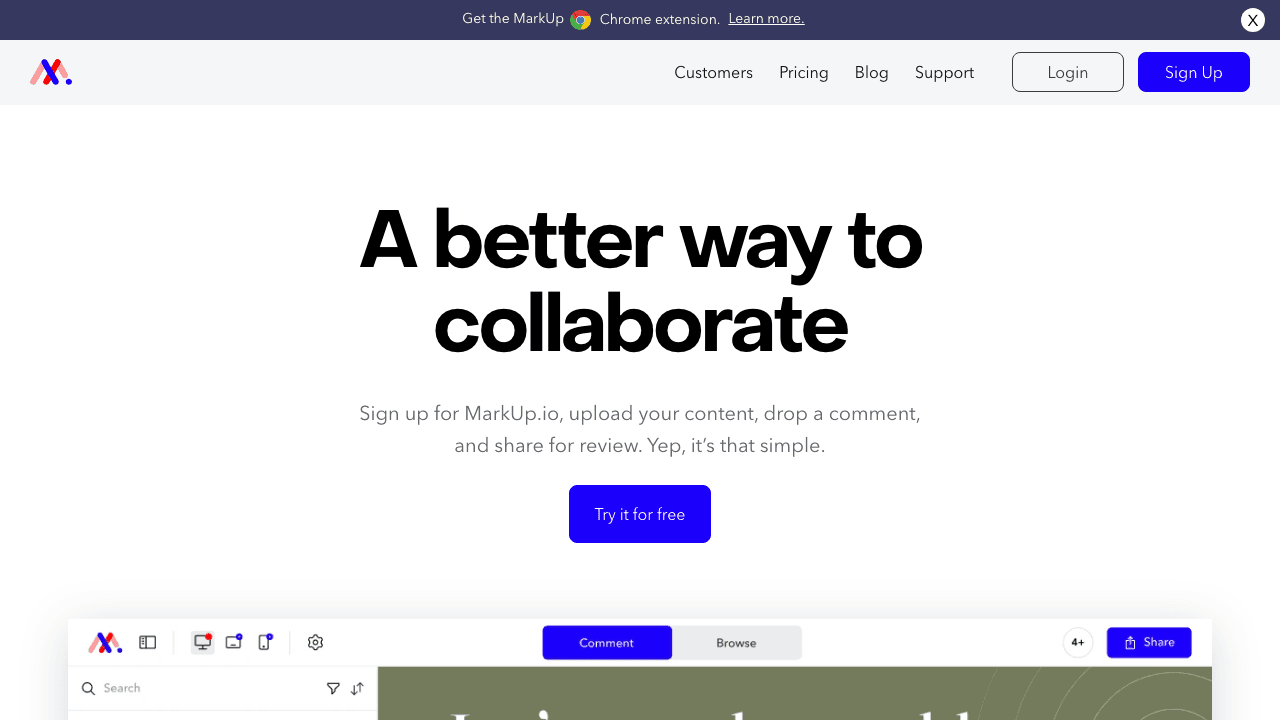
Markup.io is a collaborative annotation platform built for design and marketing teams. You upload an image (or paste a URL for a webpage, PDF, or video), annotate it with arrows, sticky-note comments, and freehand drawings, then invite others to review in a shared workspace.
The standout is multi-format support. Beyond static images, Markup.io annotates live websites, PDFs, videos, and even Figma frames. For agencies, designers, and product teams who annotate across formats, it removes the need to juggle separate tools.
The trade-off is that Markup.io is collaboration-first. It requires a free account, and the workflow assumes you are sharing annotations with reviewers rather than downloading a one-off marked-up image.
Key features:
- Annotate images, PDFs, websites, videos, and Figma frames
- Sticky-note comments and threaded replies
- Drawing tools, shapes, and text
- Shareable workspaces with role-based access
- Status tracking for each annotation (open, resolved)
Pricing: No permanent free tier, just a 14-day trial. Pro is $79 a month for unlimited users, one workspace, unlimited markups, and 500 GB of storage. Enterprise is custom.
Best for: Design, marketing, and product teams who collect feedback across multiple file formats.
5. Markup Hero
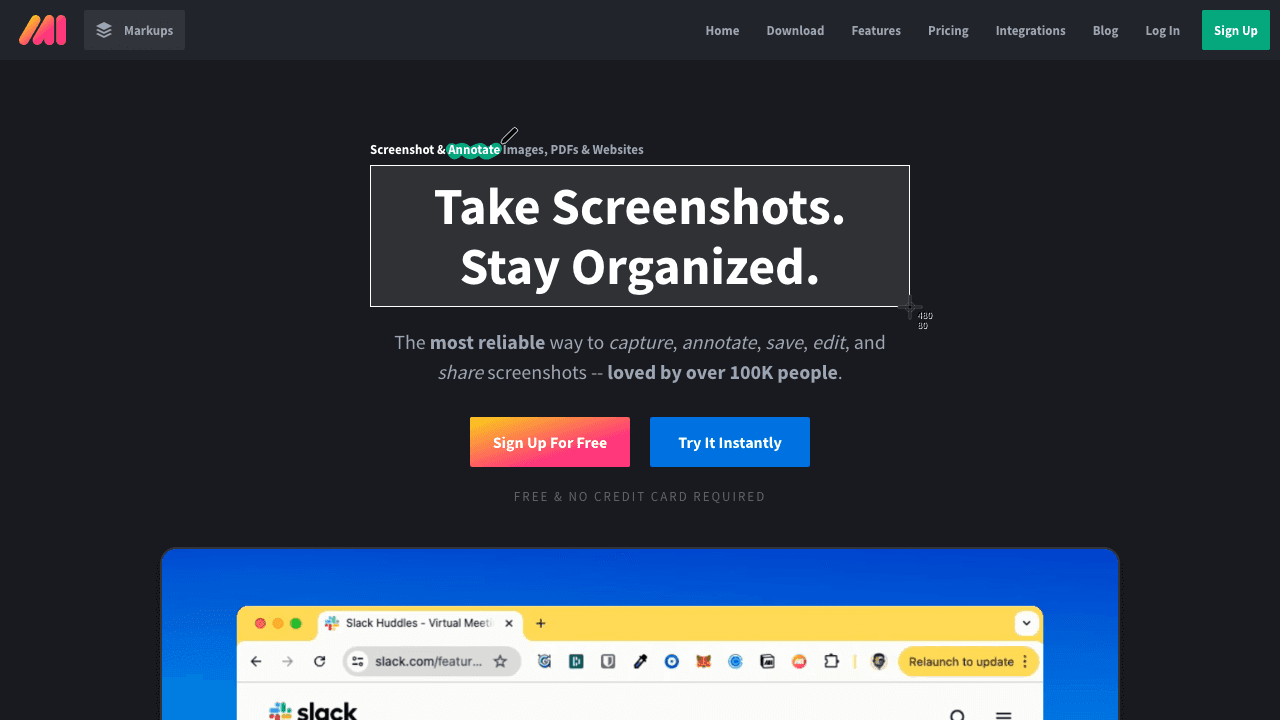
Markup Hero combines screenshot annotation with sharing and collaboration. Upload an image (or capture a screenshot directly), annotate it, and get a shareable link. It is built for teams that need to communicate visually: bug reports, design feedback, and async code reviews.
The annotation toolkit includes arrows, text, rectangles, ovals, lines, pen drawing, and highlights. Each annotation gets a shareable URL, which is the tool's standout feature. Instead of annotating, exporting, and attaching to a message, you just share the link.
Key features:
- Arrows, text, shapes, highlights, and freehand drawing
- Screenshot capture (browser extension or web upload)
- Shareable links for every annotated image
- Annotation history and version tracking
- Organize annotations into collections
Pricing: Free tier with a monthly markup limit, plus a paid Premium tier. Markup Hero does not publish a fixed price on its pricing page (plans load at checkout and the monthly rate is being tested), so check the figure at signup.
Best for: Teams that need to share annotated screenshots frequently and want a link-based workflow instead of downloading and attaching files.
6. Zight
Zight (formerly CloudApp) is a visual communication platform with strong image annotation. The web app lets you upload or capture an image, annotate it with arrows, text, blur, and step numbers, then share a link that supports comments and reactions from your team.
What sets Zight apart is the workflow design. Annotations are not endpoints, they are conversation starters. Reviewers can add their own comments, reply in threads, and resolve issues without anyone re-exporting an updated screenshot. For async teams that handle a lot of design or bug feedback, this is faster than the upload-export-attach loop.
The free tier is limited to 25 items per month, which works for occasional use but caps out fast for active teams.
Key features:
- Browser editor plus optional Mac, Windows, iOS, and Android apps
- Arrows, text, shapes, blur, and step numbers
- Threaded comments and reactions on shared links
- Screen recording (desktop apps)
- GIF capture
- Integrations with Slack, Trello, Asana, Jira
Pricing: Free plan, then Share at $9.95 per user a month and Create at $12 per user a month for unlimited uploads and recording time. Scale is custom.
Best for: Async teams that want annotated screenshots to function as discussion threads, not static deliverables.
Turn Videos Into Annotated Documentation Automatically
Upload a screen recording and Vidocu generates step-by-step docs with screenshots. No manual annotation needed.
Try Vidocu Free7. Photopea
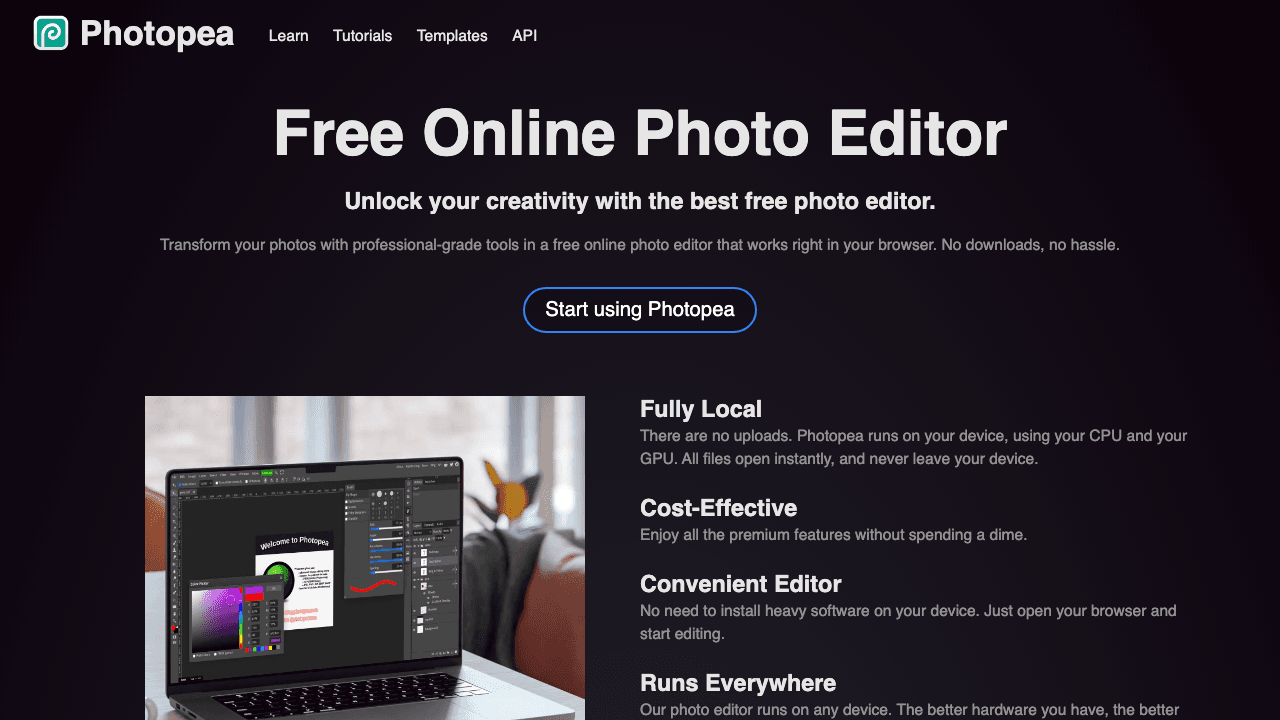
Photopea is a full-featured image editor that runs entirely in your browser. Think of it as a free, web-based Photoshop alternative. It supports PSD files, layers, masks, filters, and basically everything you would expect from a professional photo editor.
For image annotation specifically, Photopea is overkill, but that is the point. If you need to annotate an image and do advanced editing (adjust colors, remove backgrounds, composite multiple screenshots), Photopea handles it all without switching tools. You can draw shapes, add text, use the blur tool, and work with layers to keep your annotations separate from the original image.
The downside is the learning curve. If you just need to add an arrow to a screenshot, Photopea's interface will slow you down compared to a dedicated annotation tool.
Key features:
- Full Photoshop-like editing suite in the browser
- Supports 40+ file formats including PSD, PNG, JPG, SVG, RAW
- Layers, masks, adjustment layers, and filters
- Shape tools, text tool, brush tool, and blur
- AI-powered background removal
- All processing happens on your device
Pricing: Free with ads. A paid premium account removes them. Photopea has no public pricing page, so the figure appears at signup.
Best for: Users who need advanced image editing alongside annotation, or teams already working with PSD files.
8. Pixlr
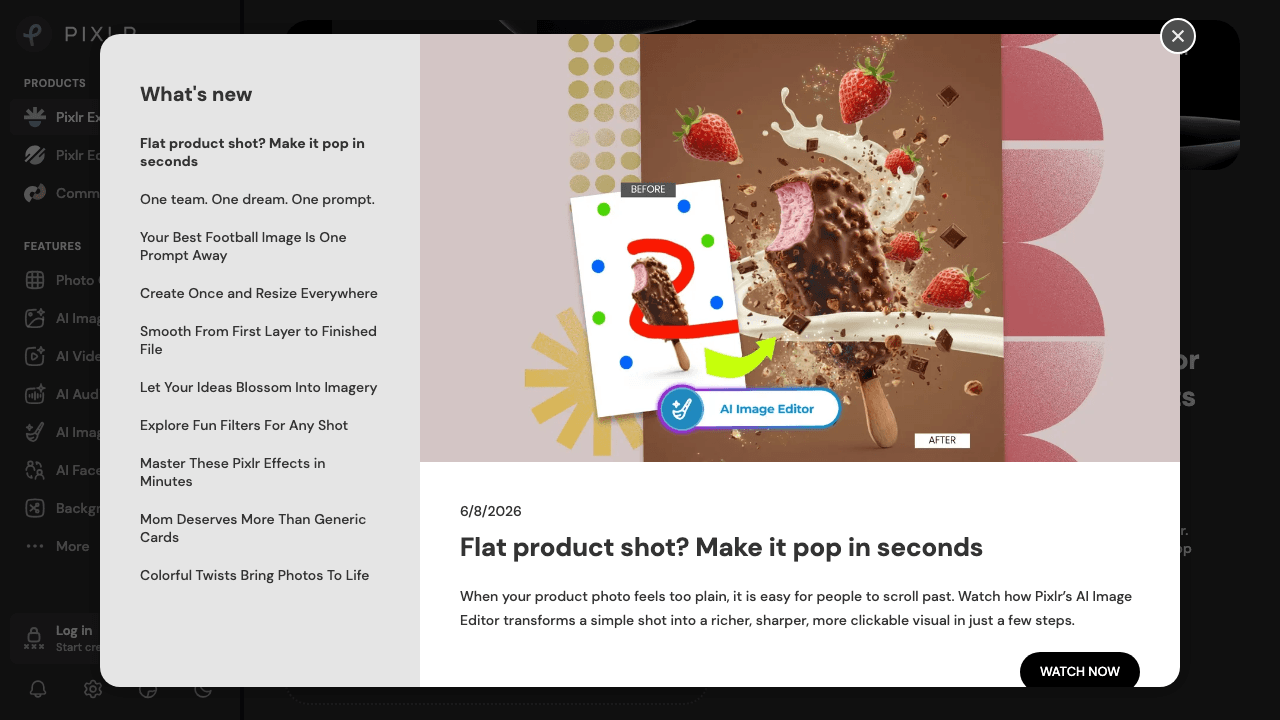
Pixlr is a browser-based image editor with two flavors: Pixlr X (simple, fast) and Pixlr E (advanced, layers-based). For annotation, Pixlr X is the right entry point. Upload your image, drop in arrows or text overlays from the sticker library, blur sensitive regions, and export.
Compared to dedicated annotation tools, Pixlr is broader. You get filters, retouching tools, AI background removal, and a stock library. That breadth is useful when you need to clean up a screenshot before annotating it (crop, brighten, fix color), then mark it up in the same workflow.
The trade-off is that arrow and callout shapes are sticker-based rather than purpose-built. Annotately or Vidocu will be faster for pure markup work.
Key features:
- Two editors: Pixlr X (quick edits) and Pixlr E (advanced)
- Crop, resize, brightness, contrast, and color adjustment
- Sticker library with arrows, shapes, and callouts
- Text tool with font, color, and outline controls
- AI background removal and object removal
- Filters and effects
Pricing: Free tier with watermark-free exports. Plus is 2.49 euro a month (1.99 billed yearly), Premium is 9.99 euro a month (7.99 billed yearly), and Ultra starts at 24.99 euro a month (19.99 billed yearly).
Best for: Users who want photo editing and annotation in one tool, especially for marketing assets that need both.
9. Canva
Canva is not a dedicated annotation tool. It is a design platform. But its photo editor and element library make it surprisingly capable for annotating images when you need the result to look polished.
Upload a screenshot, then layer on arrows, callout boxes, numbered circles, text, and shapes from Canva's massive element library. The results look more "designed" than what you would get from a typical annotation tool, which matters for customer-facing documentation, blog posts, and product marketing materials.
The trade-off is speed. Canva's editor is designed for design, not quick markup. Adding a simple arrow takes more clicks than it should. And you need a free account to use it.
Key features:
- Thousands of shapes, arrows, callout elements, and icons
- Text with custom fonts, colors, and styling
- Photo editing (crop, filters, adjust)
- Templates for social media, presentations, and more
- Collaboration features for teams
- Export as PNG, JPG, or PDF
Pricing: Free tier with access to basic elements. Pro is $120 a year per person and Business is $210 a year per person, unlocking premium elements, background removal, and brand kit.
Best for: Marketing and content teams that need annotated images to look polished and on-brand.
What Each Image Annotation Tool Costs in 2026
Most of these are genuinely free for occasional markup. The costs appear when you need volume, team sharing, or commercial-grade storage.
| Tool | Free tier | Paid entry price | What paying buys you |
|---|---|---|---|
| Vidocu | 1 free tool run, files up to 50 MB | $39/mo (Pro) | Unlimited runs across every free tool, plus video documentation, subtitles, voiceover, and translation |
| Annotely | Full tool, no account needed | No paid plan | Nothing to buy, the project runs on donations |
| Monosnap | Free tier | Not published | Storage and team features (pricing page unavailable at the time of writing) |
| Markup.io | 14-day trial only | $79/mo (Pro) | Unlimited users, 1 workspace, unlimited markups, 500 GB storage |
| Markup Hero | Free tier, capped markups | Not published | Unlimited markups, history, custom sharing |
| Zight | Free plan | $9.95/user/mo (Share) | Unlimited uploads and recording time at $12/user/mo (Create) |
| Photopea | Free with ads | Ad-free premium | Removes ads, price shown at signup |
| Pixlr | Free tier | 2.49 euro/mo (Plus) | Ad-free, unlimited saves, AI credits; Premium 9.99 euro/mo |
| Canva | Free tier | $120/yr (Pro) | Premium elements, background removal, brand kit; Business $210/yr |
Prices verified in August 2026 against each vendor's own site. Two of them (Monosnap and Markup Hero) do not publish a fixed figure publicly, so treat those rows as "check at signup" rather than free.
The practical read: if you annotate a handful of screenshots a week, every tool here is free. If you annotate as part of producing documentation, the cost question is not the annotator at all, it is whether you are paying separately for screen recording, subtitles, and doc generation on top of it.
Choosing by Use Case: Bug Reports, Docs, and Design Feedback
The best tool depends on your workflow:
- Need quick browser annotation? Vidocu and Annotely both run in the browser with nothing to install. Annotely needs no account; Vidocu needs a free one.
- Filing bug reports with numbered reproduction steps? Monosnap's auto-incrementing step counter is purpose-built for this.
- Need to share annotated images via link? Markup.io, Markup Hero, and Zight all generate shareable URLs and support comment threads.
- Want annotations that function as discussions? Zight's threaded comments turn each screenshot into an async conversation.
- Need numbered steps for documentation? Annotely's numbered pins and Monosnap's step counter are both built for sequential callouts.
- Need advanced editing alongside annotation? Photopea offers Photoshop-level tools for free; Pixlr is friendlier for quick fixes.
- Need polished, design-quality annotations? Canva's element library produces the best-looking results.
- Creating documentation from video? Vidocu integrates image annotation with video-to-documentation workflows, AI voiceover, and multi-language translation, so you can handle both video and image documentation in one platform.
If your team creates knowledge base articles, SOPs, or help articles from screen recordings, a tool that handles both video processing and image annotation will save you from stitching together multiple apps. The same logic applies on the video side: if a walkthrough was captured in several takes, you can combine the clips into one video before annotating the frames you pull from it.
FAQ
What is the best free image annotation tool online?
For quick browser-based markup, Vidocu and Annotely are the fastest options. For team feedback and collaboration, Markup.io, Markup Hero, and Zight are built around shareable links. For numbered bug-report steps, Monosnap stands out. For advanced editing alongside annotation, Photopea and Pixlr offer full image editors free.
How do I annotate an image online for free?
Open a browser-based annotation tool like Vidocu, upload your image, use the built-in tools to add arrows, shapes, text, or blur regions, and download the annotated version. All processing happens in your browser, with no installation and no file size penalty.
Is there a free online annotation tool with no watermark?
Yes. Vidocu's free image annotator exports without a watermark, as do Annotely and Photopea. Annotely and Photopea run without an account; Vidocu, Markup.io, Markup Hero, Monosnap, Zight, Pixlr, and Canva all need a free account first.
How much do image annotation tools cost?
Most are free for light use. Annotely is free with no paid plan at all, Photopea and Pixlr are free with ads, and Vidocu, Zight, Markup Hero, Monosnap, and Canva all have free tiers. Paid entry prices range from 2.49 euro a month (Pixlr Plus) and $9.95 per user a month (Zight Share) up to $79 a month (Markup.io Pro). Vidocu's Pro plan is $39 a month and covers every free tool plus the video documentation workflow.
What is image annotation?
Image annotation is the process of adding visual elements (arrows, text, shapes, highlights, or blur regions) to an image to explain, highlight, or draw attention to specific parts. It is commonly used in documentation, bug reports, tutorials, design feedback, and visual support.
Can I annotate a screenshot in my browser?
Yes. Every tool in this guide has a browser-based editor, so you can annotate a screenshot from any device with no install. Upload a PNG, JPEG, or WebP, add your markup, and download the result. Some tools (Monosnap, Zight) also offer optional desktop apps for users who want screen capture integrated.
What is the difference between image annotation and image editing?
Image annotation adds elements on top of an image (arrows, text, callouts, blur regions) without altering the original content. Image editing modifies the image itself by adjusting colors, removing backgrounds, cropping, or compositing. Tools like Photopea, Pixlr, and Canva do both. Dedicated annotation tools like Vidocu, Annotely, Monosnap, Markup.io, Markup Hero, and Zight focus on the overlay approach.
Can I annotate images on mobile?
Yes. Browser-based annotation tools work on mobile devices. Annotely, Vidocu, and Canva all support touch input on mobile browsers. Zight and Monosnap have native mobile apps, though a larger screen makes annotation easier for detailed work.
How do I annotate screenshots for documentation?
Capture a screenshot, upload it to a browser-based annotation tool like Vidocu or Annotely, add arrows and text to highlight key steps, blur any sensitive information, and download the result. For video-based documentation, Vidocu can automatically generate annotated screenshots from a screen recording, skipping the manual annotation step entirely. For a walkthrough, see how to annotate an image online with Vidocu.

Written by
Daniel SternlichtDaniel Sternlicht is a tech entrepreneur and product builder focused on creating scalable web products. He is the Founder & CEO of Common Ninja, home to Widgets+, Embeddable, Brackets, and Vidocu - products that help businesses engage users, collect data, and build interactive web experiences across platforms.