
If you've ever sat through a 40-minute webinar recording or a recorded onboarding call and thought, "there are five real questions in here that belong in our help center," a video FAQ generator is the tool you want. You upload a video (or paste a URL), the AI listens, and it hands back a clean set of question-and-answer pairs you can drop into a knowledge base, training doc, or product FAQ page.
The catch: most tools that claim to do this either spit out a transcript and call it a day, restrict you to YouTube links, or hide the actual FAQ output behind a paywall. I tested every well-known option and cut the list down to the ones that actually do the job. Six made it.
Here are the six that earned a spot, ranked by how reliably they turn a real video into usable FAQs.
Quick Comparison
| Tool | Best For | Input Types | Free Tier | Output Formats |
|---|---|---|---|---|
| Vidocu | Full video-to-content workflow with FAQs as one output | MP4, MOV, WebM, YouTube + public URLs | Free up to 500 MB uploads | Markdown, plain text, in-app saving |
| DocsBot AI YouTube FAQ Generator | Quick FAQ extraction from YouTube only | YouTube URL | Free, no login | Copy from page |
| ScreenApp | Teams that record their own videos and want FAQs from them | Upload, record, YouTube URL | Free tier with limits | Templates, summaries, FAQs |
| Twee | Teachers and trainers who need question variety | Audio, video, YouTube | Free tier | MCQ, true/false, open-ended |
| ScreenPal | Turning a video into an interactive quiz, not a doc | Upload, recordings | Free tier with watermark | Interactive quiz player |
| Memories.ai | Asking specific questions about a video on demand | Video URL, upload | Free tier | Chat answers with timestamps |
What to Look For in a Video FAQ Generator
Before the list, a quick checklist. Most of these tools say "FAQs from video" but mean different things:
- Does it analyze the actual video, or only the transcript? Tools that only read the transcript miss anything shown on screen. The ones that look at visuals too can pull questions about UI, slides, or charts that the speaker references but never names out loud.
- Does it accept uploads, or only YouTube links? YouTube-only tools are useless for internal recordings, sales calls, or anything not public.
- Are the questions actually distinct, or paraphrased duplicates? A common failure mode: 12 FAQs that boil down to two real questions.
- Can you export? Markdown, plain text, or a JSON dump beats "copy from a popup."
- Is there a length or watermark cap on the free tier? Most tools throttle the free path hard, which matters if you process longer-form content.
With that frame, here are the six.
1. Vidocu
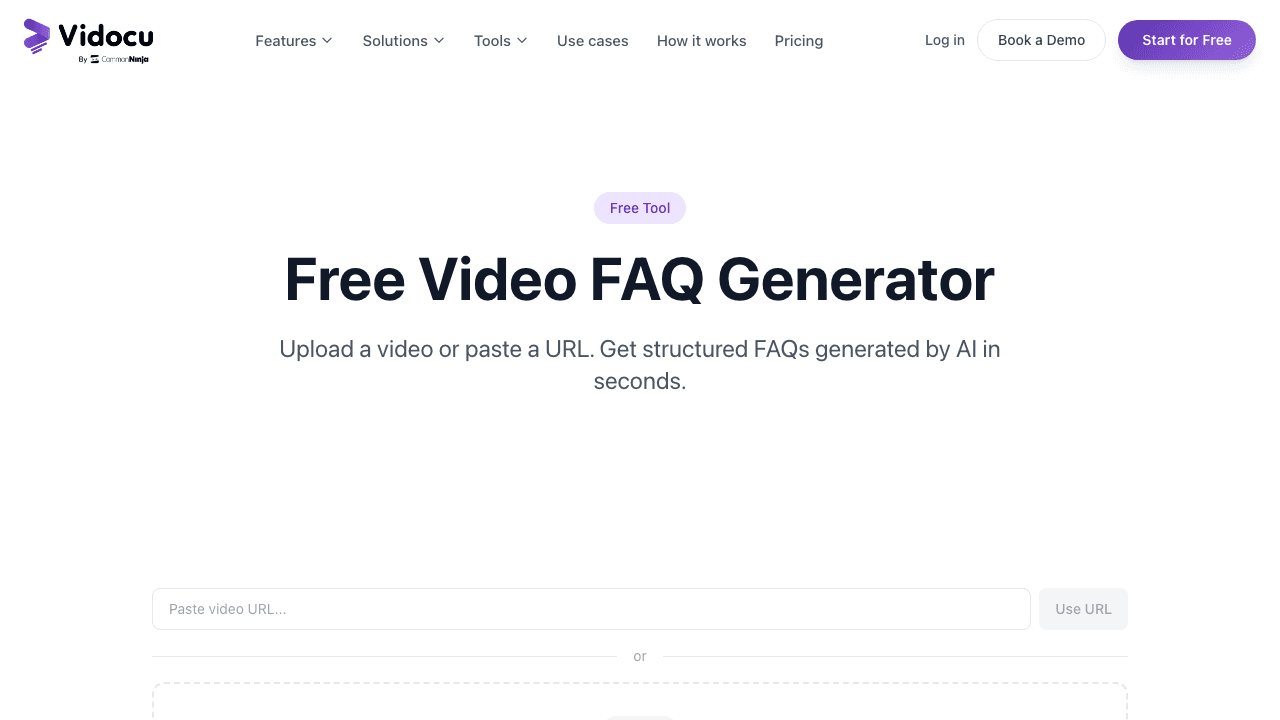
Best for: Teams that want FAQs as one output of a larger video-to-content workflow.
Vidocu's free video FAQ generator takes a different angle than the rest of the list: FAQ generation is one feature inside a broader platform that turns the same video into subtitles, a voiceover-ready script, a step-by-step doc, and translated versions. So if your video is going to feed multiple downstream surfaces (help center, training portal, localized markets), you do the work once and pick the outputs you need.
For FAQs specifically, you drop in a file or paste a URL (YouTube and other public links work), and the AI analyzes both audio and what's on screen. By default it scales the output: short videos get fewer FAQs, longer videos get more, in the 5–20 range. You can override the count manually if you want a tight 5 or a fuller 15.
Strengths:
- Multimodal analysis (audio + visual), so questions reflect on-screen UI, charts, and slides, not just narration
- Auto-scaled count based on video length, with manual override
- MP4, MOV, WebM uploads up to 500 MB plus YouTube and other public video URLs
- Export to Markdown or plain text, or save in-account for reuse
- Same upload also unlocks subtitles, voiceover, video documentation, knowledge base generation, and translation
Limitations: Heavier than YouTube-only one-click tools if all you ever do is paste a YouTube link.
Pricing: Free for the FAQ generator. The full platform has paid plans for teams that need higher limits and team workspaces.
If your use case is bigger than "pull questions out of one video," it's worth seeing how the full documentation workflow runs. Most teams who land on Vidocu for FAQs end up using two or three other features in the same upload.
Turn any video into clean FAQs in under a minute
Upload, paste a YouTube link, or process a webinar recording. Vidocu's AI generates 5–20 question-and-answer pairs you can drop straight into your help center.
Try the free FAQ generator2. DocsBot AI YouTube FAQ Generator
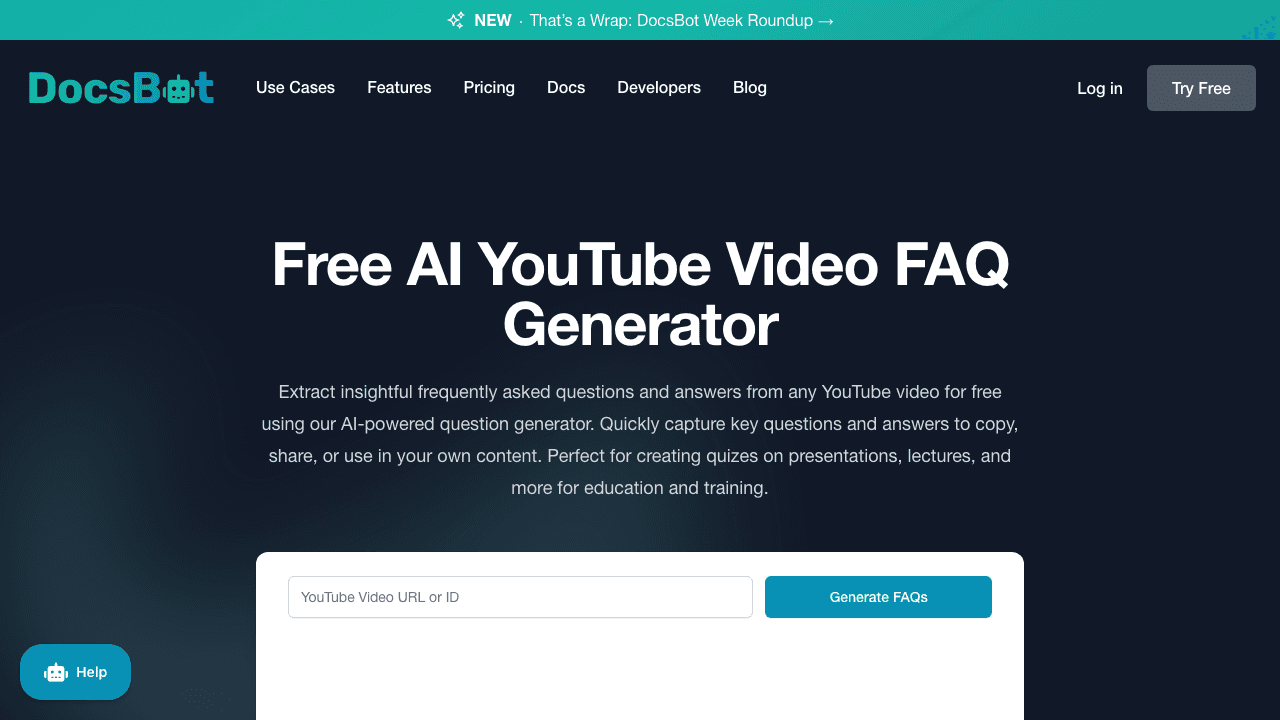
Best for: Quick, no-login FAQ extraction from public YouTube videos.
DocsBot's tool is the cleanest "paste a URL, get FAQs" experience on the list. There's no signup, no upload flow, no settings to tune. Drop a YouTube link, wait a few seconds, and you get a list of questions with concise answers underneath. It's the right tool when you're researching a topic and want to skim what a 25-minute video actually covers, or when you're building an FAQ page about content that lives on YouTube.
Strengths:
- Zero friction: no account, no upload
- Genuinely free for casual use
- Reliable for English YouTube videos with good captions
Limitations:
- YouTube-only. No uploads, no internal recordings, no Loom links
- Quality depends heavily on the video's existing captions
- Export is copy-from-page only
- No control over question count or depth
Pricing: Free.
If you're working with internal recordings instead of public YouTube videos, this won't cover you, and you'll want the upload-friendly tools below.
3. ScreenApp
Best for: Teams that already record their meetings, demos, or training sessions inside ScreenApp and want FAQs as one of several AI outputs.
ScreenApp is primarily a recorder, with a layer of AI templates on top: summaries, action items, blog posts, and FAQs. The FAQ output is template-driven, so you trigger it the same way you'd trigger a summary. That makes it natural for support, sales, and customer success teams that record calls and want every recording to feed a knowledge base entry.
Strengths:
- Tight integration with their recorder, so you can go from call to FAQ without leaving the tool
- AI templates cover multiple downstream formats, not just FAQs
- Solid for business use cases: meetings, demos, training calls
Limitations:
- The FAQ template is one of many, not a focused product, so depth and consistency vary
- Free tier caps recording length and storage hard enough that serious use pushes you to a paid plan
- Best results come from videos recorded inside the tool itself
Pricing: Free tier with limits. Paid plans start in the standard SaaS range.
For a deeper take on building knowledge bases out of recorded calls, see our piece on reducing support tickets with self-service docs.
4. Twee
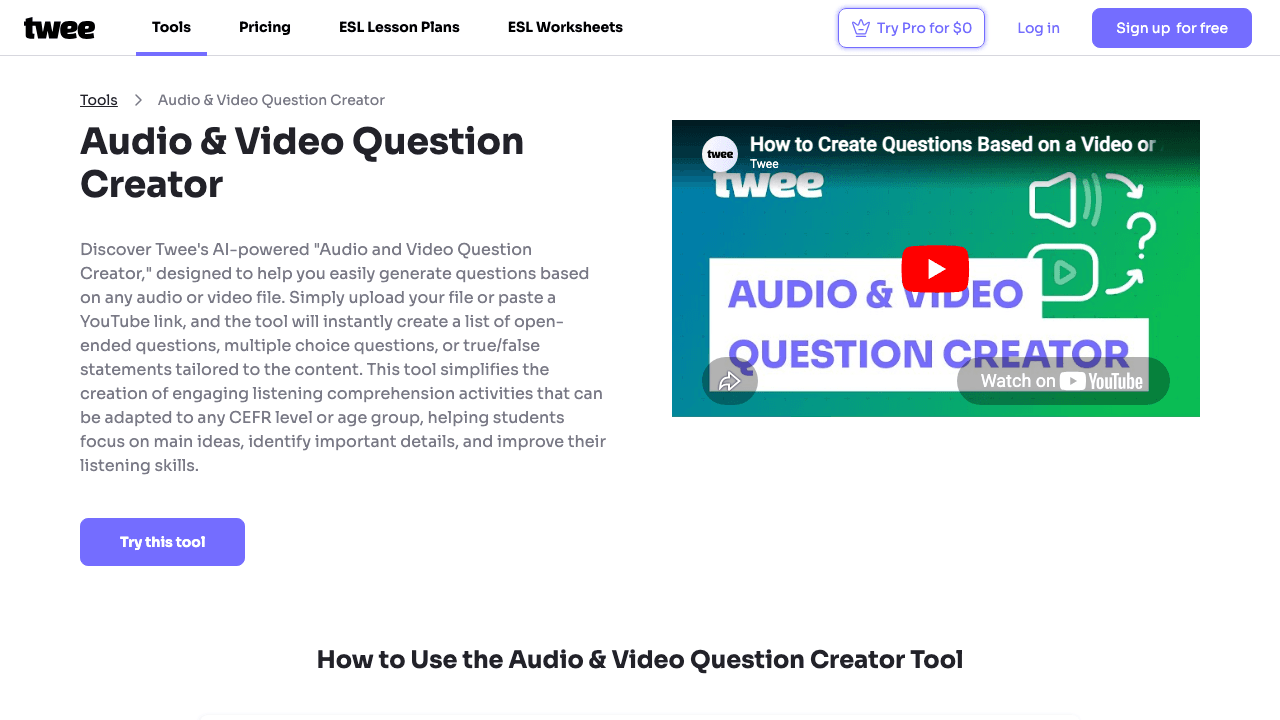
Best for: Teachers, trainers, and L&D teams that need different question formats, not just open-ended FAQs.
Twee is built for classroom and training use. You upload an audio or video file, or paste a YouTube link, and the tool transcribes the content and lets you generate questions in multiple formats: multiple choice, true/false, open-ended, fill-in-the-blank. The "FAQ" framing is loose here, but if your goal is to turn a video into a learning checkpoint or comprehension test, Twee is the most specialized option.
Strengths:
- Multiple question types from one transcript
- Designed for educators, so the language and difficulty controls are tuned for that audience
- Free tier is genuinely usable for individual teachers
Limitations:
- Output is question-focused, not answer-focused, so it's a weaker fit for a help center or product FAQ page
- Teacher-centric UI may feel off for B2B teams
- Limited export options compared to general-purpose tools
Pricing: Free tier, with paid plans for school accounts.
If you're building training videos and want comprehension checks at the end of each module, this is the most direct path.
5. ScreenPal

Best for: Teams that want to turn a video into an interactive quiz, not a flat FAQ list.
ScreenPal (formerly Screencast-O-Matic) has an AI quiz generator built into its video editor. You upload or record a video, and the tool produces 5–10 questions with answers, then embeds them directly into the playback experience so viewers answer as they watch. It's not really a "FAQ generator" in the help-center sense, but it solves a related problem: turning passive video into active learning.
Strengths:
- Quiz output is interactive and embedded in the player, not a separate document
- Useful for course completion, certification, and onboarding checkpoints
- Includes a full video editor, so you can trim and polish in the same tool
Limitations:
- Output isn't designed to be exported as a markdown FAQ block
- Free tier adds watermarks
- Overkill if all you want is text-based questions
Pricing: Free tier with watermark, paid plans for unlimited use.
If you're choosing between "FAQ page" and "interactive quiz," see our note on why most tutorial videos get skipped at the 30-second mark. Interactive checkpoints are one of the three fixes that actually move retention.
6. Memories.ai
Best for: Asking your own questions about a specific video, on demand.
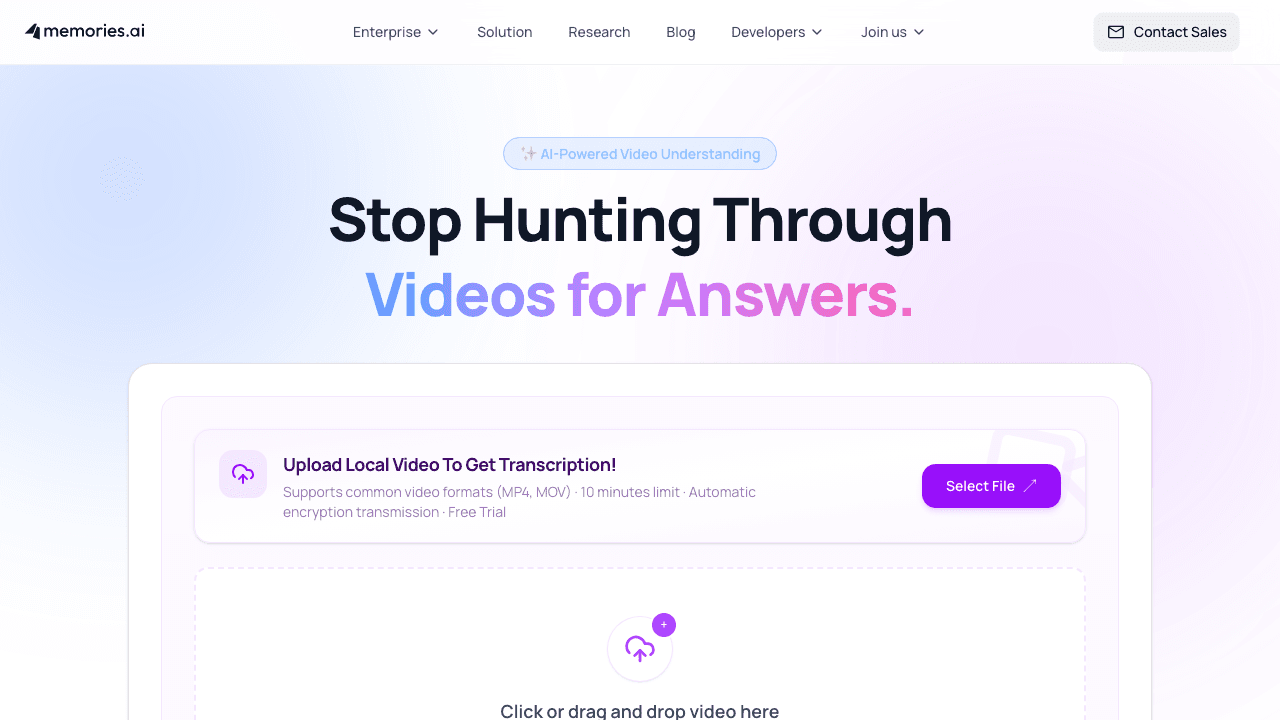
Memories.ai inverts the usual flow: instead of generating a fixed FAQ list, you paste a video URL or upload a file, then chat with the AI about what's inside. Answers come back with timestamps, so you can jump straight to the moment in the video that supports the answer. It's closer to "ChatGPT for video content" than a traditional FAQ generator, but for some use cases (research, due diligence, reviewing a long lecture) it's a better fit than a static FAQ.
Strengths:
- Open-ended Q&A means you can pull out the exact angle you care about
- Timestamped answers make verification fast
- Strong for long-form content like lectures, meetings, and webinars
Limitations:
- No bulk "generate me 10 FAQs" output by default, you have to ask question by question
- Less useful if you need a fixed, exportable FAQ block for a help center
- Quality varies on videos with poor audio or heavy on-screen content
Pricing: Free tier with usage limits.
For longer-form sources like recorded webinars, the related play is to extract the FAQ once and stop having the same calls. We wrote about that pattern in from webinar recording to knowledge base.
Which One Should You Pick
The honest answer depends on what happens after the FAQs exist.
- You want clean Q&A pairs you'll paste into a help center or knowledge base. Use Vidocu. Multimodal analysis, real export, no YouTube-only restriction, and the same upload unlocks subtitles, voiceover, and a full step-by-step doc if you want them.
- You just want a quick read of a public YouTube video. Use DocsBot. Lowest friction on the list.
- You record your team's meetings and want FAQ output as part of that flow. ScreenApp.
- You're an educator and need MCQ, T/F, and open-ended questions for class. Twee.
- You want an interactive in-video quiz, not a text FAQ. ScreenPal.
- You want to ask your own questions of a specific video on demand. Memories.ai.
For most product, support, and customer success teams reading this, the cleanest path is to treat FAQ generation as one step of a bigger workflow: same upload, multiple outputs. That's where general-purpose video documentation tools beat single-purpose FAQ generators. See our buyer's guide to video documentation software for the framework we recommend when picking a stack.
One upload, every output
Vidocu turns the same video into FAQs, subtitles, voiceover, a step-by-step doc, and translated versions. Free to try, no credit card needed.
Start with the FAQ generatorFAQ
How many FAQs should I generate from a single video?
Match the count to the video's length and density. A 5-minute product walkthrough rarely supports more than 5 or 6 real questions. A 45-minute webinar can easily yield 15 to 20 without padding. Most quality tools auto-scale the count for you. If you have to choose, pick fewer, sharper questions over more, vaguer ones.
Can I generate FAQs from a Loom or Zoom recording?
Yes, but only if the tool accepts uploads or processes the platform's public link format. YouTube-only tools won't work. Vidocu, ScreenApp, Twee, and Memories.ai all support direct uploads in the formats those platforms export, typically MP4.
Do video FAQ generators work for non-English videos?
Most of the tools on this list transcribe English best. Several support additional languages with varying accuracy. If your source is non-English, look specifically for tools that advertise multilingual transcription, then test on a short clip before committing to a longer video.
What's the difference between a video FAQ generator and a video summarizer?
A summarizer produces a narrative recap, often as bullet points or a paragraph. A FAQ generator produces question-and-answer pairs structured for direct use in a help center, knowledge base, or product page. Both read the same source, but the output structure is different. For a deeper look at the summarizer side, see our list of best AI video summary generators.
Can I edit the FAQs after generation?
Always, and you should. Treat the AI output as a first draft. The questions are usually phrased the way the model thinks a viewer would ask, which is fine, but real users phrase questions differently. A 2-minute editing pass on phrasing and answer length usually doubles the usefulness of the final FAQ block.
Ready to turn your videos into clean, exportable FAQs? Try Vidocu's free video FAQ generator. No credit card. Your first run is free.

Written by
Daniel SternlichtDaniel Sternlicht is a tech entrepreneur and product builder focused on creating scalable web products. He is the Founder & CEO of Common Ninja, home to Widgets+, Embeddable, Brackets, and Vidocu - products that help businesses engage users, collect data, and build interactive web experiences across platforms.