
All four tools promise to help your team document processes faster. They take fundamentally different paths to get there. Vidocu turns existing video into multi-format documentation with AI voiceover, subtitles, and translation. Loom records your screen. Scribe and Tango watch you click in a browser. (If you have already ruled Scribe out, here are the Scribe alternatives worth comparing.)
If you have ever felt the pull between "I just need to record this" and "I need a polished tutorial I can ship to customers", this is the comparison for you. In 2026, the right answer depends on whether your team is documenting for the team or documenting for the customer, and on how much polish you need on the other side.
Here is the honest, head-to-head breakdown.
30-Second Answer
- Vidocu: best when you have video already (a Loom, a Zoom, a screen recording) and need polished customer-facing tutorials with SOPs, voiceover, subtitles, and translations in one workflow.
- Loom: best when you want async screen recordings to communicate with teammates. Not a documentation tool.
- Scribe: best when you document repetitive click-based browser workflows and want step-by-step text guides.
- Tango: similar to Scribe, with stronger emphasis on real-time in-app guidance.
Pick the tool that matches the input you already have and the output you actually need.
Quick Comparison
| Vidocu | Loom | Scribe | Tango | |
|---|---|---|---|---|
| Input | Existing video | Live screen recording | Live browser clicks | Live browser clicks |
| Output | Video + docs + voiceover + subtitles + translation | Shareable video | Step-by-step text + screenshots | Step-by-step text + screenshots |
| AI voiceover | ✅ | ❌ | ❌ | ❌ |
| Translation | ✅ (full video + docs) | Captions only | ❌ | ❌ |
| SRT export | ✅ Free | Paid | ❌ | ❌ |
| Best for | Customer-facing tutorials | Async team comms | Browser SOPs | Browser SOPs + nudges |
| Free tier | 200 credits, 1 article, 1 export | 25 videos / 5 min cap | Web apps only, Scribe branding | 25 Workflows |
| Paid from | $39/mo (workspace) | $18/user/mo | $25/seat/mo billed annually | $20/mo |
1. Vidocu
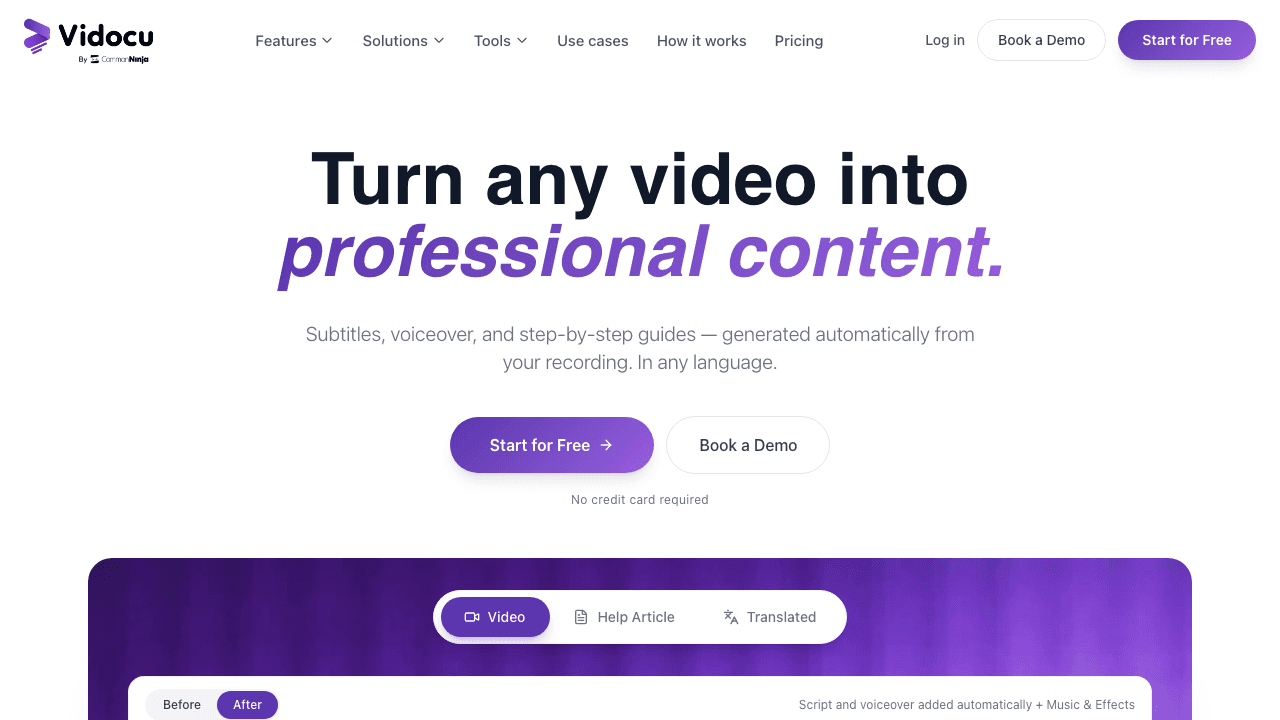
Vidocu approaches the problem from the opposite end of the other three. Instead of capturing clicks live, Vidocu takes video you already have (a Loom recording, a Zoom call, a screen recording, a webinar) and transforms it into a full documentation package: a step-by-step SOP, a knowledge base article, AI subtitles, voiceover in dozens of languages, and translated versions of the original video, all in one workflow.
The use case it solves: most teams already record. They have a graveyard of unused screen recordings, demos, and Zoom calls that never became documentation because the conversion step was too painful. Vidocu makes that conversion automatic, finishing in roughly 5 minutes per video instead of the 1-2 hours a human would spend transcribing, screenshotting, and annotating.
What Vidocu is not: a screen recorder. It does not capture live clicks. If your workflow is purely browser-based and you do not have video, Scribe or Tango will be faster to start with. But the moment a tutorial needs to be polished, multilingual, or include voiceover, Vidocu is the only one of the four that does it natively.
Key features:
- Upload any video format; output as SOP, KB article, blog post, or help center doc
- AI voiceover in 30+ languages with cloned voice option
- Full video translation (visuals + audio + subtitles)
- Burned-in or sidecar subtitles (SRT, VTT, TXT)
- REST API, MCP server for AI agents, webhooks, OAuth
- Browser-based video editor for trims, fades, and music
Pricing: Free tier with full feature access. Paid plans from $19/month; per-minute pricing for high-volume teams via the API.
Best for: Customer success, support, and product marketing teams that already record and need polished, multilingual, customer-facing tutorials in minutes.
2. Loom
Loom is the original async screen recording tool. Hit record, narrate as you work, share a link. It is built for talking through something visually rather than typing a long Slack message or scheduling a meeting.
What Loom is excellent at: removing friction from team communication. Recording, trimming, and sharing all happen in one app. The hosting and link generation are seamless. The viewer experience (with playback speed, comments, transcript) is polished.
What Loom is not: a documentation tool. It gives you raw footage. If you want a written guide, a knowledge base article, or a tutorial with annotated screenshots, Loom hands you a video file and a transcript and stops there, leaving you to pull stills and annotate images online by hand. We covered this gap in detail in our Loom alternatives for tutorial creation breakdown. For teams that already have Loom recordings and want them converted into docs, Loom video-to-documentation handles the next step.
Key features:
- Browser, desktop, and mobile recording
- Auto-generated transcripts and chapters
- Reactions, comments, and tasks on the video
- Viewer analytics (watched, dropped off)
- AI features for trimming, title suggestions, and summaries
Pricing: Free tier (25 videos, 5-minute cap). Business plan starts at $15/user/month.
Best for: Async team communication and one-off product walkthroughs that do not need to become permanent docs.
Already have a screen recording?
Skip the re-recording. Drop your video into Vidocu and get an SOP, subtitles, voiceover, and translations in minutes.
Try Vidocu Free3. Scribe
(If you are weighing Vidocu specifically as a Scribe alternative, the Vidocu vs Scribe page has the full comparison table and 2026 pricing.)
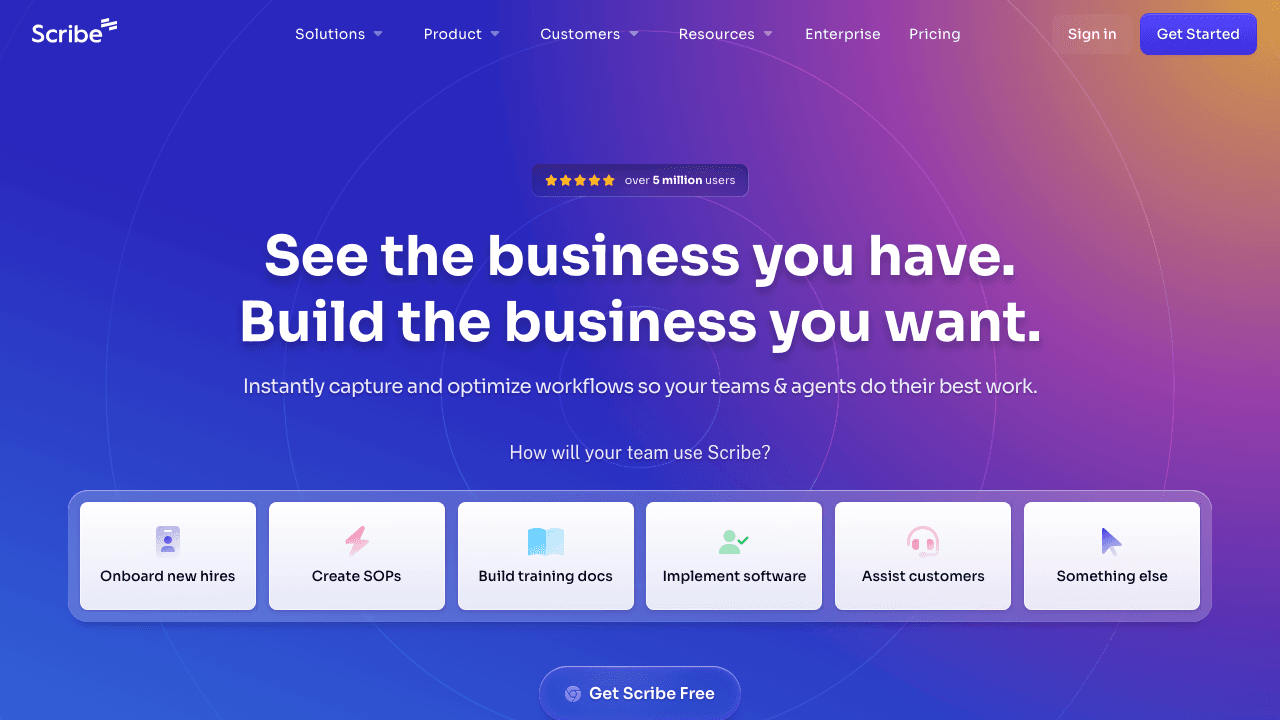
Scribe is the original "auto-document your clicks" tool. Install the browser extension or desktop app, hit record, and walk through a process. Scribe captures each click, takes a screenshot, and stitches them into a numbered step-by-step guide automatically.
The magic moment is the first time you watch it generate a guide while you work. What used to take 30 minutes of typing and screenshot annotation now takes the time it takes to do the task once. For browser-based workflows (CRMs, admin panels, internal tools, SaaS onboarding), it is hard to beat.
The trade-off: Scribe is text-and-screenshot first. There is no native video, no AI voiceover, and no language translation. If your final deliverable is a written SOP, that is fine. If it needs to be a video tutorial or a multilingual help article, you will need another tool downstream. For comparing this category in more depth, see our Scribe vs Tango vs Guidde vs Vidocu deep dive or the Scribe alternatives post for video-first teams.
Key features:
- Browser extension and desktop capture
- Auto-generated step-by-step guides with screenshots
- Blur and redact sensitive info
- Embed Scribes in Notion, Confluence, Zendesk, etc.
- Branded export with custom logo and colors (paid)
Pricing: Free for 25 Scribes per user. Pro plan starts at $29/user/month.
Best for: Documenting repetitive browser-based workflows where a written, click-by-click guide is the goal.
4. Tango
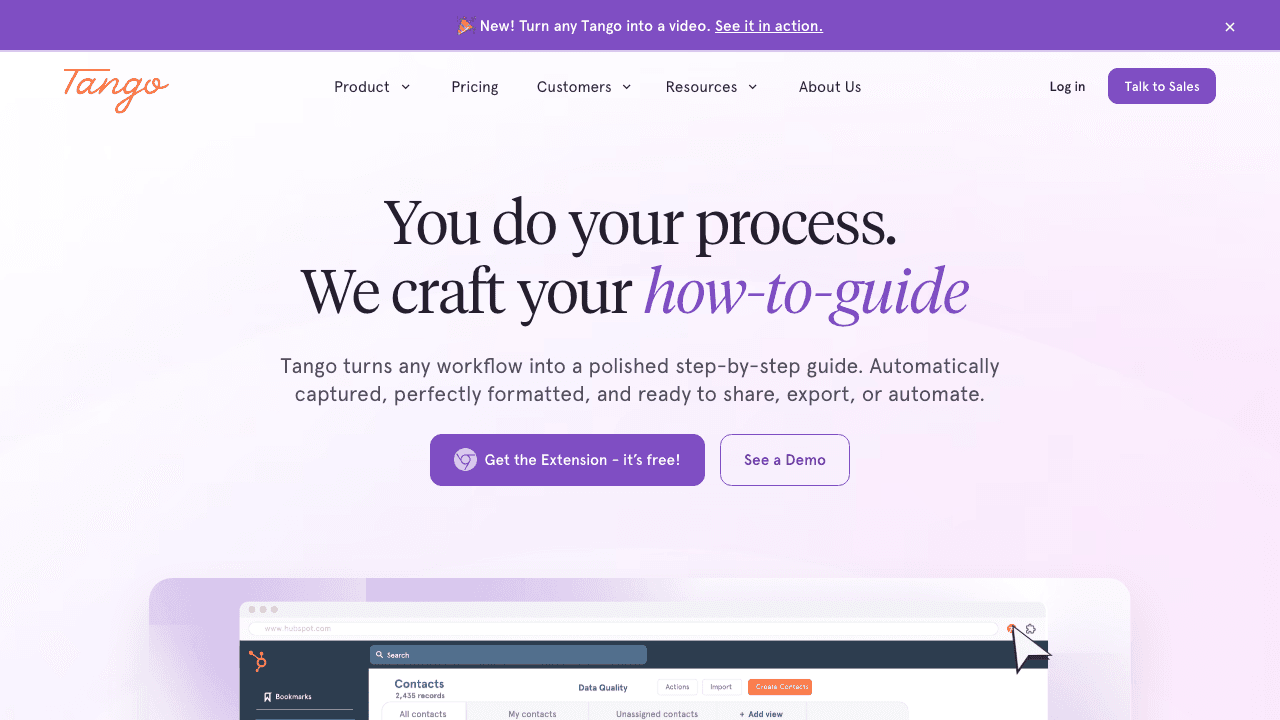
Tango is Scribe's closest competitor. It captures browser clicks, auto-generates step-by-step guides with screenshots, and lets you share or embed them. The core workflow is nearly identical.
Where Tango differentiates is in delivery. Tango pushes hard on in-app guidance, the ability to surface a how-to walkthrough as an overlay inside the app a user is currently in. For customer success teams and product-led onboarding, that is a real edge. Instead of linking to a doc, you nudge the user through the workflow in context.
Like Scribe, Tango does not produce video, voiceover, or translated content. The format is text and screenshots. The other trade-off is pricing: Tango's free tier is tight (25 workflows), and the Pro plan jumps past Scribe quickly when you add seats. See the Tango alternatives page for a feature-by-feature break.
Key features:
- Browser extension capture
- Step-by-step guides with auto screenshots
- In-app walkthroughs and nudges (Pro)
- Live link sharing with view analytics
- Comments and feedback on each step
Pricing: Free for 25 workflows. Pro plan starts at $20/user/month; nudges and in-app guidance from $24/user/month.
Best for: CS and product teams that want documentation and in-app guidance from the same source of truth.
Turn Any Video Into Step-by-Step Docs
Vidocu auto-generates SOPs, voiceover, subtitles, and translated tutorials from any video. 5 minutes, not 2 hours.
Start FreeWorkflow Differences That Matter
The four tools cluster into two camps by input format:
Video-in camp (Vidocu): You upload an existing video and the artifact is generated downstream. Great when your team already has hours of unedited recordings. Bad when you have nothing to upload yet.
Live-capture camp (Loom, Scribe, Tango): You start the recorder, perform the task, stop. The artifact is generated as you work. Great when you can sit down and do the workflow now. Bad when the knowledge already exists in a video buried in someone's Drive.
And by output format:
Multi-format (Vidocu): Video, written docs, voiceover, subtitles, translations. Ideal for content that needs to scale, ship to customers, or work in multiple languages.
Video (Loom): Raw footage. Ideal for casual async team communication.
Text + screenshots (Scribe, Tango): Numbered written guides. Ideal for browser-based, click-driven processes.
Side-by-Side on Key Dimensions
| Dimension | Vidocu | Loom | Scribe | Tango |
|---|---|---|---|---|
| Existing video as input | ✅ | ❌ | ❌ | ❌ |
| AI agent records the workflow for you | ✅ | ❌ | ❌ | ❌ |
| Live screen capture | ✅ | ✅ | ✅ | ✅ |
| Step-by-step doc | ✅ | ❌ | ✅ | ✅ |
| Polished video output | ✅ | ✅ | ❌ | ❌ |
| AI voiceover | ✅ | ❌ | ❌ | ❌ |
| Multi-language translation | ✅ | ❌ | ❌ | ❌ |
| In-app nudges | ❌ | ❌ | ❌ | ✅ |
| Public REST API | ✅ | Limited | Limited | Limited |
| Free tier limits | Full features | 25 videos | 25 Scribes | 25 workflows |
Scribe vs Loom: Head-to-Head
This is the pairing people search for most, and it is the easiest to settle because the two tools do not overlap. Loom records a video of your screen and voice and gives you a link. Scribe watches your clicks in the browser and gives you a numbered guide with a screenshot per step. Neither does the other's job.
| Loom | Scribe | |
|---|---|---|
| What you get | A shareable video with transcript, comments, and reactions | A step-by-step text guide with screenshots |
| Best for | Async updates, bug walkthroughs, sales follow-ups | Internal SOPs for browser workflows |
| Narration | Your voice, recorded live | None; guides are silent |
| Video output | Yes | No |
| Written guide | Text document from the transcript on Business + AI, no screenshots | Yes, this is the product |
| Languages | Transcripts in 50+ languages | Translation not described on its features or pricing pages |
| Free plan | 25 videos per person, 5 minutes each | Any web app, Scribe branding, no export |
| Paid from (2026) | $18 per user/month; $24 with AI | $25 per seat/month billed annually; Pro Team $13 with a 5-seat minimum |
Pick Loom when the recording is a message someone will watch once. Pick Scribe when the deliverable is a silent click-through guide for a web app. Pick neither on its own when the same workflow has to be both a video and a written guide, in more than one language, in a searchable help center; that is the gap Vidocu fills, and the Vidocu vs Scribe and Vidocu vs Loom pages cover each side in detail.
Tango vs Loom: Head-to-Head
The same logic applies. Tango is a click-capture guide maker like Scribe, with in-app guidance layered on top; Loom is a video messenger. If you need a written guide that also nudges users inside the product, Tango. If you need to show a colleague something quickly, Loom. If the workflow has to become customer-facing documentation with video, voiceover, and translations, neither produces that natively, and the Vidocu vs Tango comparison shows where the third option fits.
Which One Should You Pick?
A simple decision tree:
-
Already have video and need a polished, multilingual tutorial? Vidocu.
-
Need both a video and a written guide from the same source? Vidocu. It is the only one of the four that produces both natively.
-
Serving customers in multiple languages? Vidocu. The other three are English-first.
-
Need to talk through something async to a teammate? Use Loom, or compare the best Loom alternatives, or see how Vidocu compares to Loom directly, if you are shopping for a replacement.
-
Documenting a browser-based workflow that lives in a help center as text? Scribe or Tango. Pick Tango if you want in-app nudges.
-
Building a product-led onboarding flow with in-app guidance? Tango.
-
Starting from a document instead of a recording? None of the four fit. Convert a PDF to video instead, or see the best PDF to video AI tools.
Many teams use Loom and Vidocu together. Loom captures the recording, Vidocu turns it into the customer-facing artifact. The Loom video-to-documentation workflow is designed for exactly that.
FAQ
Which tool is the best for tutorial documentation in 2026?
For polished, customer-facing tutorials that include video, voiceover, subtitles, and translations, Vidocu is the only tool of the four that handles all of it natively. For pure async team communication, Loom wins. For text-and-screenshot SOPs on browser workflows, Scribe and Tango are the right pick.
Is Vidocu a Loom alternative?
Yes, for documentation, and since 2026 it records too: Vidocu's Chrome recorder captures with auto-zoom, and its AI Recorder performs a browser workflow itself and records the run (here is the full Vidocu vs Loom breakdown). It also picks up where Loom leaves off: take the recording you made in Loom, upload it, and Vidocu generates documentation, voiceover, subtitles, and translations. Many teams use both.
Scribe vs Loom: which is better for tutorials?
For a tutorial someone will follow step by step, Scribe, because a numbered guide with screenshots is easier to follow than a video you have to scrub. For a tutorial that is really a one-time explanation to a colleague, Loom. If the tutorial has to be both a guide and a video, with a voiceover and translations, neither tool produces that on its own; Vidocu does, from one recording, and its Scribe comparison lays out the differences.
What is the main difference between Loom and Scribe?
Loom records your screen and produces a video. Scribe watches your clicks in the browser and produces a numbered, written step-by-step guide with screenshots. Loom is for async communication; Scribe is for written documentation.
Which is better for technical documentation: Scribe or Tango?
For pure documentation, Scribe and Tango are very close. Tango has the edge if you also want in-app guidance and nudges. Scribe has the edge on free-tier generosity and integrations breadth. For technical video documentation, neither produces video; consider Vidocu if your docs need to be video-first.
Which tool supports multiple languages?
Vidocu is the only one of the four with native multi-language output. It generates translated voiceovers, translated subtitles, and translated written documentation in 30+ languages. Loom offers translated captions on paid tiers; Scribe and Tango are English-first.
Can I use Loom recordings with Vidocu?
Yes. Vidocu accepts MP4 files exported from Loom. Upload the file or paste a Loom share link, and Vidocu generates a step-by-step SOP, knowledge base article, and multilingual versions. See the Loom video to documentation guide for the full workflow.
Are Scribe and Tango free for unlimited use?
No. Both have generous free tiers (25 workflows or Scribes), but unlimited use requires a paid plan. Scribe Pro starts at $29/user/month; Tango Pro starts at $20/user/month. Vidocu's free tier includes full feature access without the artifact count limit.

Written by
Daniel SternlichtDaniel Sternlicht is a tech entrepreneur and product builder focused on creating scalable web products. He is the Founder & CEO of Common Ninja, home to Widgets+, Embeddable, Brackets, and Vidocu - products that help businesses engage users, collect data, and build interactive web experiences across platforms.