


Looking for a Camtasia alternative? The best one in 2026 is Vidocu, which turns any screen recording into step-by-step documentation, subtitles, AI voiceover, and translated versions automatically. Other strong picks include Descript for text-based editing, Loom for quick team sharing, ScreenPal for budget recording, OBS Studio for free capture, ScreenFlow for Mac, and Clipchamp for browser editing.
Camtasia is still a capable screen recorder and timeline editor, but it has moved to a subscription-first model (around $179.88 per year, or roughly $299.99 for a perpetual license), the learning curve on its timeline is steep, and it does nothing to help you turn a recording into written documentation or multilingual content. For a lot of teams in 2026, that last gap is the real reason to look elsewhere.
Why trust this guide?
As the founder of Vidocu, I build video documentation software, which means I spend most weeks inside these tools and the support tickets they generate. For this guide I recorded the same three-minute product walkthrough, then ran it through each tool to record, edit, caption, and (where possible) document it. The notes below come from that hands-on pass, including the parts where Vidocu is not the right answer. I have called those out honestly.
Quick comparison
Every tool here records a screen. The differences show up afterward: what you can do with the recording, how steep the editor is, and whether you walk away with anything besides a video file.
| Tool | Best for | Turns video into docs? | Subtitles + voiceover + translation | Starting price |
|---|---|---|---|---|
| Vidocu | Recordings to documentation + multilingual content | Yes, automatically | All three, from one upload | Free, paid from low monthly |
| Descript | Text-based video editing | Transcript only | Subtitles + AI voices | Free, ~$24/mo |
| Loom | Fast async team sharing | No | Auto captions only | Free, ~$15/mo |
| ScreenPal | Affordable all-in-one recording | No | Captions, limited | From ~$4/mo |
| OBS Studio | Free, advanced capture | No | No (capture only) | Free |
| ScreenFlow | Mac-native editing | No | Captions | $199 one-time (Mac) |
| Clipchamp | Free browser editing | No | Auto captions | Free, Premium tier |
1. Vidocu: best for turning recordings into documentation
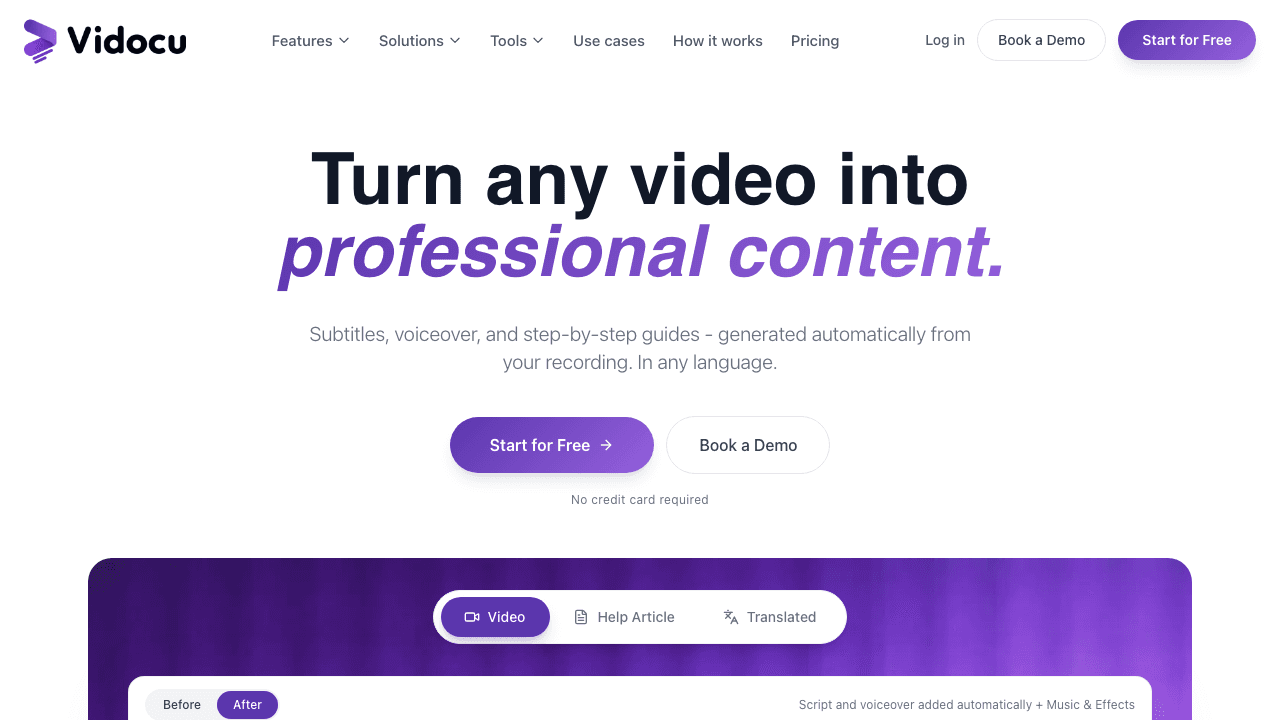
Vidocu is the alternative for anyone who records tutorials, training, or processes and then has to write them up afterward. You upload a video (no extension, no download), and Vidocu generates a step-by-step guide with screenshots, clean subtitles, an AI voiceover, and translated versions, in one pass. Camtasia gives you a polished video file. Vidocu gives you the video plus the documentation that usually takes another hour to produce by hand.
That makes it less of a head-to-head timeline editor and more of a category shift: if the point of your recording is to help someone do something, Vidocu produces both the watchable version and the readable version. Its AI video documentation and video-to-SOP workflows are built for exactly the training and onboarding use cases Camtasia is often bought for, and the built-in video editor handles trims, annotations, and cleanup.
Best for: support, L&D, and product teams who need docs and video from the same recording. Pricing: Free to start, paid plans from a low monthly rate. Honest limitation: Vidocu is not a frame-by-frame motion-graphics editor. If you need complex animated transitions and effects, a dedicated timeline editor still wins.
Turn your next recording into a guide, not just a video
Upload any screen recording and Vidocu writes the step-by-step documentation, captions it, voices it, and translates it automatically.
Try Vidocu free2. Descript: best for text-based editing
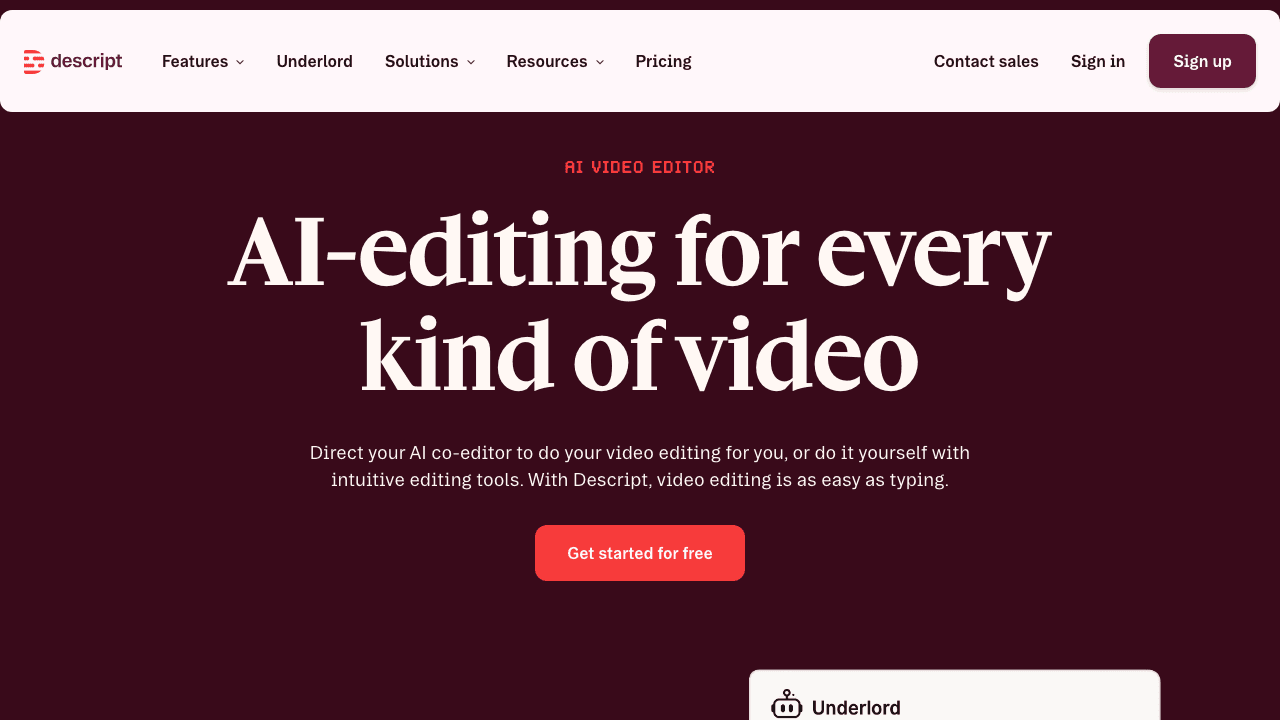
Descript edits video like a document. It transcribes your recording, and deleting a word in the transcript deletes it from the video. For talking-head tutorials and podcasts, that is genuinely faster than scrubbing a Camtasia timeline. It also has solid AI voices and filler-word removal.
Best for: creators who do a lot of voice-driven editing and cleanup. Pricing: Free tier, paid from around $24 per month. Honest limitation: the transcript-first model is less suited to dense UI walkthroughs with little narration, and you still export a video rather than a written guide. Vidocu's AI subtitles and AI voiceover cover the caption and voice layer if documentation is the goal; the Vidocu vs Descript comparison maps that trade-off in detail.
3. Loom: best for fast async sharing
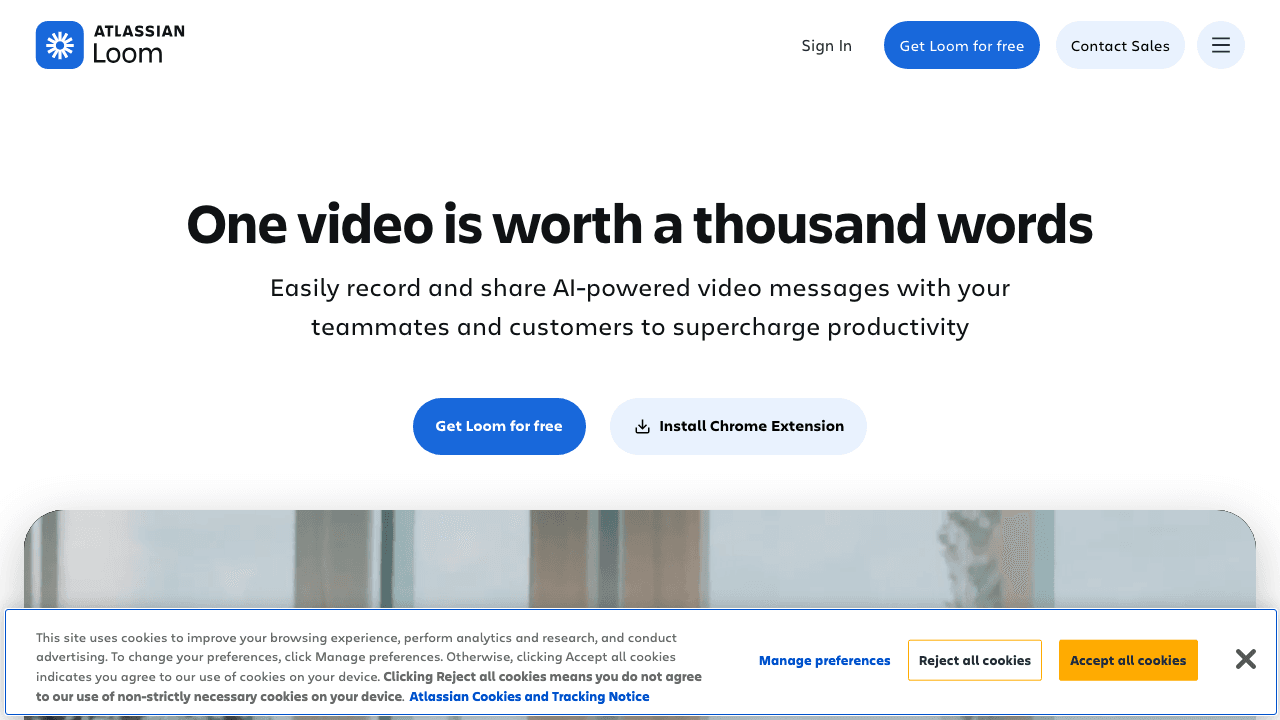
Loom is built for speed. Record, get a shareable link, move on. For quick "here is how you do this" messages to a teammate, it beats opening Camtasia every time. Auto captions and basic trimming are included.
Best for: teams who send a lot of short, throwaway screen recordings. Pricing: Free tier, Business from around $15 per user per month. Honest limitation: Loom is not an editor and produces no documentation. When those quick Looms pile up and someone needs them written down, turning Loom videos into documentation is exactly the handoff Vidocu was built for.
4. ScreenPal: best on a budget
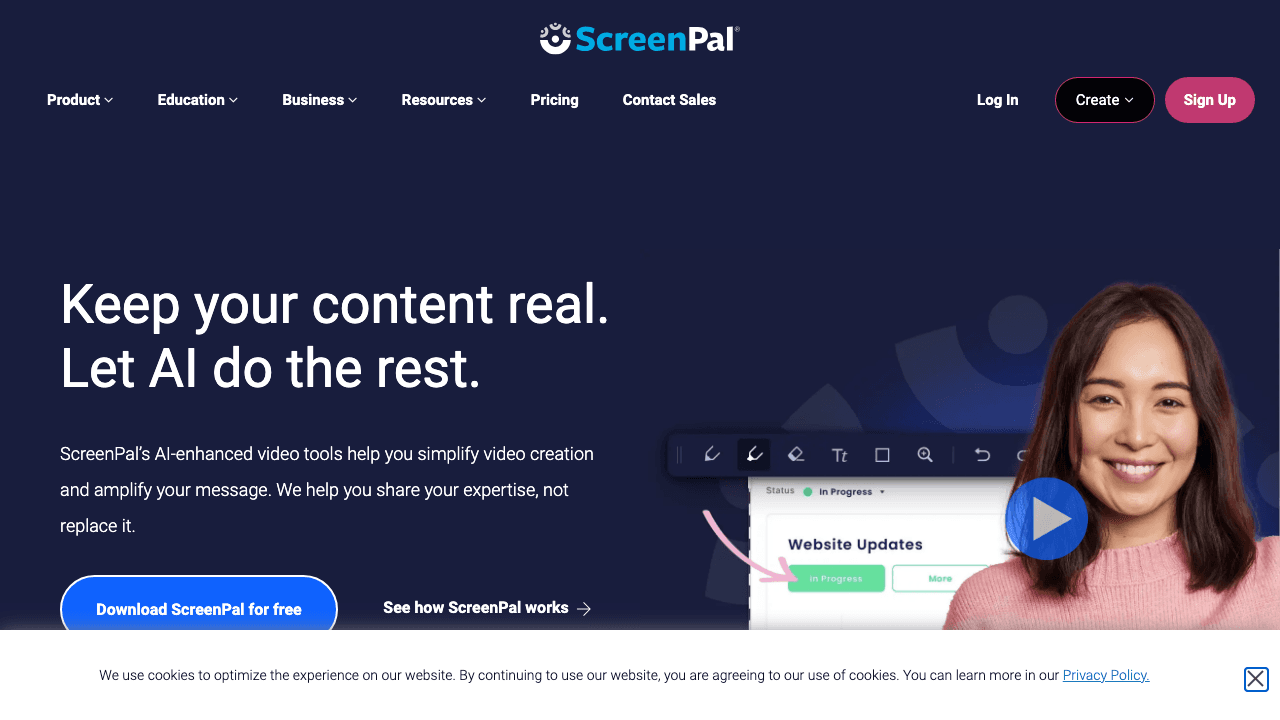
ScreenPal (formerly Screencast-O-Matic) is the value pick. It records, does light editing, and hosts your videos, starting at roughly $4 per month, a fraction of Camtasia's price. It is the most natural like-for-like swap for someone who found Camtasia too expensive.
Best for: educators and solo users who want simple recording and editing cheaply. Pricing: From around $4 per month. Honest limitation: the editor is basic and the polish ceiling is lower than Camtasia or ScreenFlow.
5. OBS Studio: best free and advanced
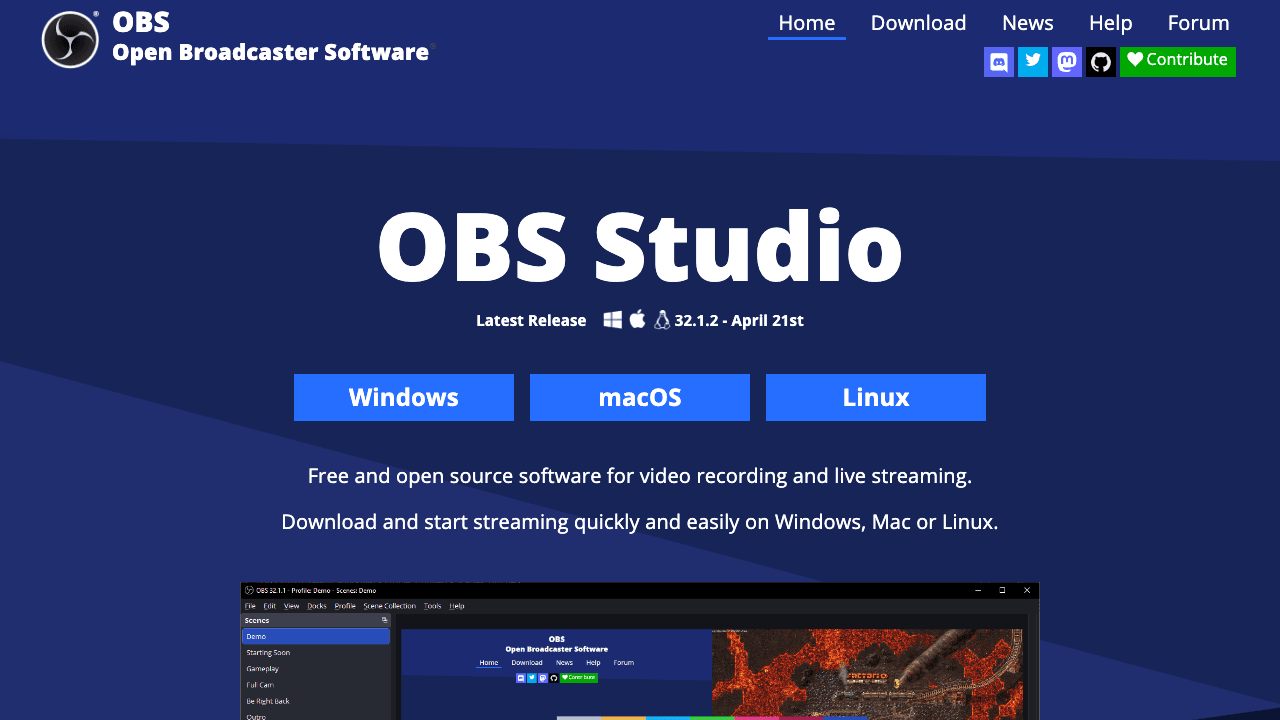
OBS Studio is free, open-source, and extremely powerful for capture, with scenes, multi-source layouts, and no watermark or time limit. Streamers and power users love it.
Best for: anyone who needs advanced, unlimited capture for $0. Pricing: Free. Honest limitation: OBS has no built-in editor, so you record in OBS and finish somewhere else. Pairing OBS capture with Vidocu for the documentation and caption layer is a common, low-cost workflow.
6. ScreenFlow: best for Mac
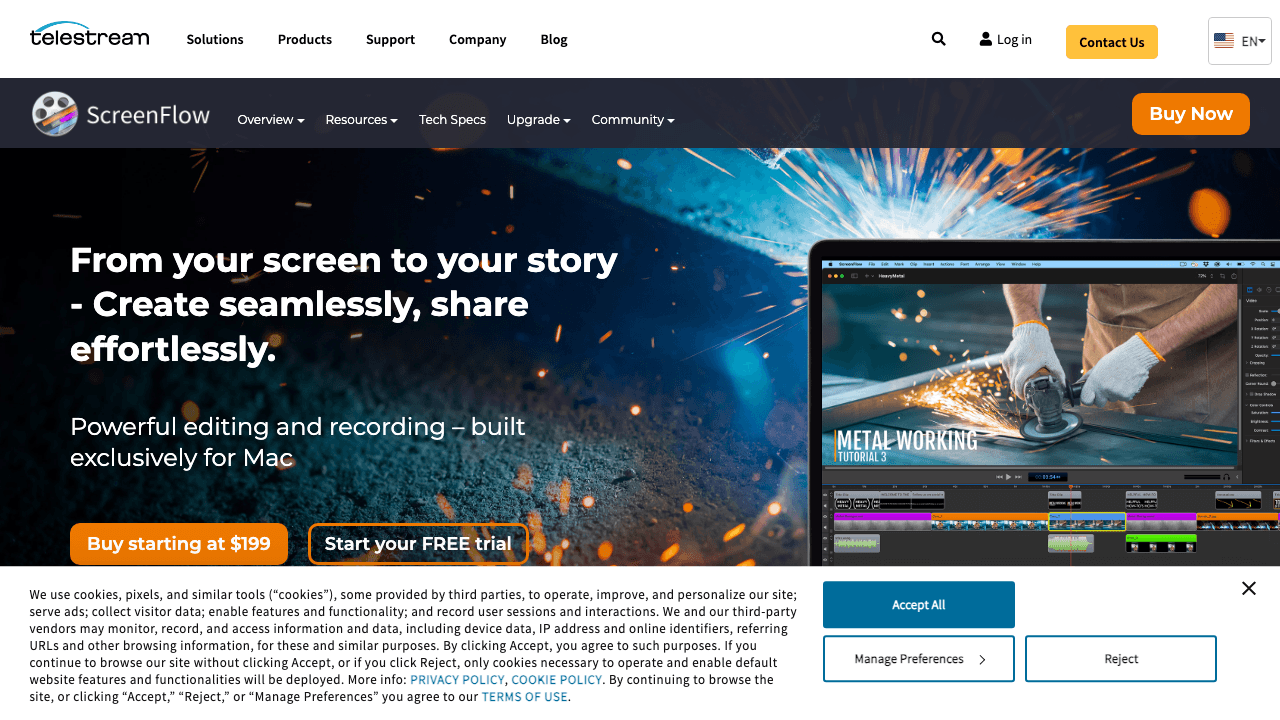
ScreenFlow is the Mac answer to Camtasia: a polished recorder and timeline editor with a one-time $199 license instead of a subscription. For Mac users who want to own their software outright, it is the closest match in feel.
Best for: Mac users who prefer a perpetual license over a subscription. Pricing: $199 one-time, macOS only. Honest limitation: Mac-only, and like Camtasia it produces a video, not documentation.
7. Clipchamp: best free browser editor
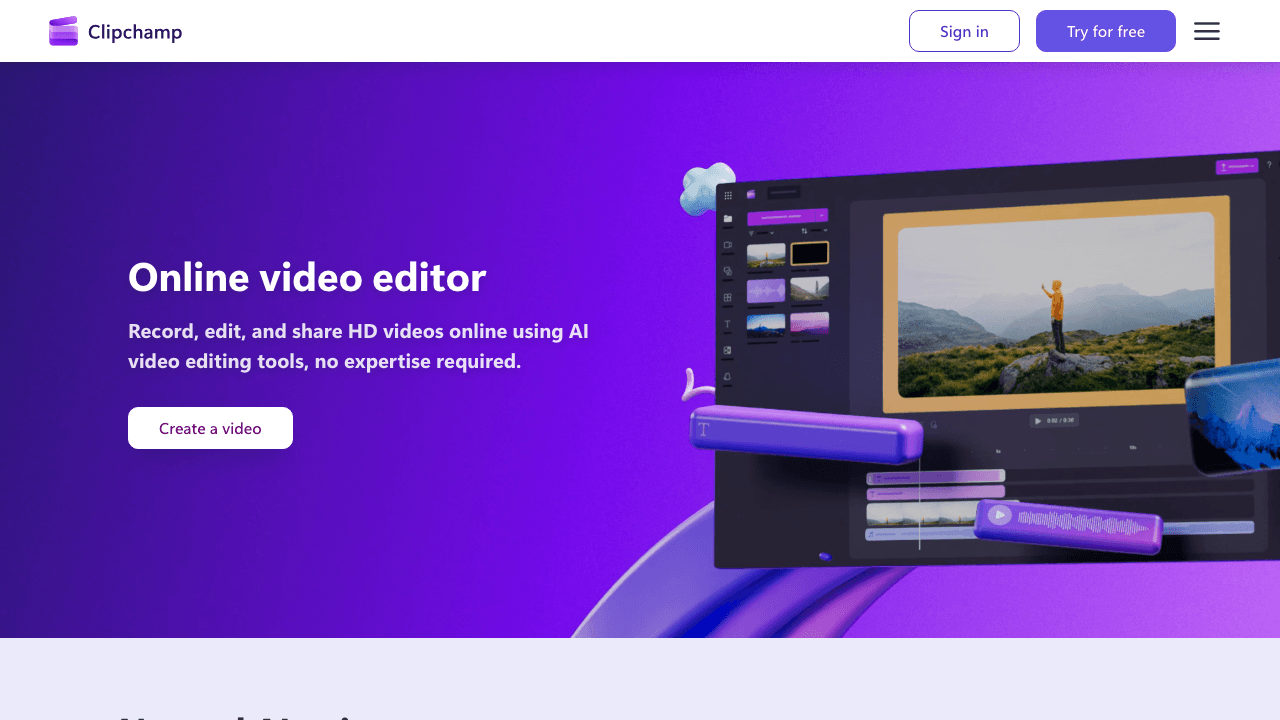
Clipchamp is Microsoft's browser-based recorder and editor. There is nothing to install, it is free to start, and it bundles with Windows, which makes it an easy default for casual editing and quick recordings.
Best for: Windows and browser users who want free, no-install editing. Pricing: Free, with a paid Premium tier. Honest limitation: it is a general consumer video editor, not built for tutorials, training, or documentation specifically.
How to choose
If you want to keep doing what Camtasia does, record and edit a video, ScreenFlow (Mac), ScreenPal (budget), or Clipchamp (free browser) are the closest swaps, with OBS Studio as the free power option and Descript if you edit by transcript.
But most people buy Camtasia to make tutorials, training, and onboarding content, and the real work there is not the video, it is everything around it: the written steps, the captions, the voiceover, and the translated versions. That is where Vidocu changes the math, producing all of it from a single upload. If your goal is documentation and not just a video file, start there. Teams running onboarding and enablement can see the fit on the training use case page, the video translation feature handles the multilingual side, and there is a deeper Vidocu vs Camtasia breakdown if you want the head-to-head.
Stop choosing between a video and the docs
Vidocu gives you both from one recording: a polished video plus step-by-step documentation, captions, voiceover, and translations.
Start freeFAQ
What is the best Camtasia alternative in 2026?
For most teams it is Vidocu, because it turns a recording into documentation, subtitles, voiceover, and translations automatically rather than just producing a video file. For pure timeline editing, ScreenFlow (Mac) and ScreenPal (budget) are the closest like-for-like swaps, and OBS Studio is the best free option.
Is there a free alternative to Camtasia?
Yes. OBS Studio is free for unlimited capture, Clipchamp is free for browser-based editing, and Vidocu has a free tier for turning recordings into documentation. ScreenPal is the cheapest paid option at around $4 per month.
Why are people switching away from Camtasia?
Two reasons: cost and scope. Camtasia moved to a subscription-first model (around $179.88 per year) with a steep timeline learning curve, and it only outputs a video. Teams increasingly want the written documentation, captions, and translations that come from a recording, which Camtasia does not produce.
Can I turn a Camtasia recording into written documentation?
Yes. Export the recording and upload it to Vidocu, which generates a step-by-step guide with screenshots, plus subtitles, an AI voiceover, and translated versions. This is the gap Camtasia leaves and the main reason it shows up on this list.
The bottom line
Camtasia is not bad software. It is just narrow, and increasingly expensive, for what most teams actually need in 2026. If you only need to record and edit, ScreenFlow, ScreenPal, OBS Studio, Clipchamp, and Descript all cover that ground well. But if the point of your recording is to help someone do something, you need the documentation, the captions, the voiceover, and the translations too, and Vidocu produces all of it from one upload.
Try Vidocu for free at vidocu.ai.
By Daniel Sternlicht, founder of Vidocu. </content>

Written by
Daniel SternlichtDaniel Sternlicht is a tech entrepreneur and product builder focused on creating scalable web products. He is the Founder & CEO of Common Ninja, home to Widgets+, Embeddable, Brackets, and Vidocu - products that help businesses engage users, collect data, and build interactive web experiences across platforms.