
Burning subtitles into a video means permanently embedding the text into the video pixels, so captions show up on every device, every platform, no separate file needed. This guide covers the best free subtitle burner tools for 2026, from browser-based editors to desktop apps and command-line powerhouses.
Whether you need hardcoded captions for TikTok, Instagram Reels, or internal training videos, these tools get the job done without breaking the budget.
What Does "Burn Subtitles" Actually Mean?
There are two types of subtitles:
- Soft subtitles are separate text files (SRT, VTT) that a video player overlays during playback. Viewers can toggle them on or off.
- Hard (burned-in) subtitles are rendered directly into the video pixels. They are always visible, cannot be turned off, and work everywhere, including platforms like TikTok and Instagram that don't support SRT uploads.
A subtitle burner takes your subtitle file (or generates one automatically) and permanently bakes it into the video. The trade-off: you can't edit them after export, and you're locked to one language per file.
| Feature | Soft Subtitles | Burned-In Subtitles |
|---|---|---|
| Editable after export | Yes | No |
| Works on all platforms | Depends on player | Yes, always visible |
| Multiple languages | Switch tracks | One per video file |
| Social media friendly | No (most strip SRT) | Yes |
| Viewer can toggle | On/off | Always on |
Best Free Subtitle Burner Tools at a Glance
| Tool | Best For | Auto-Transcription | Free Tier Limits | Paid from |
|---|---|---|---|---|
| Vidocu | AI subtitles + documentation | Yes (90+ languages) | 200 credits (~4 min), 1 export | $39/mo |
| VEED | Social media creators | Yes | Watermark, 720p, 10 min | $10 per user/mo billed yearly |
| CapCut | TikTok/Reels creators | Yes | Most features free | Not published |
| Kapwing | Team collaboration | Yes | Watermark, 720p, 4-min exports, up to 50 min auto-subs | $16 per member/mo billed annually |
| Clideo | Quick one-off burns | Yes | Watermark, 720p, 10 credits/mo, 500 MB cap | $9/mo billed yearly ($108/yr) |
| HappyScribe | Multilingual projects | Yes (120+ languages) | 10-min AI trial, watermarked exports | $8.50/mo billed annually |
| HandBrake | Desktop batch processing | No | Fully free, no limits | Free, open source |
1. Vidocu
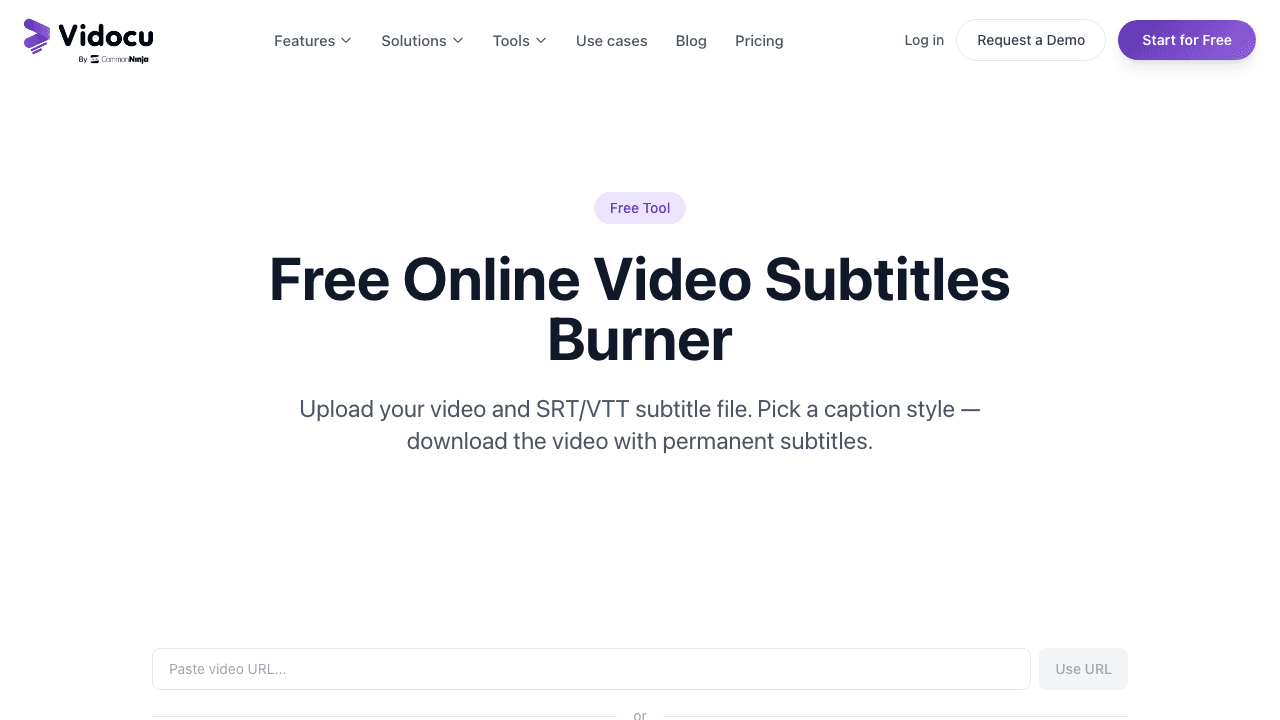
Vidocu is an AI-powered video platform that generates subtitles automatically in 90+ languages and lets you burn them directly into your video, no SRT file juggling required.
Upload a video and Vidocu transcribes it, lets you edit the subtitles in a visual timeline editor, then exports the video with captions permanently embedded. You also get AI voiceover, video-to-documentation, and translation in the same workflow.
Key features:
- AI transcription in 90+ languages with high accuracy
- Visual subtitle editor with timeline sync
- Customize font, size, color, and background
- Burn subtitles on export, one click
- Also generates help articles, SOPs, and translated versions from the same video
Pricing: Free plan at $0 (200 credits, roughly 4 minutes of AI video, 1 export). Pro is $39/month, Business is $149/month. Paid plans for higher volume and premium features.
Best for: Teams that need more than just subtitles, documentation, voiceover, and translation from a single upload.
Burn subtitles into any video automatically
Upload a video, get AI-generated captions, and export with burned-in subtitles, plus documentation, voiceover, and translation.
Try Vidocu free2. VEED
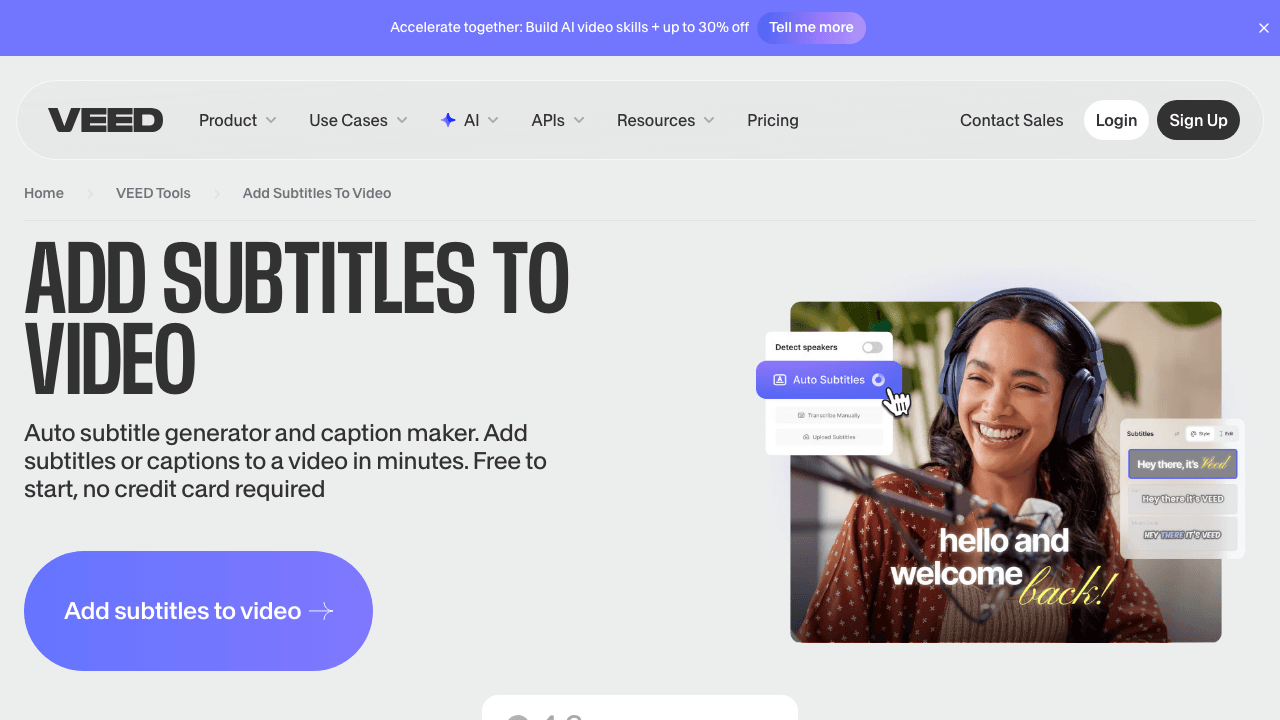
VEED is a popular browser-based video editor with strong AI subtitle features. It auto-transcribes your video, lets you style the captions (including trendy word-by-word animations), and exports with subtitles burned in.
The styling options are a standout, dozens of animated caption templates designed for social media. If you want the "highlighted word" effect that's popular on TikTok and Reels, VEED does it well.
Key features:
- AI auto-transcription with solid accuracy
- Word-by-word highlight effects and animated caption styles
- Export as burned-in video or download SRT/VTT
- Browser-based, no install needed
- Translation support
Pricing: Free with watermark, 720p, and 10-minute video limit. The Creator plan starts at $10/user/month billed yearly ($116/year).
Limitations: Free tier is restrictive, watermark on all exports, low resolution, and short video caps. The good stuff is behind the paywall.
Best for: Social media creators who want animated caption styles without a desktop editor.
3. CapCut
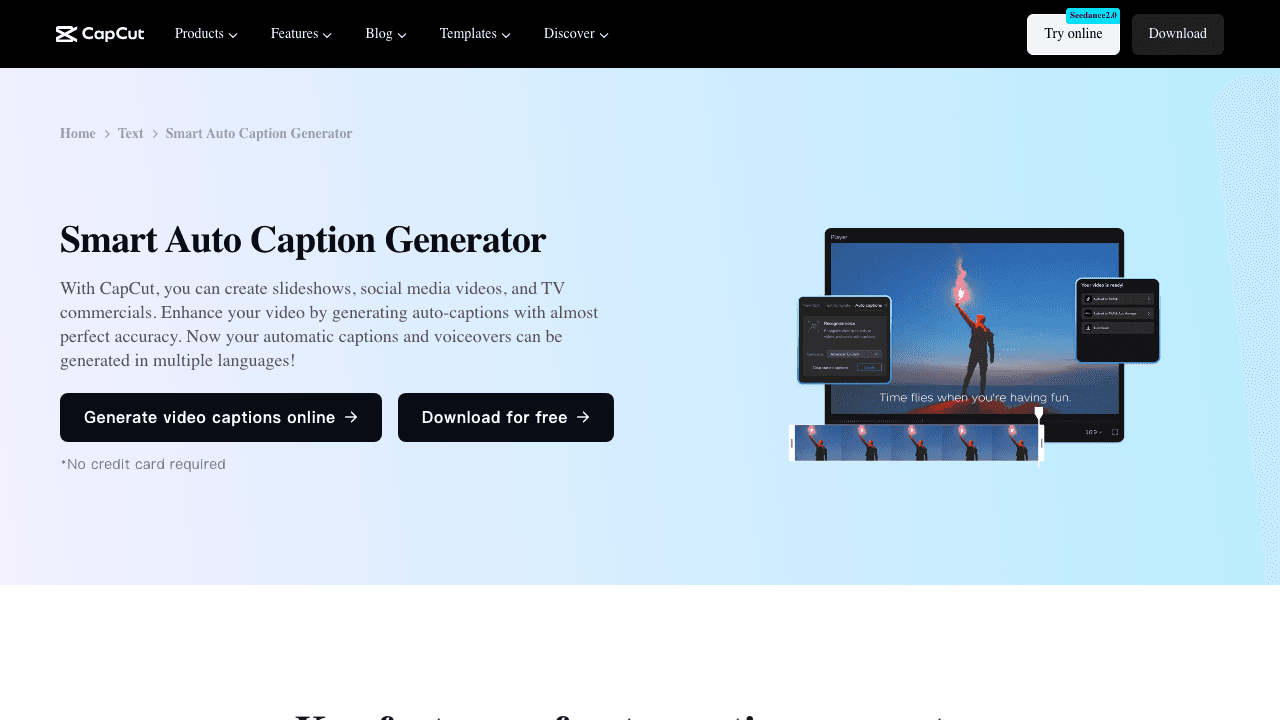
CapCut is ByteDance's free video editor, available as a desktop app, mobile app, and browser tool. Its Auto Captions feature transcribes and burns subtitles with one tap, and the animated text styles are built for short-form social content.
The word-by-word highlighting is CapCut's signature. It looks native to TikTok because, well, it is, CapCut and TikTok share a parent company.
Key features:
- Auto Captions AI with one-tap subtitle generation
- Word-by-word animated highlight effects
- Dozens of text templates and caption styles
- Full video editor with transitions, effects, and music
- Desktop, mobile, and browser versions
Pricing: Most features free. CapCut does not publish prices anywhere on its website (its pricing page returns a 404), and paid plans are sold in-app and vary by region, so treat any figure you see quoted elsewhere as a guess.
Limitations: Best effects are increasingly locked behind Pro. Data privacy concerns for some users (ByteDance ownership). The free tier is becoming more restrictive over time.
Best for: Short-form social media content, TikTok, Reels, Shorts.
4. Kapwing
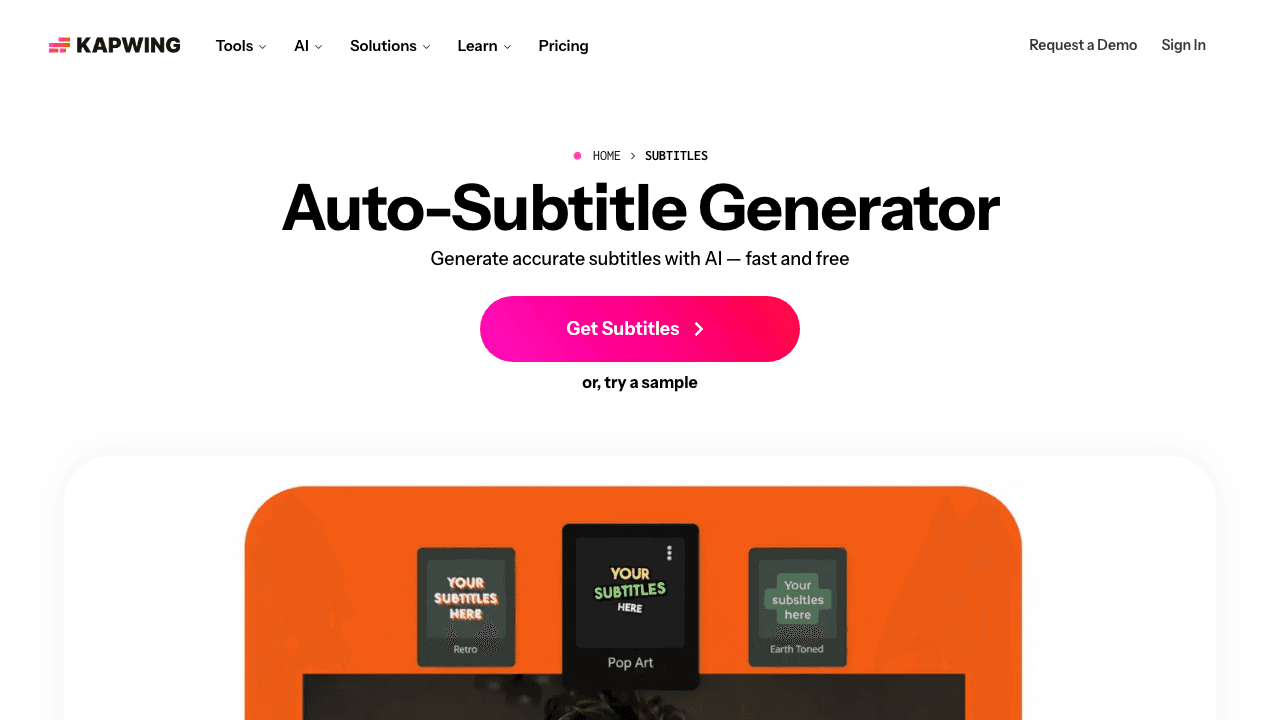
Kapwing is a full-featured online video editor that includes auto-subtitle generation and burn-in on export. It's more than a subtitle tool, you get a complete editing environment with team collaboration features.
The subtitle workflow is straightforward: upload, auto-generate captions, tweak timing and style, then export with subtitles permanently embedded.
Key features:
- Auto-subtitle generator with real-time preview
- Full video editor (trim, transitions, overlays)
- Team collaboration and shared workspaces
- Subtitle styling and positioning controls
- Export with burned-in captions
Pricing: Free tier adds a watermark, caps exports at 720p and 4 minutes, and includes up to 50 minutes of auto-subtitling. Pro is $16 per member/month billed annually ($24 monthly); Business is $50 ($64 monthly).
Limitations: Free tier is very limited. The paid plan is on the expensive side compared to competitors.
Best for: Teams and content creators who need a full video editor alongside subtitle burning.
5. Clideo
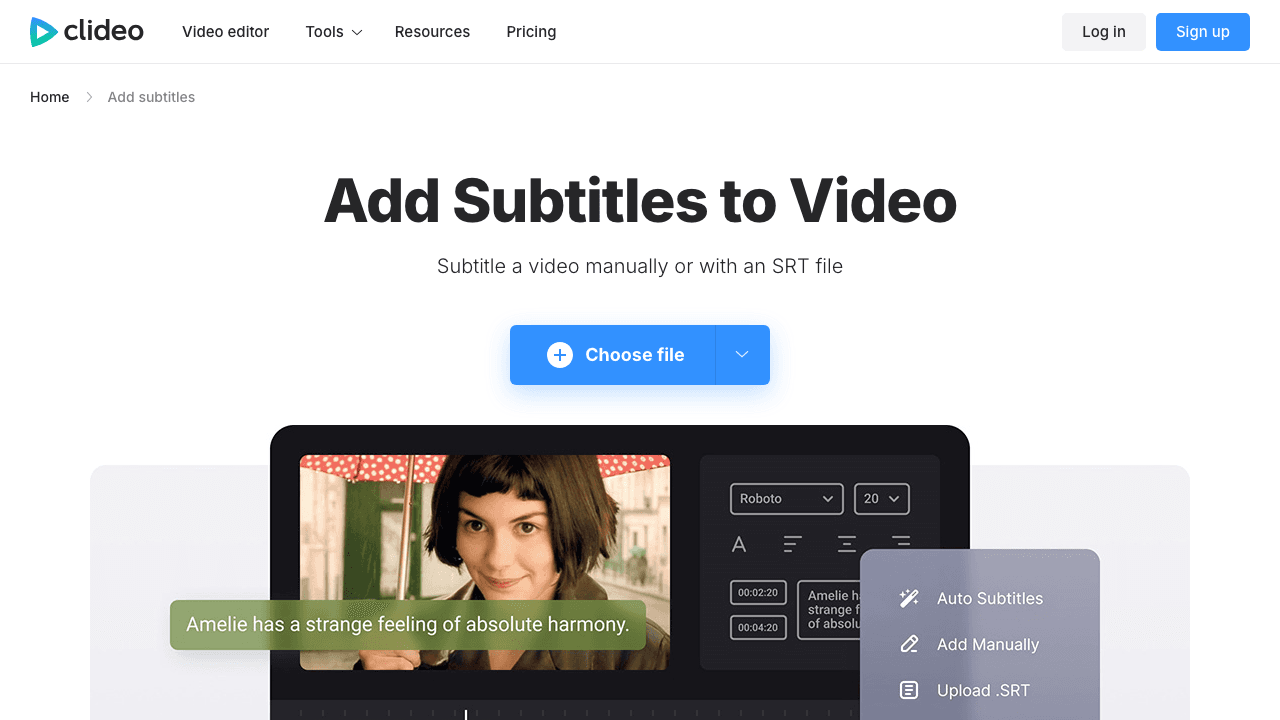
Clideo keeps it simple. Upload a video, upload an SRT file (or type subtitles manually), pick a style, and export. No complex editor to learn, just subtitles, burned in.
It also has auto-subtitle generation if you don't already have an SRT file. The interface is clean and beginner-friendly.
Key features:
- Upload SRT/VTT or type subtitles manually
- Auto-subtitle generation
- Simple, clean interface
- Works on any device (browser-based)
- Basic font and color customization
Pricing: Free with watermark, 720p, 10 credits per month and a 500 MB upload cap. Pro is $9/month billed yearly ($108/year), which lifts the watermark and unlocks 4K and 500 credits per month.
Limitations: Very limited free tier. Styling options are basic compared to VEED or CapCut. No animated caption effects.
Best for: Quick, no-fuss subtitle burning when you already have an SRT file.
6. HappyScribe
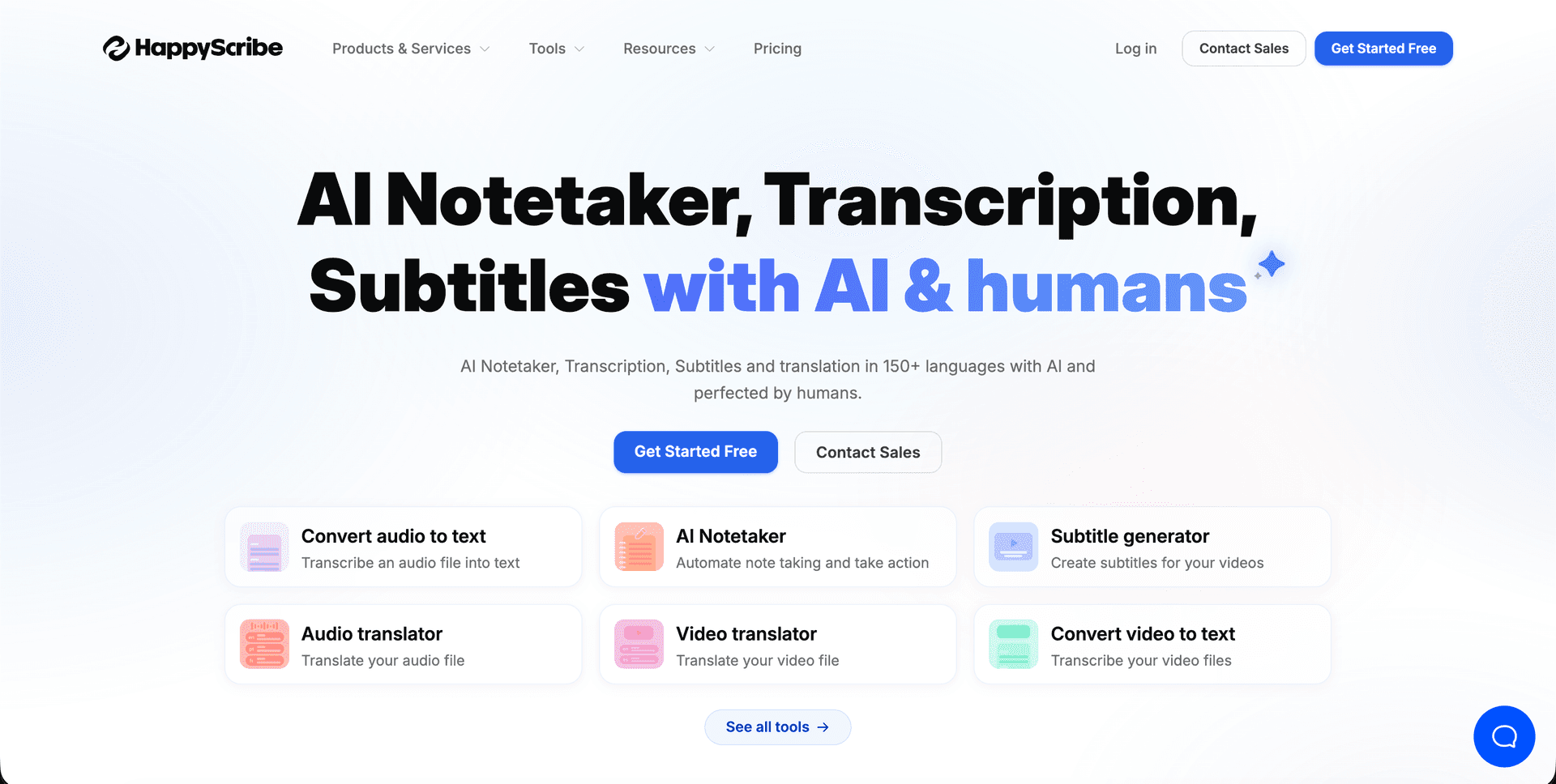
HappyScribe combines AI transcription with a dedicated hardcode export feature. It supports 120+ languages and offers both automated and human transcription, the human option is useful when accuracy is critical (legal, medical, compliance content).
The subtitle editor includes custom fonts, colors, and positioning. Once you're happy with the captions, one click burns them into the video.
Key features:
- AI transcription in 120+ languages
- Optional human transcription for maximum accuracy
- Custom fonts, colors, background, and positioning
- Hardcode subtitles on export
- Also exports SRT, VTT, and other subtitle formats
Pricing: Free plan includes a 10-minute trial of AI transcription and subtitling, with watermarked video exports. Basic is $8.50/month billed annually, Pro $19, Business $59. Human proofreading is priced separately per minute.
Limitations: Per-minute pricing adds up for long videos. Free trial is very limited. Not ideal for high-volume use.
Best for: Multilingual projects and situations where transcription accuracy is non-negotiable.
7. HandBrake
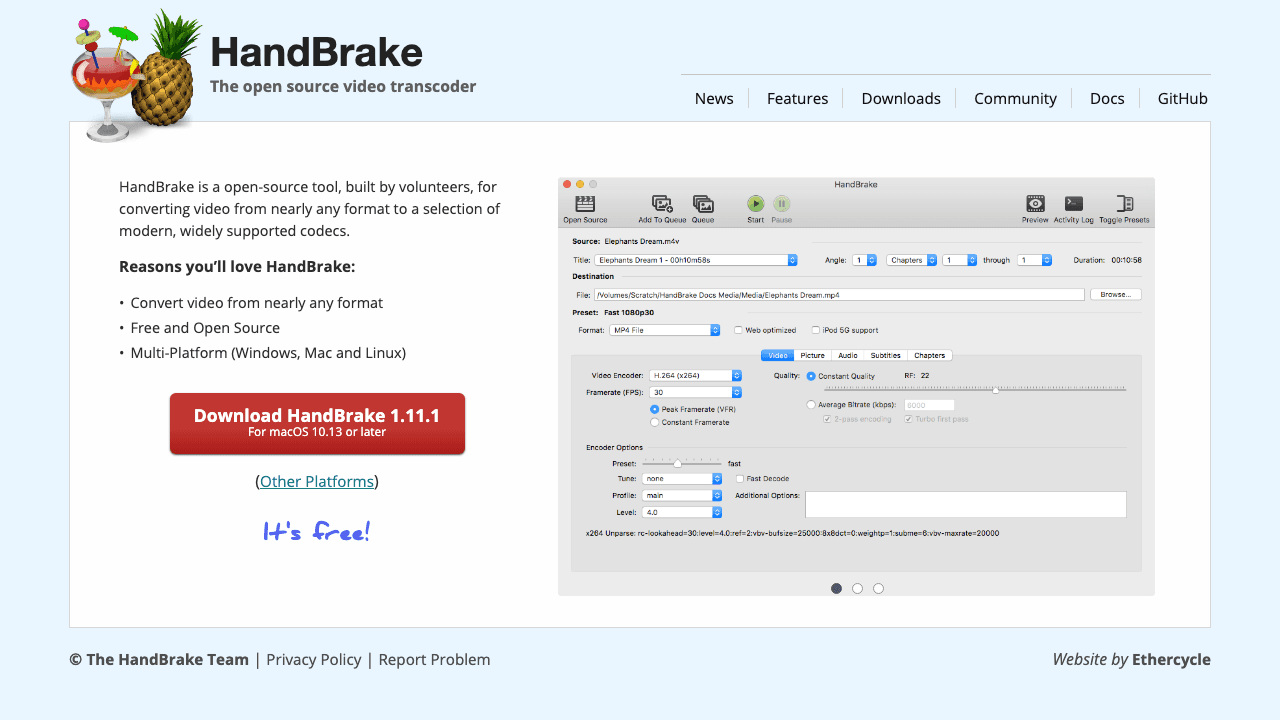
HandBrake is a free, open-source video transcoder that can burn SRT subtitles into any video. It's a desktop app, no upload limits, no watermarks, no subscriptions. Just import your video, add an SRT file in the Subtitles tab, check "Burn In, " and encode.
It won't generate subtitles for you (pair it with Vidocu's free subtitle creator or Subtitle Edit for that), but for the actual burning step, HandBrake is rock solid and completely free.
Key features:
- Import external SRT or SSA subtitle files
- One-checkbox "Burn In" option
- Quality presets for different devices and platforms
- Batch queue for processing multiple videos
- Available on Windows, Mac, and Linux
Pricing: 100% free, open source. No limits.
Limitations: No auto-transcription, you need an existing subtitle file. Limited styling (no custom fonts or colors for SRT). Desktop only.
Best for: Desktop users who already have SRT files and want a free, reliable burn-in tool with no restrictions.
Skip the manual work, burn subtitles automatically
Vidocu generates accurate AI subtitles and burns them into your video in one step. No SRT files, no command line.
Try Vidocu freeWhat subtitle burners actually cost in 2026
Burning subtitles is the kind of job people expect to do free, and most of these tools will do it free once. The cost shows up the second time: a watermark you need removed, an export capped at 720p, or a monthly minute allowance you blow through. Here is what each tool charges, verified against every vendor's own pricing page in September 2026.
| Tool | Free tier | Entry paid plan | Next tier up |
|---|---|---|---|
| Vidocu | $0: 200 credits, about 4 min of AI video, 1 export | Pro $39/mo (820 credits, about 16 min) | Business $149/mo (4,000 credits) |
| VEED | Watermarked, 720p, 10-min limit | Creator $10 per user/mo billed yearly ($116/yr) | Pro $21 per user/mo ($257/yr) |
| CapCut | Most features free | Not published | Not published |
| Kapwing | Watermark, 720p, 4-min exports, up to 50 min auto-subs | Pro $16 per member/mo annually ($24 monthly) | Business $50 per member/mo ($64 monthly) |
| Clideo | Watermark, 720p, 10 credits/mo, 500 MB cap | Pro $9/mo billed yearly ($108/yr) | No higher tier published |
| HappyScribe | 10-min AI trial, watermarked exports | Basic $8.50/mo billed annually | Pro $19/mo, Business $59/mo |
| HandBrake | Fully free, no limits | Free, open source | Free, open source |
Three things to weigh before you pick on price alone.
HandBrake is genuinely free with no ceiling, because it is open-source desktop software rather than a service. The trade is that it will not transcribe anything. You must already have an SRT file, and you get almost no control over how the subtitles look. If you have the file and just need it hardcoded, nothing here beats it.
CapCut publishes no prices at all. Its pricing page returns a 404, plans are sold in-app, and they vary by region. Budget nothing for it until you see the number in the app yourself, and be suspicious of any comparison article that quotes a specific CapCut figure.
Watch the billing unit. VEED and Kapwing price per user or per member, so a small team multiplies the sticker price. Clideo and HappyScribe bill per workspace, and Vidocu bills by credits rather than by seat, which changes the comparison as soon as more than one person needs access. Happy Scribe also localizes currency by region, so figures may render differently where you are.
How to Choose the Right Subtitle Burner
If you want the fastest workflow: Use Vidocu or VEED, upload, auto-transcribe, burn, done.
If you want animated social media captions: CapCut or VEED have the best animated word-by-word effects.
If you need maximum accuracy: HappyScribe's human transcription option, or generate subtitles with Vidocu's AI subtitle generator and review them before burning.
If you want zero cost, zero limits: HandBrake, no watermarks, no caps, no subscriptions. You just need an SRT file to start with.
If you need subtitles in multiple languages: Generate them with Vidocu's subtitle translator, then burn each language version into a separate video file.
FAQ
What does "burn subtitles" mean?
Burning subtitles means permanently rendering caption text into the video pixels during encoding. The subtitles become part of the image, they cannot be turned off, removed, or edited after export. Also called hardcoding, embedding, or baking in subtitles.
Can I remove burned-in subtitles from a video?
No. Once subtitles are burned in, they are part of the video image. To get a version without subtitles, you need to re-export from the original source video. This is why it's important to keep your original video file and subtitle file separate as backups. Keeping the SRT also means you can run it through an AI subtitle translator later and burn a second language without touching the source.
Do burned-in subtitles reduce video quality?
The video must be re-encoded, which can cause slight quality loss. Use high bitrate or low CRF settings to minimize this. Tools like FFmpeg give you precise control over encoding quality. Online tools typically export at their plan's maximum resolution (720p on free tiers, 1080p+ on paid).
How much does a subtitle burner cost?
Free is realistic for a one-off. HandBrake is free forever with no limits if you already have an SRT file, and CapCut, Clideo, Kapwing and VEED all burn subtitles free with a watermark or a length cap. Once you need clean exports, entry paid plans run from $8.50 to $16 per month: HappyScribe $8.50 billed annually, Clideo $9, VEED $10 per user, Kapwing $16 per member. Vidocu's Pro plan is $39/month, which covers the whole pipeline (subtitles plus documentation, voiceover and translation) rather than burning alone. CapCut does not publish prices at all.
Which subtitle format works best for burning in?
SRT is the most widely supported format, every tool on this list handles it. If you need advanced styling (custom fonts, colors, outlines, positioning), use ASS or SSA format. VTT works with most online tools. Vidocu and other AI tools generate subtitles in all major formats.
Why do social media platforms need burned-in subtitles?
TikTok, Instagram Reels, and Snapchat don't support separate subtitle files like SRT. The only way to show captions is to burn them directly into the video. This also ensures captions display correctly on every device, no player compatibility issues. Plus, 85% of social media video is watched without sound, making visible captions essential.
Burning subtitles into video doesn't have to be complicated. For most people, an AI-powered online tool like Vidocu or VEED handles everything automatically, upload, transcribe, style, export. If you prefer a desktop app with no restrictions, HandBrake is free and limitless.
Whatever you choose, the key is keeping your original video and subtitle files as backups. Once those captions are baked in, there's no going back.
Try Vidocu for free, generate AI subtitles and burn them into your video in one step.

Written by
Daniel SternlichtDaniel Sternlicht is a tech entrepreneur and product builder focused on creating scalable web products. He is the Founder & CEO of Common Ninja, home to Widgets+, Embeddable, Brackets, and Vidocu - products that help businesses engage users, collect data, and build interactive web experiences across platforms.