
PowerPoint decks are great for meetings, and terrible for everything else. They sit in shared drives, get skimmed once, and lose half their meaning the moment the presenter isn't in the room. Turning a deck into a video fixes that: a video plays the same way every time, ships to anyone with a link, and works for onboarding, sales enablement, training, and product marketing without scheduling a live walkthrough.
The good news is that AI now does most of the work. You upload a PPT (or PPTX), pick a voice, and the tool handles narration, timing, visuals, and export. The bad news is that "PowerPoint to video AI" means very different things depending on the tool, some animate the slides as-is, some rebuild the deck into a stock-footage video, and some generate an avatar that talks in front of your slides.
This guide compares the 9 best PowerPoint to video AI tools in 2026, what each one is actually good at, and which one to pick based on what you're trying to make.
Quick comparison
| Tool | Best for | Voiceover | Avatars | Free plan | Starting price |
|---|---|---|---|---|---|
| Vidocu | Tutorials, SOPs, training videos with subtitles + docs | ✅ 30+ languages | , | ✅ | $29/mo |
| Synthesia | Corporate training with AI presenters | ✅ 140+ languages | ✅ | Limited | $29/mo |
| Vidnoz AI | Quick PPT-to-video with avatars | ✅ | ✅ | ✅ | $14.99/mo |
| Steve AI | Animated explainer videos from slides | ✅ | ✅ | Limited | $15/mo |
| InVideo AI | Stock-footage marketing videos | ✅ | , | ✅ | $25/mo |
| Pictory | Repurposing scripts and decks into social video | ✅ | , | Trial only | $25/mo |
| Visla | Team-edited story videos | ✅ | ✅ | ✅ | $15/mo |
| FlexClip | Manual editing with AI assist | ✅ | ✅ | ✅ | $11.99/mo billed yearly |
| Plus AI for PowerPoint | Staying inside PowerPoint | , | , | Trial | $10/mo |
What "PowerPoint to video AI" actually means
Three different workflows hide under the same search term. Pick the one that matches your goal before picking a tool:
- Slide-faithful videos: your slides become the video, frame for frame, with AI narration timed to each slide. Best for training, SOPs, and internal enablement where the deck is the content.
- Avatar + slides: an AI presenter stands next to your slides and talks. Best for corporate training, compliance, and any use case where a "human" face increases trust.
- AI rebuild: the tool reads your deck, writes a new script, and assembles a video from stock footage and B-roll. Best for marketing and social, terrible for accuracy.
Most of the tools below fall into one bucket. A few (Vidocu, Visla, FlexClip) span two.
1. Vidocu: Best for tutorials, SOPs, and training videos
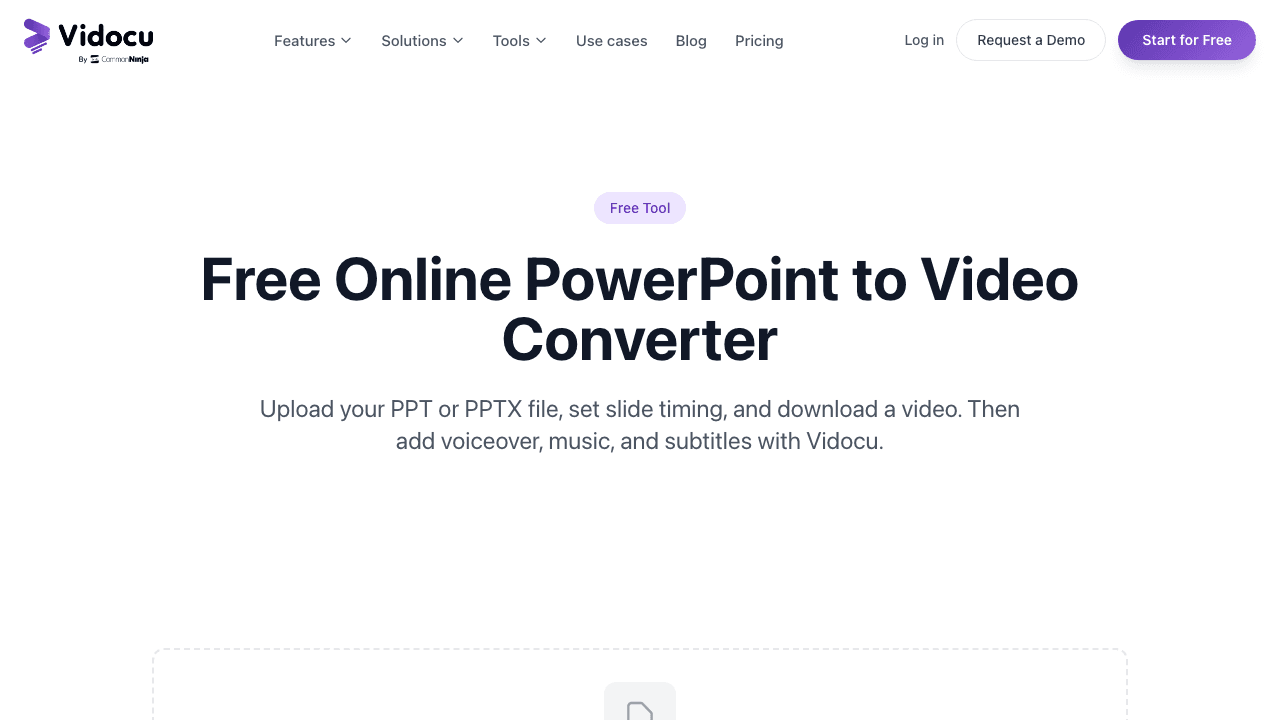
Vidocu is built around a different idea than most tools on this list: instead of being only a video generator, it turns any video, including a recorded PowerPoint walkthrough, into a complete content package. You get the video, AI subtitles in 30+ languages, a polished AI voiceover, an auto-generated help article with screenshots, and a full video editor to clean everything up.
The PowerPoint workflow is simple: record a screen capture of your slides (or upload an existing PPT walkthrough), and Vidocu generates the narration, captions, and a written version of the same content. If you want a video plus a step-by-step guide your team can search later, this is the only tool on the list that does both in one upload.
What it's best for: SOPs, internal training, customer onboarding, and any workflow where you also need video documentation, not just a video file. If you're creating SOPs, the video-to-SOP workflow generates a step-by-step guide from the same upload.
Pros
- One upload generates video, subtitles, voiceover, and a written help article
- Built-in editor with zoom and pan, annotations, and background music
- 30+ language translations for global rollouts
- Free PowerPoint to video tool; create a free account and your first run is on us
Cons
- No talking-head avatars (by design, the focus is on the slides and the narration)
- Best paired with a screen recording of your deck rather than a raw .pptx upload
Pricing: Free plan available. Paid from $19/month.
Turn one PowerPoint into a video, subtitles, and a help article
Upload your deck once. Vidocu generates the narration, captions, translations, and a step-by-step written guide automatically.
Try Vidocu free2. Synthesia: Best for AI avatars in front of slides
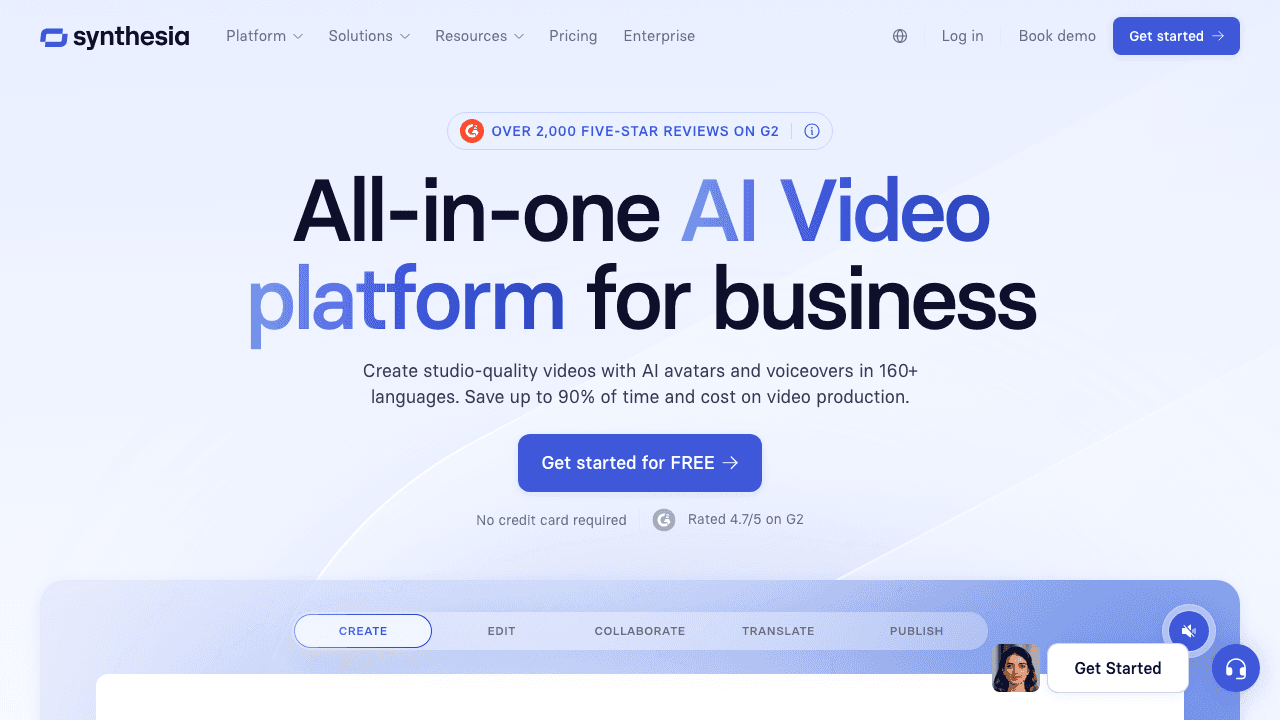
Synthesia is the category leader for avatar-based video. You upload a PowerPoint, pick one of 230+ AI presenters, and get a video where the avatar narrates each slide in 140+ languages. It's the default choice for compliance training, HR onboarding, and anywhere a "human" face on screen meaningfully increases attention.
The downside is that Synthesia is firmly in the corporate-training tier on price and complexity. For a quick tutorial or SOP, it's overkill. And the avatars, while good, still have the slight uncanniness that some viewers notice immediately.
Best for: Compliance training, corporate L&D, multilingual onboarding at scale.
Pros: Best-in-class avatars, huge language coverage, enterprise features. Cons: Expensive, avatars can feel off for casual content, slower iteration than slide-only tools. Pricing: Starter $29/month, Creator $89/month.
3. Vidnoz AI: Best for fast avatar videos on a budget
Vidnoz is the budget alternative to Synthesia. It has a dedicated PPT-to-video flow: upload your PowerPoint, pick an avatar and voice, and get a video in a few minutes. The avatars aren't quite at Synthesia's quality level, but the price difference is significant and the workflow is genuinely simple.
Best for: Solo creators and small teams who want avatar videos without enterprise pricing.
Pros: Cheapest avatar option, fast generation, generous free plan. Cons: Avatar quality varies, fewer languages than Synthesia, watermark on free tier. Pricing: Free, paid from $14.99/month.
4. Steve AI: Best for animated explainer videos
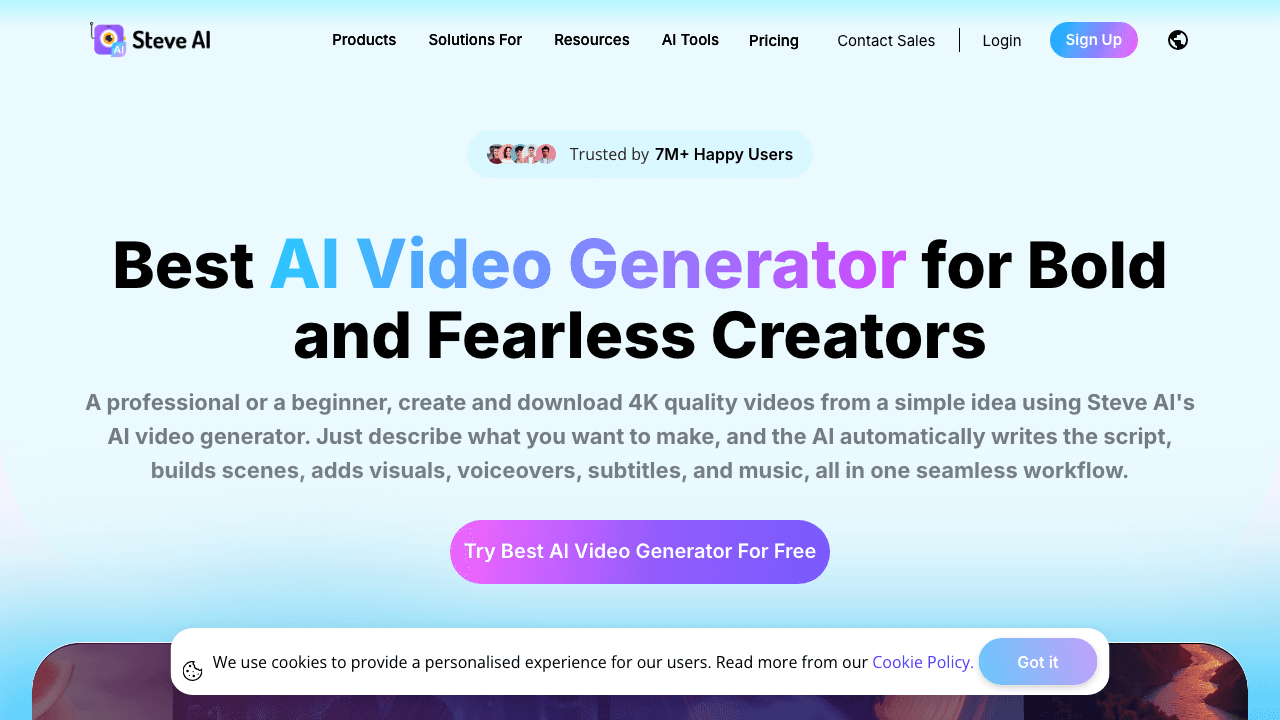
Steve AI doesn't try to replicate your slides, it converts them into an animated explainer. You upload a PPT and the tool generates an animation in a chosen style (cartoon, whiteboard, live-action stock). The output looks nothing like your deck, which is the point: it's for marketing teams who want a polished video, not a faithful slide playback.
Best for: Marketing explainers, social ads, animated product overviews.
Pros: Genuinely creative output, large stock library, multiple animation styles. Cons: Output drifts from source material, not suited for accurate training content. Pricing: Starter $15/month.
5. InVideo AI: Best for marketing videos from a deck
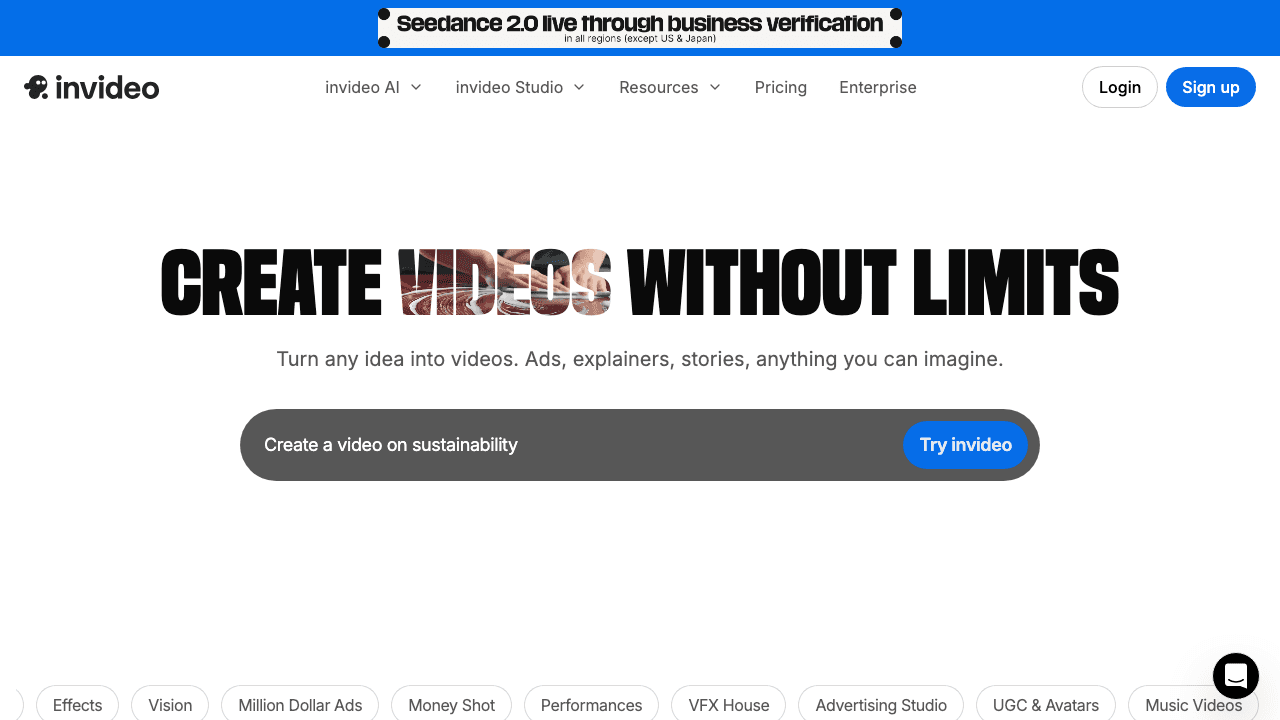
InVideo AI takes the "rebuild the deck" approach to its conclusion: paste in a script (or your slide content), and it generates a stock-footage video with AI narration, music, and captions. It's strong for social-first content but loses fidelity to your actual slides, if accuracy matters, this isn't the tool.
Best for: Social media videos, YouTube, ads built from rough script outlines.
Pros: Massive stock library, fast iteration via prompts, polished output. Cons: Doesn't preserve slide content, limited control over individual scenes. Pricing: Free plan, paid from $25/month.
6. Pictory: Best for repurposing long-form into clips
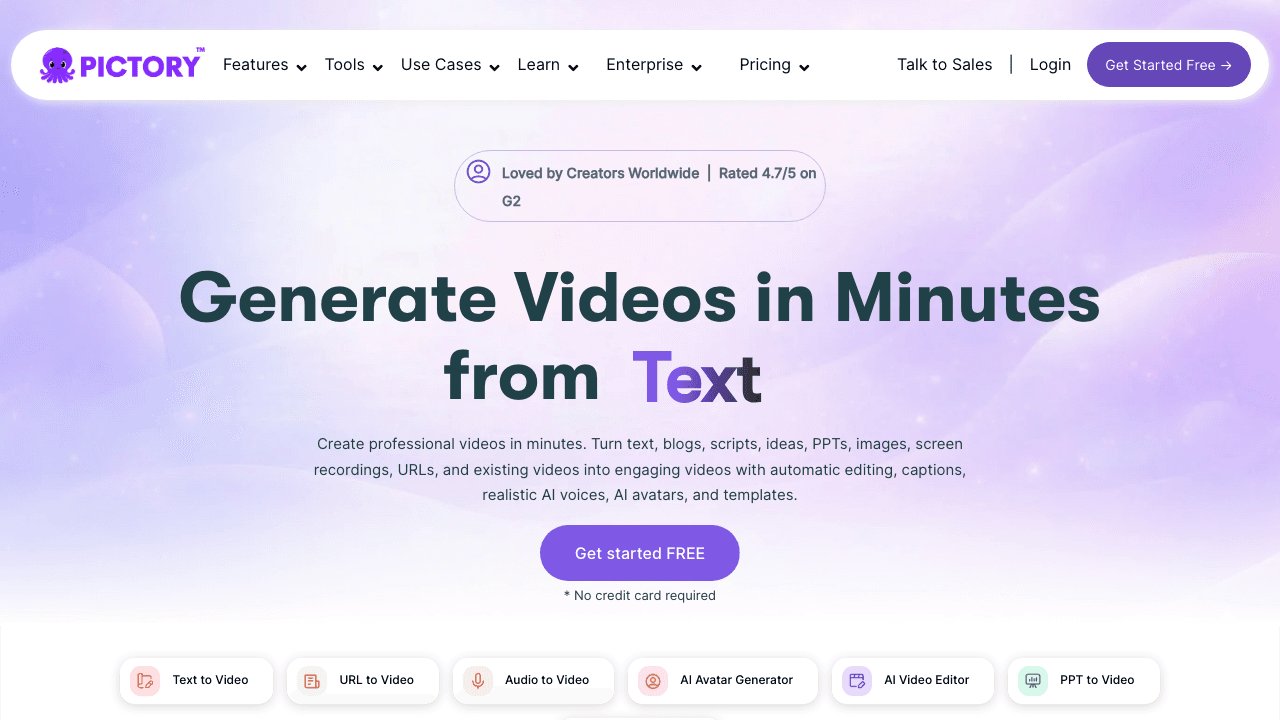
Pictory's specialty is taking long content, articles, transcripts, scripts, and condensing it into short videos with stock B-roll. You can feed it the text from a PowerPoint, but the output is closer to a marketing cutdown than a faithful slide video. It's worth knowing about if you also want to repurpose webinars; we cover that workflow in our webinar-to-knowledge-base playbook.
Best for: Repurposing scripts, blog posts, and webinar transcripts into short videos.
Pros: Strong text-to-video, good auto-captions, helpful for social cutdowns. Cons: No real PPT preservation, no free plan beyond a trial. Pricing: Starter $25/month.
7. Visla: Best for team-edited story videos
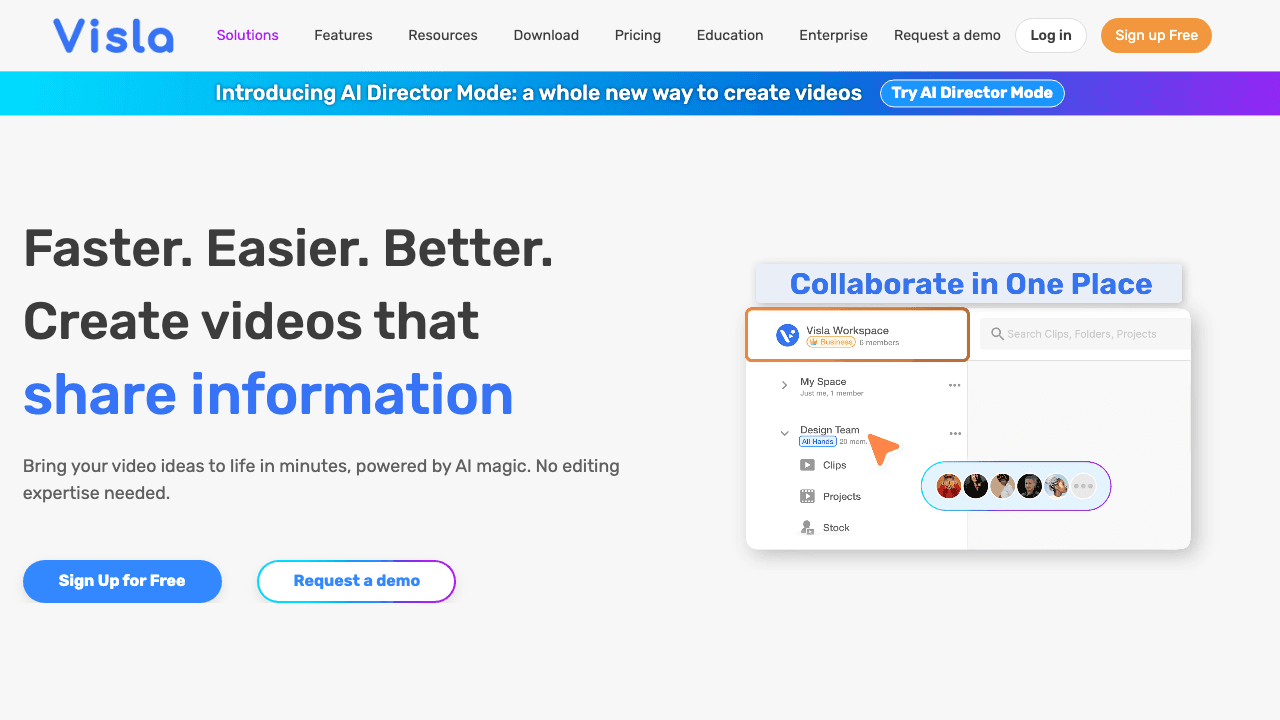
Visla combines AI script generation, stock footage, screen recording, and a multi-user editor. You can drop in slide content and it'll build a story video around it, with optional avatars. It's a decent generalist if you want one tool for several formats.
Best for: Small teams that want both AI generation and collaborative editing.
Pros: Generous free plan, real collaboration, supports recordings + AI generation. Cons: Output can feel generic, slide fidelity is limited. Pricing: Free, paid from $15/month.
8. FlexClip: Best for manual editing with AI assist
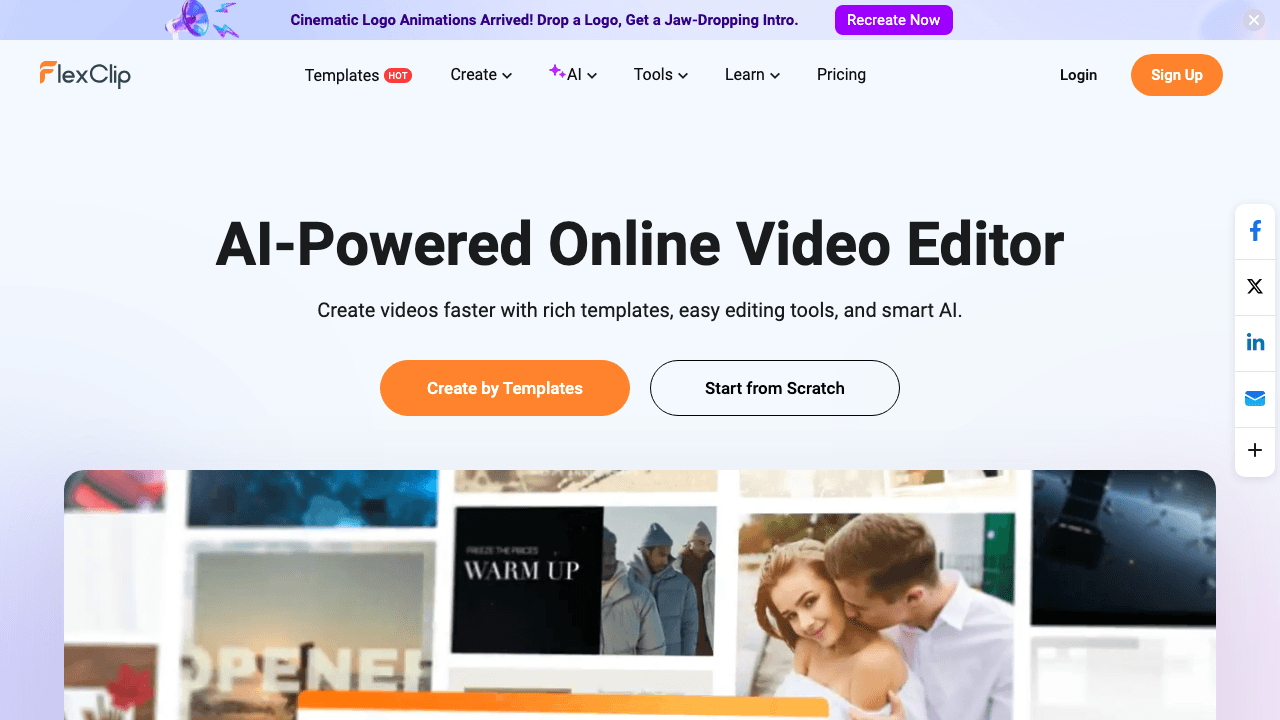
FlexClip is a traditional online video editor with AI features layered on top, script generation, text-to-speech, auto-subtitles, and a PPT-to-video flow that converts each slide into a scene you can then edit by hand. Pick this if you want full editorial control after the AI does the first pass.
Best for: Hands-on editors who want AI to start the project, not finish it.
Pros: Familiar timeline editor, large template library, cheap entry tier. Cons: AI features feel bolted on, the manual editing offsets some of the speed gains. Pricing: Free, paid from $9.99/month.
9. Plus AI for PowerPoint: Best for staying inside PowerPoint
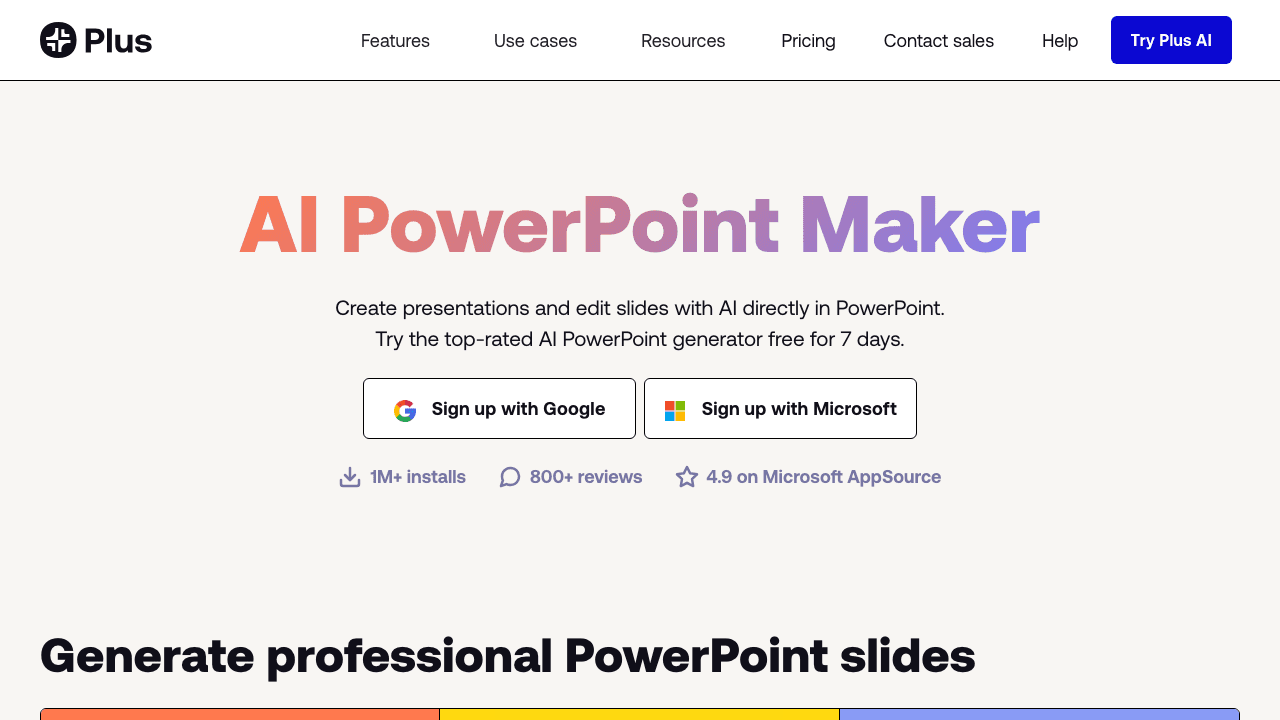
Plus AI is a PowerPoint and Google Slides add-in. It doesn't really turn PPT into a video in the sense the other tools do, instead, it lets you generate, edit, and rewrite slides with AI inside the app, then export. Pair it with PowerPoint's built-in "Export to Video" feature and you have a lightweight pipeline that never leaves your existing deck workflow.
Best for: People who want AI editing inside PowerPoint and don't need a separate video tool.
Pros: Lives inside PowerPoint, no new tool to learn, cheap. Cons: Not a true video generator, relies on PowerPoint's own export, no AI narration. Pricing: Starter $10/month.
Need video, subtitles, and a written guide from one upload?
Vidocu turns any video, including PowerPoint walkthroughs, into multi-language tutorials, SOPs, and help articles automatically.
Start freeHow to pick the right tool
Use the workflow you need, not the brand name:
- You need accurate training and SOPs from your real slides → Vidocu. It's the only tool that ships a written help article alongside the video, which matters when your team needs to search for answers later instead of rewatching a 12-minute clip.
- You need an AI presenter on screen → Synthesia (for quality) or Vidnoz (for budget).
- You need a marketing video and accuracy doesn't matter → InVideo AI or Steve AI.
- You want to stay inside PowerPoint → Plus AI.
- You want a generalist editor → FlexClip or Visla.
For most people creating tutorials, onboarding content, or internal documentation, the gap between "video file" and "useful, searchable knowledge" is bigger than they expect. A video alone rarely gets watched twice. A video plus a written guide plus subtitles plus translations gets used by everyone, indefinitely. That's the bet Vidocu makes, and it's what makes it the right starting point if you're not just trying to convert a deck, but trying to make it useful.
FAQ
Can I really turn a .pptx file into a video automatically?
Yes, but with caveats. Tools like Vidnoz, Synthesia, and FlexClip accept .pptx directly and convert each slide into a scene with AI narration. Tools like Vidocu work better when you record a screen capture of your slides first, that way you keep slide animations and transitions intact, and the AI generates narration, captions, and a written guide on top.
Which PowerPoint to video AI tool is free?
Vidocu, Vidnoz, InVideo AI, Visla, and FlexClip all have free plans. Vidocu's free PowerPoint to video tool doesn't require an account for basic conversions. Most free plans add a watermark or limit length, so check the fine print before committing to a project.
Do I need to write a script or does the AI generate one?
It depends on the tool. Synthesia and Vidnoz expect you to provide the script (your slide notes work). InVideo AI, Steve AI, and Pictory will write a script for you from a prompt or summary. Vidocu uses the audio from your screen recording or generates narration directly from the slide content.
Can the AI generate voiceover in multiple languages?
Yes, Synthesia leads with 140+ languages, Vidocu supports 30+, and most other tools cover 20-40 common languages. If you're rolling out training across regions, look at our guide to creating multilingual tutorial videos without re-recording.
What about PowerPoint's built-in "Export to Video"?
It works, but it's just a slideshow recording, no AI narration, no captions, no editing layer. It's fine for quickly sharing a deck, but you'll get something noticeably more polished from any of the AI tools above.
Try Vidocu free and turn your next PowerPoint into a video, subtitles, voiceover, and written guide in one upload.

Written by
Daniel SternlichtDaniel Sternlicht is a tech entrepreneur and product builder focused on creating scalable web products. He is the Founder & CEO of Common Ninja, home to Widgets+, Embeddable, Brackets, and Vidocu - products that help businesses engage users, collect data, and build interactive web experiences across platforms.