
Filmed a video in the wrong orientation? It happens more often than anyone wants to admit, a quick phone recording comes out sideways, a screen capture ends up upside down, or a webcam clip needs a 90-degree flip before it's usable. The fix is simple: rotate it online, for free, without installing anything.
We tested the most popular free video rotator tools available in 2026 and ranked them by ease of use, output quality, format support, and whether they slap a watermark on your video. Here's what we found.
Quick Comparison
| Tool | Free Watermark | Max File Size (Free) | Custom Angles | Formats | Best For |
|---|---|---|---|---|---|
| Vidocu | No | 100 MB | Yes | MP4, MOV, AVI, WebM | Rotating + full video editing suite |
| Clideo | Yes | 500 MB | No (90° only) | MP4, MOV, AVI, WMV | Large files with preview |
| Ezgif | No | 200 MB | No (90° only) | MP4, WebM, MOV, AVI, MKV | Quick no-signup rotation |
| VEED | Yes | 250 MB | Yes | MP4, MOV, AVI, MKV | Custom angle rotation |
| Canva | No | 500 MB | Yes | MP4, MOV, MKV, WebM | Rotation + design work |
| Kapwing | Yes | 250 MB | Yes | MP4, MOV, AVI | Team collaboration |
| FlexClip | Yes | 100 MB | No (90° only) | MP4, MOV, WebM | AI-powered editing |
| RotateMyVideo | No | ~250 MB | No (90° only) | Most formats | Dead-simple, zero friction |
| Adobe Express | No | 1 GB | No (90° only) | MP4, MOV | Professional output quality |
1. Vidocu
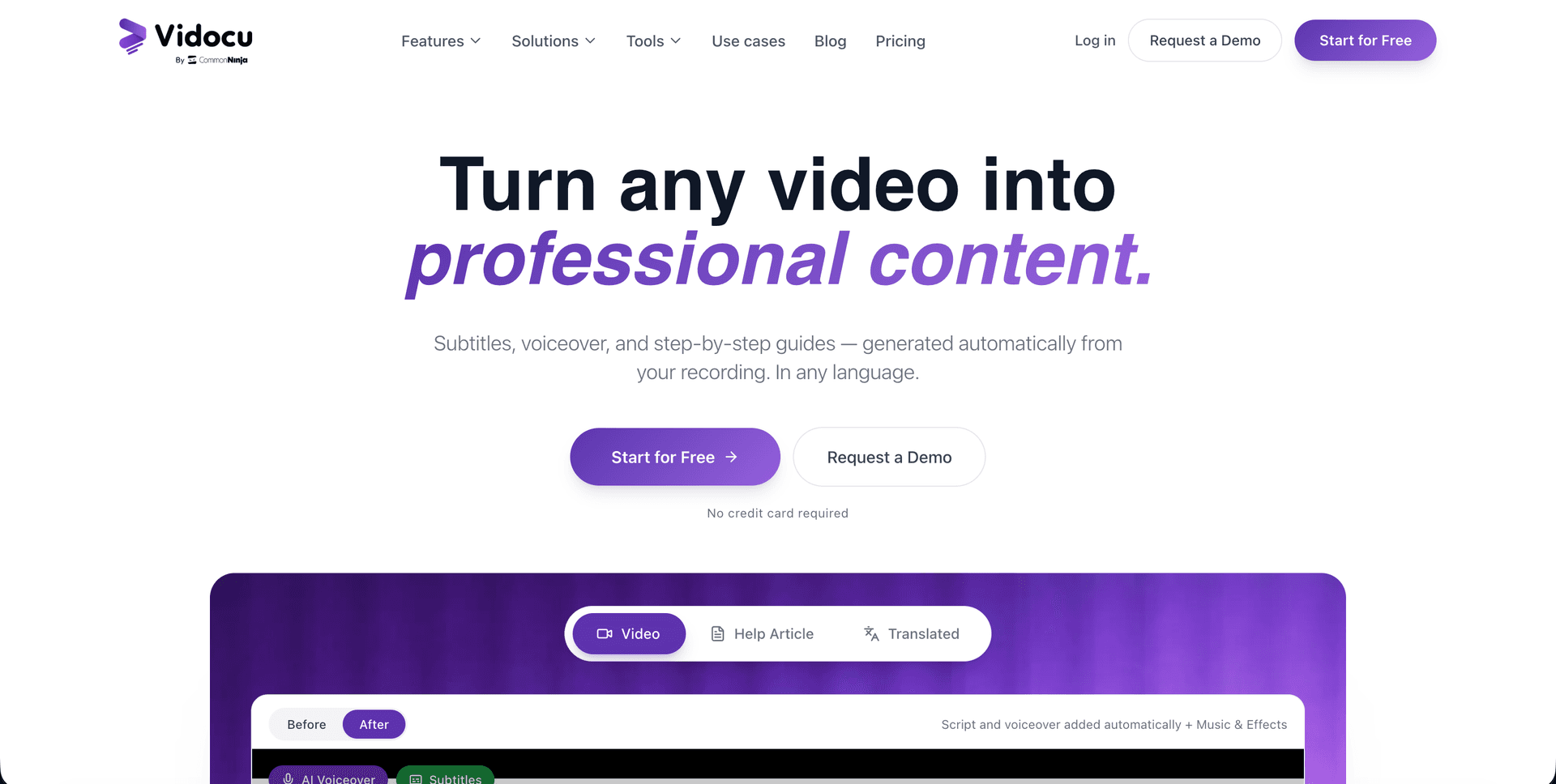
Vidocu's free video rotator handles rotation as part of a broader AI-powered video editing workflow. Upload your video, rotate it 90°, 180°, or 270°, or set a custom angle, and download without a watermark.
What makes Vidocu different from standalone rotation tools is that it's not just a rotator. Once your video is oriented correctly, you can add AI-generated subtitles, overlay a professional voiceover, or even turn the entire video into step-by-step documentation with screenshots. If you're working on tutorials, training materials, or product videos, the rotation is just the starting point.
Key features:
- Rotate 90°, 180°, 270°, or custom angles
- No watermark on exports
- Works alongside AI subtitles, voiceover, and documentation tools
- Browser-based, no installation needed
- Supports MP4, MOV, AVI, and WebM
Pricing: Free tier available. Paid plans start at $16/month for extended features.
Best for: Teams and creators who need rotation as part of a full video production workflow, not just a one-off fix.
Rotation is usually the first fix in a chain. Once the orientation is right, teams often brand the export with their own watermark before it ships.
Rotate, subtitle, and document your videos in one workflow
Vidocu turns any uploaded video into subtitles, voiceover, documentation, and more, no extension needed.
Try Vidocu Free2. Clideo
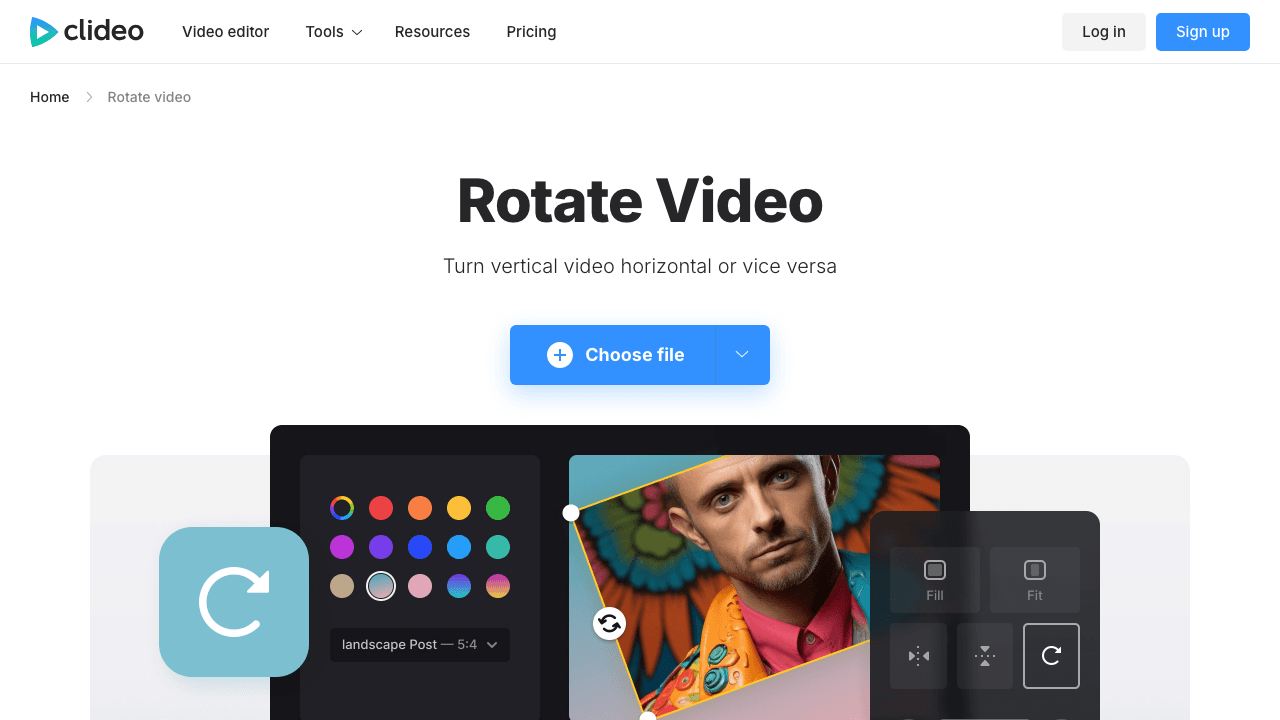
Clideo is one of the more polished browser-based video tools. The rotation interface is clean: upload your file, click the rotation button (90° increments), preview the result, and download.
The free tier supports files up to 500 MB, which is generous compared to most competitors. The catch is the watermark, free exports get a Clideo watermark stamped on them. You'll need the $9/month Pro plan to remove it.
Clideo also lets you convert the format during rotation, so you can rotate an AVI and export as MP4 in one step. Processing speed is reasonable for files under 200 MB but slows down noticeably on larger uploads.
Key features:
- Rotate in 90° increments (clockwise and counterclockwise)
- Preview before downloading
- Format conversion during rotation
- Supports MP4, MOV, AVI, WMV, VOB
- Files up to 500 MB on free tier
Pricing: Free with watermark. $9/month for watermark-free exports and larger files.
Best for: Users who need to rotate larger video files and don't mind the watermark, or are willing to pay $9/month to remove it.
3. Ezgif
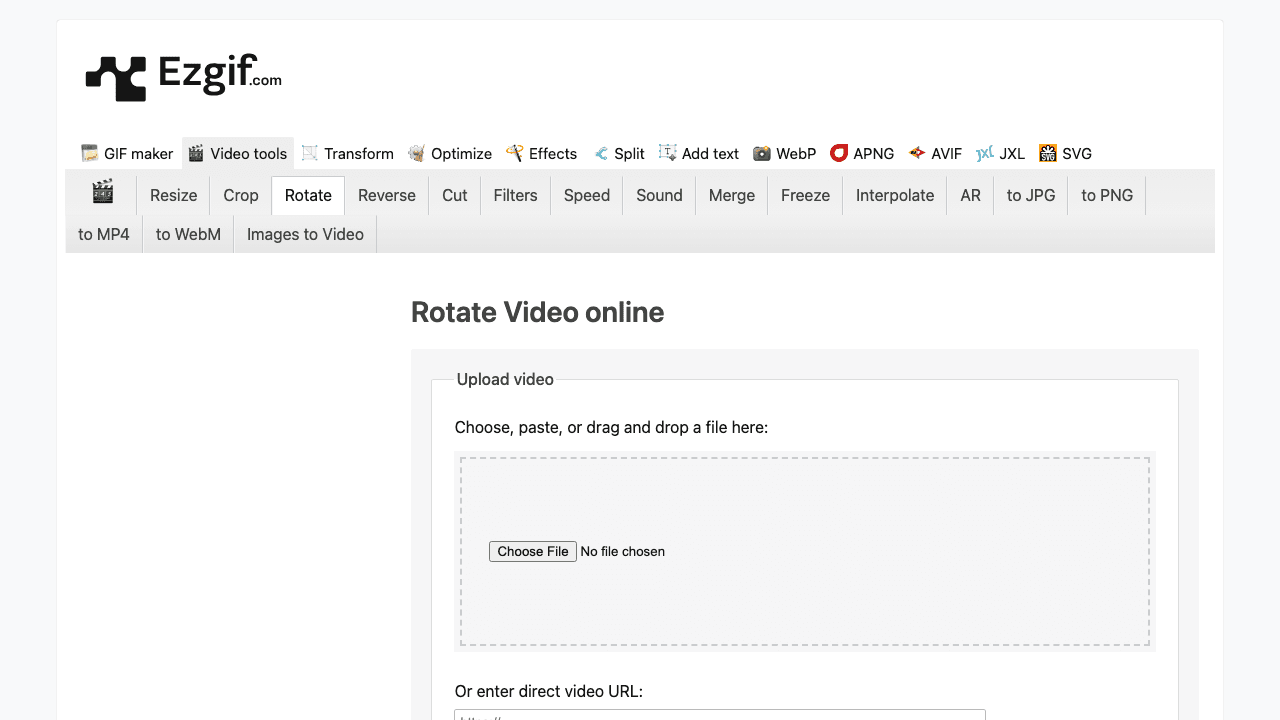
Ezgif is the no-nonsense option. No account required, no watermark, no upsells cluttering the interface. Upload your video, pick a rotation (90°, 180°, 270°, or mirror/flip), and download.
The 200 MB file size limit is the main constraint. For quick phone videos and screen recordings, that's usually enough. Ezgif also lets you choose between copying the original encoding (fast, no quality loss) or re-encoding as MP4 or WebM.
The interface looks like it was designed in 2010, because it was. But it works, and it works fast. If you just need a rotation done in under 30 seconds with zero friction, Ezgif is hard to beat.
Key features:
- Rotate 90°, 180°, 270°, or mirror horizontally/vertically
- No watermark, no account required
- Option to copy original encoding or re-encode
- Supports MP4, WebM, MOV, AVI, MKV, WMV, FLV
- 200 MB file size limit
Pricing: Completely free.
Best for: Quick, no-frills rotation of smaller files. The internet's utility knife for video fixes.
4. VEED
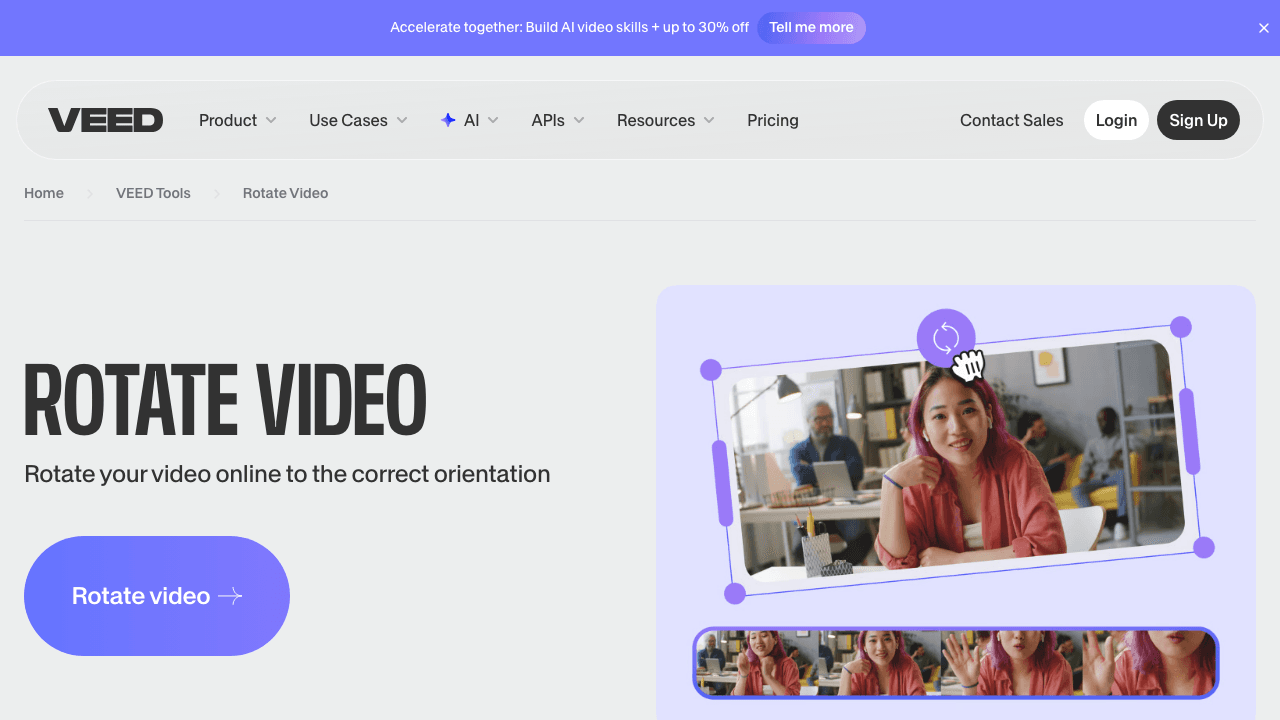
VEED offers rotation as part of a full-featured online video editor. You can rotate in 90° increments or dial in a custom angle, and flip horizontally or vertically.
The editor itself is impressive, timeline-based, with drag-and-drop elements, text overlays, and effects. But for simple rotation, it's overkill. You'll need to navigate the full editor interface just to rotate a clip, which adds unnecessary steps compared to single-purpose tools.
Free exports are capped at 720p and come with a VEED watermark. The Creator plan ($10/user/mo billed yearly, $116/yr) removes the watermark and bumps exports to 1080p.
Key features:
- Rotate 90°, 180° or custom angles
- Flip horizontally and vertically
- Full timeline-based video editor
- Supports MP4, MOV, AVI, MKV
- 250 MB upload on free tier
Pricing: Free with watermark (720p max). Creator plan at $10/user/month billed yearly for 1080p and no watermark.
Best for: Users who want rotation plus additional editing, subtitles, effects, trimming, in the same session.
5. Canva
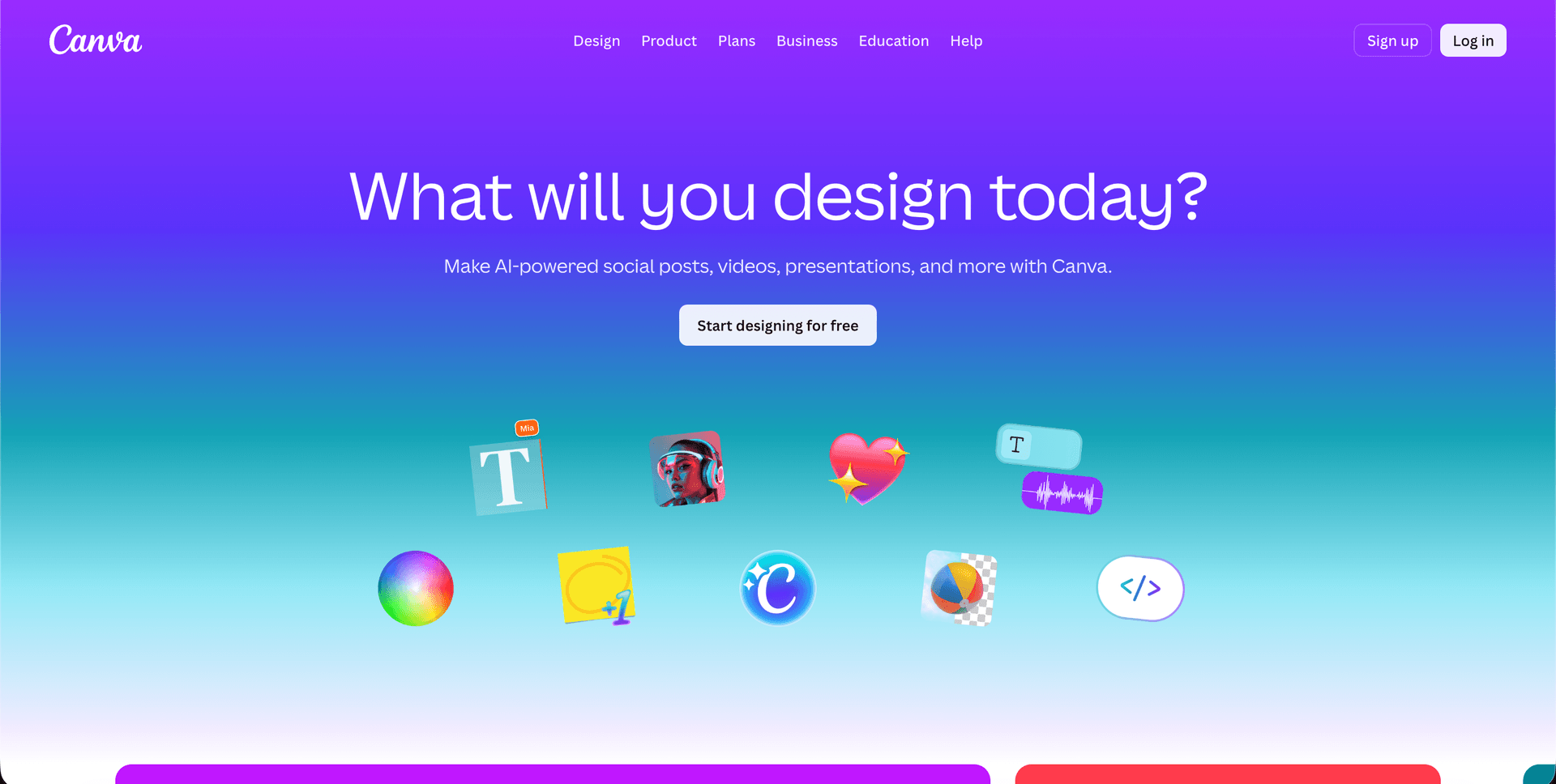
Canva brings its signature drag-and-drop design approach to video rotation. You can rotate to any angle, not just 90° increments, and flip videos horizontally or vertically. No watermark on free exports.
The rotation itself is intuitive: select the video, grab the rotation handle, and drag. Or type in an exact degree. Canva's strength is that you can combine rotation with its massive template and design library, add text, graphics, transitions, and export as MP4.
The downside is speed. Canva loads a full design editor for what should be a 10-second task. If rotation is all you need, the overhead isn't worth it. But if you're already in Canva for other work, it's convenient.
Key features:
- Custom angle rotation (any degree)
- Flip horizontally and vertically
- No watermark on free exports
- Huge template and design library
- Supports MP4, MOV, MKV, WebM
Pricing: Free. Canva Pro at $120/year for one person for premium templates and features.
Best for: Designers and content creators already using Canva who need rotation as part of a larger project.
6. Kapwing
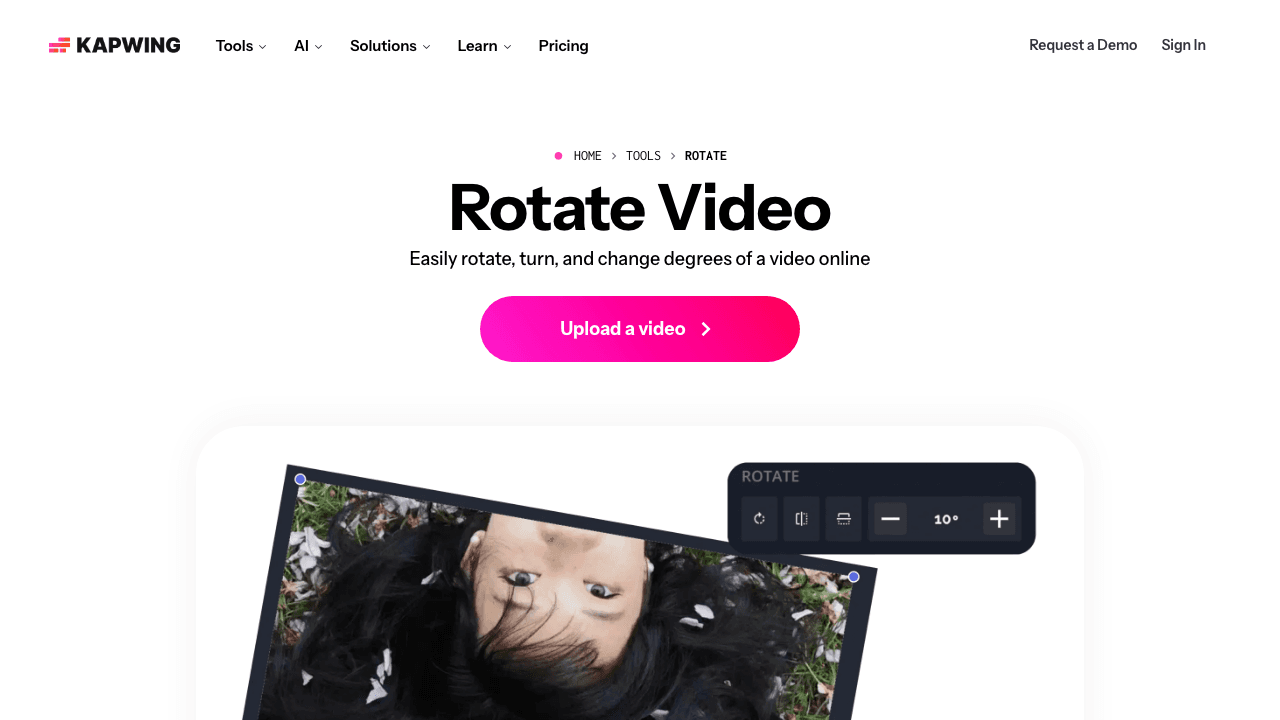
Kapwing positions itself as a collaborative video editor, and rotation is one of many tools in the suite. You can rotate, flip, and mirror videos, then export as MP4.
Kapwing's differentiator is team collaboration. You can share workspaces, leave comments in the editor, and work on videos together in real time. For solo rotation jobs, this is irrelevant, but for teams producing content at scale, it's a real advantage.
Free exports come with a small Kapwing watermark. The Pro plan ($24/month) removes it and adds longer export times, more storage, and priority processing.
Key features:
- Rotate and flip in any direction
- Real-time team collaboration
- Import from URL (TikTok, Vimeo, etc.)
- Export as MP4
- Cloud-based workspace with commenting
Pricing: Free with watermark. Pro at $24/month.
Best for: Teams who need rotation as part of a collaborative video editing workflow.
7. FlexClip
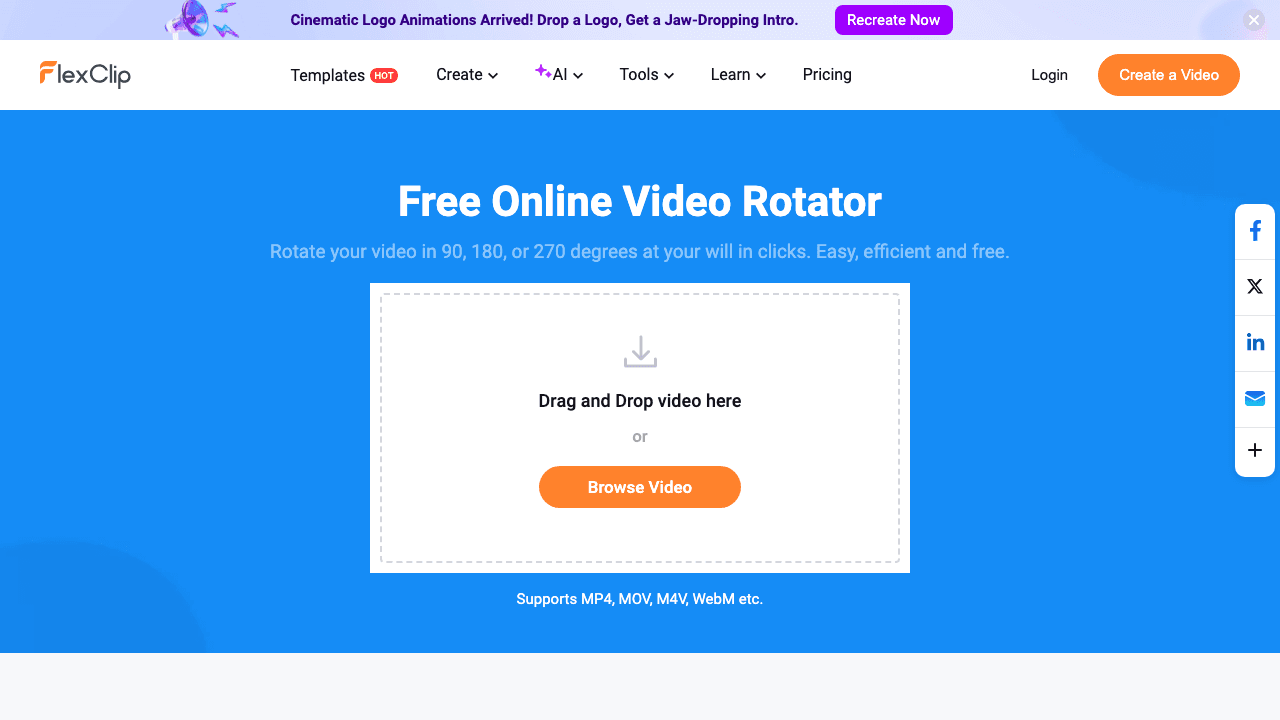
FlexClip offers rotation alongside a full suite of AI-powered video editing tools. Rotate in 90° increments, trim, split, and add effects, all in the browser.
FlexClip's AI features are the main draw. AI Recreate matches your footage to templates automatically, and there's text-to-video generation for quick social content. For straightforward rotation, though, you're loading a lot of editor overhead.
The free plan caps exports at 720p with a watermark and limits video length to 10 minutes. The Plus plan at $19.99/month lifts these restrictions.
Key features:
- Rotate in 90° increments
- AI-powered template matching and text-to-video
- Stock media library
- Supports MP4, MOV, WebM
- 30 GB cloud storage on paid plans
Pricing: Free with watermark (720p, 10-min limit). Plus plan at $19.99/month.
Best for: Content creators who want AI-assisted editing beyond basic rotation.
8. RotateMyVideo
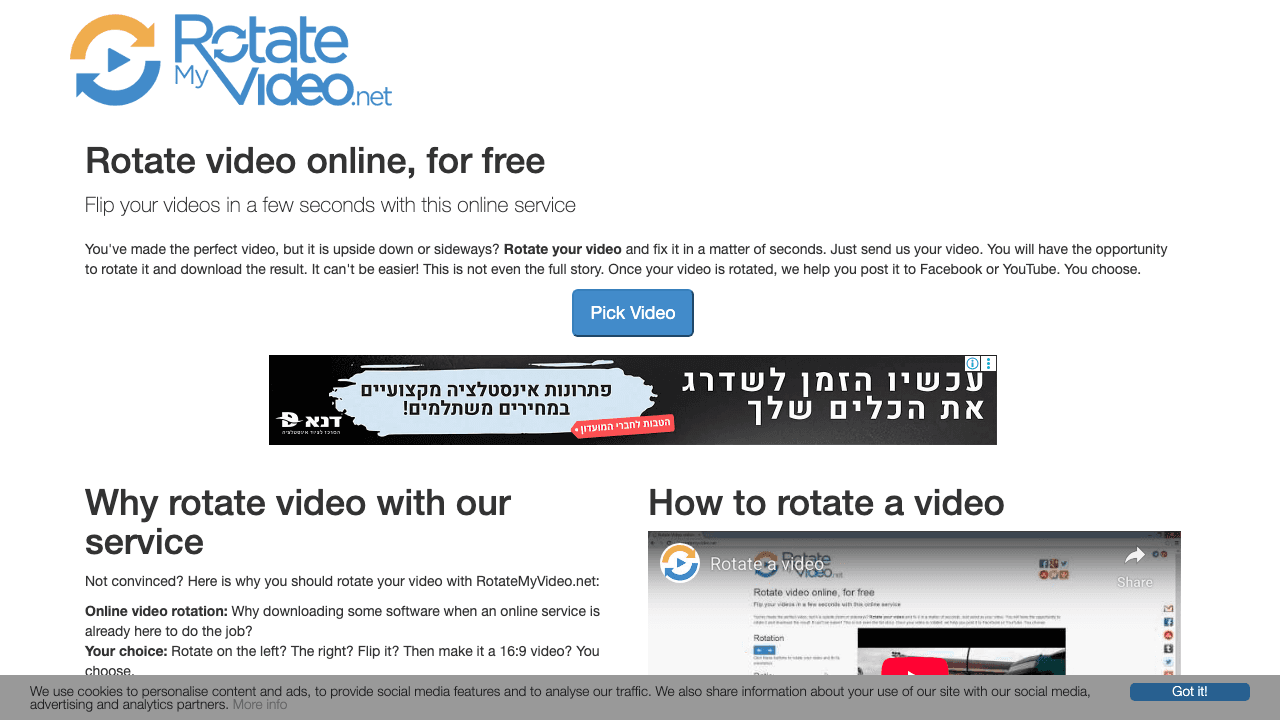
RotateMyVideo does exactly one thing: rotates your video. No editor, no timeline, no AI features. Upload, click left or right arrows, pick an aspect ratio, and download.
It's completely free, no premium tier, no account, no watermark. The aspect ratio selector is a nice touch: you can add black bars to fit 16:9 or 4:3, and customize the bar color. It also offers direct sharing to YouTube and Facebook after rotation.
The trade-off is that it only handles standard rotations (90° increments) and there's no preview. Processing can be slow on larger files since the service runs on limited infrastructure. But for the price (free) and simplicity, it's one of the best options for a quick orientation fix.
Key features:
- Rotate left, right, or flip
- Adjustable aspect ratio with customizable bands
- Direct sharing to YouTube and Facebook
- No watermark, no account, completely free
- No installation required
Pricing: Completely free. No premium plan exists.
Best for: Anyone who just wants to rotate a video with zero friction and zero cost.
9. Adobe Express
Adobe Express brings Adobe's professional pedigree to a free, browser-based editor. Rotate videos to portrait or landscape orientation, plus access trimming, resizing, and basic effects.
The free tier is surprisingly capable, no watermark, up to 1 GB file uploads, and access to Adobe's stock photo library. The rotation interface is polished and responsive, as you'd expect from Adobe. Files process quickly even at larger sizes.
The downside is that Adobe Express nudges you toward the broader Creative Cloud ecosystem. If you're already paying for Adobe CC, Express is a natural fit. Otherwise, the sign-up requirement (free, but mandatory) adds friction compared to tools like Ezgif or RotateMyVideo.
Key features:
- Rotate to portrait/landscape orientations
- Up to 1 GB file uploads on free tier
- No watermark on free exports
- Professional-quality output
- Access to Adobe stock assets
Pricing: Free with account. Premium plan at $9.99/month for additional features.
Best for: Users who want professional output quality and don't mind creating an Adobe account.
Need more than rotation? Turn videos into docs automatically
Upload a video to Vidocu and get subtitles, voiceover, screenshots, and step-by-step documentation, all generated by AI.
Try Vidocu FreeHow to Choose the Right Video Rotator
The "best" tool depends on what you're actually doing:
Just need a quick rotation? Go with Ezgif or RotateMyVideo. No accounts, no watermarks, no nonsense. Upload, rotate, download.
Working with large files? Clideo handles up to 500 MB on the free tier, and Adobe Express goes up to 1 GB. Both process larger files reliably.
Need custom angle rotation? VEED, Canva, and Vidocu support arbitrary angles, not just 90° increments.
Rotating videos for tutorials or documentation? Vidocu is the only tool here that connects rotation to a full documentation workflow. After fixing your orientation, you can generate subtitles, add AI voiceover, and produce step-by-step guides with auto-generated screenshots, all without leaving the platform. If you're creating help articles or knowledge base content, the entire pipeline runs from a single video upload.
Collaborating with a team? Kapwing offers real-time collaboration, shared workspaces, and commenting.
Tips for Rotating Videos Without Losing Quality
-
Copy the original encoding when possible. Tools like Ezgif give you the option to copy the video stream rather than re-encode. This preserves the original quality and processes much faster.
-
Check your aspect ratio after rotating. A 16:9 landscape video becomes 9:16 portrait after a 90° rotation. Some tools add black bars automatically; others crop. Preview before downloading.
-
Rotate before editing, not after. If you're going to add subtitles, trim, or apply effects, rotate first. Most video editors handle rotation as a non-destructive transform, but online tools typically re-encode the entire file. The same order applies if you plan to speed up the video free: rotate first, then change the speed, so the file is only re-encoded once.
-
Mind the file size limits. If your video exceeds a tool's upload limit, compress it first. Most free video tools include a compressor alongside the rotator.
-
Watch for watermarks on free plans. Clideo, VEED, Kapwing, and FlexClip all add watermarks on their free tiers. If watermark-free output matters, stick with Vidocu, Ezgif, Canva, RotateMyVideo, or Adobe Express.
FAQ
Can I rotate a video online for free without a watermark?
Yes. Several tools offer watermark-free rotation at no cost: Vidocu, Ezgif, Canva, RotateMyVideo, and Adobe Express all export without watermarks on their free plans.
How do I rotate a video 90 degrees online?
Upload your video to any of the tools listed above, select the 90° rotation option (clockwise or counterclockwise), and download the result. Most tools process the rotation in under a minute for files under 200 MB.
Does rotating a video reduce quality?
It depends on the tool and settings. Tools that copy the original encoding (like Ezgif's "copy original" option) preserve quality perfectly. Tools that re-encode the video may introduce minor quality loss, though it's typically imperceptible at reasonable bitrates.
What's the best free video rotator for large files?
Adobe Express supports files up to 1 GB on its free tier without a watermark. Clideo handles up to 500 MB but adds a watermark on free exports. For files over 1 GB, consider using desktop software like VLC or HandBrake.
Can I rotate a video and add subtitles at the same time?
Most standalone rotation tools don't include subtitle features. Vidocu is the exception, you can rotate your video, then generate AI subtitles, add voiceover, and create documentation all in one workflow. For other tools, you'd need to rotate first, then use a separate subtitle generator.

Written by
Daniel SternlichtDaniel Sternlicht is a tech entrepreneur and product builder focused on creating scalable web products. He is the Founder & CEO of Common Ninja, home to Widgets+, Embeddable, Brackets, and Vidocu - products that help businesses engage users, collect data, and build interactive web experiences across platforms.