


How to Convert a Horizontal Video to Vertical Without Cutting Anyone Off
To convert a horizontal video to vertical, change its frame from 16:9 to 9:16 (1080 x 1920) in one of three ways: crop a fixed vertical slice, fit the whole frame over a blurred background, or reframe with a moving crop that follows the subject. Cropping is fastest, fitting keeps everything visible, and reframing is the only one that keeps a moving speaker in the shot. The right choice depends on what is in your footage, not on which app you use.
This guide covers all three, shows how to do each one online, in CapCut, Adobe Premiere, DaVinci Resolve and on your phone, and explains what to do with screen recordings, where a plain center crop almost always fails.
The Quick Answer: Three Ways to Go From 16:9 to 9:16
A 16:9 frame is wide. A 9:16 frame is the same shape turned on its side, so a vertical slice of your original only keeps about 32% of its width (a 608-pixel slice of a 1,920-pixel frame). Something has to give. Here is what each method gives up:
| Method | What you keep | What you lose | Best for | Effort |
|---|---|---|---|---|
| Fixed crop | Full height, sharp image | About two thirds of the width, permanently | One person who stays in the middle | Seconds |
| Fit + blurred background | 100% of the frame | Size: the video becomes a strip across the middle | Slides, screen recordings, wide scenery | Seconds |
| Reframe (moving crop) | The subject, at full height | Everything the crop window leaves behind | Talking heads, interviews, people who move | Automatic with AI, slow by hand |
If you only remember one rule: crop when the subject stands still, reframe when it moves, and fit when every part of the frame matters.
Rotating Is Not Converting
The most common mistake is reaching for the rotate button. Rotating a 16:9 video by 90 degrees does give you a tall file, but everything in it is now lying on its side. Rotation is the right fix for a different problem: a clip that was filmed vertically and plays sideways because the phone saved the wrong orientation. For that, use a video rotator, and our guide on rotating a video without losing quality covers the details.
If your video looks correct today and is simply too wide for TikTok, Reels or Shorts, you need one of the three methods above.
Pick the Method by What Is in the Shot
Before you open any app, look at the footage for ten seconds and answer one question: where does the important thing sit, and does it move?
- One speaker, mostly centered, not moving much. A fixed center crop works. Check the first and last few seconds, because people tend to lean in or step aside at the start and end.
- One speaker who walks, gestures widely or shifts in the chair. Reframe. A fixed crop will cut them off at the shoulder the moment they move.
- Two people side by side (podcast, interview). A fixed crop can only hold one of them. Either reframe so the frame follows whoever is talking, or stack the two people top and bottom.
- A speaker plus slides or a shared screen (webinar). Stack them: the speaker in one half, the slide or screen in the other.
- A screen recording, product demo or slide deck. Do not center-crop it. Fit it over a blurred background, or crop and pan to the part of the screen where the action is. More on this below.
- Landscape scenery, sports, anything wide. Fit it, or accept that the vertical version is a different shot and crop to the most interesting third.
Method 1: Online, With AI That Tracks the Speaker (Free to Try)
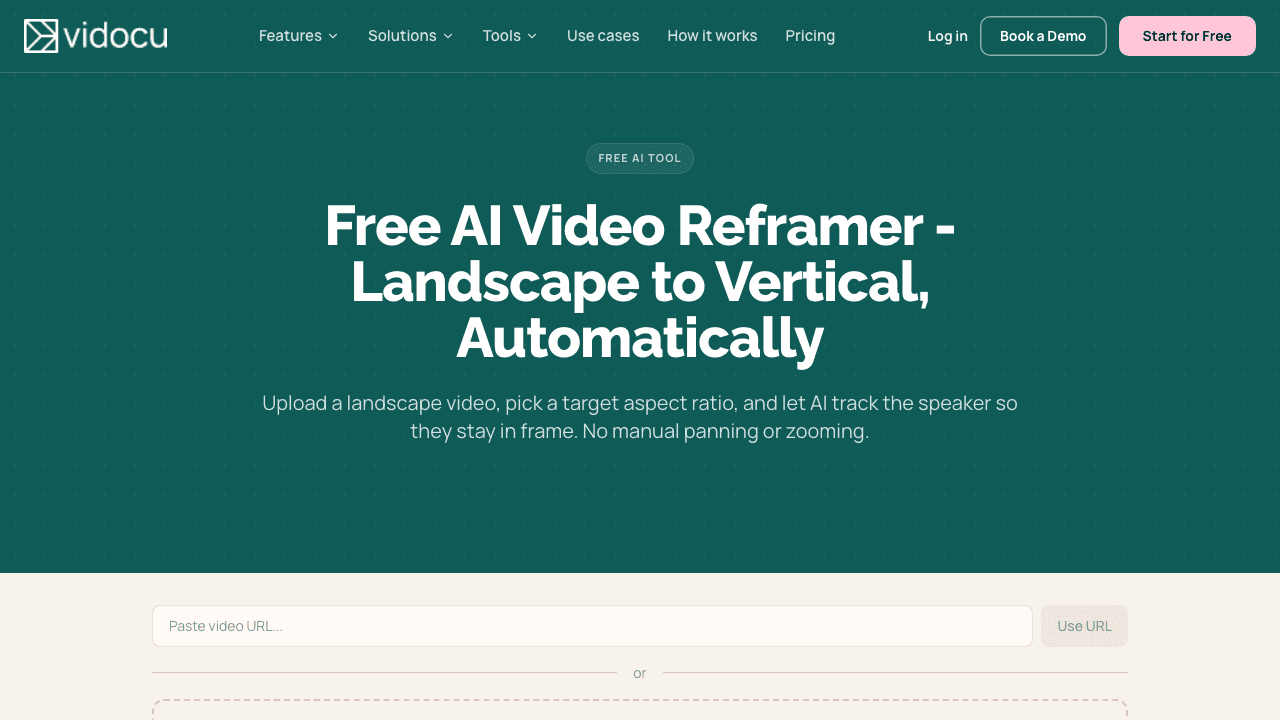
The fastest way to reframe without installing anything is the Vidocu AI Video Reframer. It detects faces through the whole video, smooths them into a camera path, and moves a vertical crop window so the speaker stays in frame. At scene cuts it snaps to the new position instead of sliding across the cut.
Steps:
- Open the reframer and upload a file (MP4, MOV or WebM, up to 500 MB) or paste a video URL.
- Pick the target shape: 9:16 for TikTok, Reels and Shorts, 1:1 for a square feed post, or 4:5 for an Instagram portrait post.
- Pick a layout. Full gives you a single tracked crop. The stacked layouts put the tracked speaker in the top or bottom half (or the top 70%) and fill the rest with the original frame, which is the layout to use for a webinar or a demo with a talking head.
- Run it and download the MP4.
Where it does not fit: it tracks faces. If there is no face in the shot, as in a pure screen recording, it falls back to a centered crop, which is rarely what you want for a UI. It also only goes one way: landscape to vertical, square or 4:5. It will not turn a vertical clip into a horizontal one. You need to sign in to run it, and the Free plan includes one tool run. Paid plans start at $19/month (Starter) and remove the run limit.
Turn a landscape video into a vertical one
Upload once, pick 9:16, 1:1 or 4:5, and let AI keep the speaker in frame. No manual keyframes.
Try the AI Video ReframerMethod 2: CapCut (Desktop, Mobile or Web)

CapCut has two routes, and only one of them is free.
Auto Reframe (paid). CapCut's Auto Reframe tracks the subject and crops to a new ratio automatically. According to CapCut's own help center (April 2026), it has moved to CapCut Pro and is no longer included in the free plan on desktop, mobile or the online editor. CapCut also notes it is only available in some regions.
Manual crop (free).
- Start a project and set the canvas ratio to 9:16.
- Drop your landscape clip on the timeline. It will appear as a thin strip.
- Scale the clip up until it fills the height, then drag it sideways to frame your subject.
- If the subject moves, add position keyframes and nudge the clip to follow them.
- Export at 1080 x 1920.
For a short clip with one person who stays put, the manual route is fine. For anything longer than a minute with movement, keyframing by hand gets slow.
Method 3: Adobe Premiere

If you already edit in Premiere, Auto Reframe is built in and works well.
- In the Project panel, right-click your finished horizontal sequence and choose Auto Reframe Sequence.
- Pick the target aspect ratio (9:16 vertical, 1:1 square, 4:5 or a custom size).
- Choose a motion preset: slower motion for interviews and talking heads, faster motion for action.
- Premiere creates a new sequence with keyframes already placed. Scrub through and adjust any frame where it picked the wrong subject.
The catch is cost and weight: Premiere is a subscription (roughly $23/month on an annual plan for the single app), which is a lot to pay if vertical clips are the only reason you would open it.
Method 4: DaVinci Resolve

DaVinci Resolve's Smart Reframe does the same job as Premiere's Auto Reframe, but it is a Studio-only feature. Resolve Studio is a one-time purchase of about $295, not a subscription.
- In Project Settings, set the timeline resolution to 1080 x 1920 (vertical).
- Select the clip, open the Inspector and set Smart Reframe to auto.
- Click Reframe and let it analyze the clip. Check the result and set a reference point if it locks onto the wrong subject.
In the free version of Resolve, you get the same vertical timeline, but you position the clip by hand with the Transform controls and keyframes, the same way as CapCut's manual route.
Method 5: On Your Phone (Crop Only)
Both main phone galleries can crop a video to 9:16 without any extra app.
- iPhone (Photos app): open the video, tap Edit, then the crop tool. Pick the 9:16 preset from the aspect ratio options (switch the preset to portrait if it shows 16:9), drag the frame over your subject and tap Done.
- Android (Google Photos): open the video, tap Edit, then Crop, choose an aspect ratio or drag the corners to a tall frame, and save a copy.
This is a fixed crop. The frame does not move, so it only works when your subject stays roughly in one place. Menus vary by OS version, so the exact labels on your phone may differ slightly.
Method 6: Keep Everything With a Blurred Background
When nothing in the frame can be cut, do not crop at all. Place the full horizontal video in the middle of a 9:16 canvas and fill the space above and below with a blurred, zoomed-in copy of the same footage. It looks intentional, unlike black bars, and every pixel of the original stays visible.
Most editors can do this in a few steps: duplicate the clip onto a lower track, scale it up to fill the vertical frame, add a strong blur, and keep the original clip on top at its normal size. The trade-off is size: on a phone screen the actual content becomes a strip about a third of the height, so small text gets hard to read. Use the empty space above and below for a title and captions.
Screen Recordings Need a Different Approach
Talking-head advice does not transfer to product demos and tutorials. A UI is wide by nature, the important element moves around the screen, and there is no face for a tracker to follow. A center crop of a 16:9 app usually shows the middle third of a toolbar and nothing useful.
What works better:
- Crop and pan to the action. Crop to the panel or dialog where the click happens, and move the crop as the action moves. A video cropper handles a fixed crop; for moving focus, zoom and pan effects let you push in on each click instead of shrinking the whole screen. Our walkthrough on how to crop a video online covers the fixed-crop side, including the crop-versus-reframe trade-off.
- Stack it. If there is a presenter on camera, put them in one half and the screen in the other. The stacked layouts in the reframer do this automatically.
- Fit it. For a fast feature tour where the whole screen matters, use the blurred-background fit and add large captions.
- Cut it shorter first. Vertical clips are watched in seconds, not minutes. Trim the clip to the one action that matters before you change the frame, so you are not reframing footage nobody will see.
If you are cutting vertical clips out of a long webinar or live demo, Vidocu Remix does the whole job: it picks the moments, then frames each clip for vertical by following whoever is talking or stacking the speaker over the shared screen.
Export Settings for TikTok, Reels and Shorts
Once the frame is right, export it so the platform does not re-crop it for you:
- Resolution: 1080 x 1920 (9:16). Use 1080 x 1080 for square and 1080 x 1350 for 4:5.
- Codec: H.264 in an MP4 file is accepted everywhere.
- Frame rate: keep the source frame rate (usually 30 or 60 fps). Converting it adds stutter.
- Safe area: each app lays its buttons, caption and username over the bottom and right side of the video. Keep faces, text and key UI out of the bottom fifth and away from the right edge.
Add Captions After You Reframe, Not Before
Most vertical video is watched on mute, so captions matter. Add them after you change the frame. Captions burned into the horizontal version get cropped along with everything else, and the line length that fits a wide frame wraps badly on a tall one. Reframe first, then use a subtitle burner to place captions in the middle of the vertical frame, above the platform's UI.
If you need a tool roundup instead of a how-to, our list of the best free video croppers for TikTok and Reels compares the options side by side.
Turn one long video into a week of vertical clips
Remix finds the best moments in a webinar or demo and frames each one for 9:16, following the speaker.
See Vidocu RemixFAQ
How do I convert a horizontal video to vertical without losing quality?
Export at 1080 x 1920 and avoid scaling the source up past its original resolution. A crop from a 1920 x 1080 source keeps the full height at native sharpness, so the vertical version is as sharp as the original. Quality drops when you zoom in further than that or start from a 720p source.
What is 16:9 to 9:16 in pixels?
16:9 is 1920 x 1080 in Full HD. Its vertical counterpart, 9:16, is 1080 x 1920. Cropping 9:16 out of a 1920 x 1080 frame leaves a window 608 pixels wide, which is then scaled to 1080 x 1920.
Can I make a video vertical without cropping it?
Yes. Place the whole horizontal video in the center of a 9:16 canvas and fill the top and bottom with a blurred copy of the footage or a solid color. Nothing is cut, but the video appears smaller on screen, so add a title and large captions in the empty space.
Why does my video look sideways when I make it vertical?
You rotated it instead of reframing it. Rotation turns the picture 90 degrees along with the frame. To change only the frame shape, crop, fit or reframe the video. Rotation is only the right fix when a vertically filmed clip plays sideways.
Is there a free way to auto reframe a video?
Vidocu's AI Video Reframer can be tried free with the one tool run included in the Free plan. CapCut's Auto Reframe now requires CapCut Pro, and DaVinci Resolve's Smart Reframe requires Resolve Studio. Manual keyframing in the free versions of CapCut or Resolve is free but slow.
The Bottom Line
Converting a horizontal video to vertical is a framing decision first and a software decision second. A still subject only needs a crop. A subject that moves needs a reframe that follows it. A screen recording or slide deck usually needs a fit, a stack, or a zoom on the action instead of a blind center crop. Make that call, export at 1080 x 1920, keep text out of the platform's UI, and add captions last.
Try Vidocu for free and turn your next landscape video into a vertical clip that keeps the speaker in frame.

Written by
Daniel SternlichtDaniel Sternlicht is a tech entrepreneur and product builder focused on creating scalable web products. He is the Founder & CEO of Common Ninja, home to Widgets+, Embeddable, Brackets, and Vidocu - products that help businesses engage users, collect data, and build interactive web experiences across platforms.