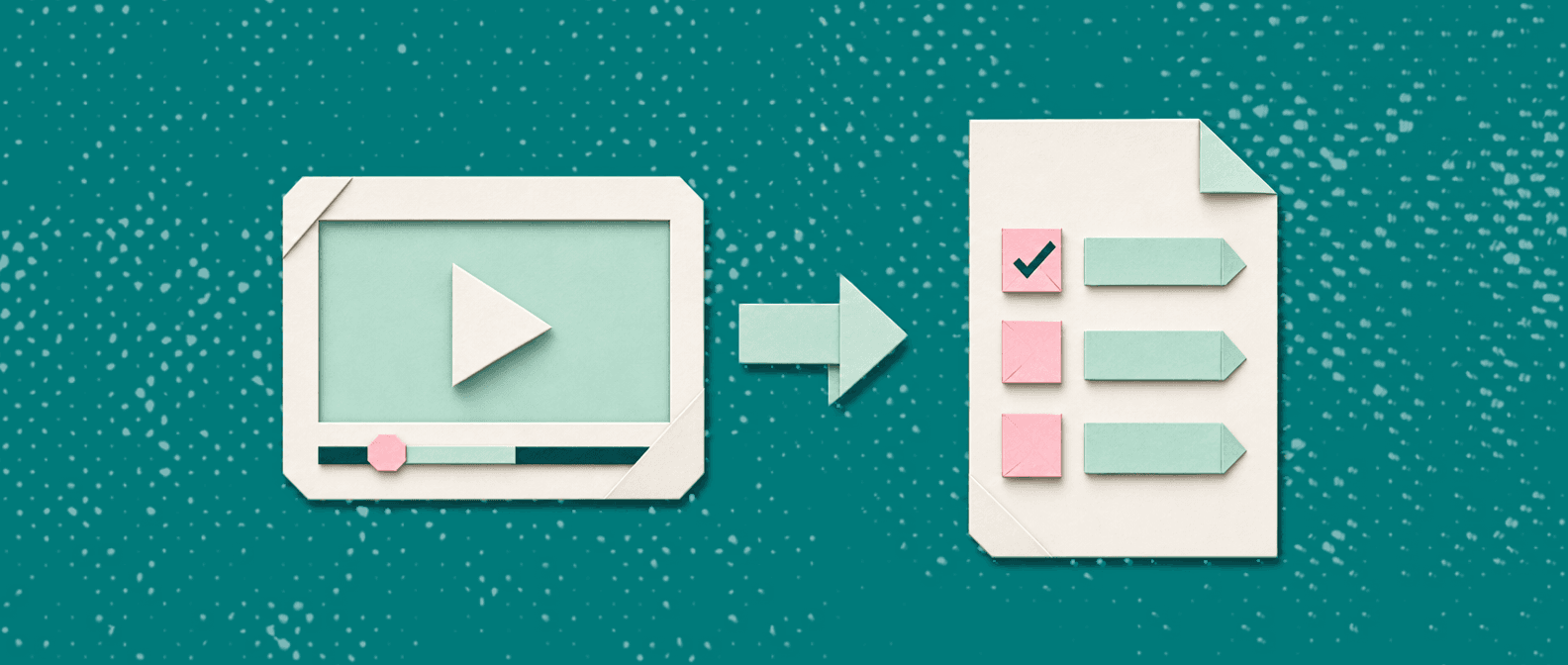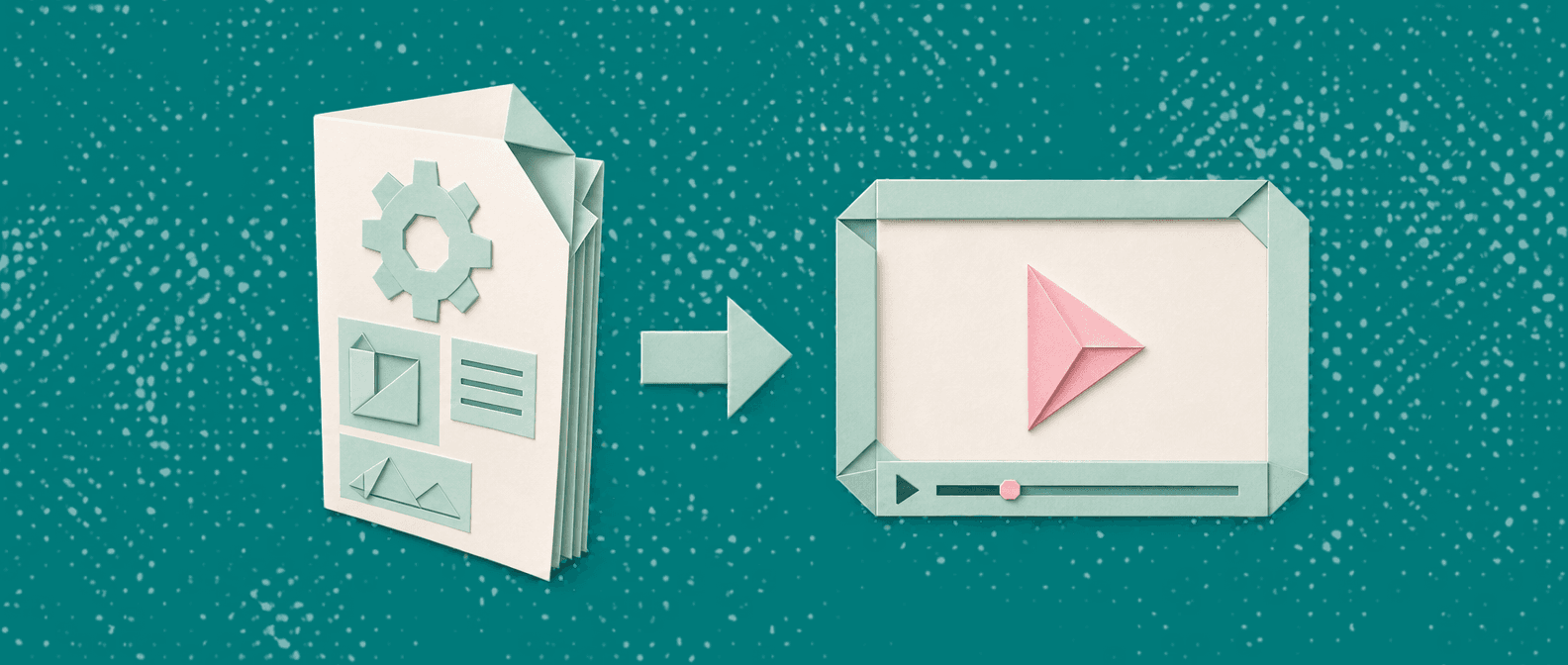
Turning a PDF into a video used to mean rebuilding the whole document by hand in a slideshow tool, then recording narration over it. In 2026 you can do it in a browser in a couple of minutes. This guide walks through the fastest free way to convert a PDF to video online, then shows how to add AI voiceover, subtitles, and translation when you need more than a silent slideshow.
Quick answer: There are two different jobs hiding behind "turn a PDF into a video," and picking the wrong one wastes an afternoon. Page-by-page conversion renders each page as a frame with a transition: fast, free, silent, and predictable. AI generation reads the document, writes a script, and produces narrated video from it. If you just want the file converted right now, go straight to the PDF to video converter and skip this guide. This page is for deciding which method your document actually needs, and how to automate it.
What "PDF to video" actually means
If you already know you want the straightforward page-by-page render, the free PDF to video converter does it in the browser and you do not need the rest of this page. Read on if the document is text-heavy, or if this is a job you will repeat every time a manual gets revised.
There are two very different things people mean by "convert a PDF to video," and picking the wrong tool wastes time.
- Page-by-page conversion. Each PDF page becomes a frame in a video, displayed for a few seconds with a transition between pages. This is fast, free, predictable, and silent. It is perfect for slide decks exported as PDF, portfolios, menus, or any document that is already visual.
- AI document-to-video generation. An AI reads the PDF, summarizes it into a script, generates voiceover, and assembles supporting visuals or an avatar. This is slower and usually paid, but it produces a "watchable" marketing or training video rather than a slideshow.
This guide covers the free page-by-page method first, because it is what most people actually need, then shows how to layer narration and translation on top. If you want a full ranked rundown of the AI generators instead, see our list of the 9 best PDF to video AI tools.
How to convert a PDF to video online free (step by step)
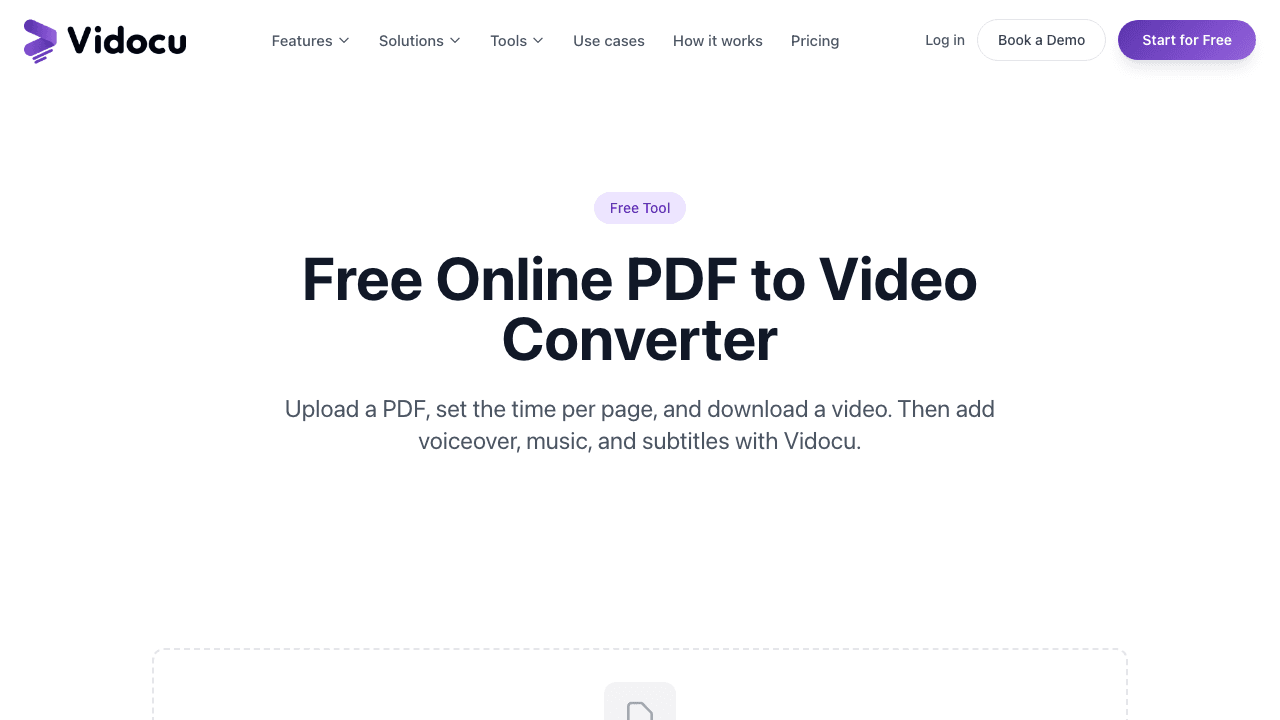
Here is the complete workflow using Vidocu's free converter. It runs entirely in the browser, so there is nothing to install.
Step 1: Open the free PDF to video converter
Go to the free PDF to video tool. You do not need to create an account to convert a file. (Signing in only saves your conversion history.) This matters if you just need a one-off video without handing over an email address.
Step 2: Upload your PDF
Drag your PDF onto the upload area or click to browse. Files up to 100MB are supported, and there is no page limit, so a 40-page manual works the same as a one-page flyer. The tool reads each page as a single visual frame, so whatever your PDF looks like is exactly what the video will show. No layout surprises.
Step 3: Set the seconds per page
Choose how long each page stays on screen, anywhere from 3 to 15 seconds. This is the one setting that determines your total runtime: a 50-page PDF at 5 seconds per page produces roughly a 4-minute video. As a rule of thumb:
- Text-light slides or images: 3 to 5 seconds
- Pages with a paragraph or two: 6 to 8 seconds
- Dense pages people need to read: 10 to 15 seconds
If the video will eventually carry voiceover, lean longer so the narration has room to breathe.
Step 4: Pick a transition
Select a fade or slide transition between pages. Fade feels calmer and more corporate; slide feels more like a presentation advancing. Either is fine. The point is to avoid hard cuts that make the video feel like a screenshot reel.
Step 5: Download your MP4
Generate the video and download it as a 1080p MP4. It is ready to upload to YouTube, drop into an email, embed in a help center, or share in Slack. No watermark on the free output.
Convert Your PDF to Video in Under 2 Minutes
Upload a PDF, set the time per page, and download a clean 1080p MP4. No watermark, first conversion free.
Try the Free ConverterHow to add AI voiceover to your PDF video
The free converter produces a silent video on purpose: it is a clean, reliable page-to-frame export. A silent slideshow is genuinely all you need for a digital signage loop, a portfolio reel, or a deck you will narrate live.
But for onboarding, training, or anything published to an audience, narration changes everything. People retain spoken explanation far better than on-screen text they have to read in 5 seconds.
To add narration without recording yourself, run the video through an AI video platform:
- Convert the PDF to a silent video using the steps above.
- Upload that MP4 to a tool with AI voiceover. Vidocu offers 50+ natural voices and writes narration that plays over your pages.
- Adjust timing so each page's narration matches its on-screen duration, then export.
Because the page-by-page video already has clean visual beats, dropping voiceover on top is straightforward. If you would rather have AI write the script from the document itself (rather than narrating slides), that is the AI document-to-video generation approach, and the tools that do it well are covered in the listicle.
How to add subtitles and translate the video
Once you have a narrated PDF video, two more steps make it far more useful:
- Subtitles. Auto-generate captions with an AI subtitles tool. Captions lift watch time, make the video accessible, and are essential for the large share of viewers who watch with sound off.
- Translation. If your manual or deck has an international audience, video translation regenerates the subtitles and voiceover in 65+ languages from the same source, so you are not rebuilding the video per market.
This is where converting a PDF to video pays off beyond a single asset. One source document becomes a narrated, captioned, multi-language video, plus you can keep the original PDF for download. For teams running employee training across regions, that is the entire localization workflow in three steps.
Voiceover, Subtitles, and 65+ Languages From One Upload
Turn a static PDF into a narrated, captioned, translated video without re-recording anything.
See How Vidocu WorksTips for a better PDF-to-video result
A few small choices separate a polished video from an obvious slideshow:
- Export your source at high resolution. The video is only as sharp as the PDF pages. If your PDF was exported at low quality, regenerate it before converting.
- Cut filler pages. Title pages, blank separators, and legal boilerplate add dead air. Trim them in your PDF before uploading, or remove the scenes afterward in a video editor.
- Match pacing to content. Nothing makes a video feel cheap faster than a dense page that flashes by in 3 seconds. Give readers time, or add voiceover so they are not reading alone.
- Add background music for silent versions. A subtle track under a silent slideshow (background music) makes it feel intentional rather than unfinished.
- Repurpose the same source. A product manual can become an onboarding video, a step-by-step help article, and a translated version, all from one document. Almost no content lives in a single format anymore.
When you should use a different approach
Page-by-page conversion is the right tool when your PDF is already visual: decks, portfolios, infographics, menus, catalogs. The pages are the content.
It is the wrong tool when your PDF is a wall of text, like a 30-page research paper or policy document. In that case you do not want every page on screen; you want an AI to summarize the document into a script and generate visuals to match. That is document-to-video generation, and tools like Synthesia, Visla, and others handle it (see the full comparison). Pick the method based on whether the pages themselves are worth showing.
You can also start from other source formats. If your content lives in slides rather than a PDF, the PowerPoint to video converter follows the same workflow, and there is a step-by-step PPT guide if that is your starting point.
FAQ
Is converting a PDF to video really free?
Yes. Browser-based page-by-page converters like Vidocu's free tool turn a PDF into a 1080p MP4 with no watermark. The free version produces a silent video. AI features such as voiceover, subtitles, and translation are paid add-ons on most platforms.
How long does it take to convert a PDF to video?
Page-by-page conversion takes under two minutes for most documents, since the tool simply renders each page as a frame. AI document-to-video generation (where an AI writes a script and builds visuals) is slower, typically 5 to 30 minutes depending on document length.
Can I add voiceover to a PDF video for free?
The free converter makes a silent video. To add narration, run the exported MP4 through a platform with AI voiceover, or use an AI generator that writes and narrates a script from the document. Voiceover is generally a paid feature across tools.
What's the maximum PDF size I can convert?
Vidocu's free converter accepts PDFs up to 100MB with no page limit. A 50-page PDF at 5 seconds per page produces roughly a 4-minute video. For very large files, compress the PDF or split it before uploading.
How do I make the video play in another language?
Convert the PDF to a video, then use video translation to regenerate the subtitles and voiceover in another language from the same source. Vidocu supports 65+ languages, so you can produce multiple language versions without rebuilding the video each time.
What format is the converted video?
The output is a standard 1080p MP4, which plays everywhere: YouTube, LinkedIn, email, Slack, help centers, and presentation software. No conversion to another format is needed.
Ready to turn a document into something people will actually watch? Convert your PDF to video for free in your browser, then add voiceover, subtitles, and translation whenever you need them. Try Vidocu for free.

Written by
Daniel SternlichtDaniel Sternlicht is a tech entrepreneur and product builder focused on creating scalable web products. He is the Founder & CEO of Common Ninja, home to Widgets+, Embeddable, Brackets, and Vidocu - products that help businesses engage users, collect data, and build interactive web experiences across platforms.