Need to speed up a lengthy tutorial or create a dramatic slow-motion effect? A video speed changer lets you adjust playback tempo right in your browser, no software to install.
We tested the top free tools that let you change video speed online and ranked them by ease of use, speed range, output quality, and extras. Whether you're trimming a long screen recording or creating a time-lapse for social media, one of these will fit your workflow.
Quick Comparison
| Tool | Speed Range | Watermark (Free) | Max Upload | Best For |
|---|---|---|---|---|
| Vidocu | 0.25x–4x | No | 1 GB | Creators who also need subtitles & docs |
| Kapwing | 0.25x–4x | No (with account) | 250 MB | Teams & social media editors |
| VEED | 0.5x–4x | Yes | 250 MB | Quick edits with subtitles |
| Clideo | 0.25x–4x | Yes | 500 MB | Simple one-off speed changes |
| Canva | 0.25x–2x | No | 1 GB | Designers already using Canva |
| Adobe Express | 0.1x–4x | No (with account) | 1 GB | Adobe ecosystem users |
| Fastreel | 0.25x–4x | Yes | 500 MB | No-signup quick edits |
| Ezgif | 0.25x–4x | No | 100 MB | Lightweight GIF & video tweaks |
1. Vidocu: Speed Changer with AI Subtitles & Documentation
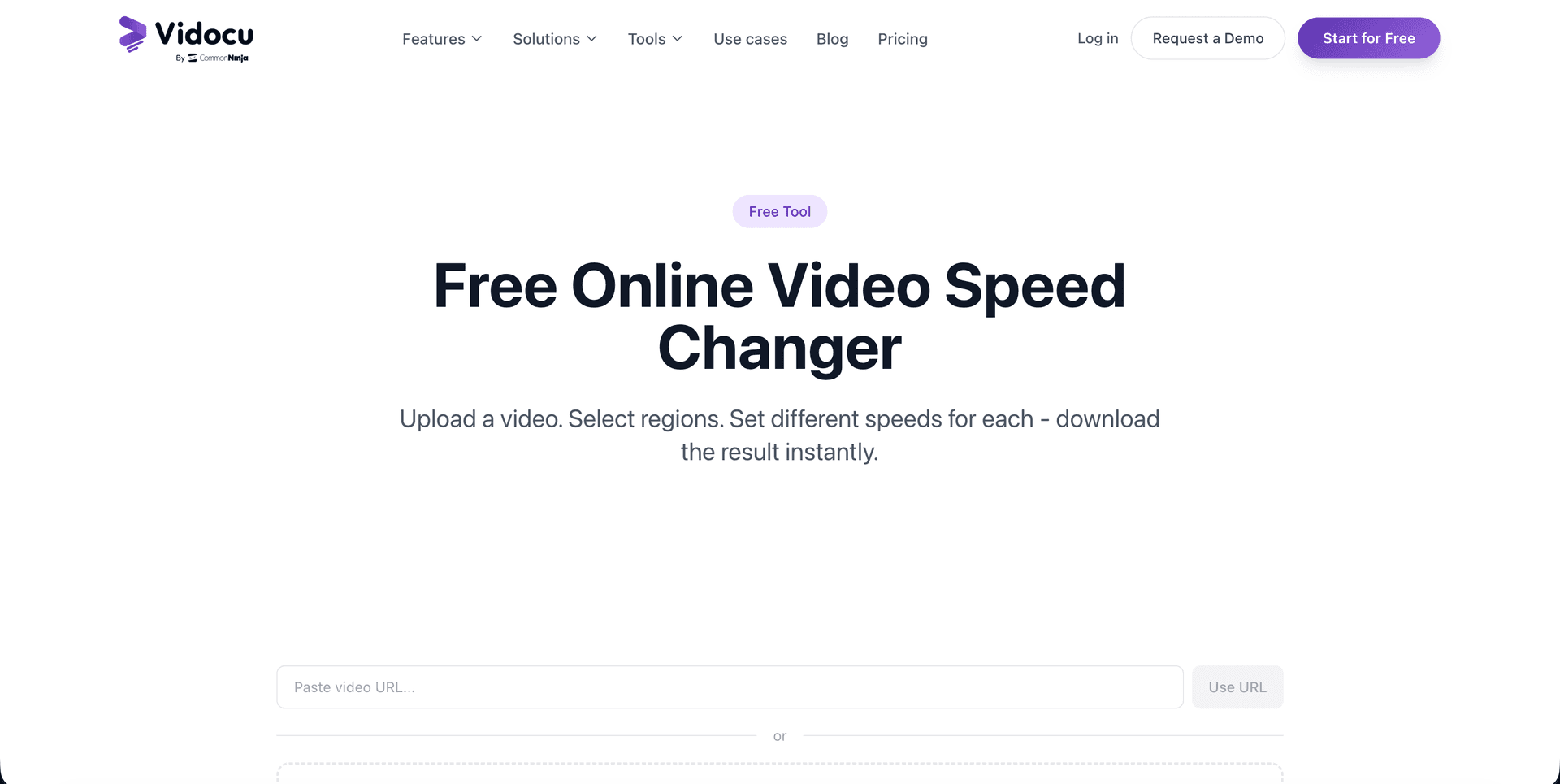
Vidocu's free video speed changer does more than adjust tempo. Upload a video, change its speed, and while you're at it generate AI subtitles, voiceover, or even turn the whole thing into step-by-step documentation.
Key features:
- 0.25x to 4x speed control
- No watermark on free exports
- Built-in video editor with trimming, cropping, and annotations
- AI-powered subtitle generation in 100+ languages
- Export speed-adjusted video with subtitles baked in
Speed is one adjustment among several. The same free toolset will crop a video online or rotate a video online when the framing needs fixing too.
Pros: All-in-one platform, speed change, subtitles, docs, and translation in one upload. No watermark.
Cons: Focused on productivity workflows rather than cinematic effects.
Pricing: Free tier available. Paid plans start at $19/month for higher limits.
Change Video Speed + Add Subtitles in One Step
Vidocu lets you adjust playback speed and auto-generate subtitles, no extra tools needed.
Try the Free Speed Changer2. Kapwing: Full Editor with Speed Controls
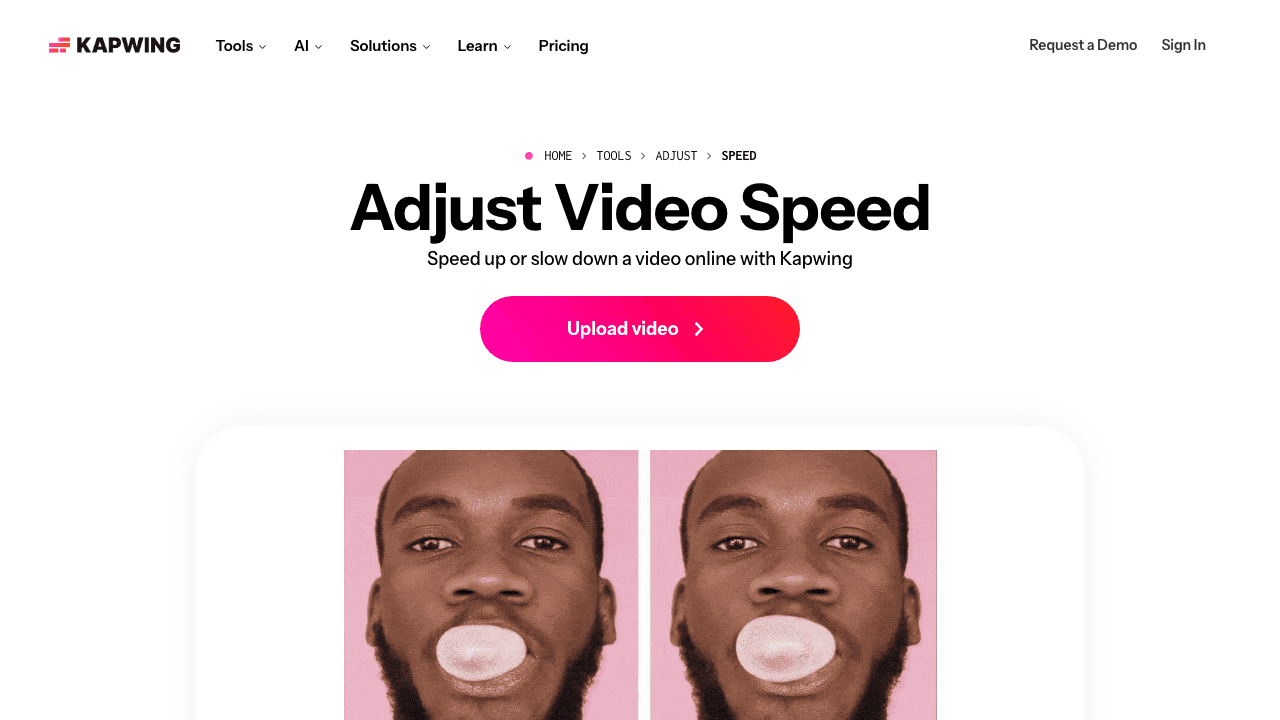
Kapwing is a browser-based video editor that includes a speed adjustment tool. You can speed up or slow down individual clips on a timeline, which is useful for multi-segment edits.
Key features:
- 0.25x to 4x speed presets plus custom values
- Timeline-based editing with per-clip speed control
- Smart Cut for removing silences automatically
- Team collaboration features
Pros: Polished editor, no watermark with a free account, good for team projects.
Cons: Requires sign-up. Free tier limited to 720p exports and shorter videos. Can feel heavy for a simple speed change.
Pricing: Free (with limits). Pro at $24/month.
3. VEED: Quick Speed Adjustments with Subtitles
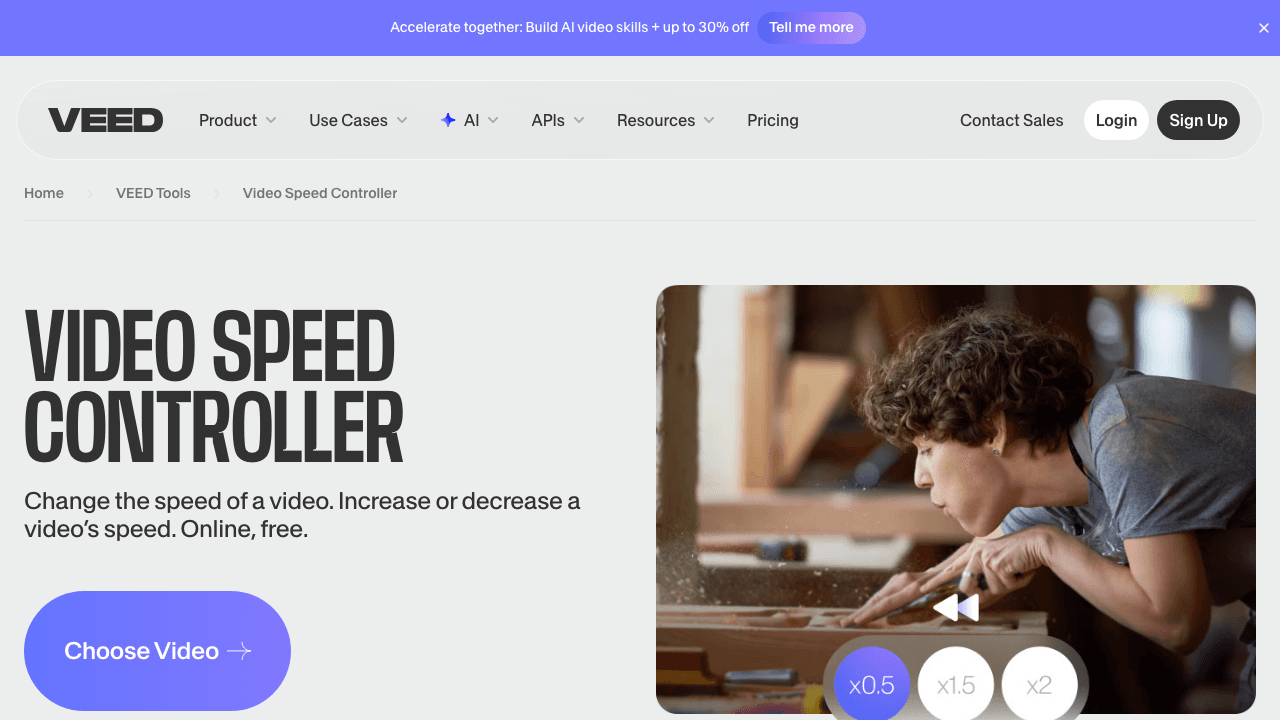
VEED offers a straightforward video speed controller alongside its subtitle and captioning tools. Upload, pick a speed preset, and export.
Key features:
- 0.5x, 1x, 1.5x, 2x, and 4x presets
- Auto-subtitle generation
- Simple drag-and-drop interface
Pros: Very easy to use. Subtitles adjust with speed changes. Clean UI.
Cons: Watermark on free exports. Speed range starts at 0.5x (no ultra-slow 0.25x). Free tier has limited export minutes.
Pricing: Free (watermarked). Creator at $10/user/month billed yearly, Pro at $21/user/month billed yearly.
4. Clideo: Simple Speed Changer
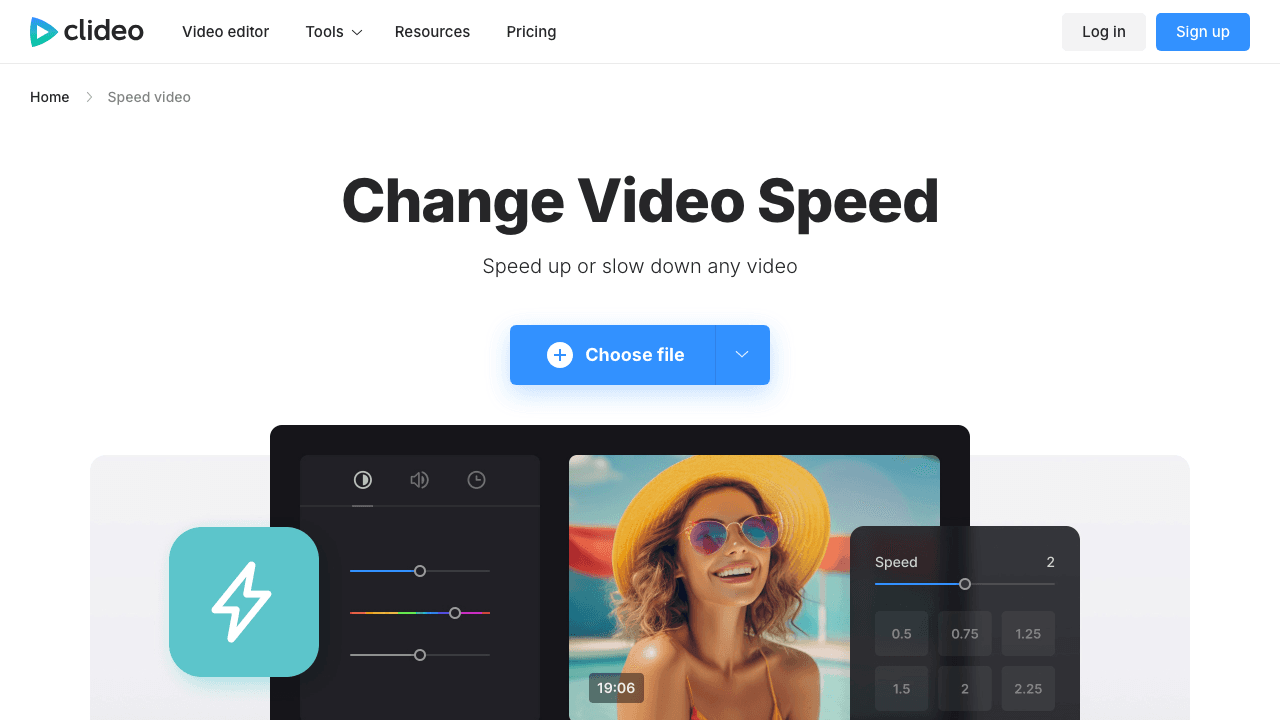
Clideo is a no-frills tool for when you just want to speed up a video online without touching an editor. Choose a speed multiplier, process, download.
Key features:
- Presets from 0.25x to 4x plus a custom slider
- Supports most video formats (MP4, MOV, AVI, WebM)
- Option to mute or keep audio
Pros: Dead simple. Works on mobile browsers. No account needed to start.
Cons: Watermark on free downloads. Processing can be slow for large files. Limited to one operation at a time.
Pricing: Free (watermarked). Pro at $9/month.
5. Canva: Speed Control Inside a Design Platform
If you already use Canva for graphics, its built-in video editor includes basic speed controls. Select a video clip, click the playback speed button, and choose your tempo.
Key features:
- 0.25x to 2x speed range
- Integrated with Canva's template library
- Add text overlays, music, and transitions alongside speed changes
Pros: No watermark. Great for social media content with branded templates. Familiar UI for Canva users.
Cons: Max speed is only 2x, can't go faster. The video editor is secondary to Canva's design focus, so advanced editing is limited.
Pricing: Free. Canva Pro at $120/year for one person unlocks more features.
6. Adobe Express: Speed Changer in the Adobe Ecosystem
Adobe Express (formerly Spark) includes a video speed changer as part of its free online editor. It offers a wide speed range and integrates with other Adobe tools.
Key features:
- 0.1x to 4x speed range (widest slow-motion option)
- No watermark with a free Adobe account
- Access to Adobe Stock assets and fonts
- Smooth audio pitch correction
Pros: Widest slow-motion range on this list. No watermark. Clean interface. Good audio handling during speed changes.
Cons: Requires an Adobe account. Can feel sluggish. Some features push you toward paid Creative Cloud plans.
Pricing: Free (with account). Premium at $10/month.
7. Fastreel by Movavi: Browser-Based Speed Editor
Fastreel is Movavi's online video tool suite. The speed changer lets you adjust tempo with a slider and preview the result before exporting.
Key features:
- 0.25x to 4x speed with a slider
- No account required to start editing
- Preview before download
- Additional tools: merge, compress, crop
Pros: No sign-up needed. Clean, distraction-free interface. Good for quick one-off edits.
Cons: Watermark on free exports. Limited file size (500 MB). Fewer features than full editors.
Pricing: Free (watermarked). Single-use download at $5.95 or subscription at $9.95/month.
8. Ezgif: Lightweight and Free
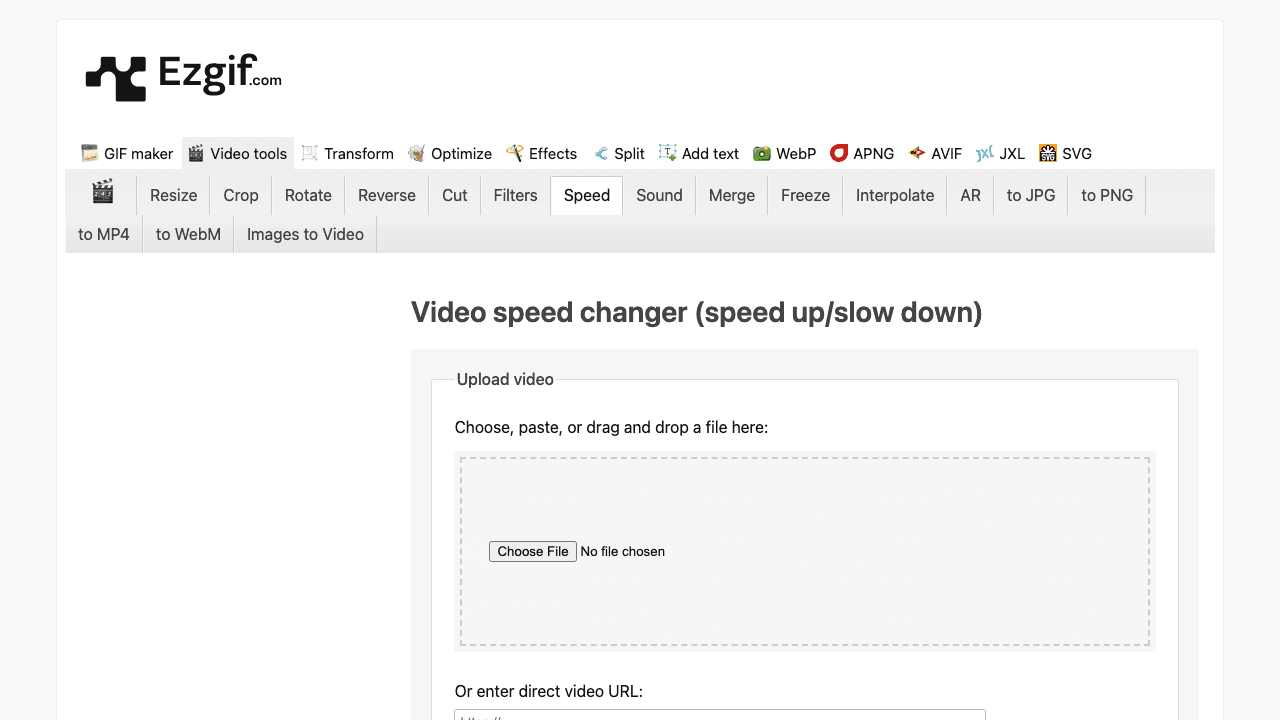
Ezgif is a minimalist tool originally built for GIFs that also handles video speed changes. No frills, no sign-up, no watermark.
Key features:
- Custom speed multiplier (0.25x to 4x)
- Supports MP4, WebM, AVI, MOV
- Option to mute or preserve audio
- Also handles GIF speed changes
Pros: Completely free with no watermark. No account needed. Lightweight and fast for small files.
Cons: 100 MB file size limit. Basic interface with no preview. No additional editing features. Looks dated.
Pricing: Completely free.
Need More Than Just Speed Changes?
Vidocu combines speed control with AI subtitles, voiceover, and automatic documentation, all from a single video upload.
Explore All Free ToolsOne clarification worth making, because these two jobs get confused: speeding a video up shortens it, but it does not reliably shrink the file. If the goal is a smaller file rather than a shorter one, that is a different tool entirely. See the best free video compressors instead.
How to Choose the Right Video Speed Changer
The best tool depends on what else you need:
- Just speed and nothing else? Ezgif or Clideo get the job done fast.
- Need subtitles too? Vidocu or VEED handle both in one workflow. If you're creating how-to guides or SOPs from video, Vidocu generates documentation alongside speed-adjusted video.
- Speeding up a multi-part recording? Merge the clips into one video first, then apply a single speed change so the pacing stays consistent from start to finish.
- Working with a team? Kapwing's collaboration features are strong.
- Already in a design tool? Canva or Adobe Express keep you in your existing workflow.
- Creating training content? Consider Vidocu's ability to turn screen recordings into step-by-step guides, adjust the speed and generate docs simultaneously.
FAQ
Can I speed up a video online for free without a watermark?
Yes. Vidocu, Kapwing (with a free account), Canva, Adobe Express (with account), and Ezgif all export without watermarks on their free tiers. Tools like Clideo, VEED, and Fastreel add watermarks unless you upgrade.
Does changing video speed affect audio quality?
Most tools adjust audio pitch proportionally, speeding up makes audio higher-pitched, slowing down makes it lower. Adobe Express and Kapwing offer pitch correction to keep audio sounding natural. If audio quality matters, consider generating fresh AI voiceover after adjusting speed.
What's the best speed for a time-lapse or tutorial?
For time-lapse effects, 4x–8x works well for most footage. For speeding up tutorials to remove dead air, 1.25x–1.5x keeps things watchable without feeling rushed. You can also use Vidocu's video trimmer to cut out pauses instead of speeding up the whole clip.
Can I change the speed of just part of a video?
Kapwing and Adobe Express support per-clip speed changes on a timeline. Most other tools on this list apply speed changes to the entire video. For selective speed adjustment, you may need to trim your video first, adjust speed on the segment, then merge clips back together.
Do these tools work on mobile?
All tools listed here are browser-based and work on mobile devices. Clideo and Ezgif work particularly well on mobile since they have lightweight interfaces. For a full mobile editing experience, Canva and Kapwing have dedicated mobile apps.
Wrapping Up
Every tool on this list can change video speed online for free. The difference comes down to what else you need. If speed is all you're after, Ezgif is hard to beat, it's free, fast, and no-nonsense. If you want speed changes plus subtitles, translation, or documentation, Vidocu handles all of that in one place.

Written by
Daniel SternlichtDaniel Sternlicht is a tech entrepreneur and product builder focused on creating scalable web products. He is the Founder & CEO of Common Ninja, home to Widgets+, Embeddable, Brackets, and Vidocu - products that help businesses engage users, collect data, and build interactive web experiences across platforms.