
To add a watermark to a video free, upload your clip to a tool like Vidocu, drop in your logo or text, set the position and opacity, then export. The whole process takes under two minutes in the browser, with no software to install. Below are the 7 best free online watermark tools for 2026, compared on price, free-tier limits, and whether they stamp their own branding on your export.
Last updated: August 2026. All prices verified against each vendor's own pricing page this month.
Why Watermark Your Videos?
Before diving into tools, here's why watermarks still matter:
- Theft deterrence: discourages content scraping and unauthorized reposting
- Brand recognition: every share reinforces your brand identity
- Ownership proof: serves as evidence of the original creator
- Professional appearance: signals legitimate, polished content
- Content tracking: helps identify where your video ends up when shared
If you're publishing video documentation, tutorials like how-to guides for video editing, or any content that represents your brand, a watermark is a simple but effective layer of protection.
Quick Comparison
| Tool | Text | Logo | Free tier limits | Stamps its own watermark on free? | Paid from |
|---|---|---|---|---|---|
| Vidocu | Yes | Yes | Free watermark tool: 1 run, clean output. Platform editor: 200 credits (~4 min AI video), 1 export | No on the free tool, yes in the platform editor | $39/mo |
| Canva | Yes | Yes | Free design suite, basic video export | No, but premium stock stays watermarked | $120/yr |
| CapCut | Yes | Yes | Full editor, 1080p export | No on basic exports, yes on Pro templates | Not published |
| Kapwing | Yes | Yes | 720p, 1-min videos, 30 min/mo of exports | Yes | $16/mo annual |
| VEED | Yes | Yes | Watermarked exports, no Brand Kit | Yes | $10/user/mo annual |
| Watermarkly | Yes | Yes | Batch processing, local browser processing | Yes, adds its own logo next to yours | $21.95/yr |
| Flixier | Yes | Yes | 720p, 10 min of exports/mo, 2 GB storage | Yes | ~$19/seat/mo |
The honest read on this table: every tool here, Vidocu included, either brands your free exports or caps them somewhere that matters for real work. Several of these tools, Vidocu among them, run a standalone free watermark tool that exports clean but limits you to a run or two, while the full editor behind it is metered or branded on the free plan. There is no free tier in this category that gives you unlimited clean, high-resolution, commercially usable exports. What you are choosing between is which limit you can live with, and what you pay to remove it.
Can You Use a Free Watermark Tool for Commercial Work?
This is the question that actually decides the tool for most businesses, and it has two separate parts that often get confused.
Part one: the watermark itself. Putting your own logo on your own footage is your right as the content owner. No tool on this list restricts that, and no tool claims ownership of your video because you processed it. If you shot it or recorded it, branding it is uncontroversial.
Part two: the vendor's branding. This is the real blocker. Most free tiers export your video with the tool's logo on it alongside yours. For a draft or an internal review that is fine. For a paid ad, a client deliverable, or anything customer-facing, a competing logo in the corner defeats the entire point of watermarking, and you are effectively advertising your editor for free.
Here is where each tool actually stands for commercial output:
| Tool | Clean commercial export requires | What it costs |
|---|---|---|
| Vidocu | Free watermark tool exports clean; Pro for unmetered editor exports | $0 for the tool, $39/mo for the platform |
| Canva | Free plan works for basic video; Pro for premium assets | $0, or $120/yr |
| CapCut | Free basic exports are clean; Pro assets are not | $0 for basic |
| Kapwing | Pro plan | $16/mo billed annually |
| VEED | Creator plan or above | $10/user/mo billed annually |
| Watermarkly | 1-year or permanent license | $21.95/yr or $43.95 once |
| Flixier | Starter plan or above | ~$19/seat/mo |
Watermarkly is worth a second look here specifically because of the pricing model. A $43.95 one-time fee with no renewal is unusual in a category that has moved almost entirely to subscriptions, and for a team that watermarks in occasional batches rather than continuously, it is the cheapest honest route to clean commercial exports on this list.
Watermarking ads and paid social content
Branded advertising has one extra constraint the tutorials rarely mention: platform interface elements will cover your watermark. On TikTok, Reels, and Shorts, the right-hand action rail and the bottom caption area are occupied by the platform's own UI. A bottom-right watermark, which is the standard advice for YouTube and web video, lands underneath the share button on vertical feeds.
For vertical ad content, place the watermark in the top-left or top-center, inside roughly the middle 80% of the frame width, and keep it clear of the bottom third entirely. If you're producing one asset for several aspect ratios, crop a video online to each ratio first and check the watermark position per version, because a mark that sits safely in 16:9 will often be cropped off or buried in 9:16.
Keeping branding consistent across a video series
One-off watermarking is a solved problem. Consistency across fifty videos is not, and it's where free tiers hurt most. If a tool has no Brand Kit on the free plan, you re-upload your logo and re-eyeball its size and position every single time, and your library slowly drifts out of alignment.
Brand Kit access by plan: Vidocu includes it on Pro, VEED on Creator and above, Kapwing on Pro, Canva on Free but limited to three colors, and Flixier on Creator. Watermarkly's batch processing solves the same problem differently, by applying identical settings to a queue of files in one pass.
The related trap is merging. When you stitch clips together, a watermark applied to individual source clips before the merge can shift, rescale, or disappear at the joins depending on how the tool re-encodes. Apply the watermark after the merge, not before. Our guide to the best free video merger tools covers which tools preserve overlays cleanly through a stitch.
When a static watermark isn't enough
If you're distributing confidential material, pre-release footage, an internal training library, or anything under NDA, a static corner logo does not tell you who leaked it. That requires a dynamic or forensic watermark, which burns viewer-specific information (a name, an email, a session ID) into each individual copy.
No free tool on this list does this, and it's worth saying plainly rather than implying otherwise. It's a feature of enterprise video platforms and DRM systems. If that's your actual requirement, a free online watermark tool is the wrong category of product, and you should be evaluating secure video distribution instead.
1. Vidocu: Watermark as Part of a Full Video Workflow
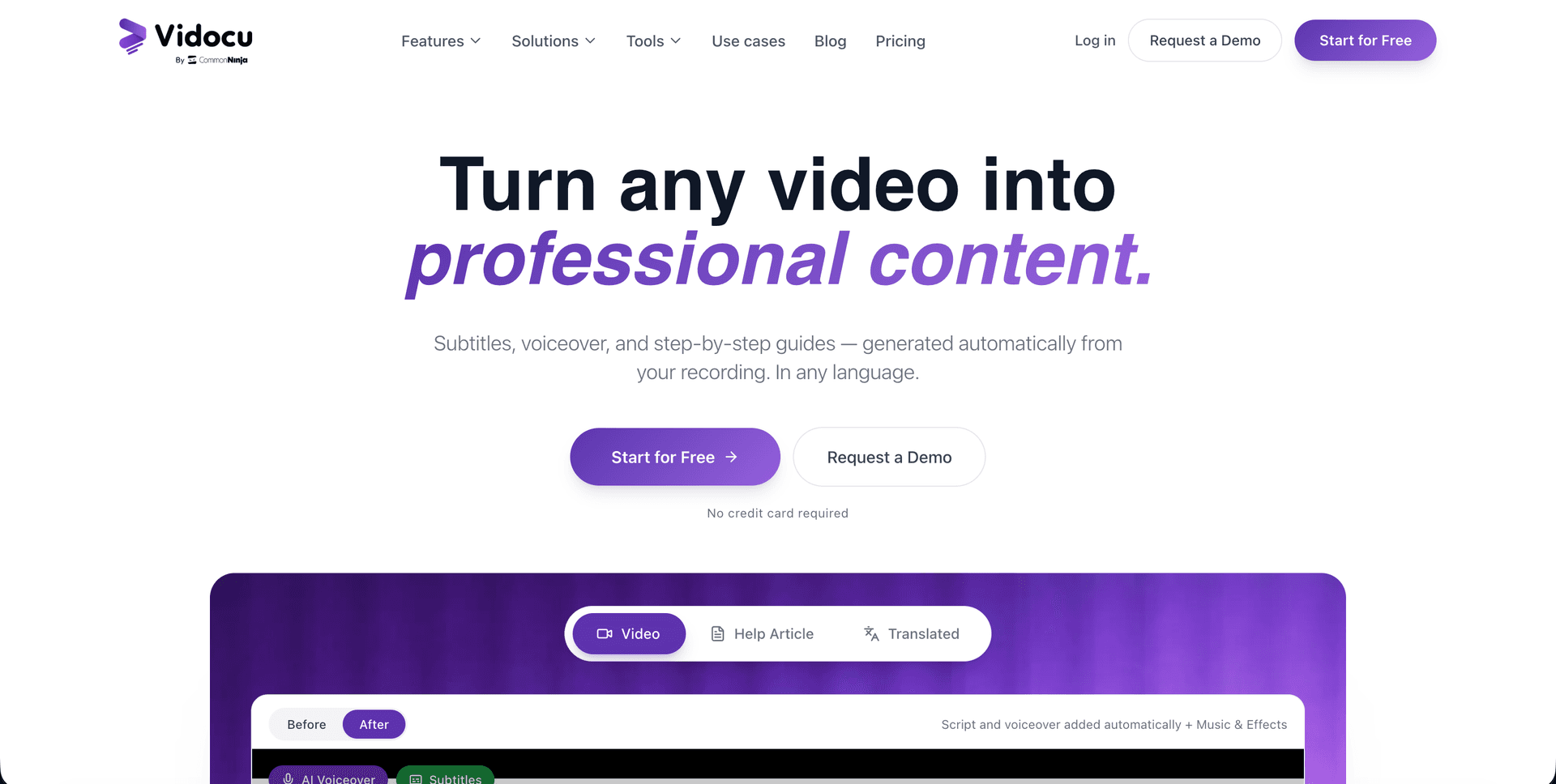
If you're already editing videos, adding subtitles, voiceover, or creating step-by-step documentation, Vidocu lets you add a watermark without switching tools.
Vidocu's video watermark feature supports both text and image watermarks. Upload your logo, position it anywhere on the frame, adjust opacity, and export. The watermark is applied during export so it appears consistently across your entire video, including any zoom and pan effects or scene transitions. If the clip still needs reframing before you brand it, crop a video online or rotate a video online first, then add the watermark.
What sets it apart: Vidocu isn't just a watermark tool. It's an all-in-one platform where watermarking is built into the same workflow as subtitles, voiceover, documentation, and video translation. No need to juggle multiple tools.
Free tier: the standalone free watermark tool gives you a free run with a clean, unbranded export, and needs a free account. The wider platform free plan is separate and metered: 200 credits (roughly 4 minutes of AI video), 1 help article, 1 video export, and recordings up to 3 minutes, with Vidocu branding on editor exports that Pro removes.
Pricing: Free forever at $0. Pro is $39/month and adds watermark removal, Brand Kit, background music, video translation, and AI voiceover. Business is $149/month and adds a team workspace, custom branding, and API access. Full breakdown on the pricing page.
Best for: Teams that need watermarking as part of a broader video production workflow, customer support, training, or product marketing teams.
Add a watermark while you edit
Vidocu combines watermarks, subtitles, voiceover, and documentation in one upload. No tool-switching required.
Try Vidocu free2. Canva: Best for Quick Branded Overlays
Canva's drag-and-drop editor makes adding a text or logo watermark simple, especially if you're already using it for design work. Upload your video, drop your logo on top, adjust size and opacity, and export.
Pros:
- Huge template library for social media video sizes
- Intuitive interface, no learning curve
- Doubles as a full design suite
- Basic video exports on the free plan are not Canva-branded
Cons:
- Free tier has limited video editing features
- Premium stock elements show watermarks until you upgrade
- Free plan Brand Kit is capped at three colors
- Video export options are basic compared to dedicated video tools
Pricing: Free at $0. Canva Pro is $120/year for one person, and Canva Business is $210/year per person. Canva now leads with annual pricing rather than a monthly headline rate.
Best for: Creators who already use Canva for design and want a quick watermark without leaving the platform.
3. CapCut: Most Feature-Rich Free Editor
CapCut gives you a full multi-track video editor for free, including the ability to add text and image overlays as watermarks. It's available on web, desktop, and mobile.
Pros:
- No watermark on basic free exports
- Full editing suite with keyframes, effects, and transitions
- 1080p export on free tier
- Mobile, desktop, and web versions
Cons:
- Pro templates and effects add watermarks on the free tier
- Can feel overwhelming if you only need a simple watermark
- Owned by ByteDance, some users have data privacy concerns
- Pricing is not published on the website, which makes budgeting awkward
Pricing: Free for basic editing. CapCut does not publish plan prices on capcut.com; paid pricing is presented in-app and varies by region, device, and current promotion, and it was restructured upward during 2026. Check the price shown in your own account rather than relying on a figure quoted anywhere else, including here.
Best for: Creators who want full editing power alongside watermarking at no cost.
4. Kapwing: Best for Collaborative Teams
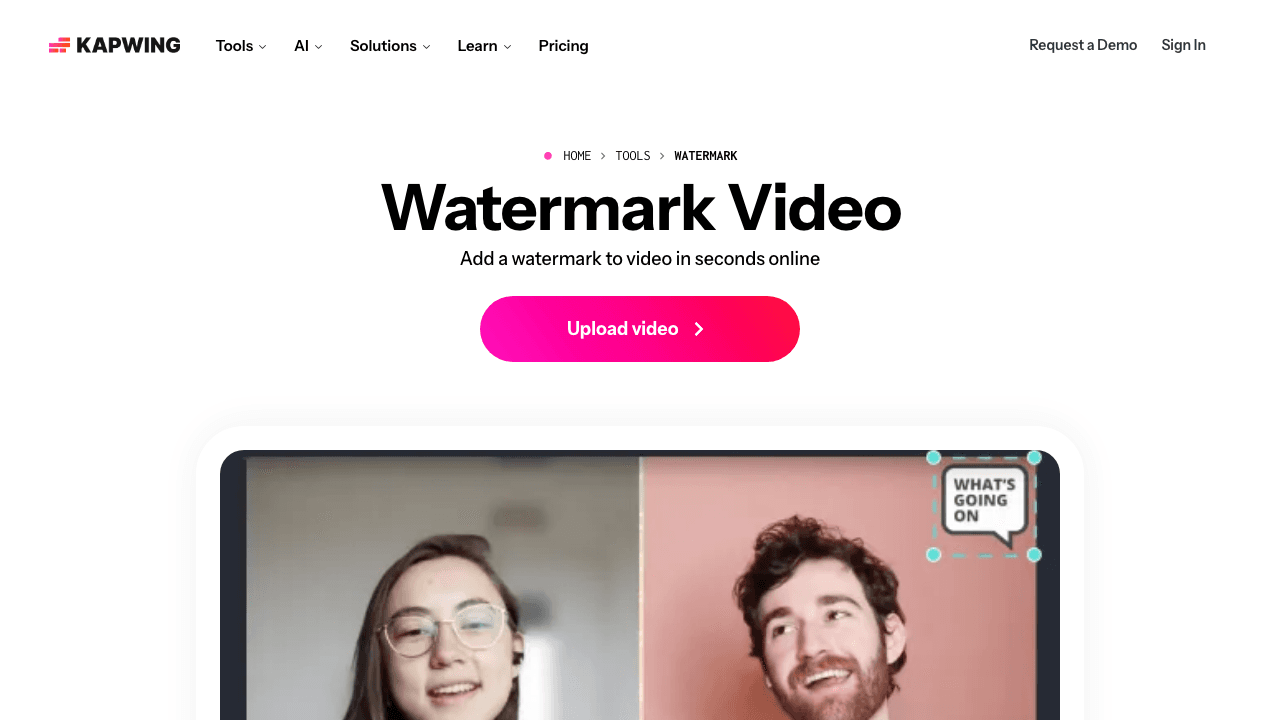
Kapwing is a browser-based editor with straightforward watermark controls, upload your logo, drag it into position, adjust opacity, and export. Real-time collaboration makes it useful for teams.
Pros:
- Simple drag-and-drop watermark placement
- Real-time collaboration features
- Works entirely in the browser
Cons:
- Free exports include Kapwing's own watermark
- Free tier caps videos at 1 minute and 720p, with 30 minutes of exports per month
- Free projects are deleted after a short retention window
Pricing: Free at $0. Pro is $24/month, or $16/month billed annually ($192/year), and removes Kapwing branding, unlocks 4K, and raises the export ceiling to 120-minute videos. Business is $64/month, or $50/month billed annually.
Best for: Teams that need collaborative editing and don't mind the free tier watermark for drafts.
5. VEED: Best for a Fast Browser Workflow
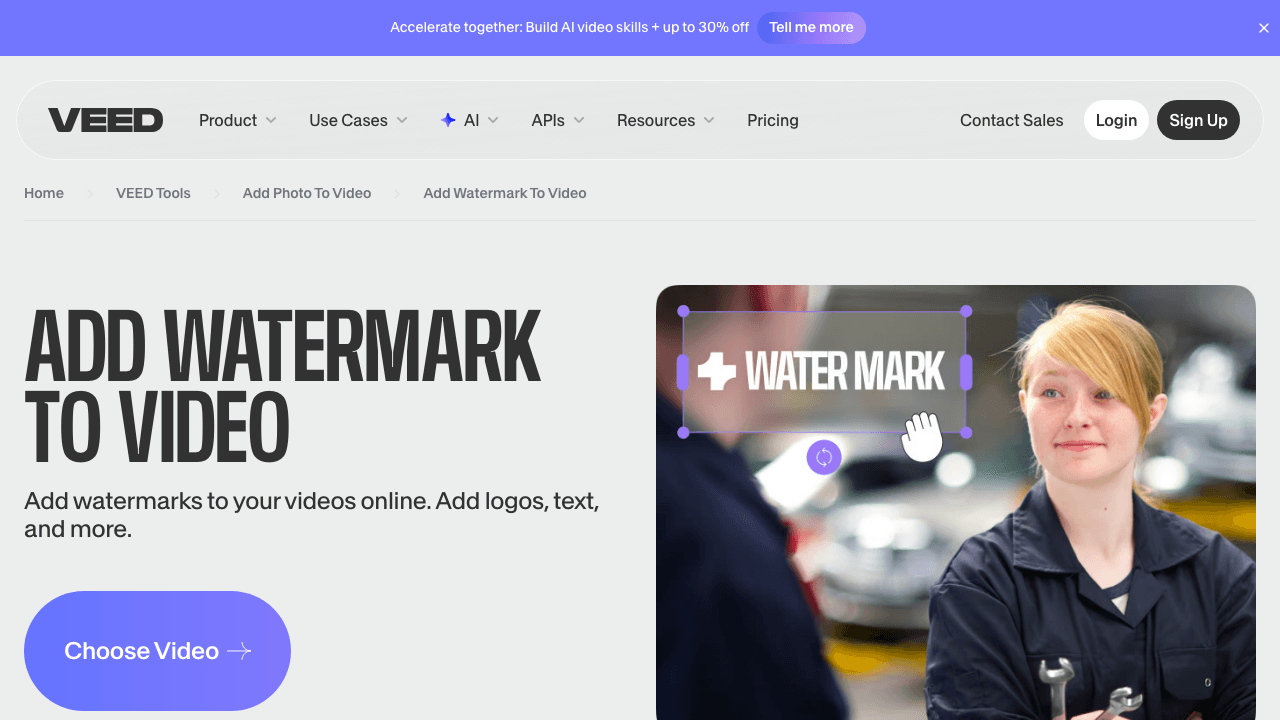
VEED is a browser-based editor with a clean three-step watermark flow: upload your video, upload your logo (PNG with transparency recommended), position it, and export.
Pros:
- Supports transparent PNGs for clean logo overlays
- Social media preset canvas sizes
- Simple three-step workflow
- Unlimited auto-subtitles on paid plans
Cons:
- Free exports are VEED-branded
- No Brand Kit on free tier, you must re-upload your watermark logo every time
- Multiple Brand Kits require the Pro plan, which is a meaningful step up in price
Pricing: Free tier available. Creator is $10/user/month billed yearly ($116/year) and removes the watermark. Pro is $21/user/month billed yearly ($257/year) and adds multiple Brand Kits and translation into 50+ languages. Studio is $35/user/month billed yearly ($414/year).
Best for: One-off watermark jobs and creators who want the cheapest route to a clean, unbranded export.
6. Watermarkly: Best for Batch Processing
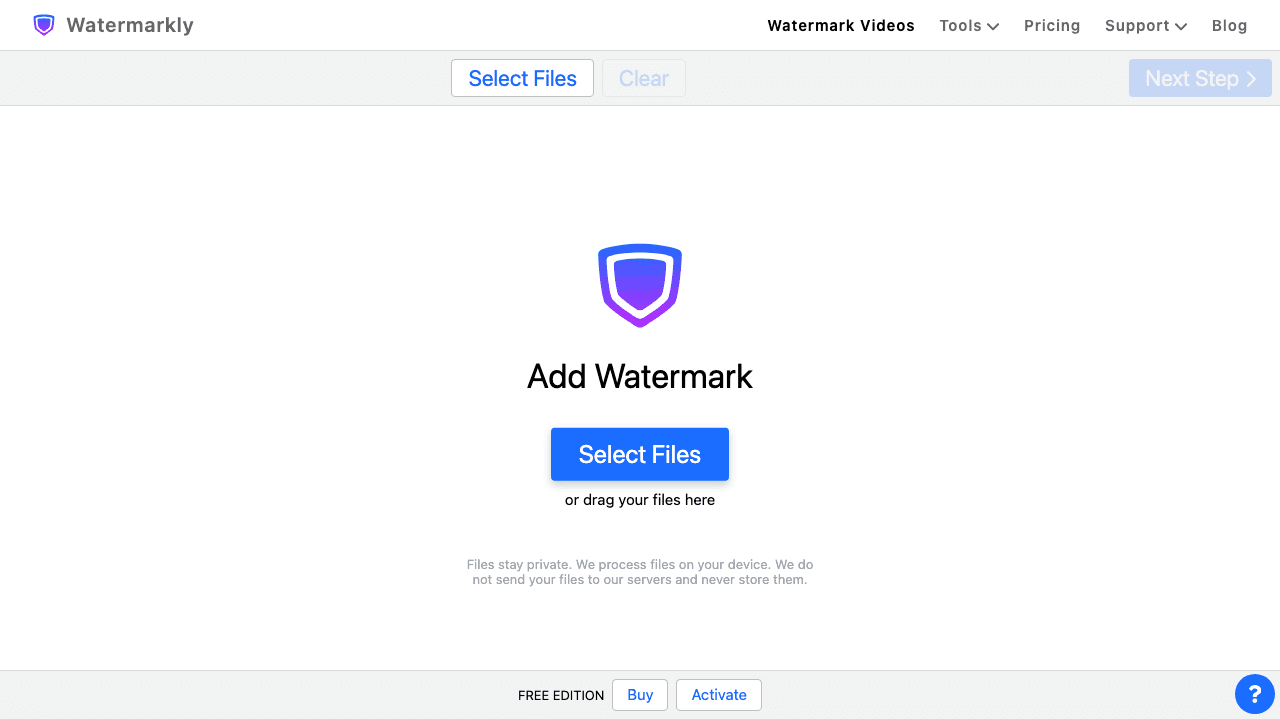
Watermarkly stands out for one key reason: batch processing. If you need to watermark 10, 50, or 100 videos at once, this is the tool. It also processes files locally in your browser, so your videos never leave your machine.
Pros:
- Batch processing for multiple videos at once
- Files processed locally (strong privacy)
- 900+ fonts and 1,000+ icons for text watermarks
- Auto-scales watermark to match video dimensions
- One-time purchase option instead of a subscription
Cons:
- Free version adds a "Watermarkly" logo in addition to your own
- Limited video format support compared to competitors
- Large files may need the desktop app
Pricing: Free with a Watermarkly logo added alongside your watermark. One year of access is $21.95 and does not auto-renew. Permanent access is a one-time $43.95. Both cover the full tool set across web, desktop, and mobile apps, on up to 10 devices, with a 30-day money-back guarantee.
Best for: Creators and agencies who need to watermark many videos at once, care about privacy, and would rather buy once than subscribe.
7. Flixier: Best for Fast Cloud Exports
Flixier's cloud-based processing means fast exports, even on slower machines. The timeline-level control over watermark visibility is a nice touch: you can show your watermark only on specific segments of your video.
Pros:
- Very fast cloud-based processing
- Timeline control, watermark on specific segments or full video
- Direct publish to YouTube and Facebook
- Beginner-friendly interface
Cons:
- Free tier is tightly capped at 10 minutes of export per month
- Free exports carry a Flixier watermark and are limited to 720p
- Prices are localized by region, so the figure you see may differ from the one quoted here
- Less well-known than competitors
Pricing: Free tier includes 500 AI credits, 10 minutes of video export per month, 5 minutes of subtitles, 720p, and 2 GB of storage, with a Flixier watermark. Paid plans start at roughly $19/seat/month for Starter, which removes the watermark and raises exports to 60 minutes per seat per month at 1080p.
Best for: Users who want fast exports without taxing their local machine and need segment-level watermark control.
Types of Watermarks You Can Add
Not sure what kind of watermark to use? Here's a quick breakdown:
| Type | What It Is | Best For |
|---|---|---|
| Text watermark | Your company name, URL, or copyright notice in semi-transparent text | Freelancers, quick branding |
| Logo watermark | Your brand logo (PNG with transparency) placed on the video | Businesses, professional content |
| Custom branded | Logo + text + brand colors combined | Marketing teams, content series |
| Dynamic watermark | Moves position or shows viewer-specific info | Security-sensitive video distribution |
For most use cases, a semi-transparent logo in the corner works best. It's visible enough to deter theft without distracting from the content.
How to Add a Watermark to a Video Free (Step by Step)
The process is similar across most tools. Here's the general workflow:
- Upload your video to the tool of your choice
- Upload or create your watermark: logo file (PNG with transparency is ideal) or type your text
- Position the watermark: corners are most common; bottom-right is standard for horizontal video, top-left for vertical
- Adjust opacity: 30-50% is the sweet spot for visibility without distraction
- Set timing: full video or specific segments only
- Export: choose your resolution and format, and check whether your plan strips the vendor's own branding
If you're working in Vidocu, the free video watermark tool handles all of this in a single interface. You can also add background music to video online, generate subtitles, and create help articles from the same video, no re-uploading required.
Watermark + subtitles + docs in one upload
Stop switching between tools. Vidocu handles watermarking, subtitles, voiceover, and documentation from a single video upload.
Try it freeCommon Mistakes to Avoid
Using a watermark that's too large or opaque. A watermark that covers 30% of the frame makes your video unwatchable. Keep it subtle, 30-50% opacity in a corner.
Forgetting transparency. Always use PNG files with transparent backgrounds for logo watermarks. A white rectangle behind your logo looks unprofessional.
Not watermarking before sharing drafts. If you share unwatermarked drafts for review, those unprotected versions could end up anywhere. Watermark early in the process.
Using a tool that adds its own watermark. Several "free" tools stamp their own branding on your export. Check the comparison table above before you commit to a workflow.
Placing the watermark where the platform's interface covers it. Bottom-right is standard advice, but on vertical feeds it sits under the share button. Check each aspect ratio separately.
Applying the watermark before merging clips. Re-encoding at the joins can shift or drop overlays. Connect the clips into one video first, then brand the finished file.
FAQ
Is it legal to add a watermark to my own videos?
Yes. If you own the video content, you have every right to add a watermark. Watermarks serve as a visible assertion of ownership and are widely used across creative and professional industries.
Can I use a free video watermark tool for commercial or business content?
Yes, with one practical caveat. No tool on this list restricts you from branding your own footage for commercial use, and none claims ownership of your video. The blocker is the vendor's own watermark: most free tiers stamp their logo on your export, which is unusable for ads or client work. Clean commercial exports start at $0 for CapCut basic exports, Canva's free plan, and Vidocu's standalone free watermark tool, then $21.95/year for Watermarkly, $10/user/month for VEED, and $16/month for Kapwing. For unmetered exports out of a full editor, Vidocu Pro is $39/month.
How much does it cost to remove the watermark from a free video editor?
Across the tools compared here, removing the vendor's branding costs between $10 and $39 per month, or a one-time $43.95 for Watermarkly's permanent license, and $0 if a standalone free tool covers your job. VEED's Creator plan at $10/user/month billed yearly is the cheapest subscription route; Watermarkly's one-time purchase is the cheapest option overall if you don't need a full editor.
What's the best file format for a logo watermark?
PNG with a transparent background. This ensures your logo overlays the video cleanly without a colored rectangle behind it. Most tools listed above support PNG uploads natively.
Where should I place a watermark on a video?
Bottom-right is the most common and least intrusive position for horizontal video. For vertical content on TikTok, Reels, or Shorts, move it to the top-left or top-center, because the platform's own buttons and captions cover the right rail and bottom third. Avoid dead center in every format.
Can I add a watermark to a video on my phone?
Yes. Tools like CapCut and Canva have mobile apps with watermark support. For browser-based options, VEED and Kapwing work on mobile browsers as well.
Does adding a watermark reduce video quality?
It depends on the tool and the plan. Free tiers frequently cap resolution: Kapwing at 720p, Flixier at 720p, and Canva at basic export settings. Paid plans across these tools generally preserve 1080p or 4K.
How can I add a watermark to a video for free?
Use a free online tool: upload your video, add a logo (transparent PNG) or text watermark, position it in a corner at 30-50% opacity, and export. Vidocu, CapCut, and VEED all let you do this in the browser with nothing to install. See our step-by-step guide to adding a watermark with Vidocu.
Adding a watermark to your videos doesn't need to be complicated or expensive. For a quick one-off, CapCut's free basic exports and Canva's free plan are genuinely clean. For batch work on a budget, Watermarkly's one-time license is hard to beat. If watermarking is part of a larger video workflow, subtitles, voiceover, documentation, Vidocu handles it all in one place.
Try Vidocu for free and add your first watermark in under two minutes.

Written by
Daniel SternlichtDaniel Sternlicht is a tech entrepreneur and product builder focused on creating scalable web products. He is the Founder & CEO of Common Ninja, home to Widgets+, Embeddable, Brackets, and Vidocu - products that help businesses engage users, collect data, and build interactive web experiences across platforms.