
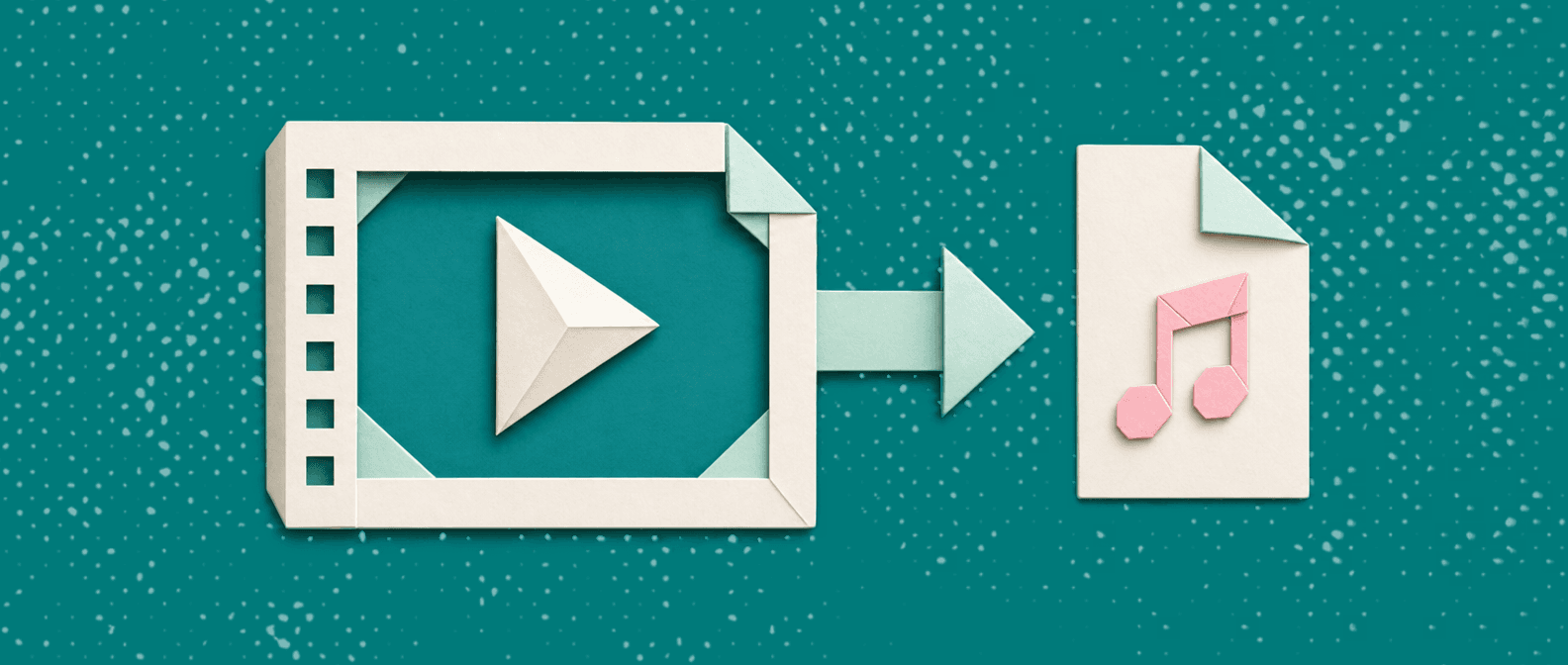
Need an audio extractor from video that skips the install? Open Vidocu's free video audio extractor, drag in a video file or paste a video URL, choose a format, and download. No software. No browser extension.
Output formats are MP3, WAV, AAC, FLAC and OGG. If you paste a link, you do not have to save the video first. The free plan includes one free tool run, so the limit is clear up front.
How to extract audio from a video in 3 steps
Don't download the whole video, then convert it. Paste, pick, download.
- Open the tool. Go to Vidocu's free video audio extractor.
- Add your video. Drag in a file, or paste a video URL.
- Pick a format and download. Choose MP3, WAV, AAC, FLAC or OGG, then save the audio.
That is the whole job. It runs in your browser, with no install and no extension.
Want more detail on each route? Read the full guide to extracting audio from a video online.
Extract audio from a video link or URL
Many people arrive with a link, not a file. That works. Paste the link into the extractor, pick MP3, and download. The video never has to land on your drive first.
What publicly accessible means
The extractor accepts a publicly accessible video URL. In plain terms: if you can open the link in a private browser window without signing in, it is public.
These links will not work:
- Private videos
- Videos behind a login
- Videos that have been deleted
If the link needs a password or an account, the extractor cannot reach it.
YouTube links
This is the most common request. Paste the YouTube link, pick MP3, and download the audio. Extract only audio you own or have the right to use.
If a link fails
Use the fallback. Download or save the video, then upload the file instead. It adds one step, and it covers links the tool cannot reach.
Extract audio from a video file you already have
Have the file on your computer? Drag and drop it into the extractor.
- Formats: most video formats are supported. MP4 and MOV are the two named on the site.
- Size: you can drag and drop files up to 2GB.
- Meeting recordings: recordings from Loom, Zoom and Teams work as uploaded files. Save the recording as a video file, then drop it in.
This is the route for a webinar, a lecture or an interview that already sits in your downloads folder.
Which audio format should you pick?
Pick the format by what you plan to do next.
| Format | In plain terms | Good for |
|---|---|---|
| MP3 | Small files that play almost anywhere | Sharing and listening |
| WAV | Uncompressed audio, meaning nothing is squeezed out of the sound | Editing |
| AAC | A compressed format, so files stay small | Everyday listening |
| FLAC | Lossless compression, meaning the file shrinks but keeps full audio detail | Editing and archiving |
| OGG | An open, compressed format | Web and app use |
Simple default: MP3 for sharing and listening. WAV or FLAC when you plan to edit.
The tool lists the formats only. No bitrate or quality numbers are published, so none are given here.
What to do with the audio after you extract it
Extraction is rarely the end. Most people want a transcript, captions or another language next. Vidocu lets you keep going in the same workflow.
After extraction, the same upload can also produce:
- A searchable transcript. Run the original video through the video transcript extractor, one of Vidocu's 30+ free browser tools. For a walkthrough, read how to transcribe a video to text.
- Subtitles. The AI subtitles generator works in 90+ languages and gives you word-level captions, meaning each word is timed on screen.
- A new voiceover. Swap in an AI voiceover in a different voice. There are 50+ voices.
- A translated version. Video Translation covers 90+ languages.
That is extract, plus the next step, in one place. Vidocu is an AI Knowledge Platform, so audio is one output among many. The same video can also become a guide, a help article or training material.
Free limits and watermarks: what to expect
Watermarks: audio output from the extractor has no watermark.
Free plan: you get one free tool run. You also get 200 one-time credits across the wider platform.
Paid plans: Starter is $19/mo billed monthly, or $13/mo billed yearly.
Here is the honest limit. If you need many extractions, you will use up the free run quickly. A one-off clip is easy. A folder of recordings is not a free-run job.
No credit card is needed to start.
Other ways to extract audio (and when they make sense)
You do not have to use a browser tool.
- Mac built-in: open the video in QuickTime Player, then choose File > Export As > Audio Only. This is a basic extraction, and you do not upload a file.
- Desktop players and video editors: apps like VLC, or a full editor, can work for large or private files. They need an install and more steps.
Want to compare browser options? Read the free video to MP3 extractors compared roundup. It covers file size limits, output formats and watermarks for each pick.
FAQ
How do I extract audio from a video for free without software?
Open a browser-based tool like Vidocu's free audio extractor. Drag in a video file or paste a URL, pick a format, and download. Nothing to install, and no extension needed.
Can I extract audio from a video link or URL?
Yes. Paste a publicly accessible video URL into the extractor and pick your format. You do not have to save the video first.
How do I download audio from a video link for free?
Paste the link, choose MP3 or another format, and download. The free plan includes one free tool run. For more extractions, you would move to a paid plan.
Which audio formats can I get?
MP3, WAV, AAC, FLAC and OGG. Use MP3 for sharing and listening. Use WAV or FLAC if you plan to edit.
Does the audio extractor add a watermark?
No. Audio output from the extractor has no watermark.
Can I extract audio from a YouTube video?
Yes, if the video is publicly accessible. Paste the link, pick a format, and download. Extract only audio you own or have the right to use.
Why won't my video link work?
The link is probably not public. Private videos, videos behind a login and deleted videos will not load. Save the video, then upload the file instead.
How do I turn the extracted audio into a transcript or subtitles?
Run the original video through the video transcript extractor for searchable text. For captions, use the AI subtitles generator, which supports 90+ languages with word-level captions.
Is there a file size limit?
You can drag and drop files up to 2GB. Most video formats are supported, and MP4 and MOV are the ones named on the site.
Can I extract audio from a Zoom, Teams or Loom recording?
Yes. Save the recording as a video file, then upload it. Loom, Zoom and Teams recordings all work as uploaded files.
Get your audio now
Open the free video audio extractor, paste a link or drop in a file, and download your MP3. No credit card needed. Then run the same upload through subtitles or the transcript extractor.

Written by
Daniel SternlichtDaniel Sternlicht is a tech entrepreneur and product builder focused on creating scalable web products. He is the Founder & CEO of Common Ninja, home to Widgets+, Embeddable, Brackets, and Vidocu - products that help businesses engage users, collect data, and build interactive web experiences across platforms.