

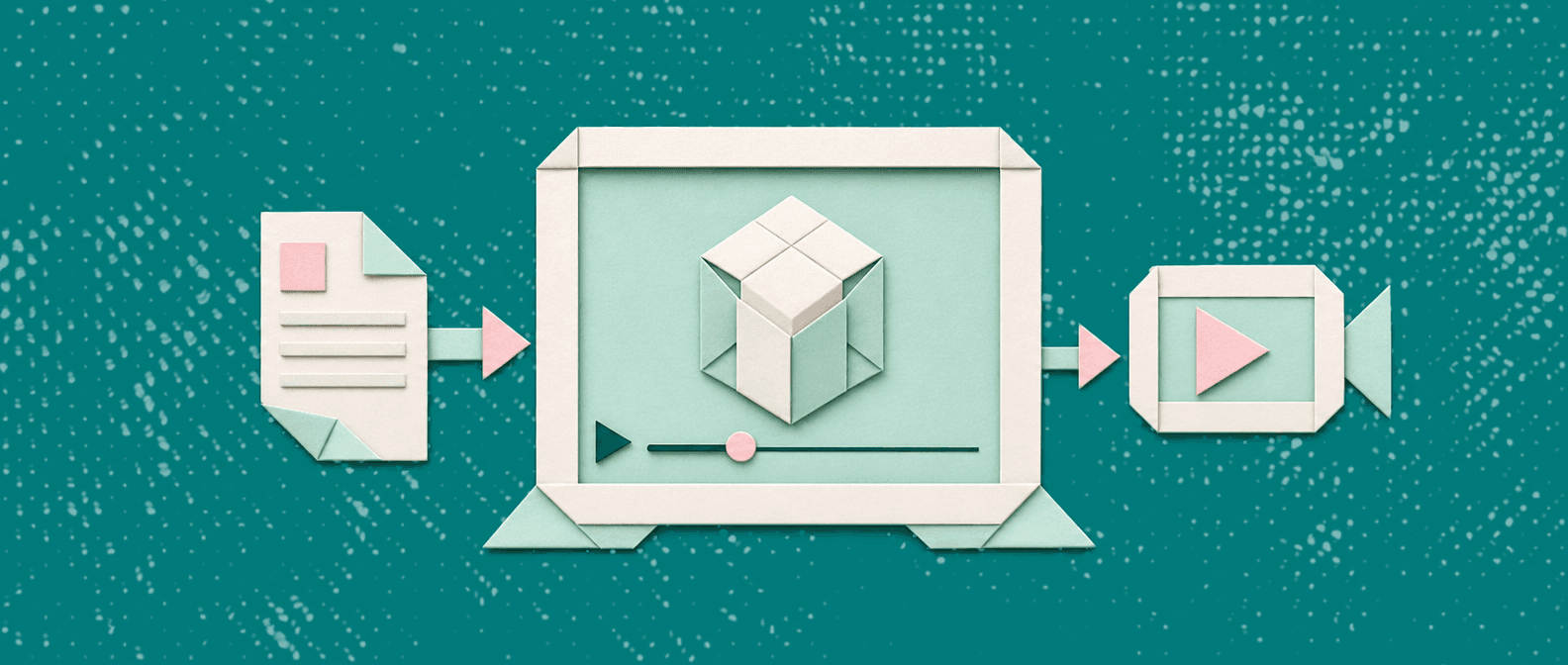
The right format for digital assembly instructions depends on your product. Use a PDF for reference and compliance. Use video for customers who get stuck. Use 3D motion video for multi-part products with tricky connections.
These formats are not either/or. Keep the PDF as your source and your fallback, then add video or 3D motion on top. Later in this guide, you will see how to turn the illustrated PDF you already have into a 3D assembly video with Vidocu.
The short answer: which format should you use?
Here is the verdict in three lines:
- PDF: best for parts lists, printing, reference and compliance.
- Video: best when customers need to see sequence and pace.
- 3D motion video: best for products with many parts and connections where direction is easy to get wrong.
You do not have to pick one. The PDF stays. The video sits next to it. If you already own an illustrated PDF, you can build the video from it instead of starting over.
What are digital assembly instructions?
Digital assembly instructions are assembly steps delivered on a screen instead of paper. They can be a PDF, a video or a 3D animation. A digital assembly manual is the same idea in manual form: the full set of steps, parts and warnings, viewed on a phone, tablet or computer.
The term 3D assembly instructions needs a clause of explanation. It means animated or motion views of parts and connections, not flat drawings. You see the panel move into place instead of inferring the move from an arrow.
A PDF on your website is already digital. But it is still a static format. Every bit of motion has to be carried by numbered steps, arrows and callouts.
PDF vs video vs 3D: how they compare
The table below compares the three formats on the same criteria. It is general guidance, not a measured result.
| Video | 3D motion video | ||
|---|---|---|---|
| Shows well | Parts lists, hardware, final state of each step | Sequence, pace, spoken explanation | Parts highlighted at the right moment, movement and connections |
| Where customers get stuck | Reading direction and orientation from arrows | Fast steps they cannot pause on a tool or part | Depends on how clear the source steps are |
| Effort to produce | Lowest if you already draw the steps | Higher: filming, editing, voiceover | Can start from the illustrated PDF you already have |
| How it is shared | Download, print, attach | Link, embed, QR code | Link, embed, QR code |
| How it is updated | Edit and re-export | Re-edit or re-record | Update the source, then regenerate |
A PDF is familiar and printable. It is the right home for parts lists, safety notes and reference material. It is also what auditors and compliance teams expect to see.
The limit is that it is static. Arrows and numbered steps must carry all the motion. For a simple product, that is fine. For a product with ten hardware types, it is a lot to ask.
Video
Video shows the sequence and the pace. It can include voiceover and on-screen explanations. A customer can pause, rewind and watch the hard step again.
The cost is production. Filming and editing assembly takes time, and every product change can mean a reshoot.
3D motion video
3D motion video goes a step further. Parts are highlighted at the right moment. Movement and connections are shown clearly. Transitions move smoothly from one step to the next.
This helps most where a static drawing shows the result but not the move: sliding a panel into a groove, rotating a bracket, locking a joint.
This guide makes no claims about returns, support tickets or completion rates. Test any format with your own customers.
How to choose: five questions to ask about your product
Answer these five questions. Each one comes with a rule of thumb.
- How many parts and hardware types are there? Few and obvious: a PDF is likely enough. Many parts, several screw or fitting types: add video.
- Are there connections where direction or orientation is easy to get wrong? If yes, motion helps. Lean toward 3D motion video.
- Do customers need to see motion, such as sliding, rotating or locking? If they only need the final position, a PDF works. If they need the move, use video or 3D.
- Do you sell in several markets and need several languages? Plan for this early. Vidocu offers video translation and AI subtitles in 90+ languages. Test your own assembly video through that workflow before you commit.
- Do you already have an illustrated manual, or are you starting from nothing? If you have one, convert it. If not, build the PDF first (see below).
Decision summary
- Simple product, few parts: keep the PDF.
- Many parts, steps that confuse people: add a video.
- Tricky connections where motion matters: use 3D motion video.
- Already have an illustrated PDF: use it as the source for either.
Turn an existing illustrated PDF into a 3D assembly video with Vidocu, step by step
Vidocu is the AI Knowledge Platform that turns video, PDF, slides and documents into product videos, how-to guides and training material. For assembly, it turns an illustrated PDF manual into a 3D animated video with voiceover. It uses the existing instructions as the source. You can turn your PDF manual into a 3D assembly video on the assembly page.
Step 1: Check the source
The PDF should have the following:
- Illustrated assembly steps
- Parts and hardware
- Connection points
- Arrows and directions
- A clear assembly sequence
The video is built from these. The clearer they are, the clearer the result.
Step 2: Upload the PDF
Go to the assembly solution page and upload your illustrated PDF. Vidocu accepts drag and drop for files up to 2GB.
Step 3: Let Vidocu build the video
Vidocu turns the diagrams and assembly sequence into a 3D motion assembly video. It adds animation, explanations and voiceover. Your instructions stay the source. The format changes.
Step 4: Receive the link by email
When the video is ready, Vidocu emails you the link.
Step 5: Review against the PDF
Watch the video next to the PDF, one step at a time. Check part names, directions and order. This is a quality habit, not a product feature. Do it before you publish anything.
Step 6: Publish and share
Publish the video and share it next to the PDF. Create once. Use it everywhere.
What the before and after looks like
The assembly page shows a cabinet example. The input is a cabinet-manual.pdf with illustrated steps, parts and hardware, connection points, arrows and an assembly sequence.
The output is a video with:
- Animated assembly steps
- Parts highlighted at the right moment
- Movement and connections shown clearly
- On-screen explanations
- Professional voiceover
- Smooth transitions from one step to the next
One step in the example reads 'Slide the side panel into the groove'. In the PDF, that is a drawing and an arrow. In the video, it is a move you can watch.
For the full product details and the example, see the assembly solution page.
Where to use the video across the customer journey
One assembly video can work in more than one place:
- Product page: show customers what assembly involves before they buy.
- Order confirmation or packaging: link or QR code to the video.
- Support replies: send the link instead of explaining a step by text.
- Help center: put the video beside the written steps.
Keep the PDF available as the printable reference. Some customers want paper. Some need the parts list at hand while they work.
Your manual may not be about assembly. For other manuals, read how to turn a user manual into video. If you want to compare options, see this roundup of PDF to video AI tools. For step-by-step job aids used inside a company, see digital work instructions software.
What if you don't have a PDF yet?
Start with the PDF. Vidocu has a free Assembly Instructions Generator. Build a step-by-step manual in your browser and export it as a PDF. Then convert that PDF into an animated 3D assembly video.
The same page lists more free tools for manufacturers, including a QR code for assembly instructions with a print-ready insert card. That card is a simple way to put the video link in the box.
Limits and what to check before you convert
Output quality depends on the source. A PDF with unclear steps or missing parts will give a less clear video. The tool cannot fix an instruction that was wrong to begin with.
Before you publish:
- Ask someone who has built the product to watch the video.
- Check every step against the PDF.
- Fix the source if a step is unclear, then regenerate.
This article does not claim any result in returns or support volume. Those depend on your product and your customers.
FAQ
What are digital assembly instructions?
They are assembly steps delivered on a screen instead of paper. The format can be a PDF, a video or a 3D animation.
What is the difference between a PDF assembly manual and an assembly video?
A PDF is static and printable. A video shows sequence and pace, and can add voiceover and on-screen explanations. Many teams keep both.
Are 3D assembly instructions better than video?
Not always. 3D motion helps most with multi-part products and connections where direction is easy to get wrong. For a simple product, a PDF or a plain video may be enough.
When is a PDF enough?
A PDF is enough when the product has few parts and the steps are easy to read from drawings. It is also the right format for parts lists, printing and compliance.
Can I turn my existing PDF assembly manual into a video?
Yes. Upload the illustrated PDF on the Vidocu assembly page. Vidocu turns the diagrams and assembly sequence into a 3D motion assembly video with animation, explanations and voiceover, and emails you the link.
What should an illustrated PDF include to convert well?
It should have illustrated assembly steps, parts and hardware, connection points, arrows and directions, and a clear assembly sequence. Unclear steps or missing parts will give a less clear video.
How do I share assembly videos with customers?
Share the link on your product page, in order confirmations, in support replies and in your help center. You can also put a QR code on packaging or on an insert card.
Do I need to keep the PDF if I have a video?
Yes, keep it. The PDF is your source and your printable reference. The video is an added format, not a replacement.
What if I don't have a PDF manual yet?
Build one first. Use the free Assembly Instructions Generator to create a step-by-step manual in your browser and export a PDF. Then convert it into a video.
Next step
Have an illustrated PDF manual? Upload it on the assembly page and get a 3D motion assembly video emailed to you.

Written by
Daniel SternlichtDaniel Sternlicht is a tech entrepreneur and product builder focused on creating scalable web products. He is the Founder & CEO of Common Ninja, home to Widgets+, Embeddable, Brackets, and Vidocu - products that help businesses engage users, collect data, and build interactive web experiences across platforms.