
Create
Voice & language
Publish & train
One upload
See how it works
One recording becomes a video, an article and a translated guide.
Edit video
Subtitles & audio
Convert to video
Write from video
A screen recording in. An SOP out.
A 28-second recording of a finance manager running payroll, no voice. We picked the SOP style. Vidocu wrote the procedure with exact button names and a screenshot for every step.

What went in
28-second recording, no audio
tallyfox-run-payroll.mp4
What Vidocu made
Run Monthly Payroll in Tallyfox
Run the monthly payroll in Tallyfox to process employee payments efficiently. This guide walks you through initiating payroll processing, adjusting bonuses, reviewing summaries, and finalizing transactions, ensuring timely and accurate payroll management.
What You'll Need
- Access to the Tallyfox payroll system
- Authorization to process payroll
- Estimated time: 5-10 minutes
Step 1: Initiate Payroll Processing
Click the Run payroll button on the Tallyfox payroll dashboard. This action will begin the monthly payroll process, enabling you to manage employee payments and make necessary adjustments.

Step 2: Adjust Employee Bonuses
Locate the target employee’s row and click the input box under the Bonus column. Enter 500 or the desired bonus amount. This allows you to customize individual employee bonuses for the current payroll cycle.

Step 3: Review Payroll Summary
Scroll down the employee list to review the total payroll costs, taxes, and net pay. Ensure that all calculations are accurate and reflect any changes you have made. This step is crucial for verifying the overall payroll details before submission.

Step 4: Proceed with Payroll Authorization
Click the Continue button on the summary screen. Then, select the checkbox to authorize the payroll, confirming that the payroll data is correct and ready for submission.

Step 5: Submit the Payroll
Finally, click the Submit payroll button to finalize the transaction. This step completes the payroll process, disbursing payments to employees as per the entered details.

Tips and Best Practices
- Double-check bonus entries for accuracy before proceeding.
- Regularly update employee information to ensure correct payroll processing.
- Schedule payroll runs during low activity periods to minimize system load.
Troubleshooting
Why is the Submit payroll button unresponsive?
Ensure that the authorization checkbox is selected. Without this confirmation, the system will not allow payroll submission.
What if an employee's bonus is incorrect?
Reopen the payroll entry screen, adjust the bonus amount, and review the summary before re-submitting.
Summary
By following these steps, you have successfully run the monthly payroll in Tallyfox, ensuring timely and accurate disbursement of employee payments. Consider reviewing payroll reports and updating employee records regularly for efficient payroll management.
Frequently Asked Questions
Can I make changes after submitting the payroll?
Once the payroll is submitted, changes cannot be made. Ensure all entries are correct before finalizing.
What if I forgot to enter a bonus for an employee?
If the payroll is not yet submitted, you can still make changes. Access the payroll screen, enter the bonus, and proceed with the process.
How do I confirm that payroll has been processed?
Check the payroll status in Tallyfox or verify through bank confirmations to ensure payments have been disbursed.
Unedited. Prerequisites, steps, troubleshooting and FAQ.
Tallyfox is a made-up company we use for demos. The input and the output are real: this is exactly what went into Vidocu and what came out.
The process
What Vidocu did
- 01
Watched the recording
Every click, field and value, in order.
- 02
Applied the SOP style
Formal wording, exact UI names, expected results.
- 03
Took the screenshots
One per step, at the moment it happens.
- 04
Added the rest
What you'll need, troubleshooting and FAQ.
FAQ
Questions about this example
Do I need to talk while recording?
No. This recording has no audio. Vidocu works from what's on screen.
Can I use my company's SOP template?
Yes. Set an article template in the Brand Kit and every SOP follows it.
Can I get a video too?
Yes. Pick Video as well as Article when you upload and you get a narrated video from the same recording.
More examples
All examples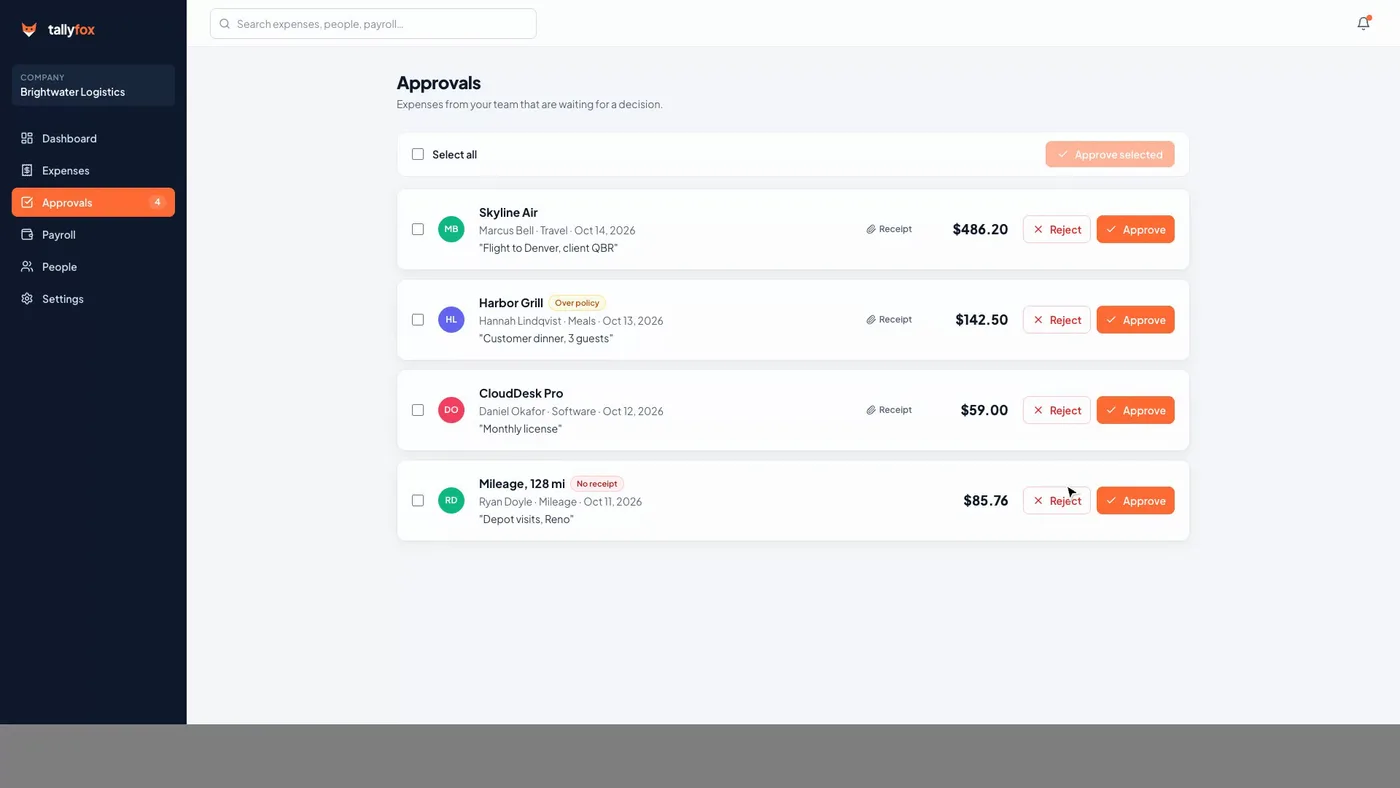 In
 Out
AI Articles
Screen recording → Help article
35-second recording → step-by-step article
See the example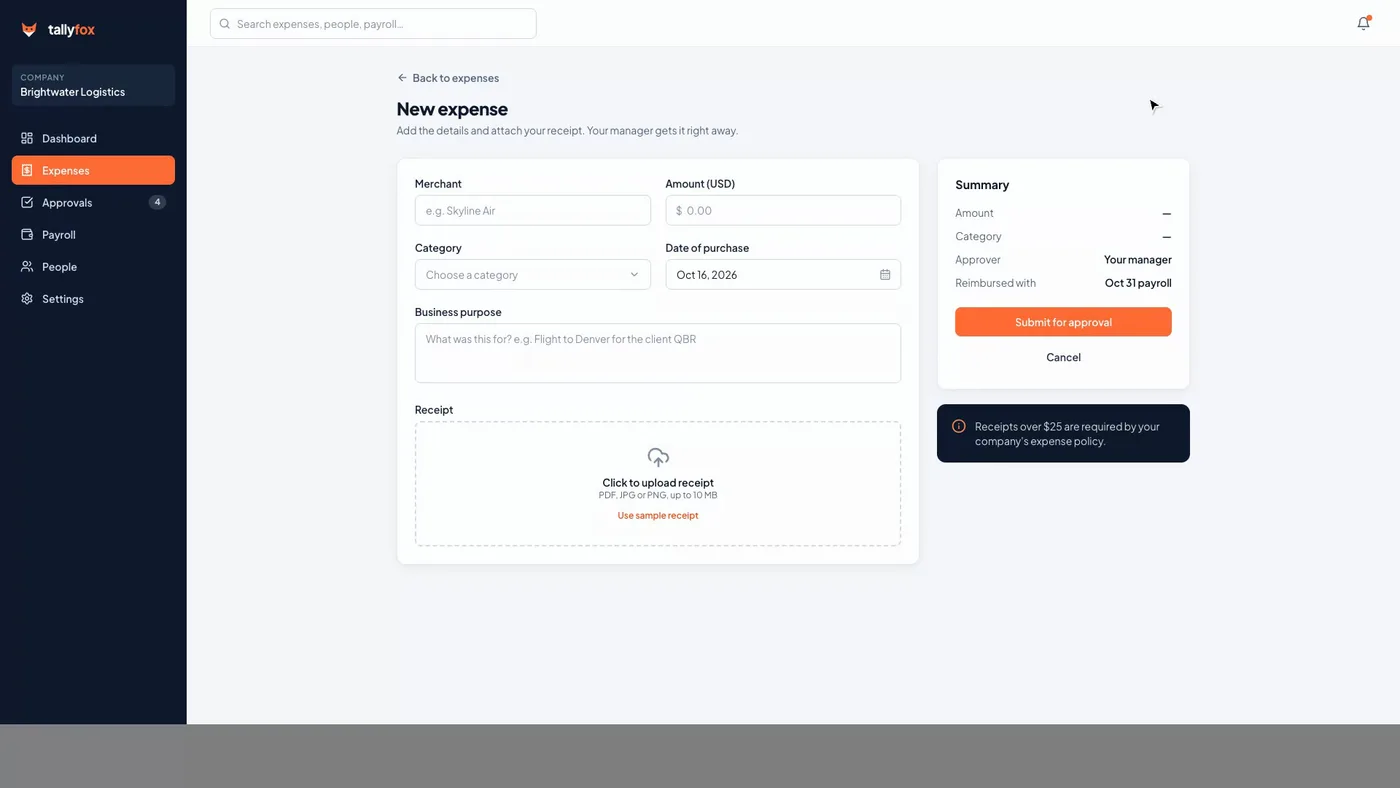 In
 Out
Video Editor
Raw screen recording → Polished tutorial
Silent recording → narrated tutorial with zooms
See the exampleIn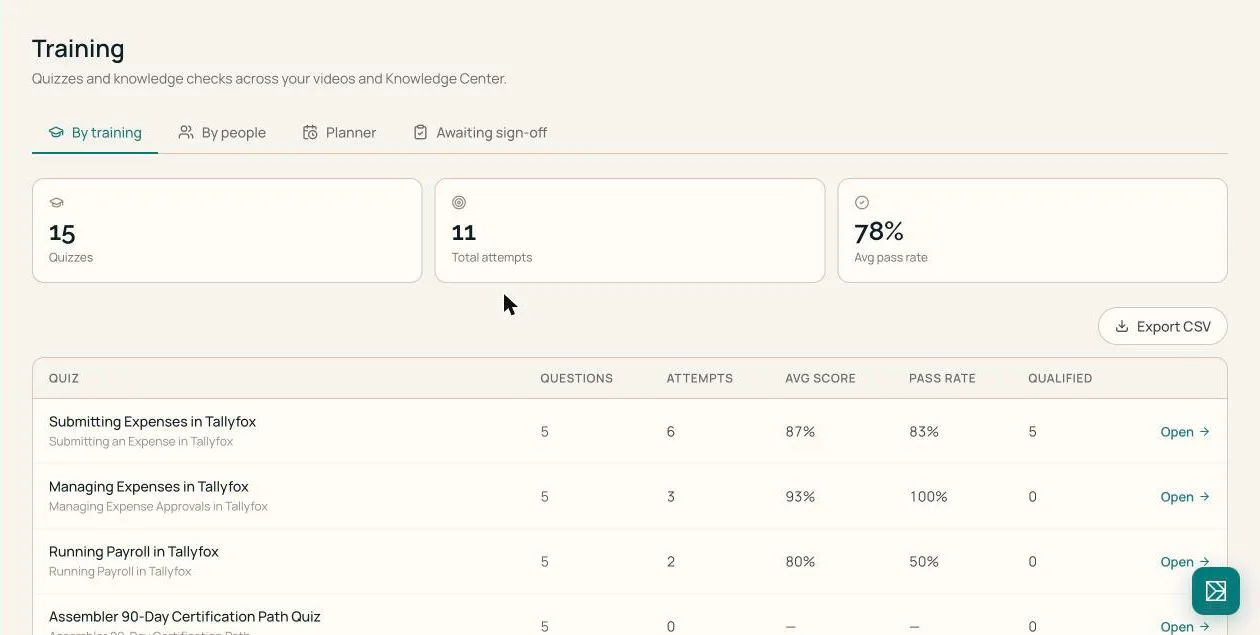 Out
Training Center
Tutorial video → Quiz + training records
Tutorial video → quiz, scores and sign-off
See the exampleYour files. The same result.
Upload a document, a recording or a script and see what Vidocu makes from it.
Your knowledge is valuable. Make it usable.
Upload once. Use everywhere.
The AI Knowledge Platform. One upload becomes videos, SOPs, guides, articles, and training - in any language.
© 2026 Vidocu. All rights reserved.